
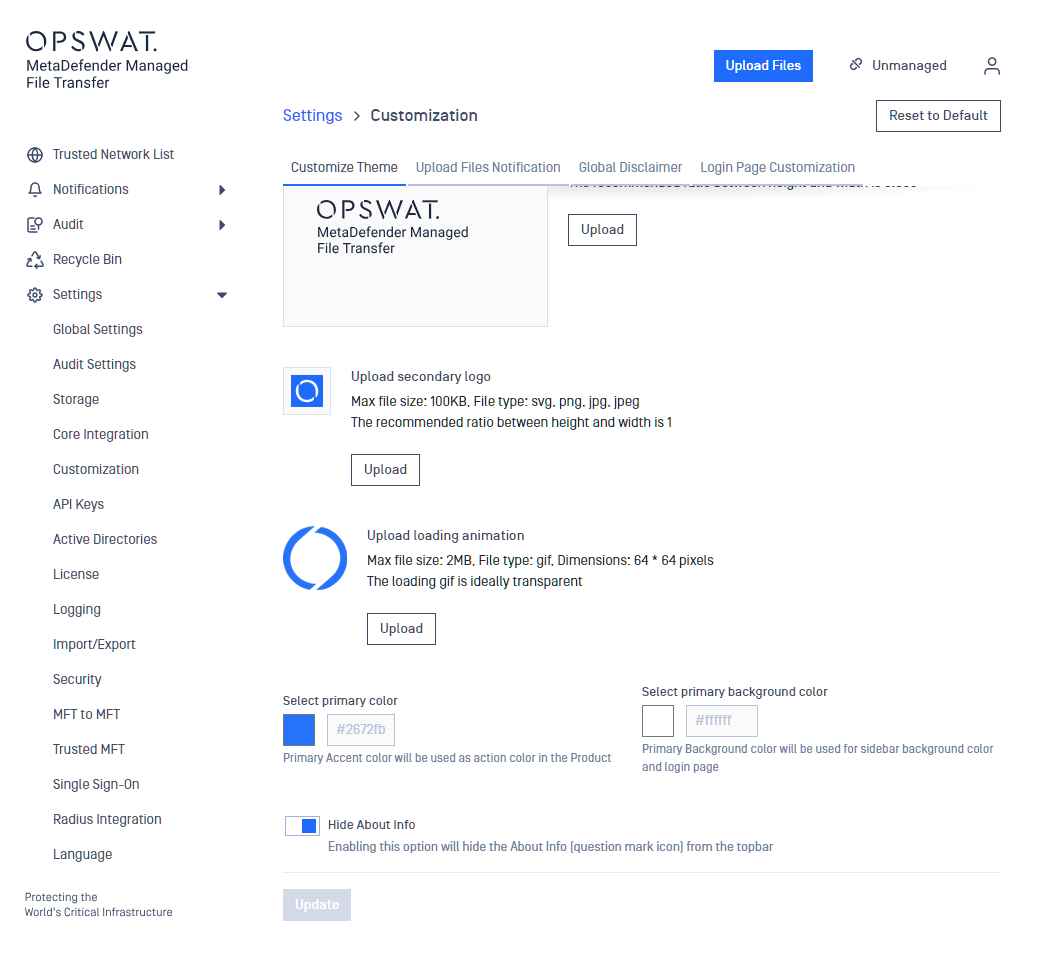
Go to "Settings" → "Customization" to configure brand-related options. Available for administrators only.
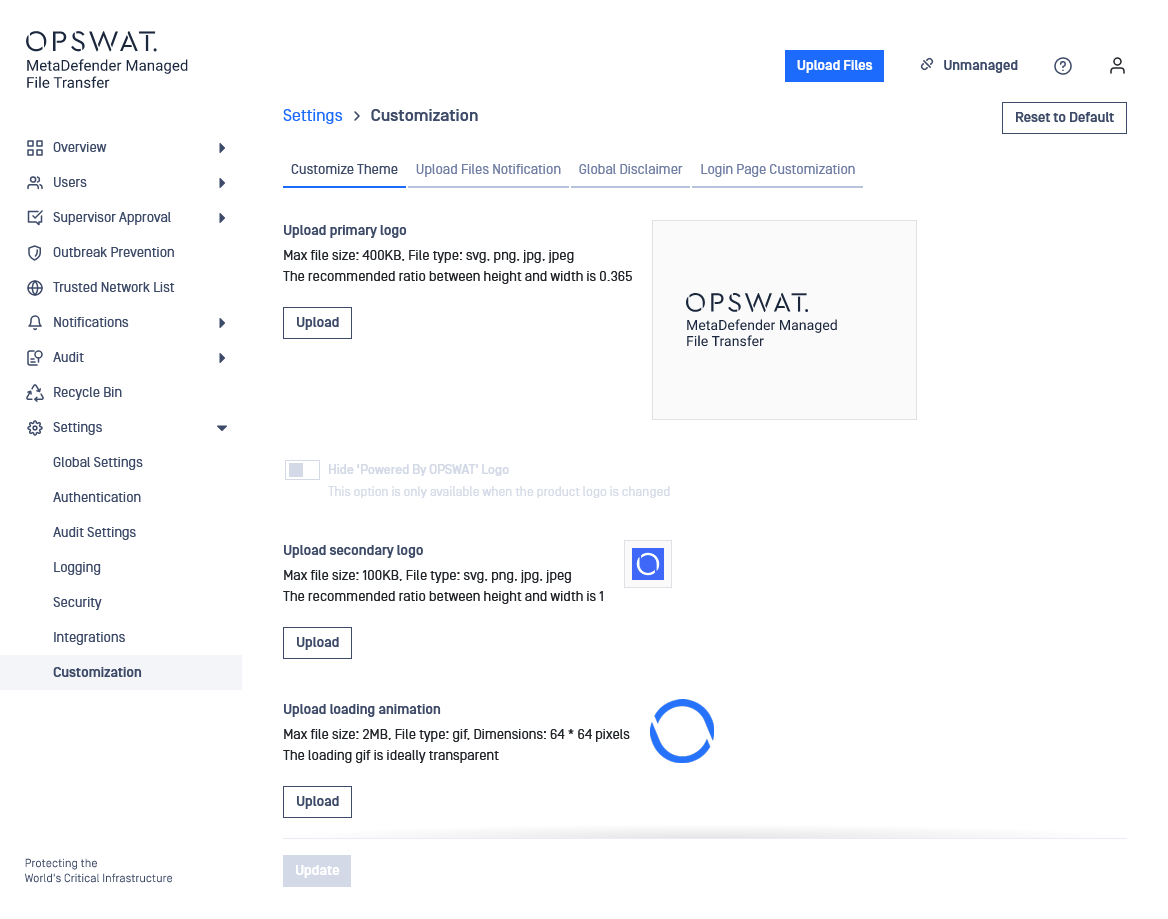
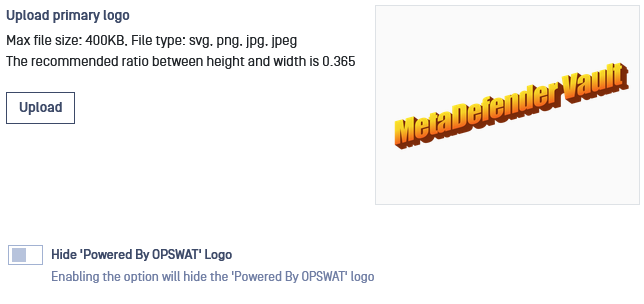
Selecting the Primary Logo
Accepted file types: SVG, PNG, JPG and JPEG.
Recommended height-width ratio: 0.365.
Maximum size: 10 kB.
The primary logo will appear on:
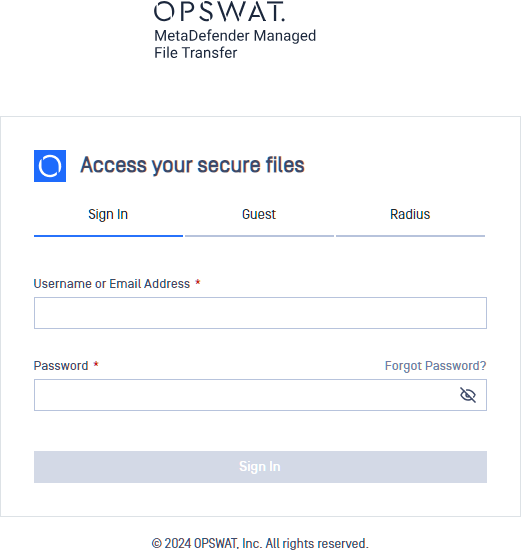
The login page and its related "Forgot Password" and "Recover Password" pages
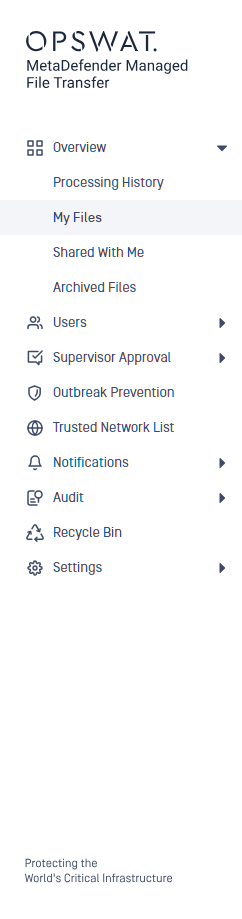
The "Application" sidebar, scaled to 70px height
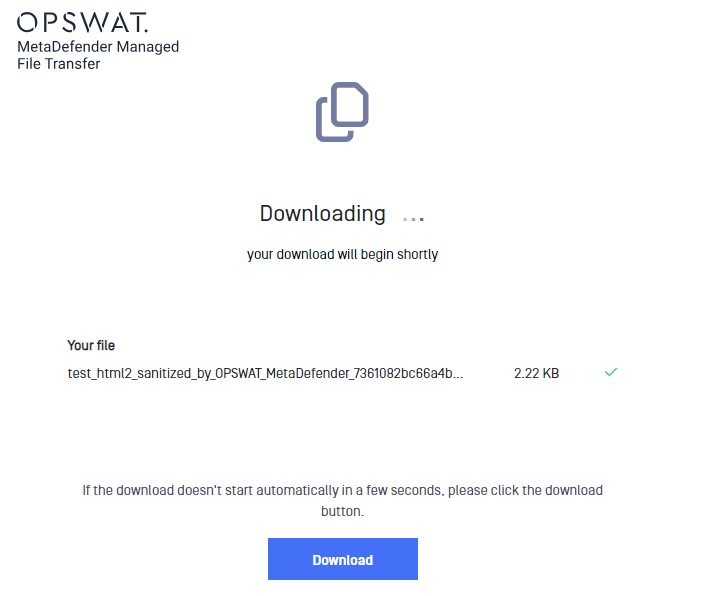
The "Download landing" page, scaled to 45px height
Hiding the "Powered By OPSWAT" Logo
This option is available for administrators when customizing the primary logo. It provides flexibility in branding while maintaining a clean and minimalist interface.
Selecting a Secondary Logo
Accepted file types: SVG, PNG, JPG and JPEG.
Recommended height-width ratio: 1.
Maximum size: 10 kB.
The primary logo will only appear on the login page, next to 'Access your secure files.'
Selecting a Loading Animation
Accepted file type: GIF.
Maximum size: 2 MB.
Maximum dimensions: 64x64 pixels.
The loading animation is used throughout the application when the UI is waiting for information to load.

Selecting a Favicon
Accepted file types: PNG and ICO.
Maximum size: 100 KB.
Maximum dimensions: 128x128 pixels.
These restrictions ensure optimal compatibility and performance across browsers while offering flexibility in branding.

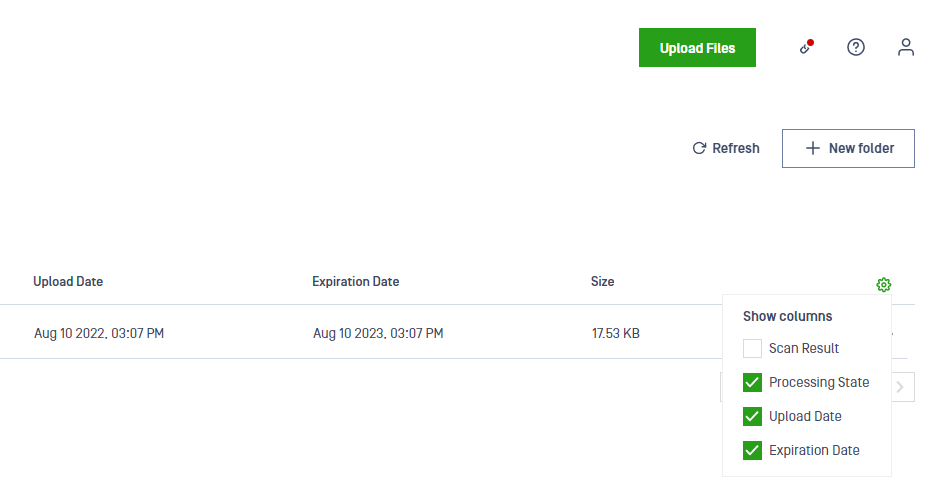
Selecting the Primary Color
Only colors with a significant deviation from white and red are accepted to avoid contrast issues and because the application displays critical information in red or orange. Apart from these, select any color for your login page and main menu.
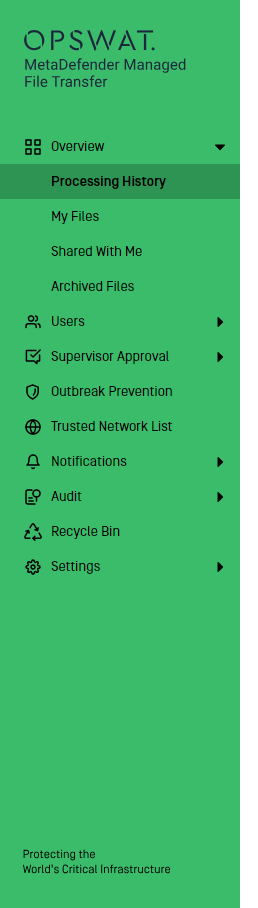
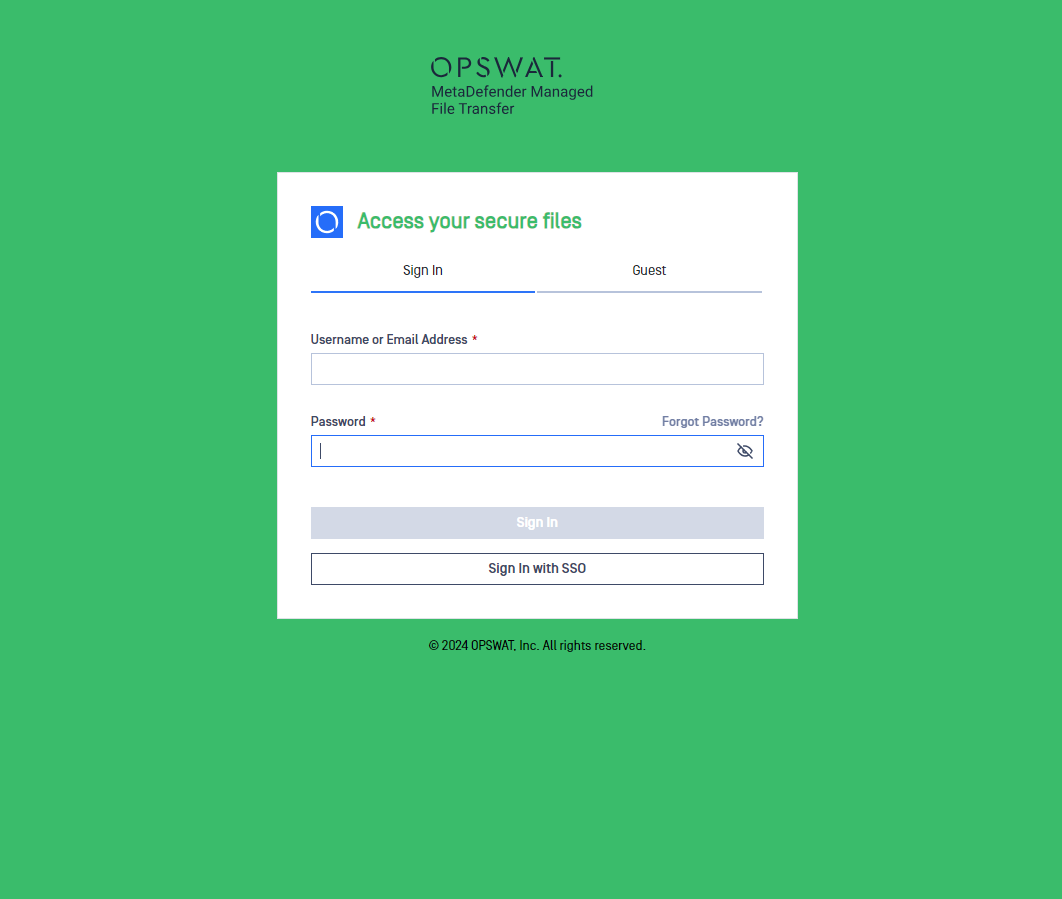
Selecting the Primary Background Color
Customize the color scheme of both the "main menu" and "login" page. For example, by substituting the default background color with green, as seen below:
Hiding About Info
Enabling this switch under "Customize Theme" hides the question mark icon on the topbar and its menu, which provides access to the product's "About" page and documentation.
Customizing the Browser Tab Title
This feature allows you to personalize the titles displayed on your browser tabs, enhancing navigation efficiency and user experience.

Reverting to OPSWAT branding
You can always revert to the initial images and primary color by clicking 'Reset' at the header of the page.