
Power on sequence
MetaDefender Media Firewall (MMF) will run through a power on sequence before it is ready for use:
Power indicator shows solid WHITE for ~45 seconds
WHITE will then cycle per each Media indicator
On completion, all Media indicators will flash WHITE and then GREEN
Power indicator will show a steady green to indicate the MMF is ready
Host system connection
Connecting the MMF to a host system requires connecting the COMP USB-C port on the back of the unit to a USB port on the host system.
A mounted drive is always seen on the Host when the MMF is connected.
If no media is inserted in the MMF or it is in the process of validating media, the mounted drive will show a No scan result.txt file.
Media scan
The MMF is ready for scanning media inserted to it when:
The MMF is on
The Power indicator is showing a solid GREEN light
The Media indicator lights are all off
Insert a single piece of media to the MMF for it to start scanning the media.
The indicator light on the media port will begin to flash CYAN while it scans the entire media and validates the manifest from Kiosk.
Refer to the Media Indicator state guide to understand the meaning of the LED display.
Upon completion of a scan, when the MMF is connected to a Host, the mounted drive will show the allowed files and three separate report files at the root:
A file will fall into one of three categories:
Allowedfile was scanned & allowed by Kiosk - will be accessible on the host systemBlockedfile was scanned & blocked by Kiosk - will not be shown on the host systemConcealedfile was not scanned by Kiosk - will not be shown on the host system
Only one media is supported at a given time.
Any additional media inserted after the first will be rejected and show a RED flashing error.
Inserting and removing media multiple times during validation may result in missing detection of the media. It is recommended to allow media to fully validate before removing it.
Secure Data Write (Copy Files from Host to Media)
After MMF completes scanning, files can be written back to the original media by copying files to the mounted drive, Firewall.
When a user copies files to the Firewall mounted drive, the indicator light on the media port will flash CYAN while files are copied to the original media.
After files are copied, the file transfer is finalized by writing out the Additional Files Report to the media.
The media is safe to remove when there is no open file copy dialog on the Host and the media indicator light is not flashing CYAN and goes back to the original scan result.
When file copying is finished, it is recommended to eject the Firewall mounted drive from the host OS before physically removing the media.
For Windows, see Safely remove hardware
For Ubunutu, see How to safely remove a USB
Additional Files Report
To access the transfer report, plug your media into another device and open the directory OPSWAT Media Firewall Info. The report file is Media Firewall Additional Files Report.txt and will either contain a message that all files were copied successfully, or it will contain a list of files that failed to copy and a brief message why the copy failed.
Limitations
There are some limitations to copying files from host to media through Media Firewall:
Cannot delete files from the original media
Cannot format the original media
Long filenames are not currently supported
For Windows hosts,
System Volume Informationdirectory contents will not be synced
There are instances where copying will not be allowed due to the Firewall drive being set to be write-protected:
SecureDataWriteis disabledMedia is detected to be write-protected
Media has less than 100MB of free space
Port Alarm Protection
Port Alarm Protection enables the Media Firewall to monitor its connection to the Host - requiring it to always remain connected in order to be operational.
In the event that the cable between the Media Firewall and Host is disconnected, the Media Firewall will begin to alert of the issue and disregard any additional media input.
When Media Firewall is alerting, all indicators will show RED (Alert Mode) and, if configured, will send an alert syslog message to a configured server informing of the issue:
The Media Firewall has been disconnected. Restore the connection immediately to allow Media Firewall to be operational.
Media Firewall will become operational once the connection is restored:
All connections have been restored. Media Firewall is now operational.
Upgrade
Media Firewall can obtain regular upgrades in both network connected and air-gapped environments.
The Media Firewall must be past Setup Mode before upgrades can be applied.
Online
If Media Firewall is connected to a network, it can retrieve upgrades hosted by OPSWAT via My OPSWAT management.
Upgrades are downloaded silently in the background and are applied when the Media Firewall is not in use.
Offline
If Media Firewall is not connected to the internet, it can be upgraded manually using a USB stick after it has gone through Setup Mode and is now operational.
Preparing the USB
Obtain a USB (minimum size of 8GB)
Log into My OPSWAT, from the
Product Downloadssection, find the MetaDefender Media Firewall product and download the upgrade package and descriptor fileCopy the downloaded files to the root of the USB
To apply the upgrade, the Media Firewall must be on and ready for scanning, then insert the upgrade USB into the back USB-A port of the Media Firewall.
Applying an upgrade
While the Media Firewall is not in use and it detects an upgrade package to apply, it will follow this behavior during the application of the upgrade:
1 | All lights will briefly flash CYAN to indicate an upgrade package has been detected (either downloaded from online or the upgrade USB was inserted)
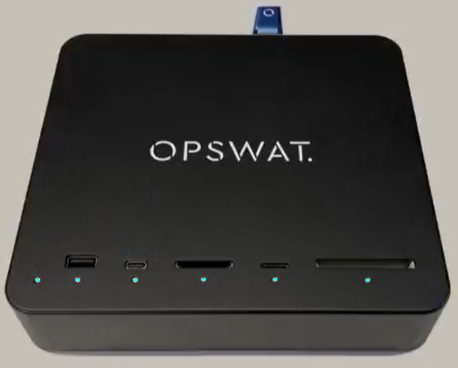
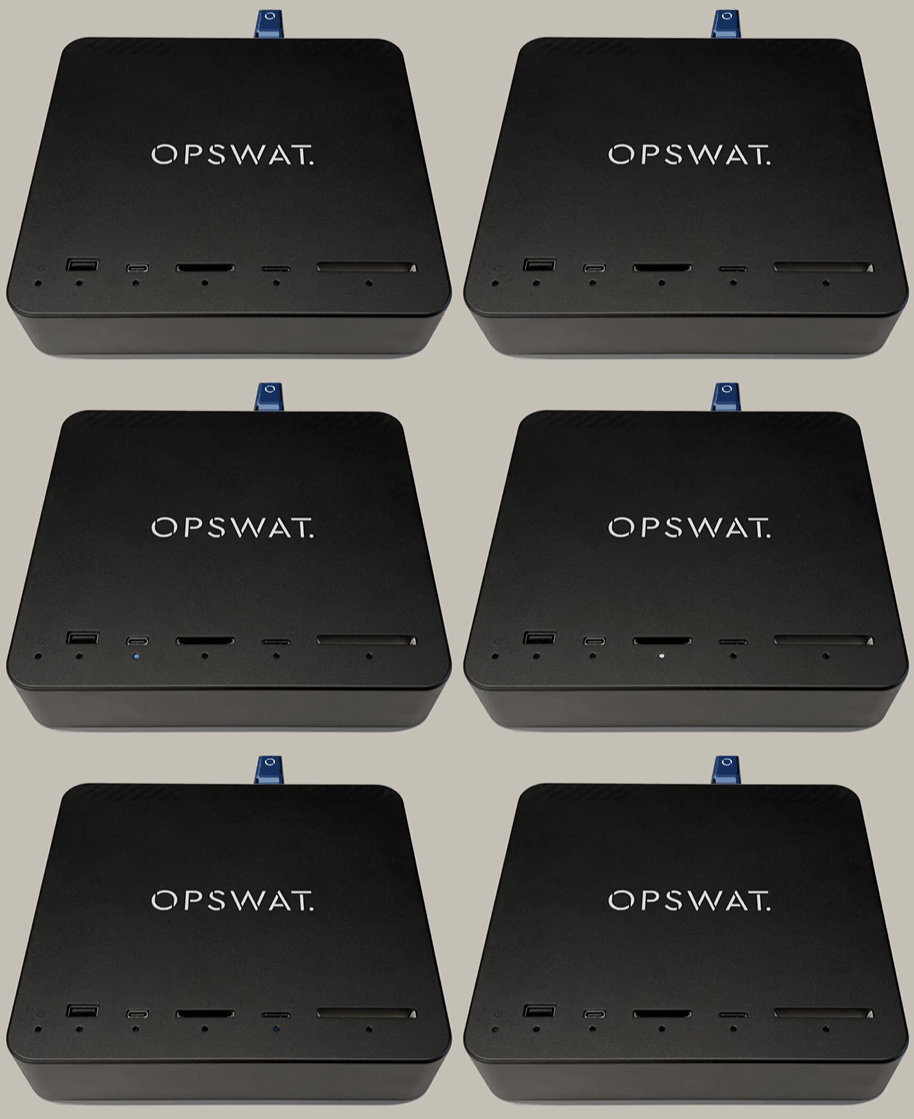
2 | During the upgrade, lights will begin to flash from left to right, alternating between BLUE & CYAN color display
3 | Upon successful completion, all lights will temporarily show BLUE and then the media can be removed once the lights turn off. The MMF will then show a solid CYAN light and then go through the Power on sequence to start up into the new version.
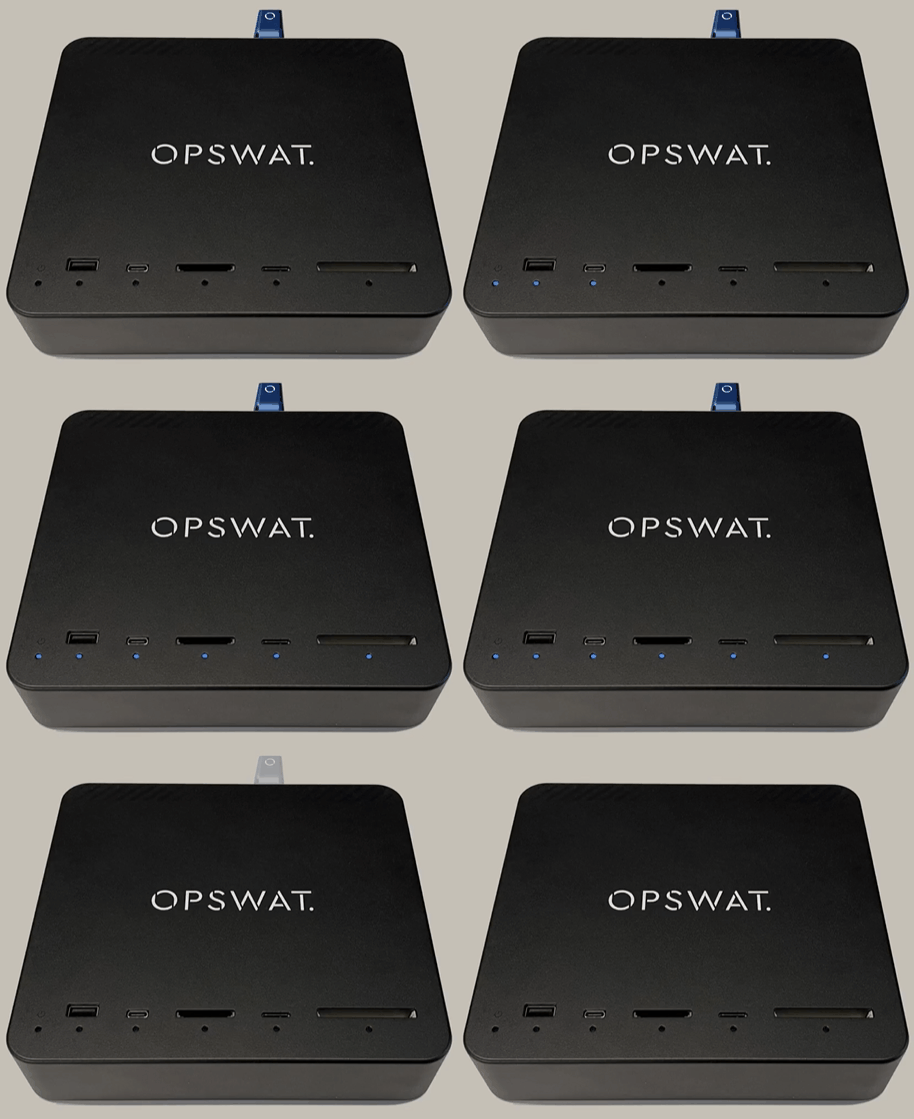
Alternating ORANGE & CYAN lights are shown if the upgrade package is of the same or lesser version than the version currently running on the Media Firewall.
The upgrade process will automatically stop and the Media Firewall will revert to its normal operation.