
Purpose
This article document shows how to enable “Anti-Tamper Hardening Option” for MetaDefender Kiosk during system configuration.
Solution
To set up “Anti-tamper hardening option” in MD Kiosk, please read through the following guidance for step-by-step instructions.
Setup Progress | Description |
|---|---|
Step 1 | Access to Kiosk Web Management Console |
Step 2 | Navigate to Settings, select System Hardening |
Step 3 | Click "Enable" button to activate "Anti-tamper Hardening" option
|
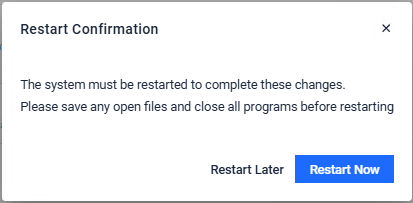
Step 4 | Then click Save Update, click Restart Now button to reboot the system and apply the change
|

Detail benefits when enabling “Anti-tamper hardening option” in MD Kiosk
When enabling the feature, default Windows input compounds will be blocked and cannot be exploited to escape KIOSK mode. The following default Windows hotkeys/shortcuts will be disabled (besides the ones being mentioned in https://docs.opswat.com/mdkiosk/operating/disabling-windows-hot-keys)
Filter keys
Sticky keys
Toggle keys
Mouse keys
High Contrast shortcut
Ctrl - Shift - Esc
Other Winkey compounds
Edge Swipe, Cortana, On-screen keyboard, Magnifier
To exit the KIOSK application, press Alt+S, this is the only method to terminate the KIOSK application.
Active Keyboard Filter
The "Active Keyboard Filter" feature is only available when "Anti-tamper Hardening" is enabled.
Default Configuration: By default, when the "Active Keyboard Filter" option is not enabled, users can utilize most of the Windows key combinations without any restrictions.
Enabling "Active Keyboard Filter": Upon enabling the "Active Keyboard Filter," KIOSK will block the majority of keys/key combinations on Windows to enhance system security. KIOSK will only allow the following keys/key combinations to function:
Keys from A to Z
Keys from 0 to 9
Ctrl + C
Ctrl + V
Alt + S
Shift
Caps Lock
Backspace
This restriction aims to strengthen the system's protection by limiting keyboard inputs to essential and secure commands. Users are encouraged to carefully consider the implications of enabling the "Active Keyboard Filter" option for their specific security requirements.
The Kiosk UI needs to be restarted for this option to take affect.
Allowing specific key combinations
Administrators can allow specific additional key combinations to pass through Active Keyboard Filter, on top of the fixed set of keys listed above. This is useful for physical keyboards with non-US layouts. For example, on a German QWERTZ keyboard, typing "@" requires holding AltGr — which Windows reports as Ctrl+Alt — together with Q. Without allowing that combination, it would be blocked like any other, so a physical-keyboard user with an "@" in their username or password would not be able to log in, even though the on-screen keyboard already produces the character correctly.
To allow a key combination:
In the Kiosk Web Management Console, go to Settings > System Hardening.
Make sure Enable Anti-tamper Hardening is turned on and Active Keyboard Filter is selected.
Under Allowed key combinations, click Record keystrokes.
Press the physical keys for the combination you want to allow (for example, Ctrl+Alt+Q). It appears as a tag in the list.
Repeat for any other combinations you need. There is no limit on how many combinations you can add.
To remove a combination, click the × on its tag.
Click Save Updates to apply your changes.
Each combination can contain up to 3 keys and must include at least one of Ctrl, Alt, or Shift — a single key with no modifier can't be added, and the Windows key can never be part of an allowed combination. Allowing a combination that's already in the list is rejected. Changes to this list take effect immediately after saving, without restarting the device.
This setting can also be configured centrally and pushed to enrolled devices, and it's included in configuration backup and restore along with the rest of your Kiosk settings.
An administrator managing kiosks with German QWERTZ keyboards allows Ctrl+Alt+Q and Ctrl+Alt+E. Afterward, end users typing "@" or "€" at the physical keyboard — for example while entering a password at login — see the expected character appear, matching what the on-screen keyboard already produced.
Allowing key combinations only has an effect while Active Keyboard Filter is enabled, and it only adds exceptions to what Active Keyboard Filter blocks — it doesn't change any other Anti-tamper Hardening protection.
Support
If you encounter any problems with this guide or if the steps provided do not work, please contact [OPSWAT Support] (https://www.opswat.com/support).