
This article applies to all MetaDefender Kiosk releases subsequent to version 4.7.2 deployed on Windows Systems.
Applies to
MetaDefender Kiosk deployed on Windows, when the Copy to Secondary Location workflow is configured to copy processed files to a secondary Directory.
This article is intended for environments where MetaDefender Kiosk is integrated with Active Directory and the destination path uses a username-based subdirectory such as:
\\file_server\kiosk\%%%username%%%
MetaDefender Kiosk can use %%%username%%% to create subdirectories named after the logged-in user. These subdirectories are created automatically during file handling.
Overview
MetaDefender Kiosk can copy allowed or blocked files to a secondary directory after processing. When Active Directory authentication is used, Kiosk can create a user-specific destination folder by using the %%%username%%% variable in the destination path.
Example configuration:
\\file_server\kiosk\%%%username%%%
If the logged-in AD user is:
ciprian_test
Kiosk creates or uses the following destination folder:
\\file_server\kiosk\ciprian_test
This allows each AD user to have a separate output folder under the same parent directory.
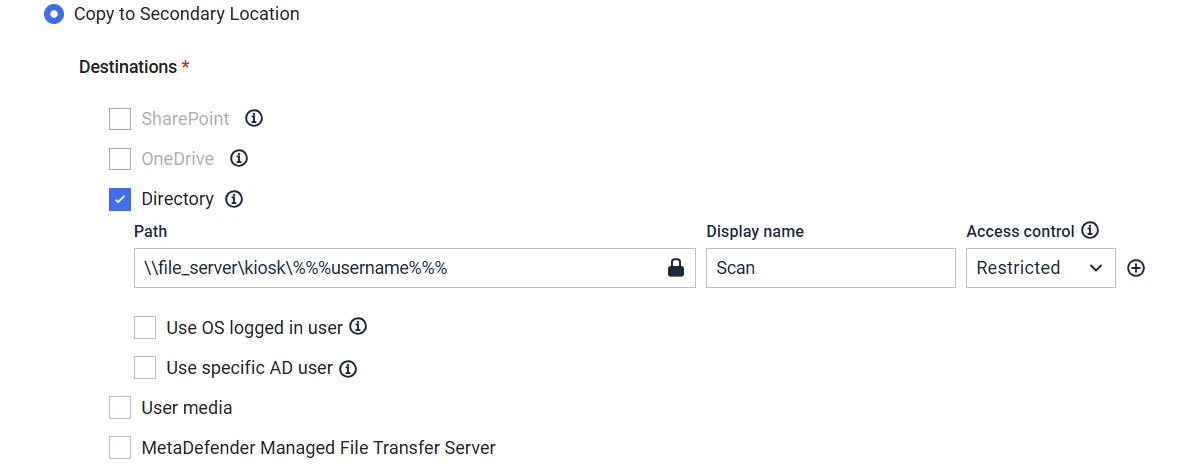
Example secondary directory configuration using %%%% and Restricted access control.
Access control options
When username-based subdirectories are used, Kiosk provides two access control modes for the created subdirectories:
Access control mode | Behavior |
|---|---|
Inherited | The subdirectory inherits permissions from the parent folder. |
Restricted | Only the AD user who created the subdirectory is intended to have access to that subdirectory. Other standard AD users should not be able to access it. |
For a per-user folder isolation use case, set Access control to:Restricted
Important clarification: Restricted does not mean that Windows administrators or system-level accounts are blocked. Administrative principals such as Administrators, SYSTEM, backup operators, or any other principal explicitly granted access through NTFS or share permissions may still have access. The purpose of Restricted is to prevent other regular AD users from accessing a folder created for a different AD user.
How Kiosk creates and copies files to the destination directory
When Kiosk copies files to a specified directory, it uses the credentials entered through built-in authentication or through an installed custom authentication module. If no credentials are available, Kiosk uses the Kiosk system credentials. Kiosk also attempts to create the destination directories before copying files and folders into them.
For this reason, the final folder owner and permissions depend on both:
The Kiosk Access control setting.
The Windows security context used to create the folder.
The NTFS permissions already configured on the parent destination folder.
The share permissions, if the destination is a network share.
For AD per-user folder isolation, the expected configuration is:
Destination path: \\file_server\kiosk\%%%username%%%
Access control: Restricted
Recommended parent folder permissions
Before Kiosk creates user-specific subdirectories, configure the parent folder with a controlled NTFS permission model.
Example parent folder:
C:\kiosk
or, for a network destination:
\\file_server\kiosk
Recommended parent folder permission model:
Principal | Permission | Applies to | Purpose |
|---|---|---|---|
| Full control | This folder, subfolders and files | Administrative access |
| Full control | This folder, subfolders and files | Administrative access |
| Full control | This folder, subfolders and files | Windows/Kiosk service-level access |
| Full control | This folder, subfolders and files | Allows the owner of a created user folder to receive the intended access through the inherited owner-rights entry |
AD users group, for example | Permission to create the user subdirectory; in the tested example this was configured as Full control | This folder only | Allows users or the Kiosk copy context to create the first-level username folder without propagating that broad group permission into every user folder |
The important point is not that the AD users group must always have Full control. The important point is that the account context used by Kiosk must be able to create the user-specific folder under the parent directory, while that broad create permission must not be inherited by the user folders.
For production hardening, use the least-privilege equivalent required to create the folder, and make sure the AD users group permission is applied to:
This folder only
not:
This folder, subfolders and files
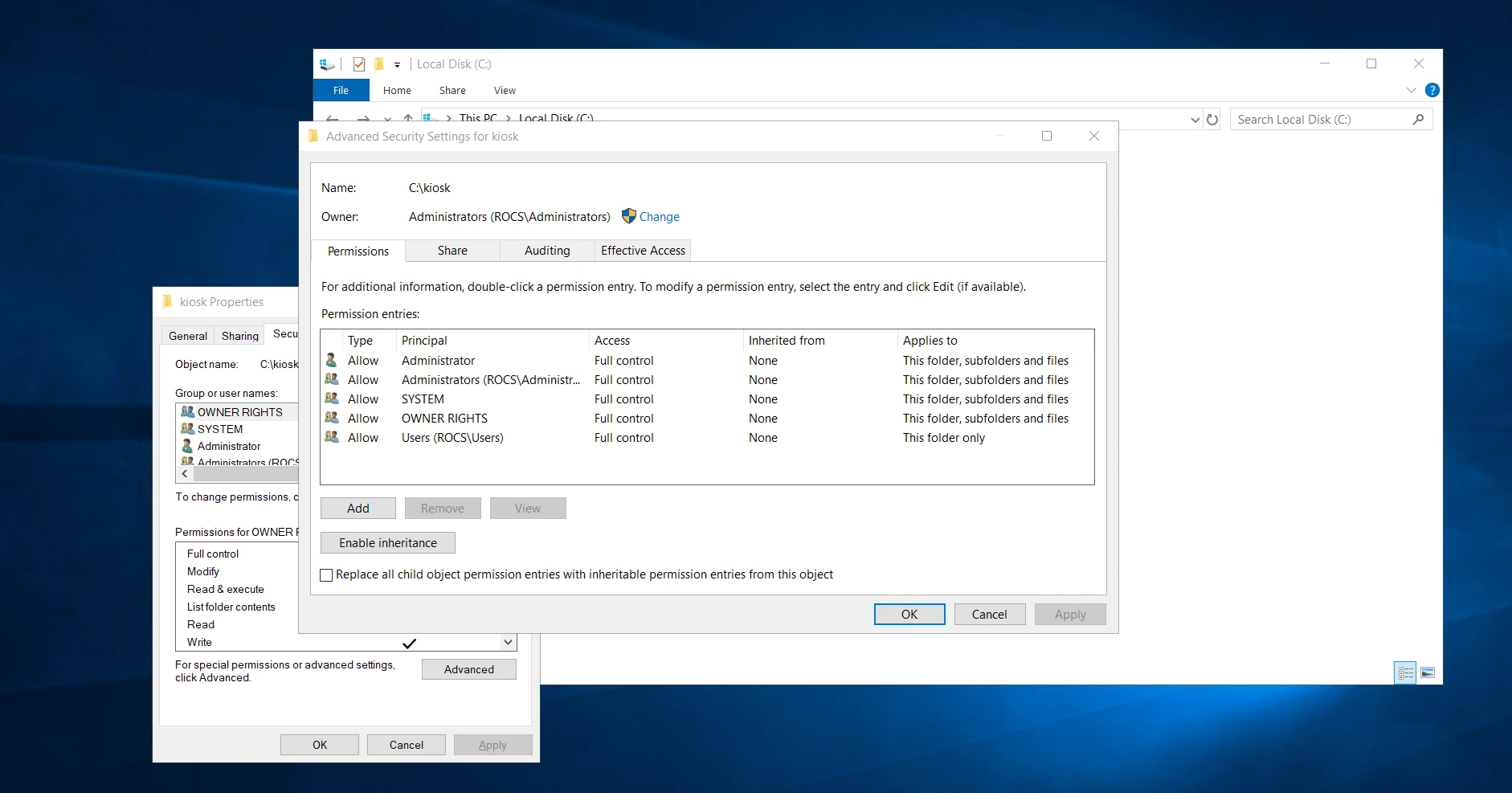
Parent folder permissions. Administrative principals and SYSTEM have full control. OWNER RIGHTS is inherited by subfolders and files. The AD users group is allowed on the parent folder only, so that broad user access does not propagate into individual user folders.
Why OWNER RIGHTS is important in this configuration
In the validated configuration, the parent folder includes an OWNER RIGHTS permission entry that applies to:
This folder, subfolders and files
When Kiosk creates a user-specific folder in Restricted mode, the AD user is expected to become the owner of that folder. The folder may not show the AD user as a separate explicit permission entry in the ACL. Instead, access is provided through the combination of:
Folder owner = the AD user
Inherited OWNER RIGHTS entry = Full control
Example:
Folder:
C:\kiosk\ciprian_test
Owner:
ciprian_test
In this case, ciprian_test can access the folder because that user is the folder owner and the inherited OWNER RIGHTS entry grants the owner the configured access.
This behavior also depends on standard Windows ACL inheritance. Microsoft documents that Windows security descriptors contain separate security information for the object owner and the DACL, and that inheritable access control entries are propagated into child object DACLs according to inheritance rules.
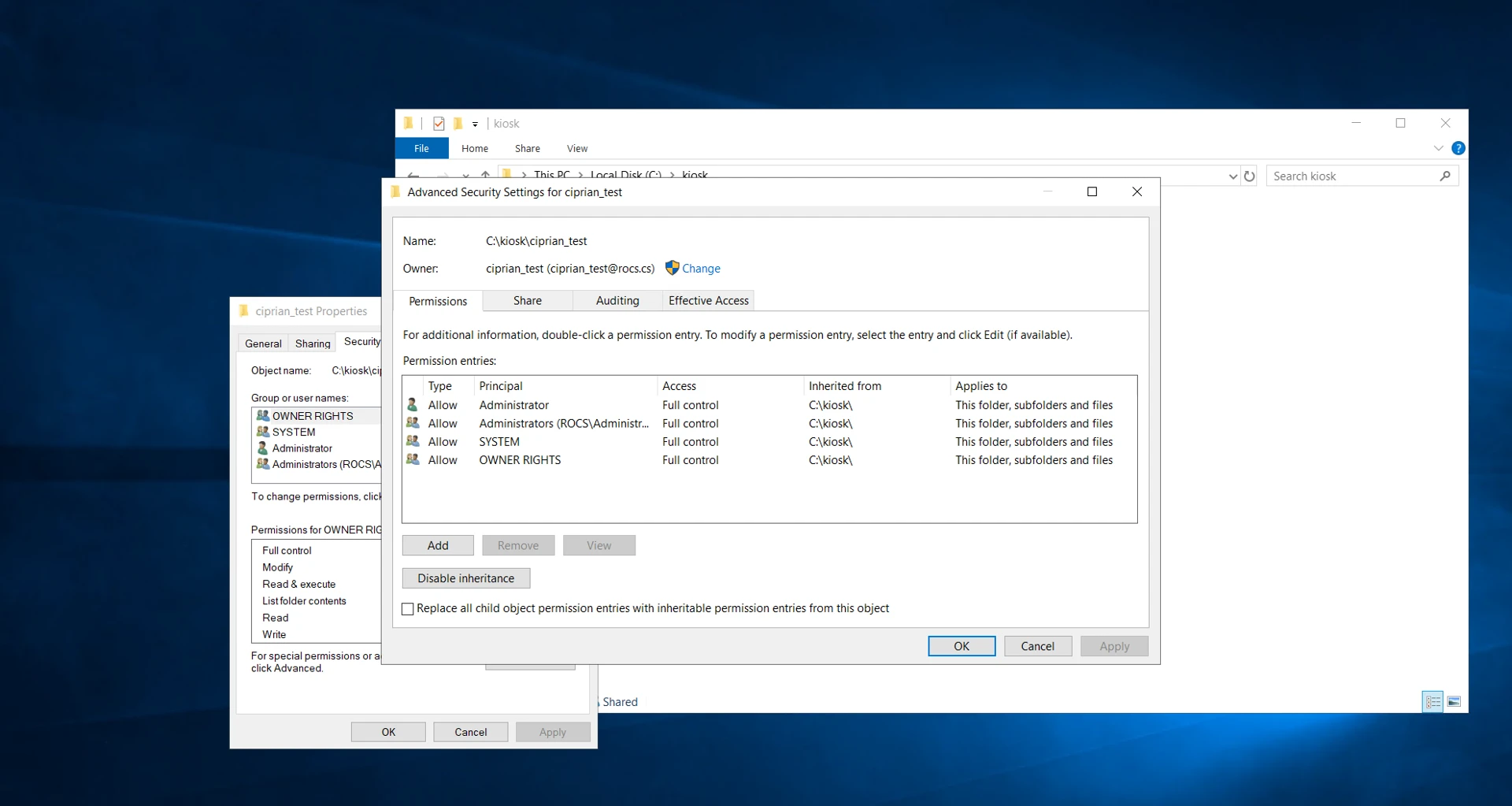
User-specific folder created by Kiosk in Restricted mode. The AD user is the folder owner, and access is provided through the inherited OWNER RIGHTS entry.
Expected result with Restricted access control
With the following Kiosk configuration:
\\file_server\kiosk\%%%username%%%
and:
Access control = Restricted
Kiosk creates a separate folder for each AD user.
Example:
\\file_server\kiosk\user1
\\file_server\kiosk\user2
Expected access behavior:
user1 can access \\file_server\kiosk\user1
user1 should not be able to access \\file_server\kiosk\user2
user2 can access \\file_server\kiosk\user2
user2 should not be able to access \\file_server\kiosk\user1
This represents the Kiosk behavior for Restricted, where only the AD user who created the subdirectory should have access while other users are denied.
Again, this refers to regular AD user access. Administrators, SYSTEM, or other explicitly authorized principals may still have access depending on the configured NTFS and share permissions.
Behavior with Inherited access control
If Access control is set to:
Inherited
Kiosk does not apply the same per-user restriction behavior. Instead, the created subdirectory inherits permission entries from the parent folder (including the owner of that parent folder).
With Inherited access control, access depends primarily on the parent folder’s inheritable NTFS permissions. If the parent folder grants broad inheritable access to a users group, the created subfolders may also be accessible to other users. For per-user isolation, use Restricted.
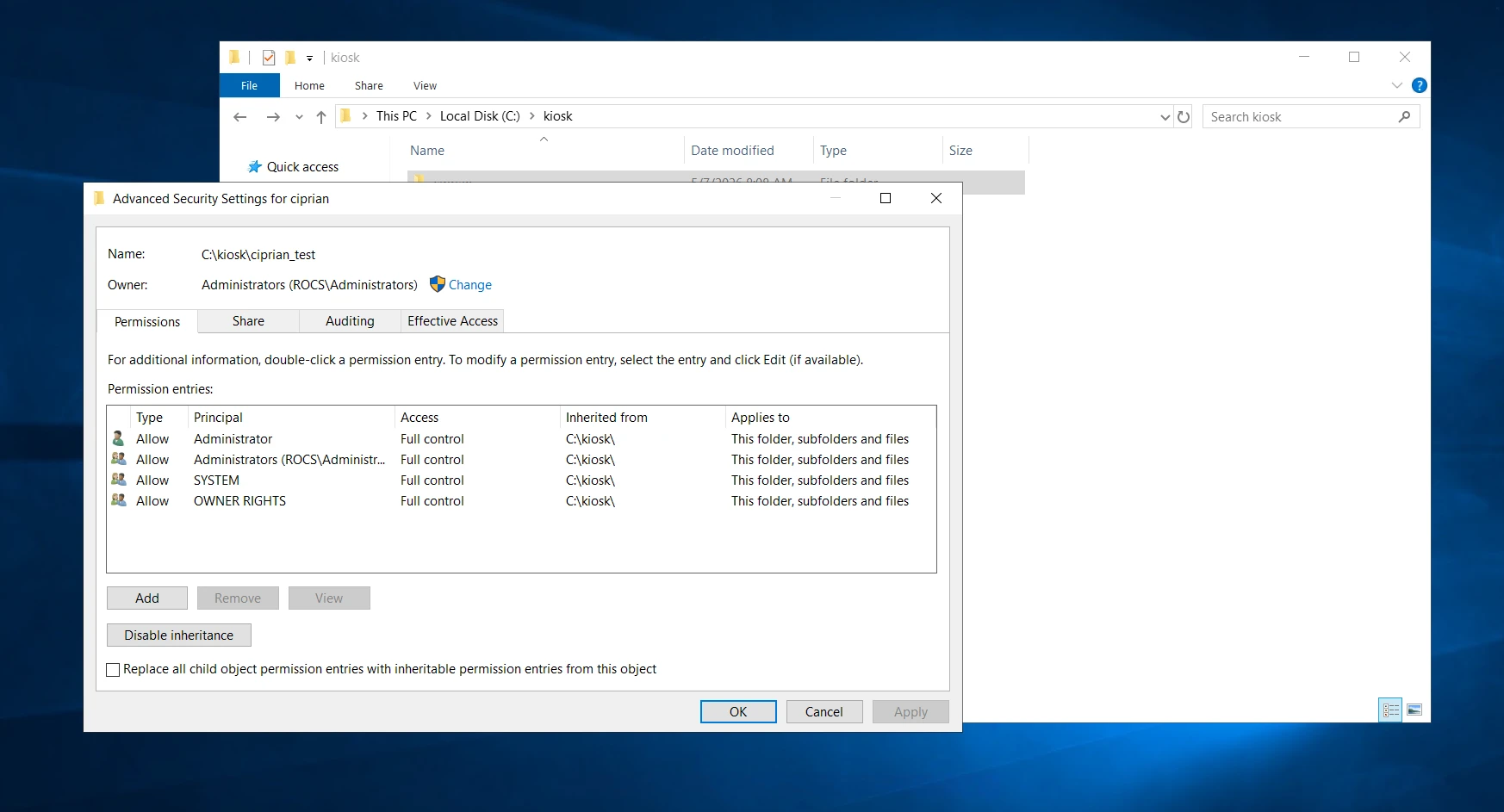
Example of inherited permission behavior. The subdirectory follows the parent folder’s inheritable permission entries. The displayed owner reflects the creation/security context in this environment and should not be interpreted as a general Windows owner-inheritance rule.
Network share considerations
When the secondary location is a network path, both permission layers matter:
Share permissions NTFS permissions
The final access decision is affected by both layers. Even if NTFS permissions are correct, restrictive share permissions can still prevent Kiosk or the user from creating or accessing the folder.
For a network destination such as:
\\file_server\kiosk\%%%username%%%
verify that:
Kiosk can reach the share.
The account context used by Kiosk can create the user-specific subdirectory.
The parent NTFS ACL is configured so broad user permissions do not propagate into user folders.
The created folder owner is the expected AD user when using Restricted mode.
A different regular AD user cannot access another user’s folder.
Validation steps
After configuring Kiosk and the parent folder permissions, validate the behavior with two AD test users.
Example users:
user1 user2
Run a scan session as user1 and confirm that Kiosk creates:
\\file_server\kiosk\user1
Then check the folder’s advanced security settings:
Owner = user1 OWNER RIGHTS = inherited from parent Administrators/SYSTEM = present as expected Broad AD users group = not inherited into the user folder
Then repeat the test as user2 and confirm that Kiosk creates:
\\file_server\kiosk\user2
Finally, test access:
user1 can access user1 folder user1 cannot access user2 folder
user2 can access user2 folder user2 cannot access user1 folder
The Effective Access tab in Windows Advanced Security Settings can also be used to verify what access a specific AD user has to a specific folder.
Summary
To configure per-user secondary directory folders in MetaDefender Kiosk:
Use destination path: \\file_server\kiosk\%%%username%%%
Set Access control to: Restricted
Prepare the parent folder so that:
Administrators and SYSTEM retain administrative access. OWNER RIGHTS applies to this folder, subfolders and files. The AD users group, or the Kiosk copy context, can create folders under the parent. Broad AD user permissions apply only to the parent folder and do not propagate into user folders.
With this configuration, Kiosk creates a separate folder per AD user. In Restricted mode, the AD user who created the subdirectory is expected to be the folder owner and to have access through the inherited OWNER RIGHTS permission entry, while other regular AD users should not have access to that folder.
For Inherited mode, the subfolder inherits the parent folder’s permission entries. Do not describe this as owner inheritance. The owner shown in Windows depends on the creation/security context, while permission inheritance applies to inheritable ACEs in the ACL.
If Further Assistance is required, please proceed to log a support case or chat with one of our support engineers.