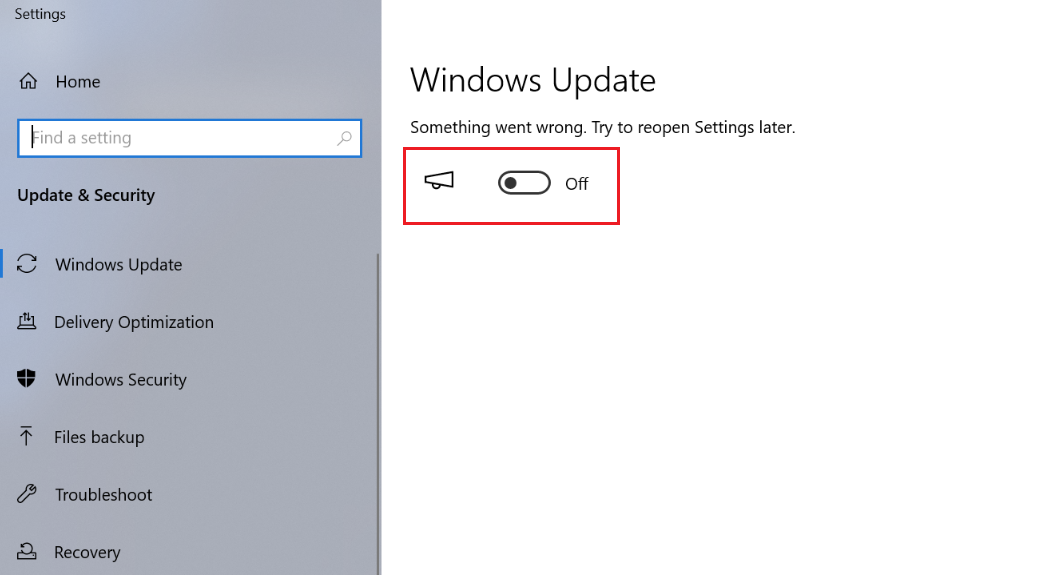
On Kiosk Hardened Image, Windows Update is enabled by default to ensure the latest security updates are automatically downloaded and applied. However, if you prefer to disable automatic Windows update on the Kiosk, please follow the instruction below.
It is best practice to keep automatic Windows updates enabled to ensure the latest security updates are applied promptly, keeping the system secure. Disabling automatic updates could lead to the system vulnerable to security risks.
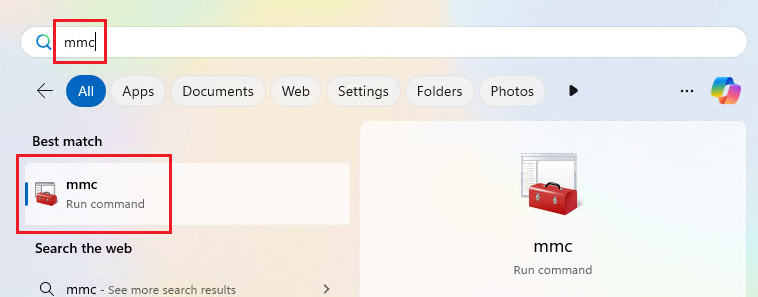
Step 1. Open Microsoft Management Console (MMC)
Go to the Start menu, type mmc, and open it with Administrator permissions
Step 2. Add the Services Snap-in
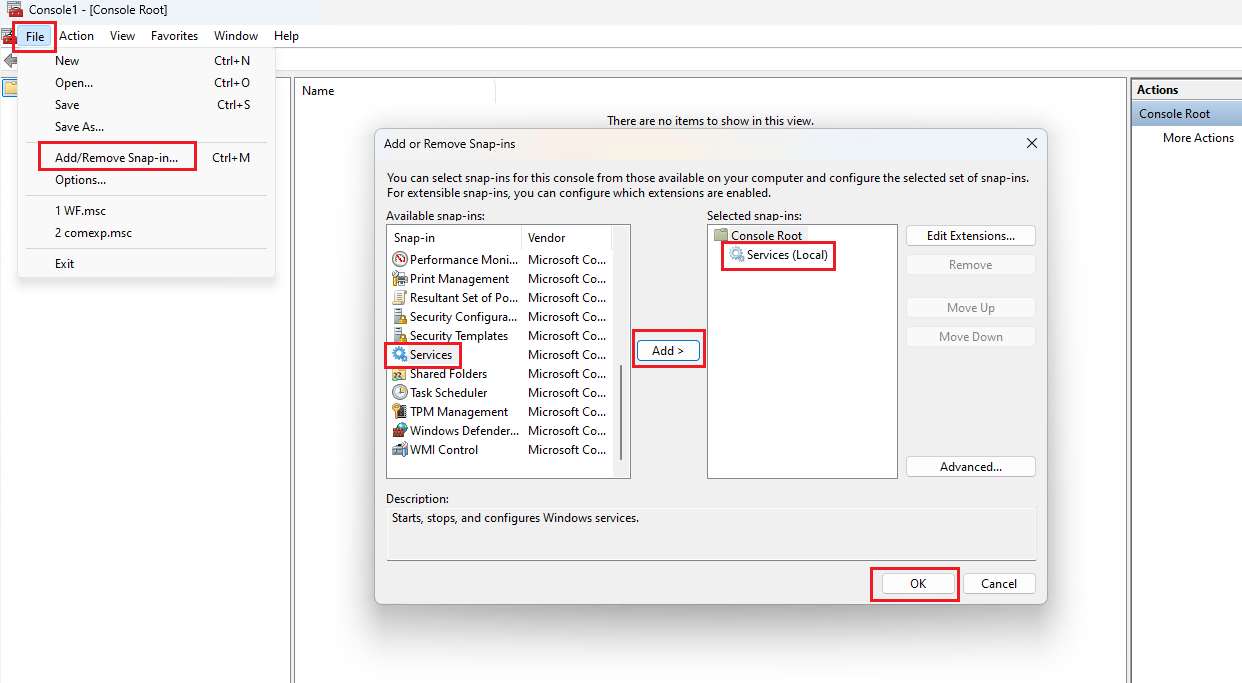
In the MMC window, select File, select Add/Remove Snap-in.
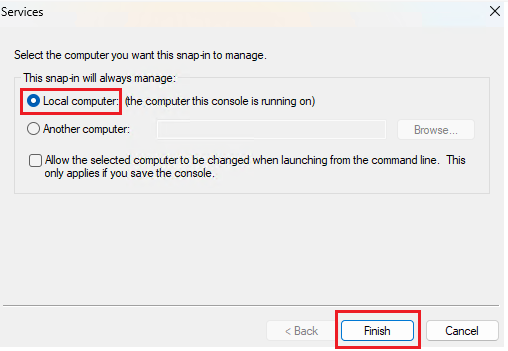
From the list, select Services and click Add. A popup Window will appear, select Local computer, click Finish. Then, click OK.
Step 3. Disable the Windows Update service
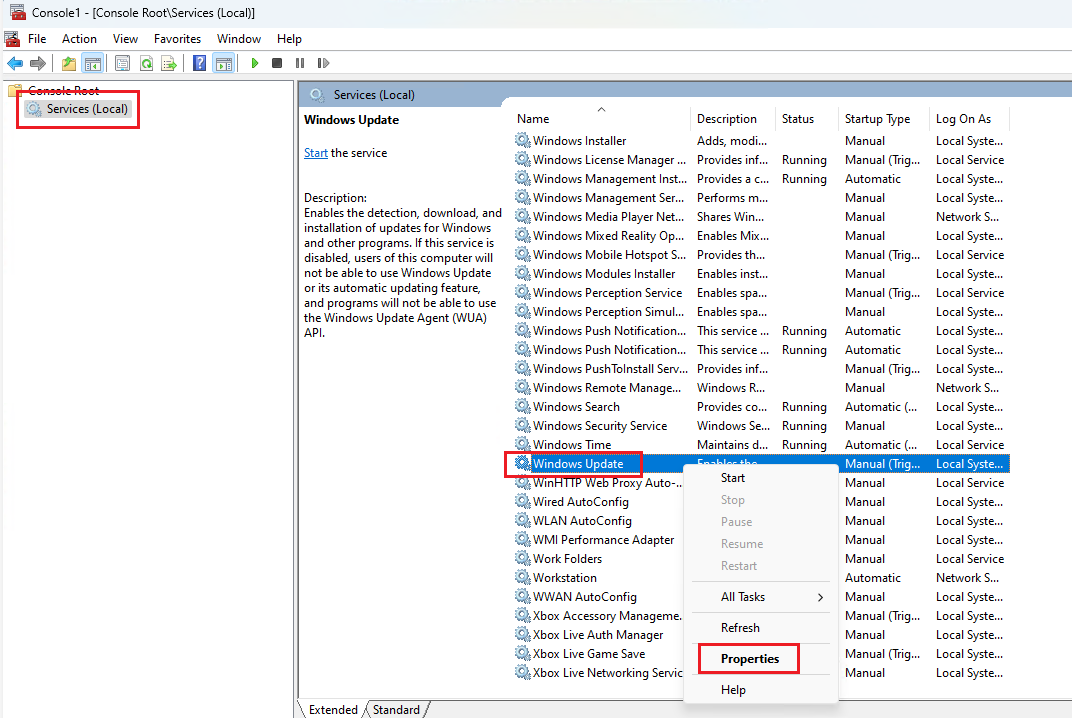
In the Services list, find Windows Update service. Right-click on it and select Properties.
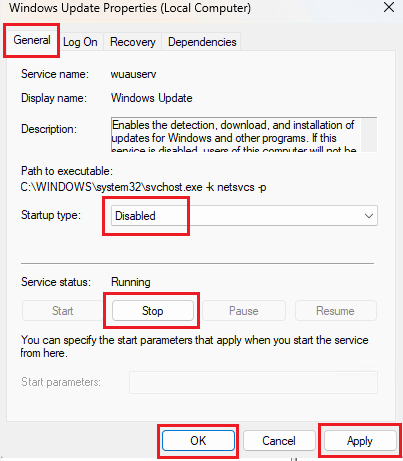
Under the General tab, set Startup type to Disabled.
Click Stop to halt the service, then click Apply and OK.
Step 4. Disable Update Orchestrator service
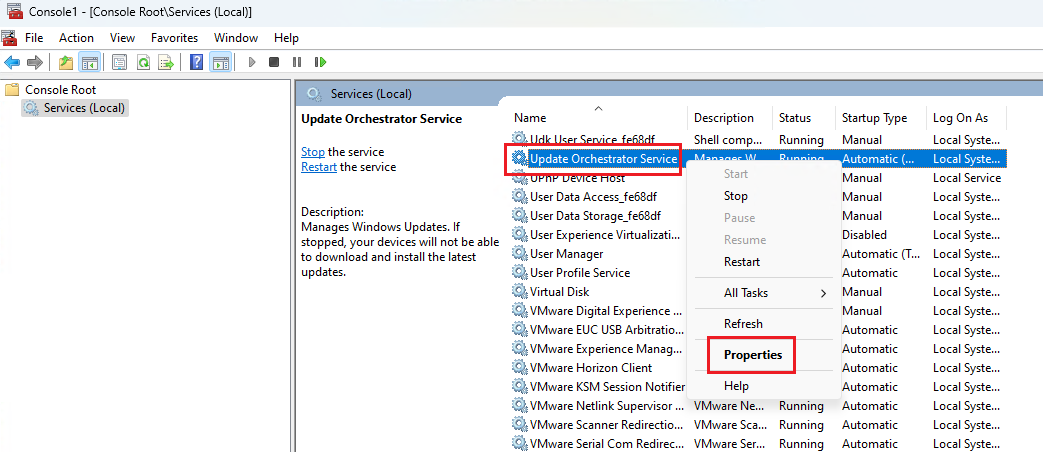
Still in Services list, find Update Orchestrator Service. Right-click on it and select Properties.
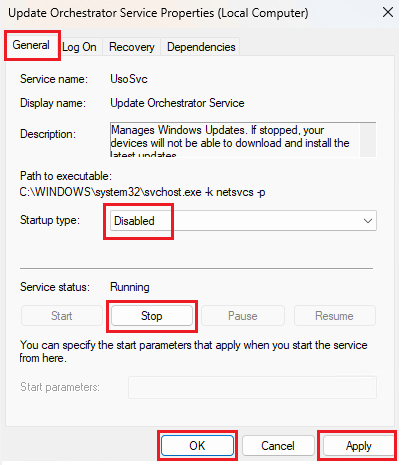
Under the General tab, set Startup type to Disabled.
Click Stop to halt the service, then click Apply and OK.
Step 5. Rename Registry Keys
Go to Start menu, type regedit, and open it with Administrator permissions
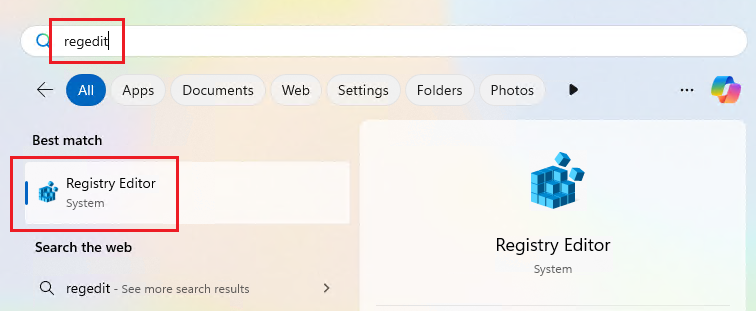
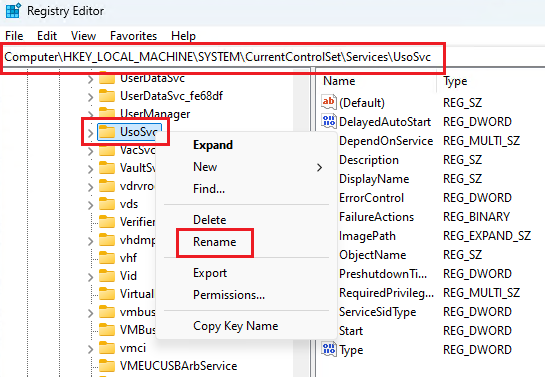
Navigate to
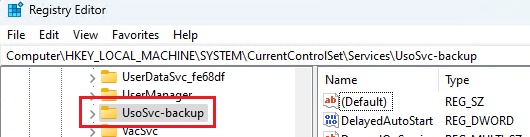
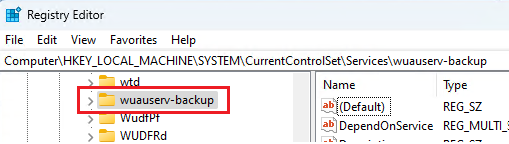
HKEY_LOCAL_MACHINE\SYSTEM\CurrentControlSet\Services.Rename the following registry keys:
usoSvctousoSvc-backupwuauservtowuauserv-backup
Step 6. Reboot the Kiosk system
Restart the system to apply the changes.
Step 7. Verify Windows Update status
After reboot, go to Start menu, type Windows Update settings , and open it. Verify to ensure the Windows Update was disabled