Migrating MetaDefender Endpoint from My OPSWAT Central Management version 7 to version 10

This document to provides detailed guidance on how organizations can migrate numerous devices to another account from My OPSWAT Central Management version 7 (formerly known as OPSWAT Central Management) to version 10, with minimal setup and effective results.

Script to move devices to another account

For Windows

$license="<license>" #example: "959aad40ef70276214b2429d391418e9"
$server="<server-address>" #example: "https://gears-staging.opswat.com"
$group="<group-id>" #example: "27398e84-829b-444d-b3ae-5d3340e6eef9default"

$featureSwitchPath = "$env:PROGRAMDATA\OPSWAT\Gears\features\switch_account"
$tempScript = "$env:TEMP\reconfig-agent.ps1"

$currentLicense = (Get-ItemProperty -Path "HKLM:\SOFTWARE\WOW6432Node\OPSWAT\Gears Client\Config" -ErrorAction SilentlyContinue).RegistrationKey

if ($currentLicense -eq $license) {
Write-Host "Agent is already registered with correct license. Skip reconfiguration."
exit 0
}

Write-Host "Creating background reconfig script..."

@"
Start-Sleep -Seconds 15

reg add "HKLM\SOFTWARE\WOW6432Node\OPSWAT\Gears Client\Config" /v "RegistrationKey" /t REG_EXPAND_SZ /d "$license" /f

Please edit these lines from the script with your information:

$license="<license>" #example: "959aad40ef70276214b2429d391418e9"
$sever="<server-address>" #example: "https://gears-staging.opswat.com"
$group="<group-id>" #example: "27398e84-829b-444d-b3ae-5d3340e6eef9default"

For MacOS

#!/bin/bash

PLIST_FILE="/Library/Preferences/SystemConfiguration/com.opswat.gearsagent.plist"

NEW_LICENSE_VALUE="959aad40ef70276214b2429d391418e9" #License key : c43f2ba1837b21a1a2c4b695e7dc3dae
NEW_SERVER_VALUE="https://gears-staging.opswat.com" #Server_url : https://gears-staging.opswat.com
NEW_GROUP_VALUE="1750305671784" #GroupID : 1752744751425

if [ ! -f "$PLIST_FILE" ]; then
exit 1
fi

value=$(/usr/libexec/PlistBuddy -c "Print :AgentConfig:LicenseKey" "$PLIST_FILE" 2>/dev/null)

#check value in plist and new value
if [ "$value" == "$NEW_LICENSE_VALUE" ]; then
exit 1
fi

#Unload Service
sudo /bin/launchctl unload -w "/Library/LaunchDaemons/com.opswat.GearsCLI.plist"

#Remove cache
sudo rm -rf "/usr/local/lib/opswat/cachejson/server_config.json"

Please edit these lines from the script with your information:

NEW_LICENSE_VALUE="959aad40ef70276214b2429d391418e9" #License key : c43f2ba1837b21a1a2c4b695e7dc3dae
NEW_SERVER_VALUE="https://gears-staging.opswat.com" #Server_url : https://gears-staging.opswat.com
NEW_GROUP_VALUE="1750305671784" #GroupID : 1752744751425

For Linux

#!/bin/bash
# Define target service and new environment values
SERVICE="opswatclient.service" #default service
LICENSE="<license>" #example: "959aad40ef70276214b2429d391418e9"
SERVER="<server-code>" #example: "2134"
GROUPID="<group-id>" #example: "27398e84-829b-444d-b3ae-5d3340e6eef9default"
# Override config path
OVR_DIR="/etc/systemd/system/${SERVICE}.d"
OVR_FILE="${OVR_DIR}/override.conf"
# 1. Write override config
echo "[+] Writing override config..."
sudo mkdir -p "$OVR_DIR"
sudo tee "$OVR_FILE" > /dev/null <<EOF
[Service]
Environment=
Environment=LICENSE=${LICENSE}
Environment=SERVER=${SERVER}
Environment=GROUPID=${GROUPID}
EOF
# 2. Reload systemd
sudo systemctl daemon-reexec
sudo systemctl daemon-reload
# 3. Schedule service restart

Please edit these lines from the script with your information:

LICENSE="<license>" #example: "959aad40ef70276214b2429d391418e9"
SERVER="<server-code>" #example: "2134"
GROUPID="<group-id>" #example: "27398e84-829b-444d-b3ae-5d3340e6eef9default"
Info

Because the Linux script works only with the server code, please ensure you have the correct information before configuring the script. You can obtain this information from the server download page and map it as described below.
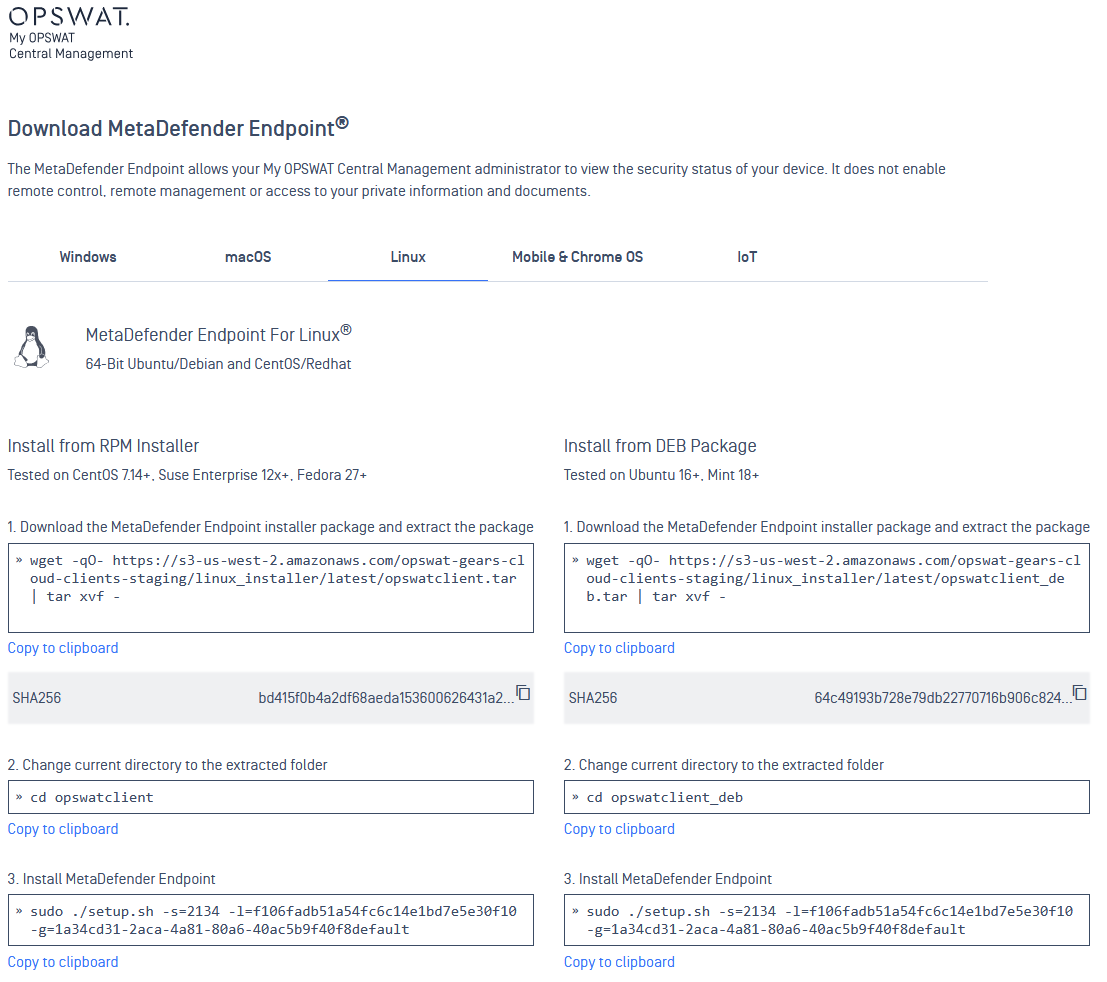

-s → server code

-l → license key

-g → group ID


Configure the server settings

My OPSWAT Central Management version 10 (On-premise/Cloud)

There are 2 ways to set up the script:

Playbook

Before making the script available from the Playbook settings, you need to configure it.

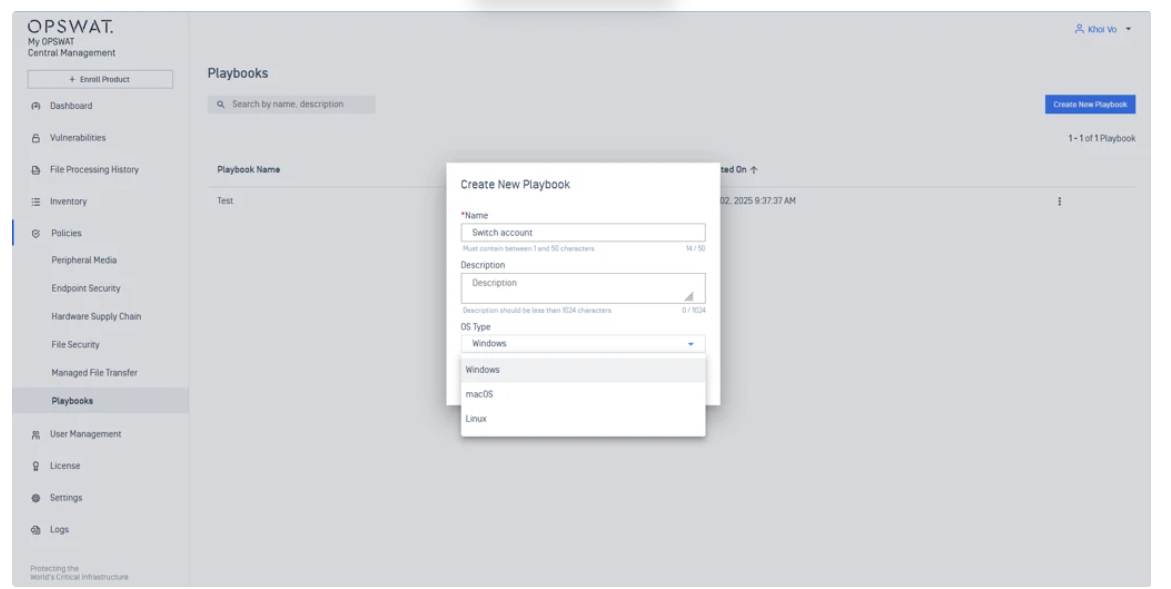
Go to Policies → Playbook, then select Create New Playbook and choose the platform on which the script will be executed.

Pick and drag the Custom script from the Task list and edit its properties
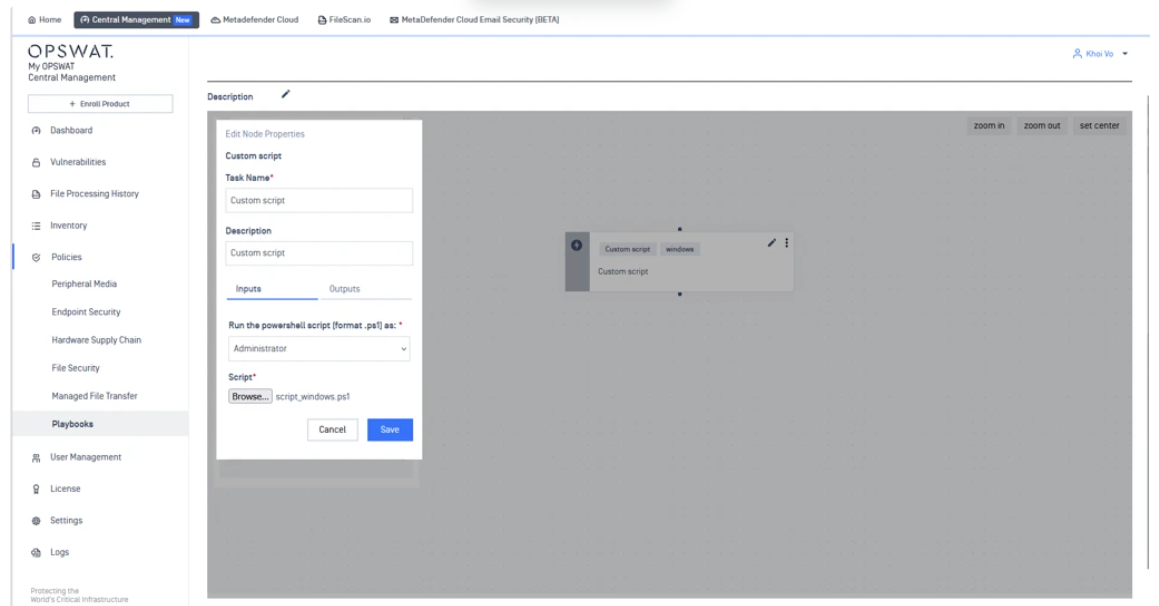

Make sure to select the correct privileges to execute the script:

  • Windows: Administrators

  • macOS, Linux: Root

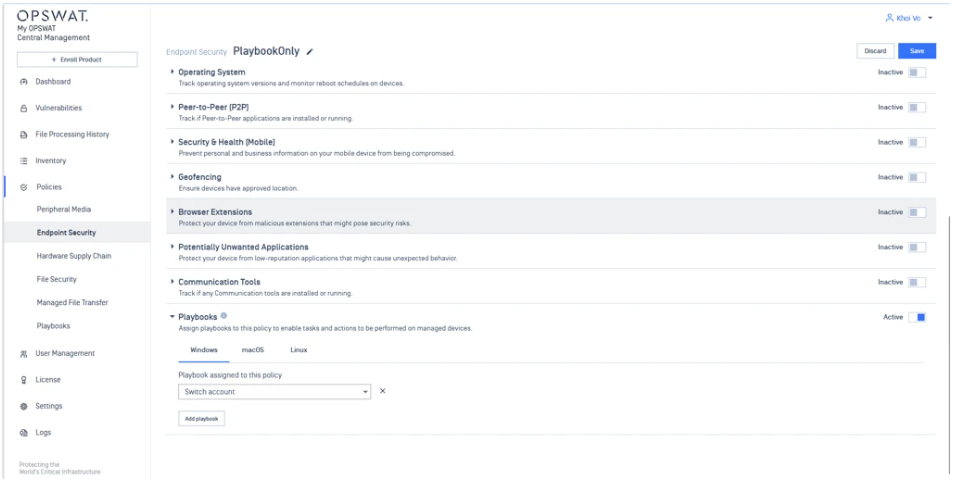
Save the playbook, then navigate to Policies → Endpoint Security and select the policy corresponding to the group of devices you want to migrate. Enable the Playbooks setting and assign the configured playbook. Save the policy, and the setup is ready to proceed.


Custom Check

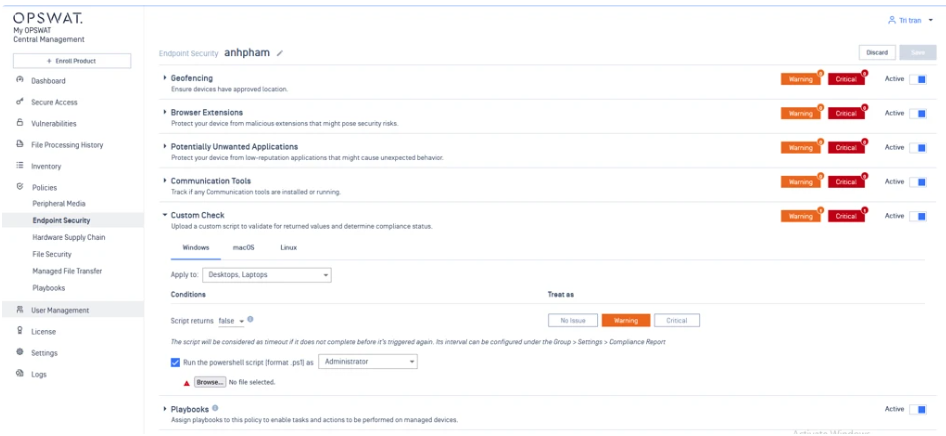
If the server has a Custom Check policy, navigate to Policies → Endpoint Security and select the policy corresponding to the group of devices you want to migrate.

Enable the policy and configure its settings similarly to the Playbook configuration.


My OPSWAT Central Management version 7 (Windows and macOS devices only)

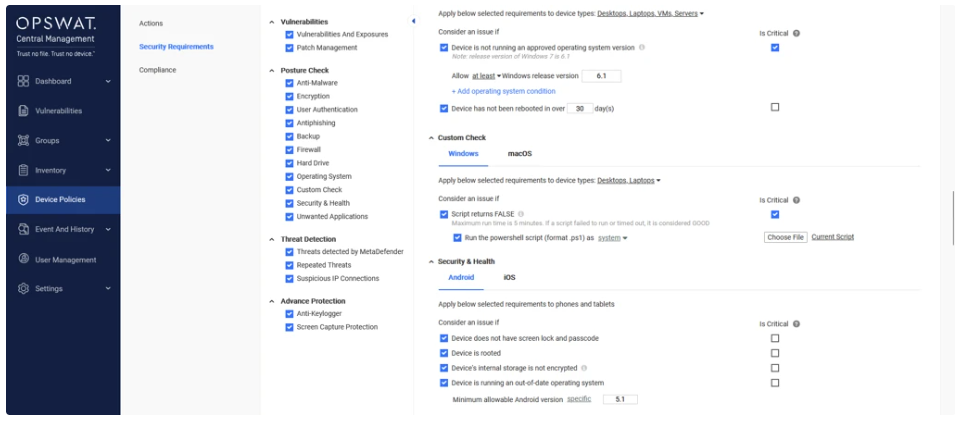
Navigate to Device Policies, select the policy corresponding to the group of devices you want to migrate, then go to Security Requirements → Custom Check.

Configure the policy following the example below:

NOTE
  • Do not use this script with an invalid license key or server address. The Agent may stop working after the script is executed.

  • Known issue: If the device is switched to a different server, the device information will remain on the previous server.

  • The server address should not contain a trailing dash like this https://<server-address>/ → correct server address should be: https://<server-address>


Support troubleshooting

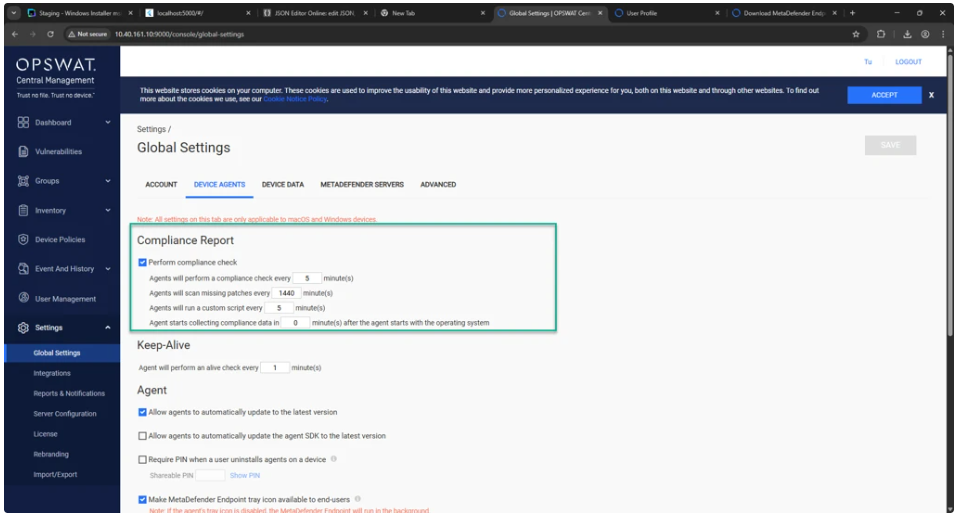
For My OPSWAT Central Management version 7, the option Perform compliance check from the picture below MUST BE CHECKED:

To ensure the script is executed, we can verify through the agent log here: "C:\ProgramData\OPSWAT\Gears\logs\GEARS-Agent.log"

For CUSTOM CHECK:

[CustomCheck]: Script output: Creating background reconfig script...
Launching background reconfiguration...
Script will apply changes in background after 15 seconds. Exiting.

For PLAYBOOK:

[mawf]: Workflows evaluated: [ec] = 0 [result] = DECRYPTED OUTPUT