
This article applies to all OPSWAT Mobile App releases deployed on Android and iOS devices.
To register/enroll your mobile devices, you will need either a Registration Code or a QR Code, both of which are obtainable via My OPSWAT Central Management or via your administrator.
Should you wish to open your own free My OPSWAT Central Management account, please Sign Up Here, then follow the relevant instructions below.
Should you wish to enroll via your organization’s account, you will need to request the registration code or QR code from your administrator, before following the relevant instructions below.
To register via your own My OPSWAT Central Management account
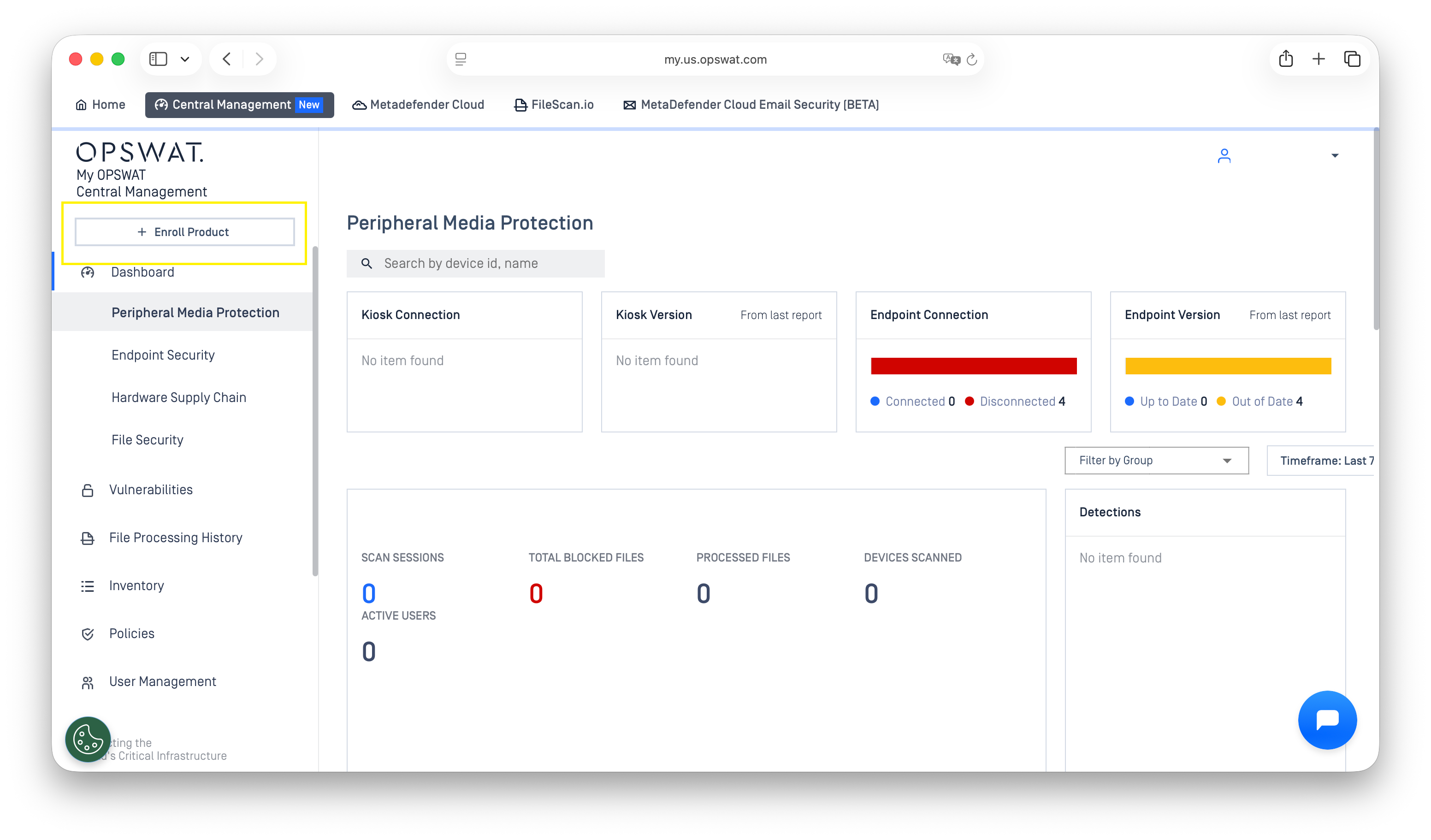
Log into My OPSWAT Central Management and navigate to Enroll Product button (to enroll a device without a group) OR Inventory>Groups>Relevant Group (to enroll a device into a group).
Click the +Enroll Product button in the top left-hand corner of the screen, as illustrated below
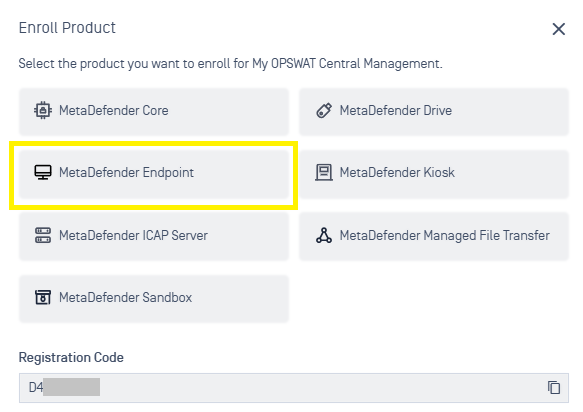
Click MetaDefender Endpoint > Download. You can choose to enroll the device into a specific group at this stage
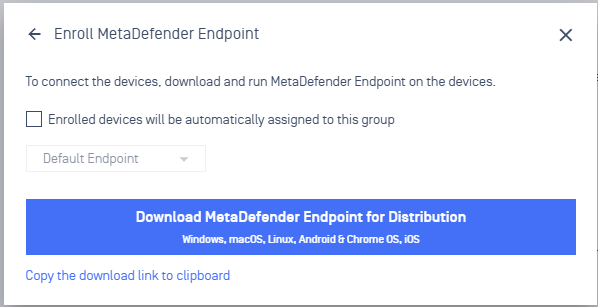
On the download page, click the Mobile & ChromeOS tab.
Here you will find both the Registration Code, the Group Identity (if applicable), and the QR Code, and you can use whichever option you prefer, as illustrated below.
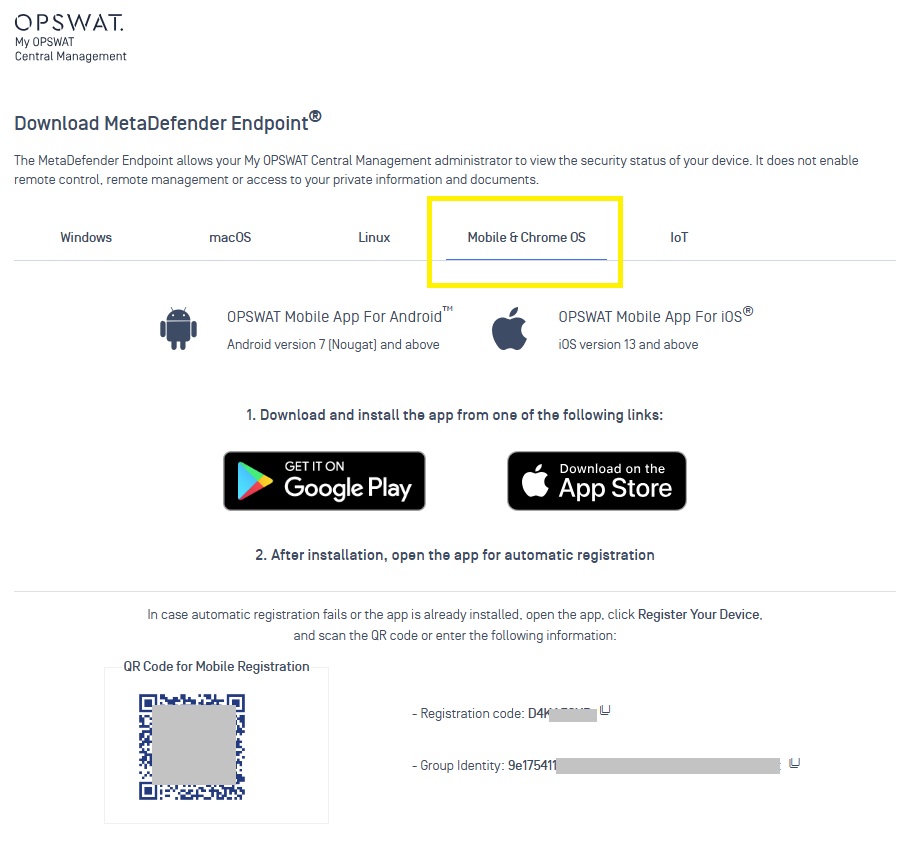
Download the free OPSWAT Mobile App directly from Google Play Store or the App Store.
Once installed, open the OPSWAT Mobile App.
Click the Register Your Device button in the bottom right-hand corner of your screen, as illustrated below
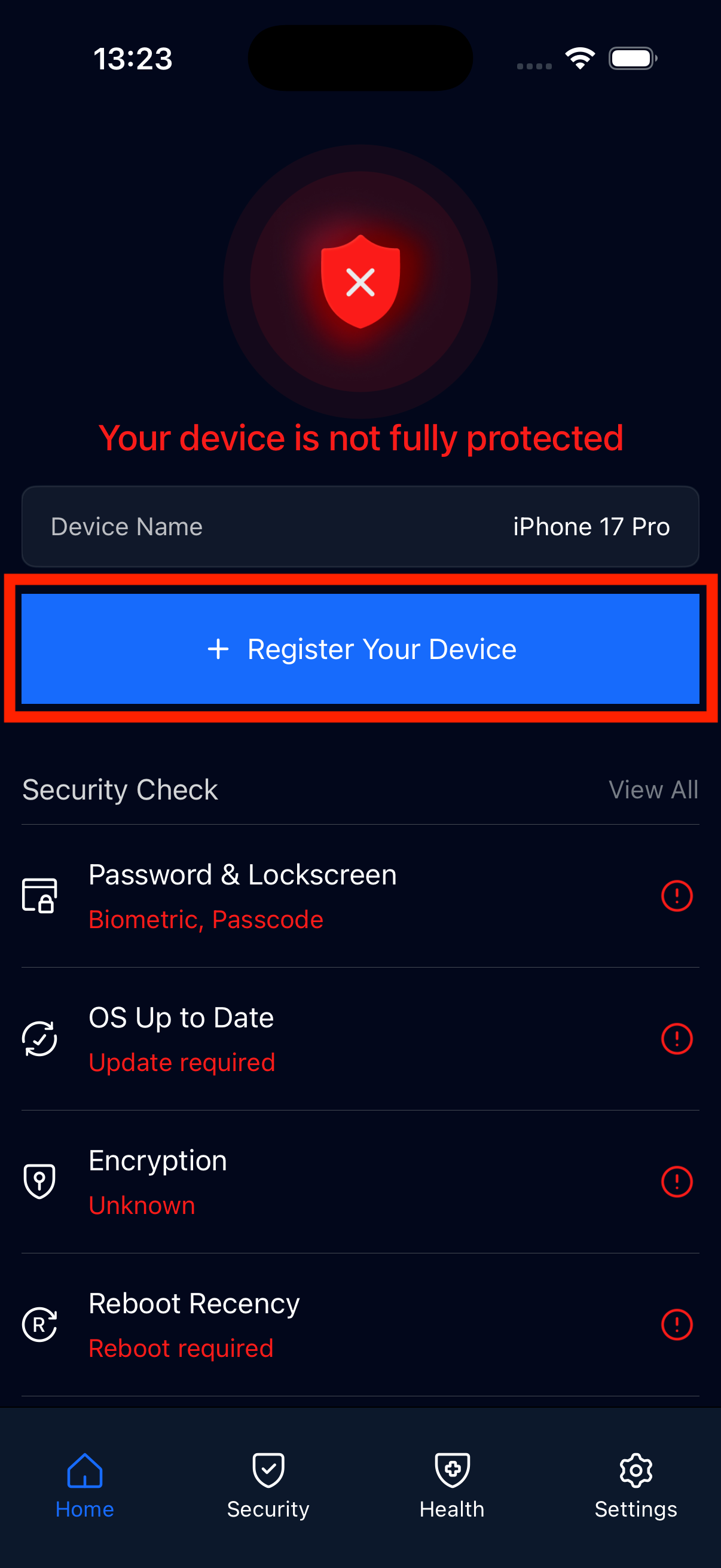
Next, follow the relevant instructions below, depending on whether you intend to register manually or automatically via QR Code.
Manual Registration (Registration and Group Identity Codes)
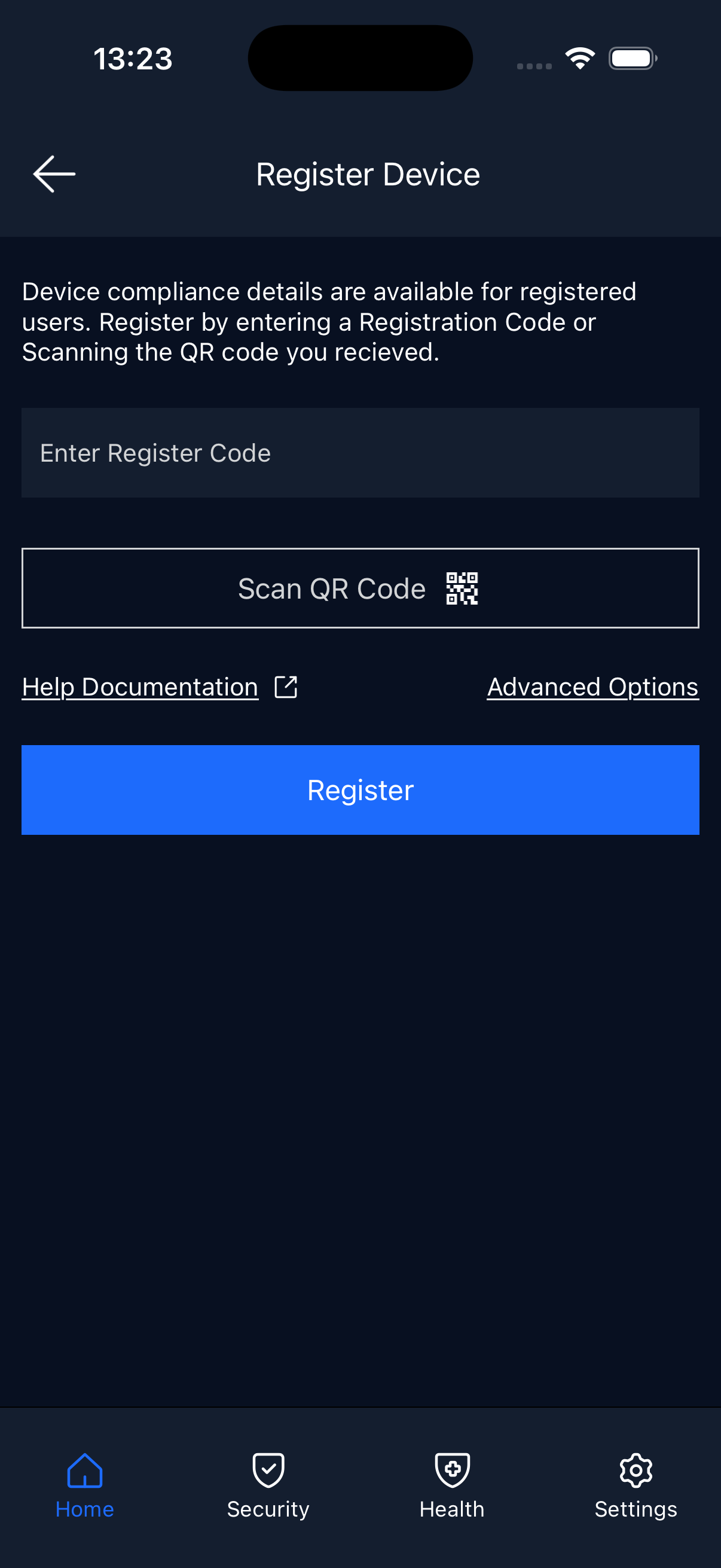
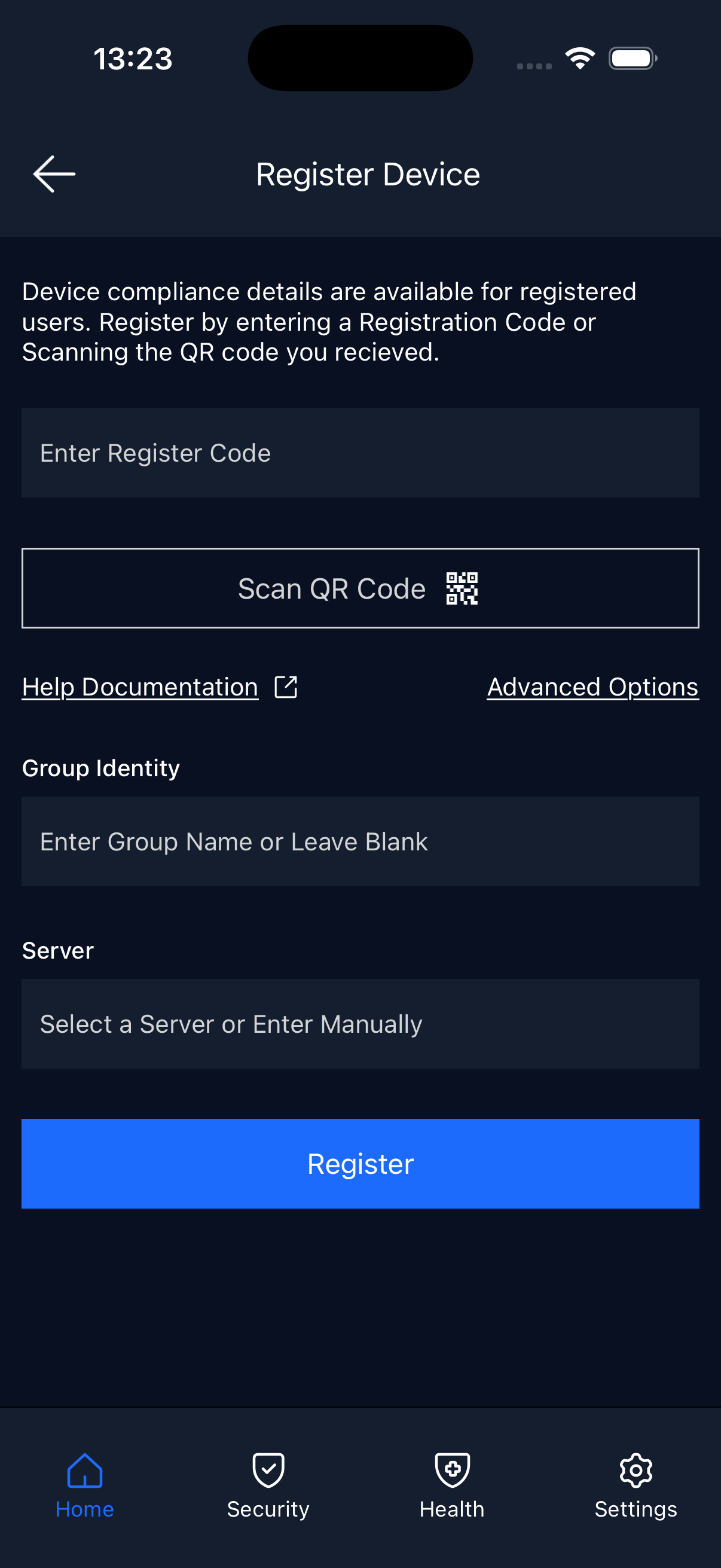
Manual Registration will require users to enter both the registration code and then the group identity code (if applicable), while the QR code is an Automatic Registration method that, once scanned, incorporates registration, group identity and server, without further action required from the user.
Enter your Registration Code in the field provided.
To add group or server details, click Show Advanced, then enter your Group Identity and select your Server (where applicable).
Click Register Your Device to apply the changes.
Automatic Registration (QR Code)
Click the option to Scan QR Code.
Grant the OPSWAT Mobile App permission to use the device’s camera for the scan.
Scan the QR Code, and this will automatically register your device, and assign it to your chosen group (where applicable).
If you have followed the instructions above but are having trouble Registering/Enrolling Your Mobile Device To My OPSWAT Central Management, please open a Support Case with the OPSWAT team via phone, online chat or form, or feel free to ask the community on our OPSWAT Expert Forum.