
This article applies to all My OPSWAT V7.5.0+ releases deployed on Windows or Linux systems, and all MetaDefender Endpoint releases deployed on Windows, macOS, Linux, iOS and Android systems.
My OPSWAT administrators, who have enabled and configured Threat Detection on a given Device Policy, may find that the Exclude CD option, configurable under the OPSWAT Central Management Console>Device Policies>Threat Detection>Removable Media, does not seem to be working on one or more of the managed endpoints assigned to that policy, even though the option is enabled. This is more than likely the result of certain devices still running MetaDefender Endpoint V7.6.575.0 (Windows) or prior, or MetaDefender Endpoint V10.4.385.0 (macOS) or prior, which versions do not support the Exclude CD functionality. To remedy this issue, please follow the instructions below.
Add an agent (Client) version compliance rule to flag outdated devices
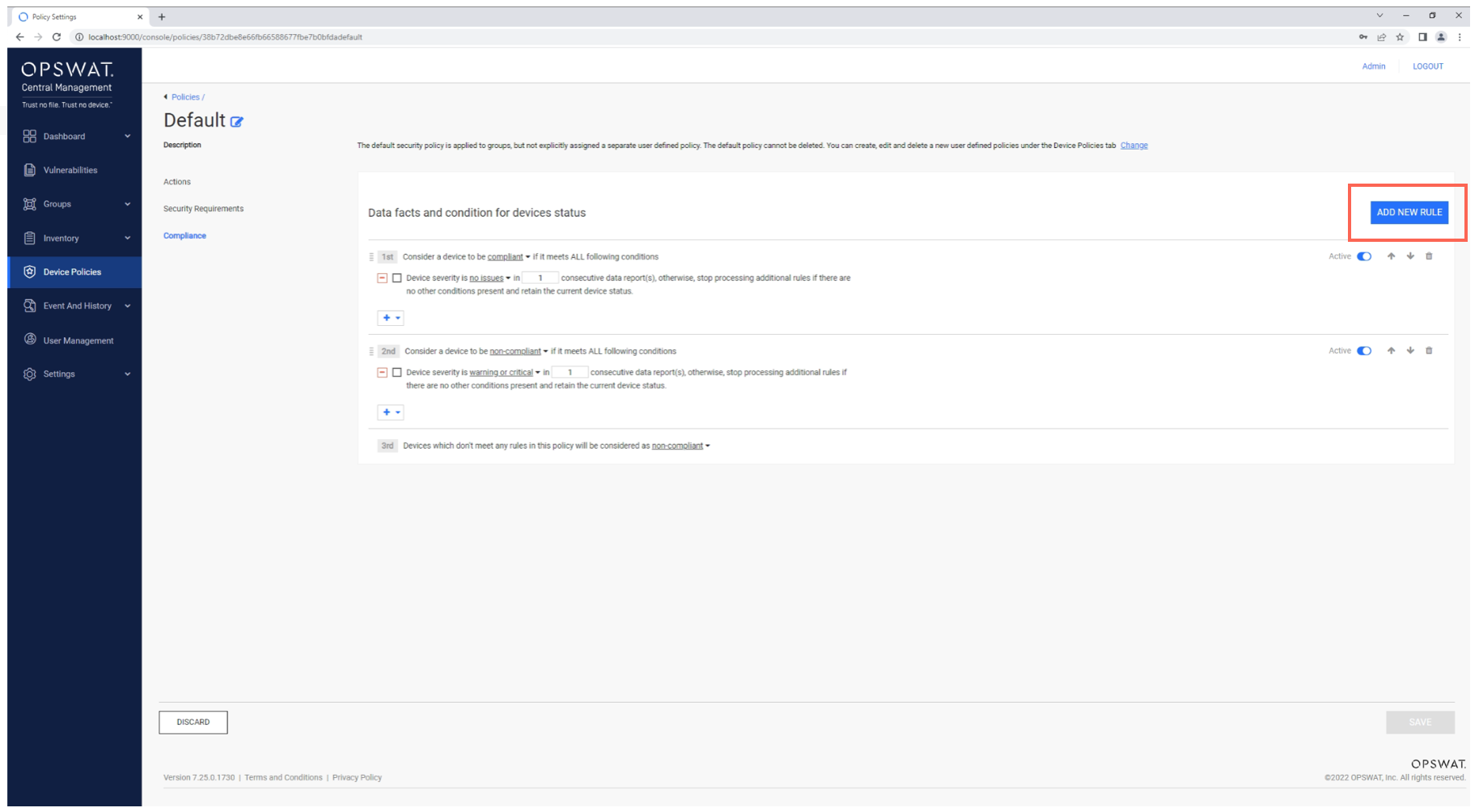
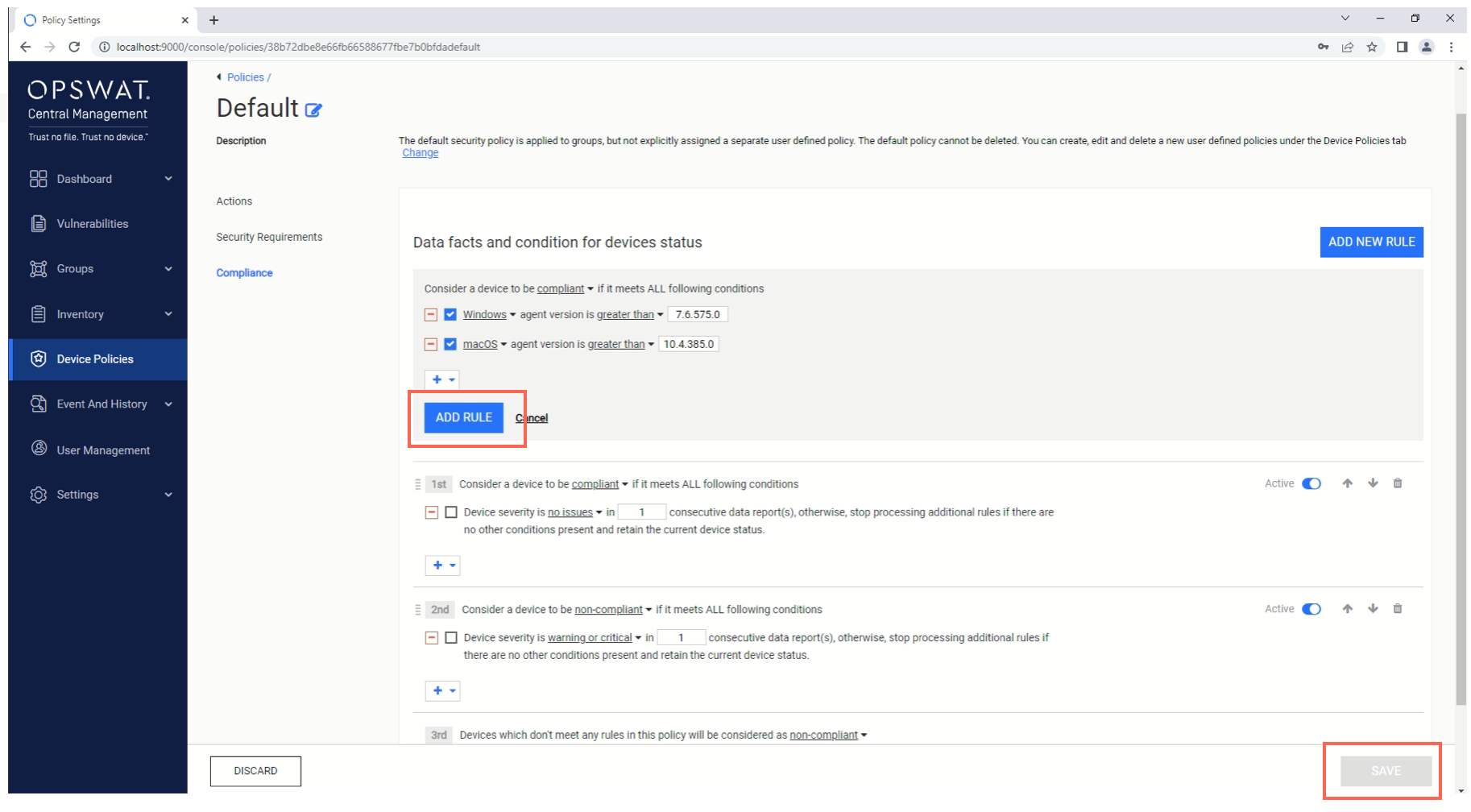
Log into the My OPSWAT Console and navigate to Device Policies>Chosen Policy>Compliance, then click the Add New Rule button, as illustrated below.
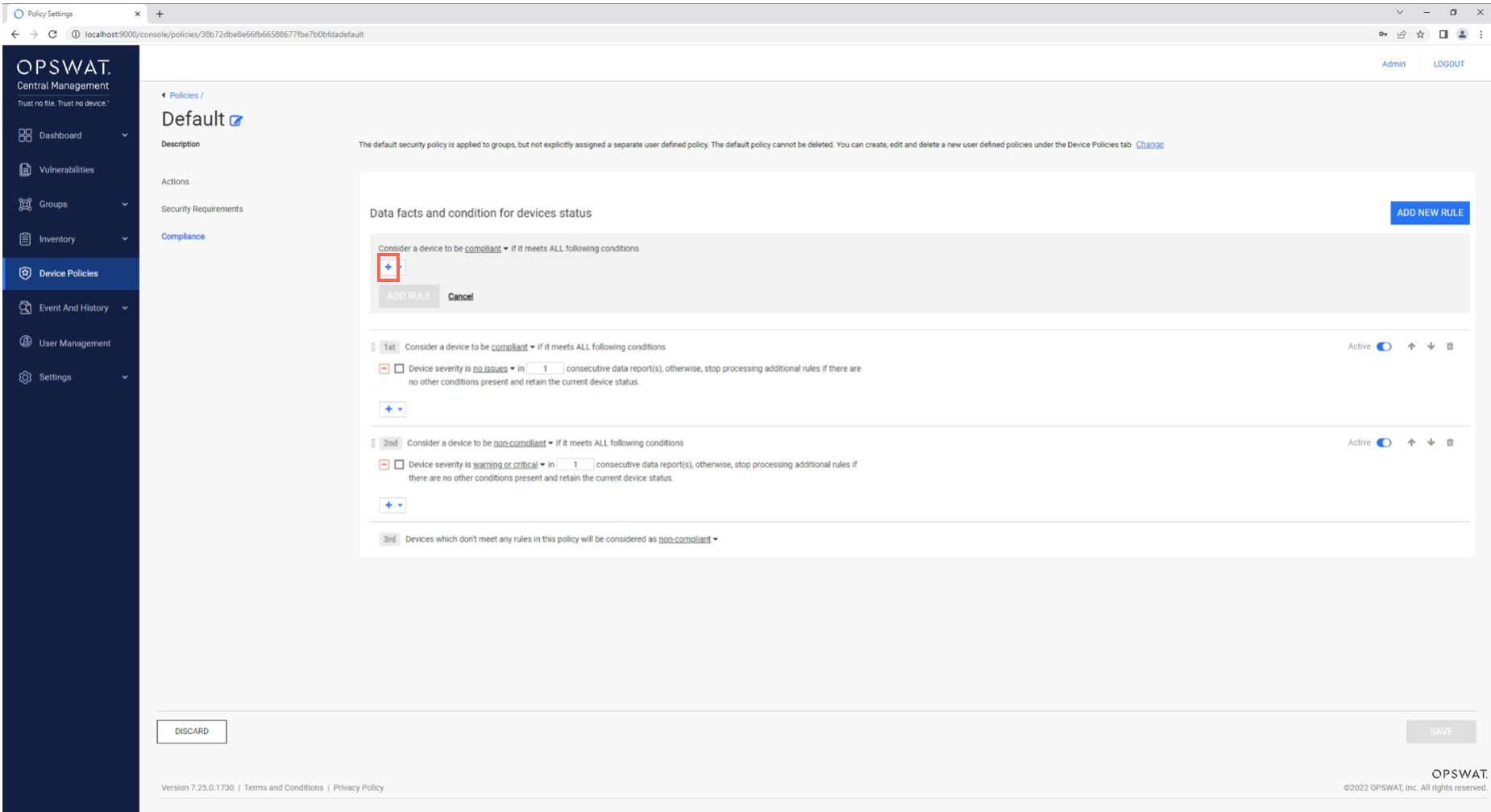
In the vacant slot, click the Plus symbol, as illustrated below, then select Add an agent version condition from the pop-up menu
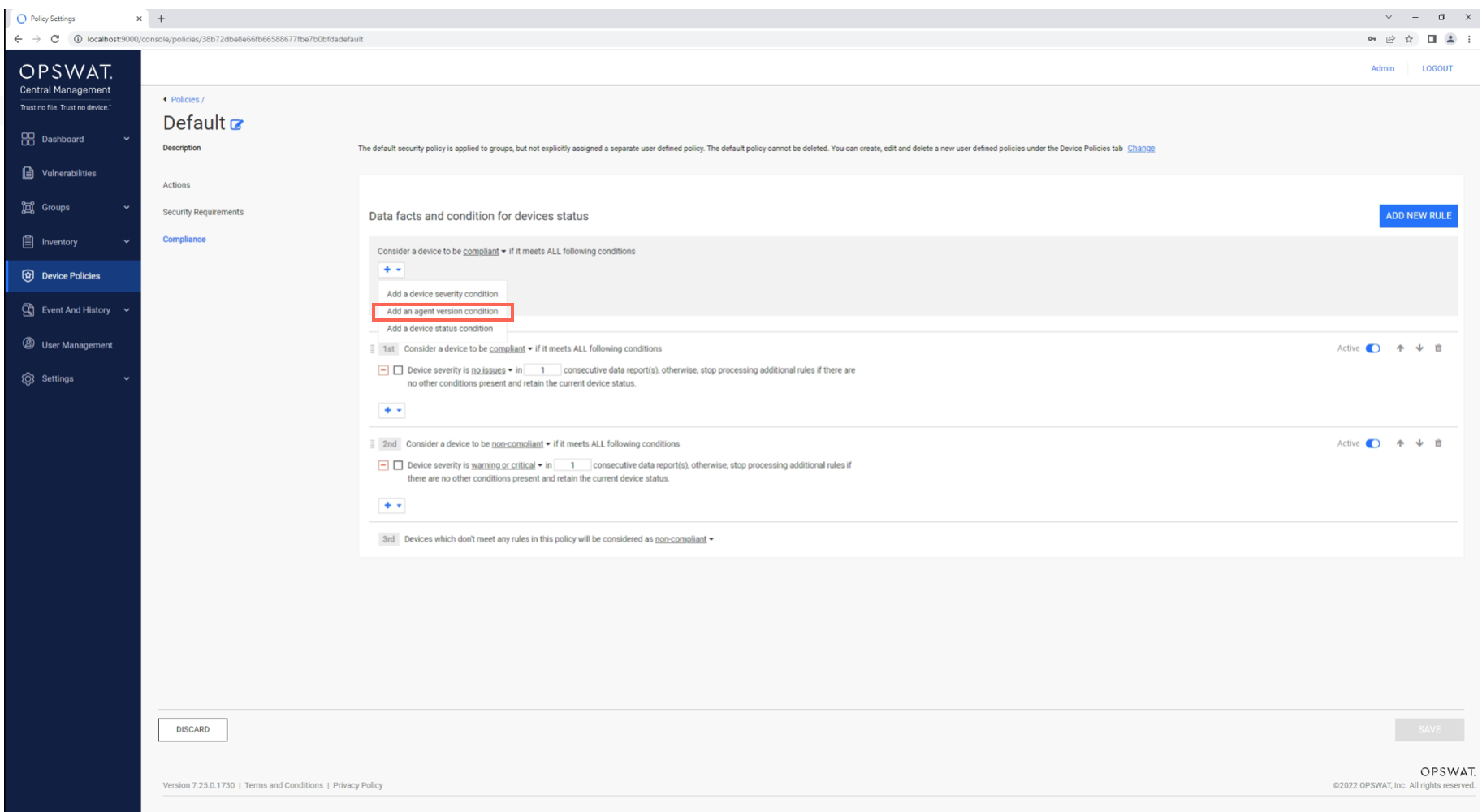
In the space provided, type the minimum MetaDefender Endpoint version required for this feature, namely 7.6.575.0.
Repeat the process by clicking the Plus symbol and adding the same rule for macOS, if applicable, but substituting with 10.4.385.0, which is the macOS equivalent for support of this feature.
There is no need to click the Add New Rule button in the upper right again, as all variations will fall within the same rule.
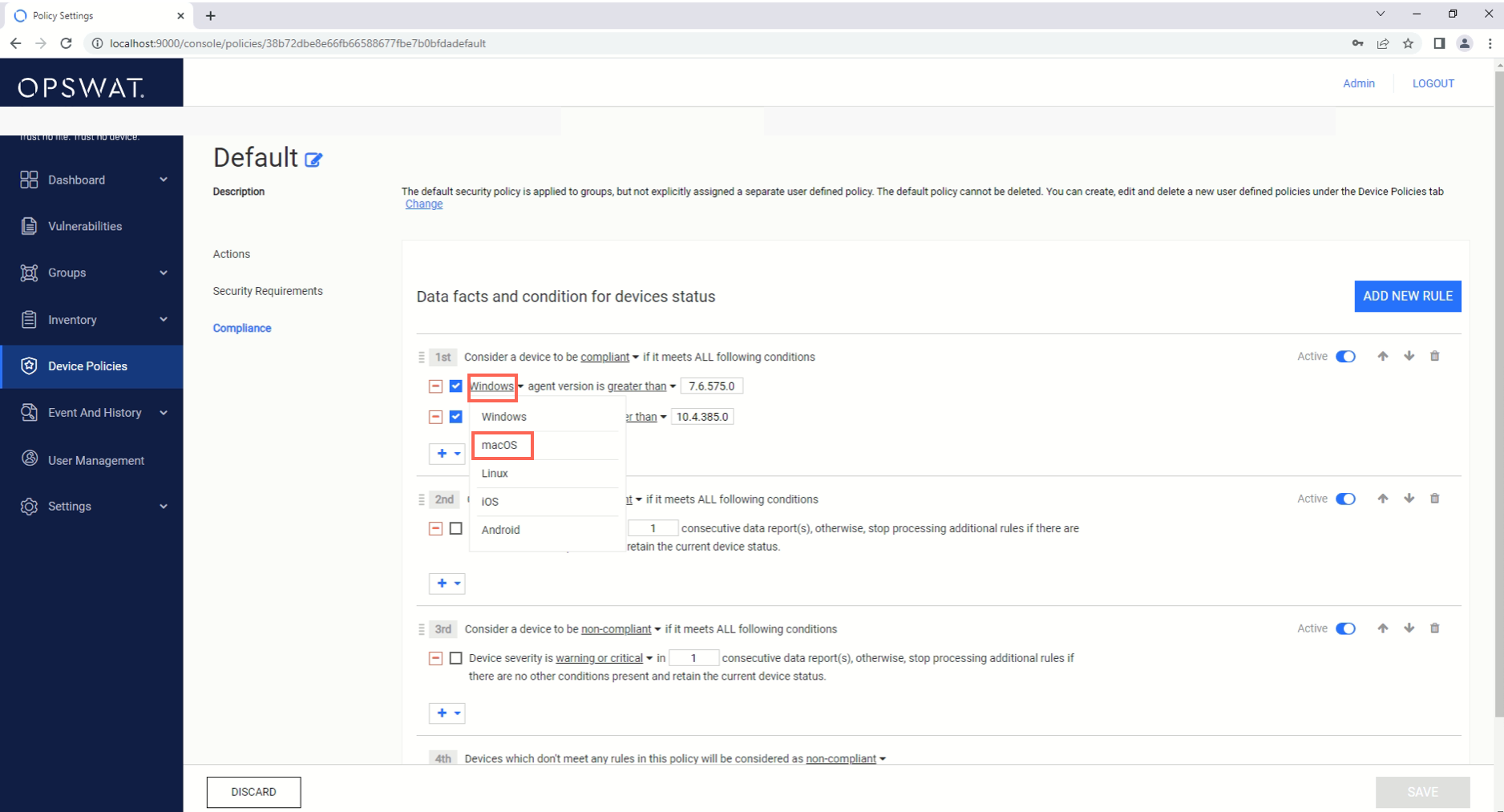
Operating systems can be selected by clicking the underlined Windows text that appears in the default rule, then selecting the operating system from the pop-up list, as illustrated below.
With your new rule configured, click the Add Rule button, then click the Save button in the lower right-hand corner of the screen.
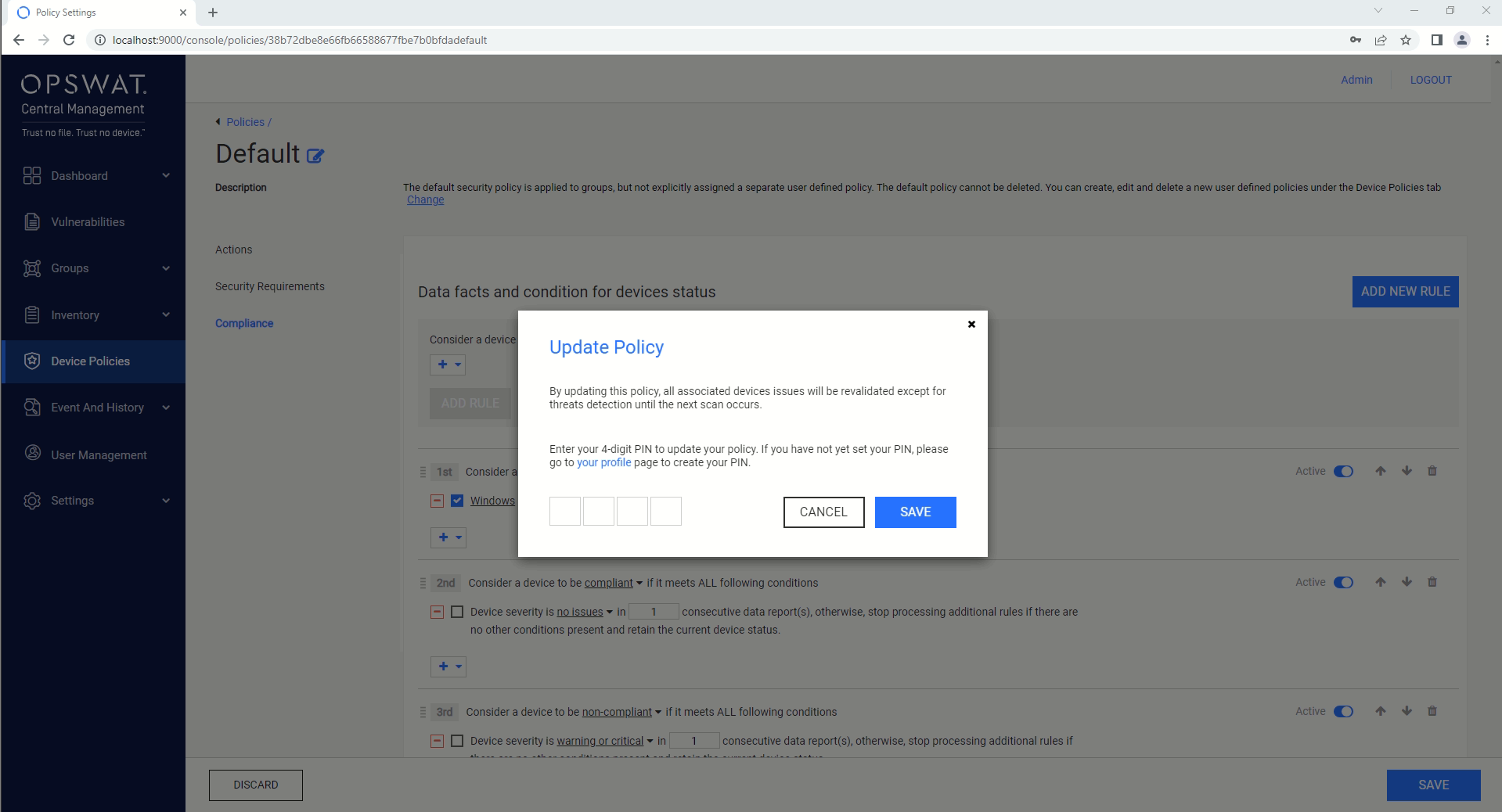
Enter your administrator PIN in the pop-up box, as prompted, then click Save again to implement your settings.
You can now easily track Non-Compliant devices by navigating to the OPSWAT Central Management Console>Dashboard>Compliance, and noting which devices have been flagged for running a prohibited Client version.
If you see non-compliant devices that are flagged for this reason, continue with the remediation instructions in the last section of this article to configure automatic, remote updates.
Unless the automatic updates are disabled (via the OPSWAT Central Management Console>Settings>Global Settings>Device Agents tab), the Persistent MetaDefender Endpoint will update automatically as new versions are released.
If the device is offline for an extended period, the version will update as soon as the device is back online.
The On-Demand MetaDefender Endpoint will not automatically update, regardless of whether the account is set to do so.
For more information on updating the Persistent and On-Demand MetaDefender Endpoint from the endpoint side, please Read This.
Manually checking device versions to see whether some devices are running an outdated MetaDefender Endpoint version
Log into the My OPSWAT Console and navigate to the Inventory>Devices tab.
Manually scan the list, or enter the device IDs, usernames, group names, IP addresses, or MAC addresses of devices under the relevant policy into the search field and run the Search.
Client version details will be listed in the Agent Version column, as illustrated below. Look for devices running MetaDefender Endpoint version 7.6.575.0 or prior, and if any are present, follow the instructions in the next section of this article to remediate.
Configuring Global device agent (Client) settings to automatically update MetaDefender Endpoint to the latest version
Log into the My OPSWAT Console and navigate to the Settings>Global Settings>Device Agents tab, then locate the Agent section.
Check the box alongside the Allow agents to automatically update to the latest version option.
Click the Save button in the upper right-hand corner of the screen to enable your settings.
The My OPSWAT system will now ensure that all device Clients update to the latest version automatically and at regular intervals, as needed (following Compliance Checks), thereby enabling the Exclude CD function on all Clients, provided the function is enabled under the assigned Device Policy.
Unless the automatic updates are disabled (via the OPSWAT Central Management Console>Settings>Global Settings>Device Agents tab), the Persistent MetaDefender Endpoint will update automatically as new versions are released.
If the device is offline for an extended period, the version will update as soon as the device is back online.
The On-Demand MetaDefender Endpoint will not automatically update, regardless of whether the account is set to do so.
For more information on updating the Persistent and On-Demand MetaDefender Endpoint from the endpoint side, please Read This.
If you need help learning how to add an exception rule (to exclude a given folder from an AV products scan area) please tell us what product you are using and we may be able to help you - but be sure to include the product version.
To contact us, please follow these instructions on How To Create a Support Package, before logging a Support Ticket with the OPSWAT team.