
MetaDefender Endpoint Malware Scanning
Initially: Select the “Malware Scanning” tab on the left menu.
Then you can select the type of scan which fit your need
The available type of scan: Quick Scan, Full System Scan, and Custom Scan

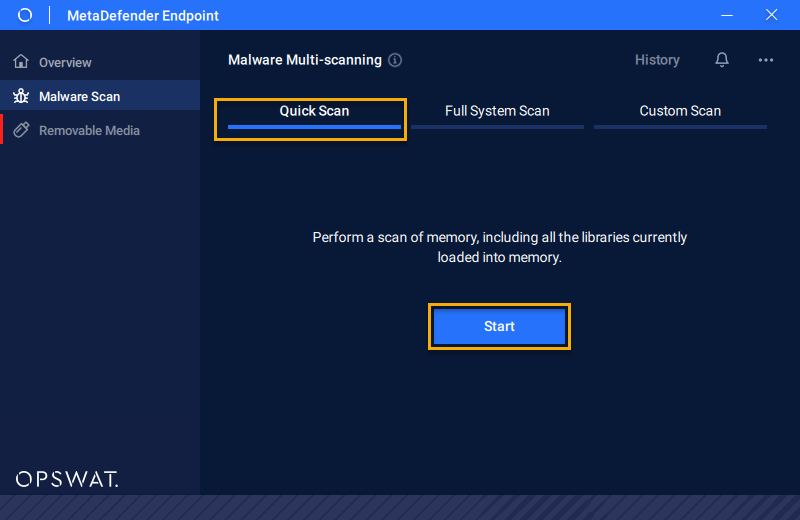
Quick Scan
Select the “Quick Scan” tab and then click on the “Start” button.
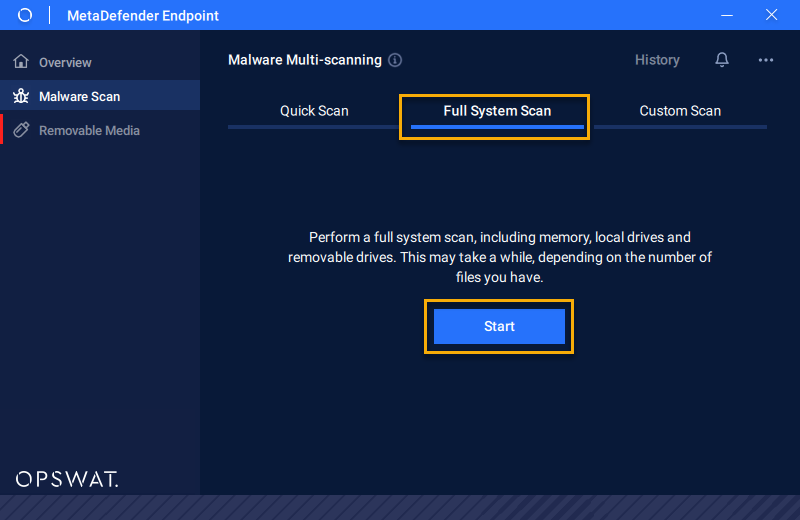
Full System Scan
Select the “Full System Scan” tab and then click on the “Start” button.
Custom Scan
Select the “Custom Scan” tab, choose the file type that you want to scan and then click "Start" to scan these custom files.
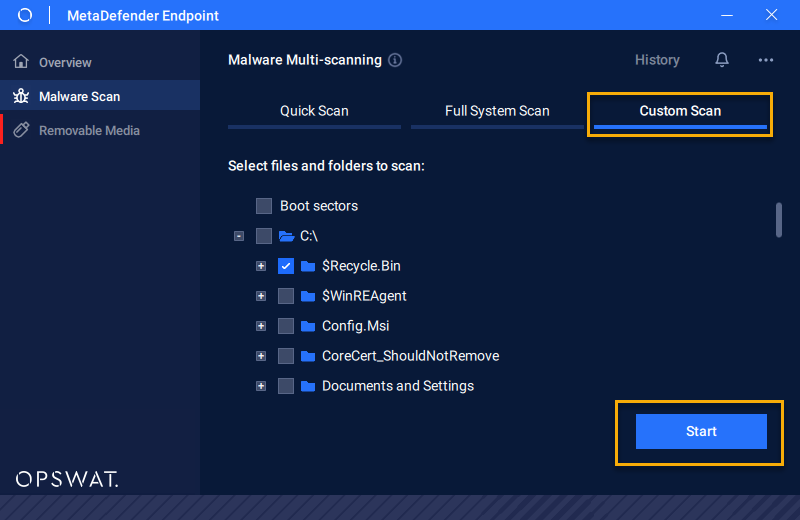
Malware scanning interfaces by specific option
You can monitor the scanning process (see picture below). When it is completed, check the scanning's result
Scanning in Progress
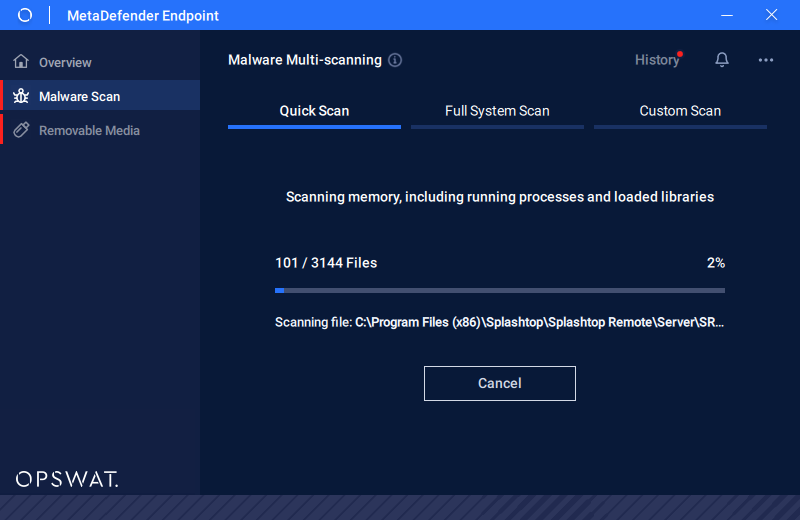
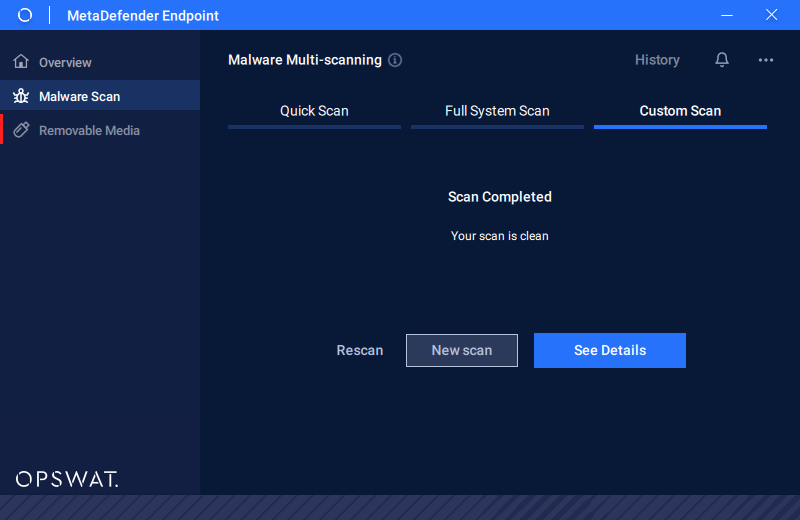
Scan Completed as the files are clean
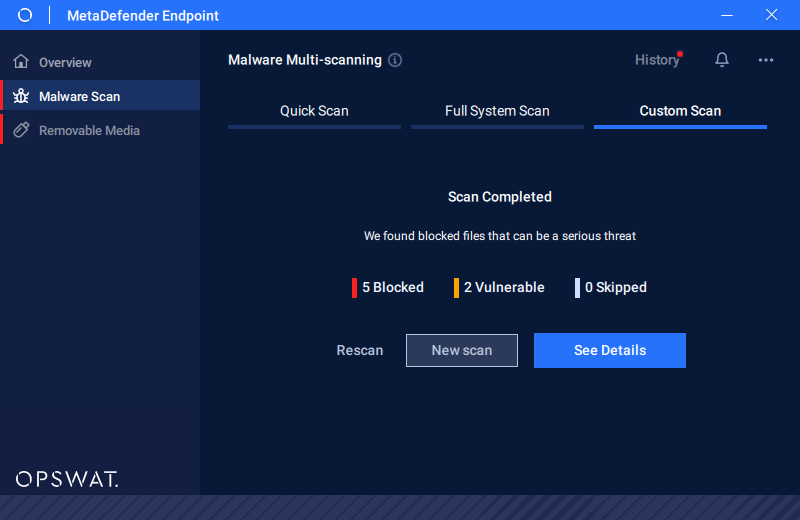
Scan Completed with threats from the files
Review old scans and export its report
You can review the previous scans by clicking on History on the top right. To view the results reports, click on the scan to review.
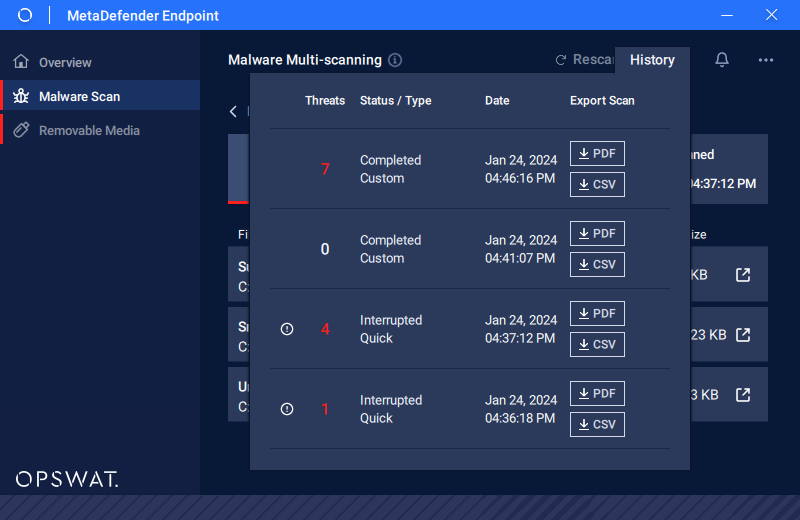
Step 1: With the scanning list, click on “PDF“ (generate a file report with .pdf extension format) or “CSV” (generate a file report with .csv extension format) button to generate the report.
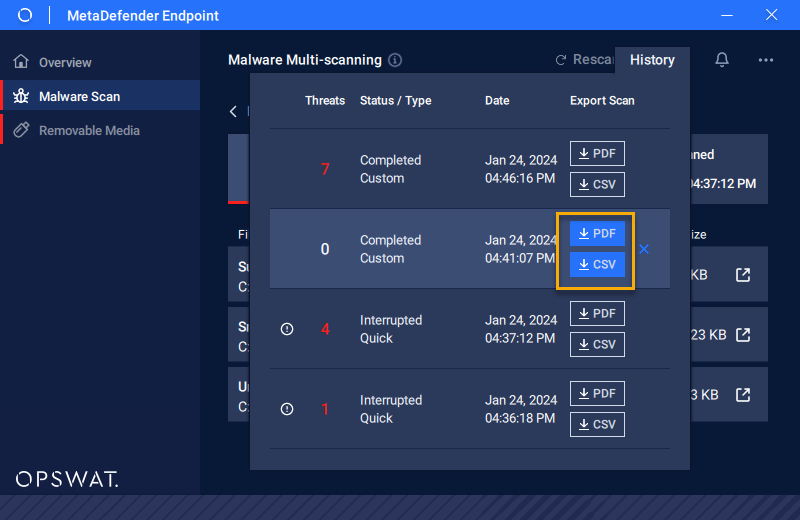
Step 2: Select the file type and then click “Export”.
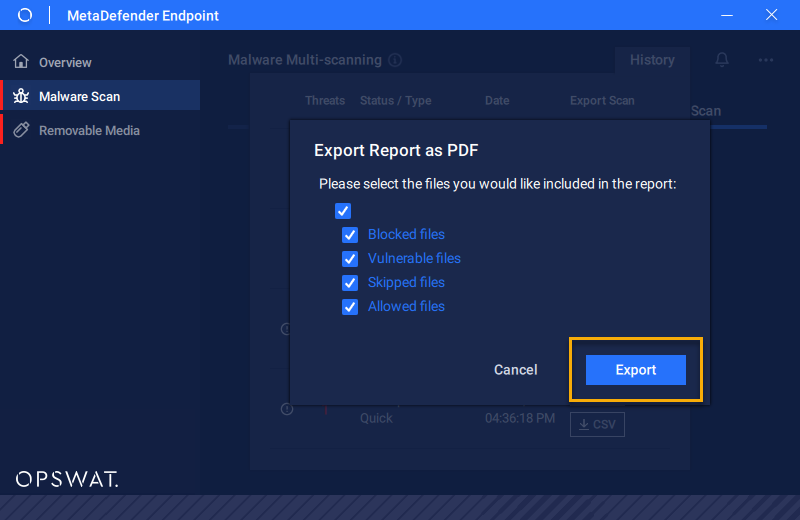
Step 3: As the “Explorer” popup shows up, please choose the destination path save this file report, and click “Save” to proceed