
This article applies to all My OPSWAT Management V7.5.0+ releases deployed on Windows or Linux systems, and all Persistent MetaDefender Endpoint releases deployed on Windows, macOS, Linux, iOS and Android systems.
For more information on updating the Persistent and On-Demand MetaDefender Endpoint from the endpoint side, please Read This.
The only method for managing MetaDefender Endpoint upgrades via the MetaAccess Console is to ensure that all devices are automatically updated to the latest Endpoint version periodically, by adjusting global device agent settings.
There is no way to remotely upgrade MetaDefender Endpoint on your managed endpoints via the MetaAccess Console.
Configure automatic Persistent Client updates via the MetaAccess Console, and set the system to notify On-Demand Client users when they are due for an update
If automatic updates are enabled via the instructions below, the Persistent OPSWAT Client will update automatically on all endpoints as new versions are released.
If a device is offline for an extended period, the version will update as soon as the device is back online.
The On-Demand OPSWAT Client will not auto-update, regardless of whether the account is set to do so.
For more information on updating the Persistent and On-Demand OPSWAT Client from the endpoint side, please Read This.
To configure auto-updates on all Persistent Client devices, and to notify On-Demand Client users when they are due for an update, please follow the instructions below.
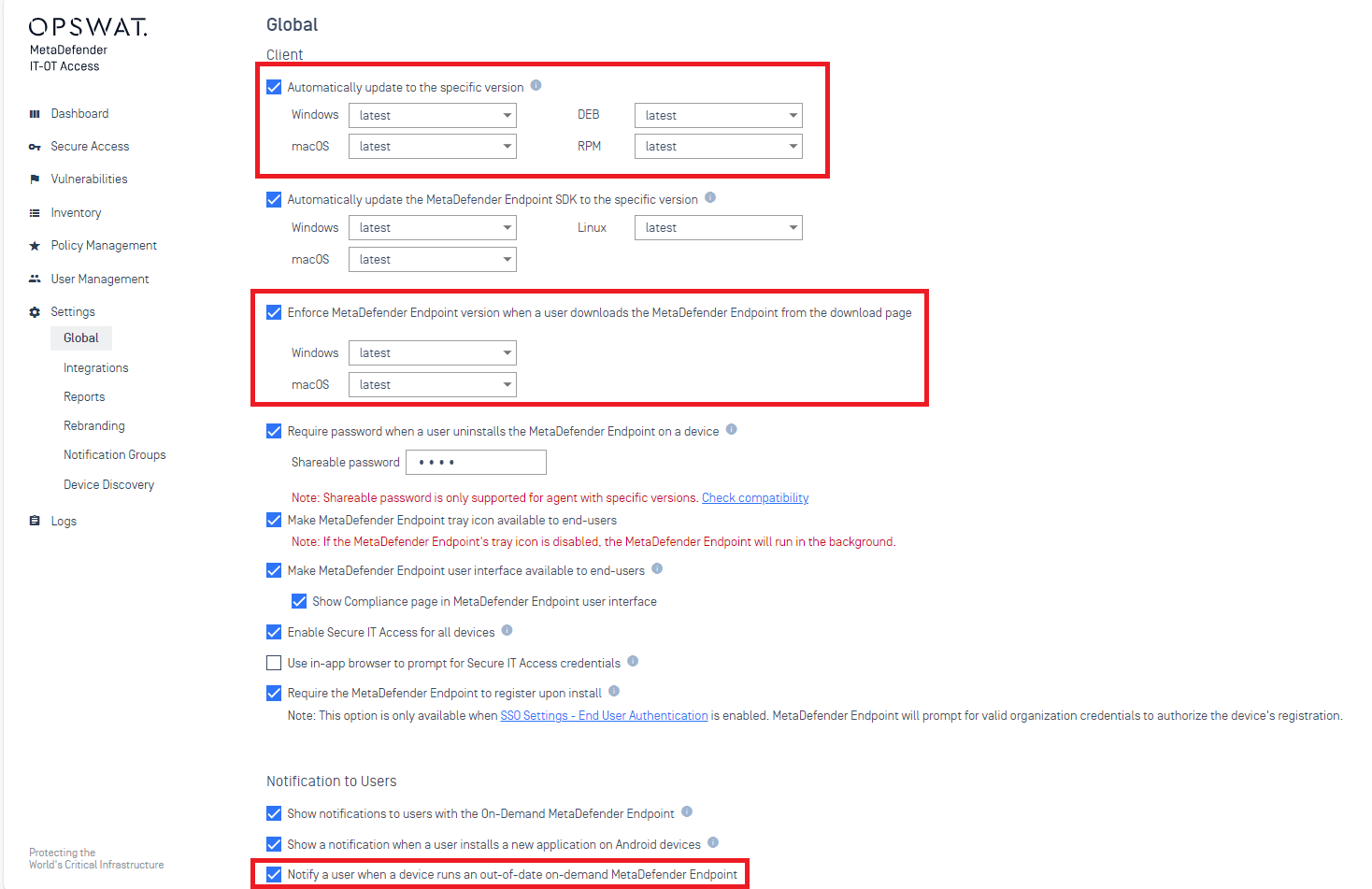
Log into the MetaAccess Console and navigate to the Settings>Global Settings>Device Agents tab, then locate the Agent section.
Here you will find options to Automatically update to the specific version and to Enforce agent version when a user downloads an agent from the download page. Ensure that both of these options are enabled and set to latest for the relevant operating systems.
In the Notification to Users section of the same page, select the option to Notify a user when a device runs an out-of-date on-demand agent.
In the case of a policy breach, On-Demand users will now be notified via an on-screen banner, and directed to a Remediation Page where they can download the latest update to remedy the issue.
Configure additional Device Agent settings as needed.
Click the Save button in the upper right-hand corner of the screen to enable your settings.
The MetaDefender IT-OT Access system will now ensure that all device Clients update to the latest version automatically and at regular intervals (i.e. following Compliance Checks), as needed.
Configuring device agent version conditions under policy
There is no way to force an upgrade on managed endpoints via the MetaDefender IT-OT Access Console. I.e. there is no way to manually upgrade endpoint Clients via the MetaDefender IT-OT Access. If failure to update (and only in the case of the Persistent MetaDefender Endpoint) places the device in breach of a Device Agent Version condition under Policy, MetaDefender IT-OT Access will bring the breach to your attention, while notifying the end user of the required remediation steps.
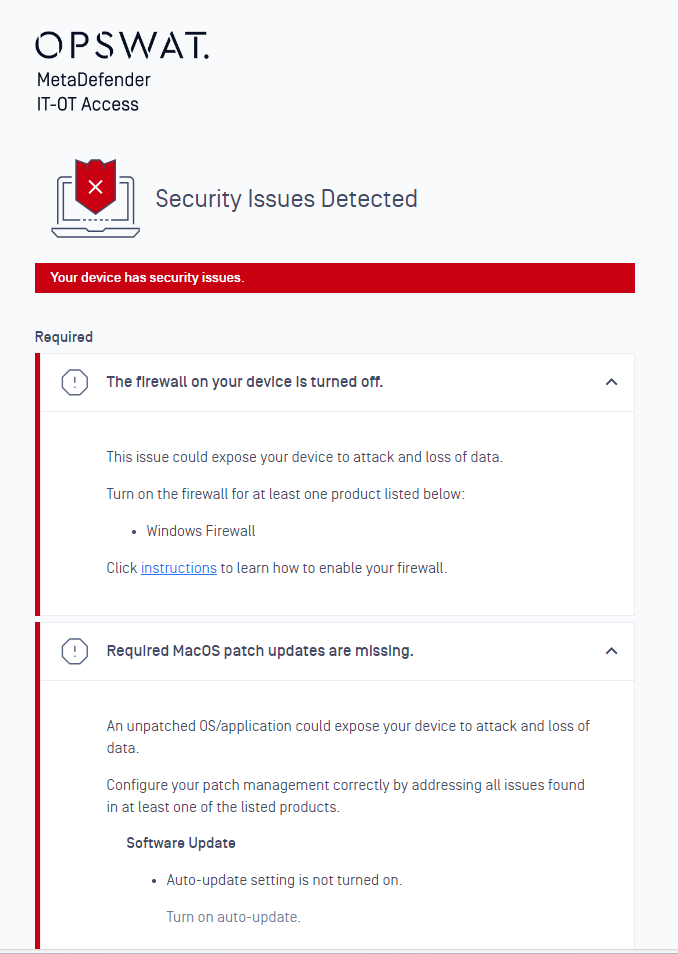
In the case of the On-demand Client, you will be notified, while end users will only be notified if notifications are configured as in step 3 of the first section of this article.
To adjust agent version conditions under policy, and receive notification when devices are in breach, please follow the instructions below.
Log into the MetaAccess Console and navigate to Policy Management>Policies>Relevant Policy>Rules.
Set a Rule whereby the system will:
Consider a device to be Compliant if it meets ALL following conditions:
Device severity is No issues in 1 consecutive report.
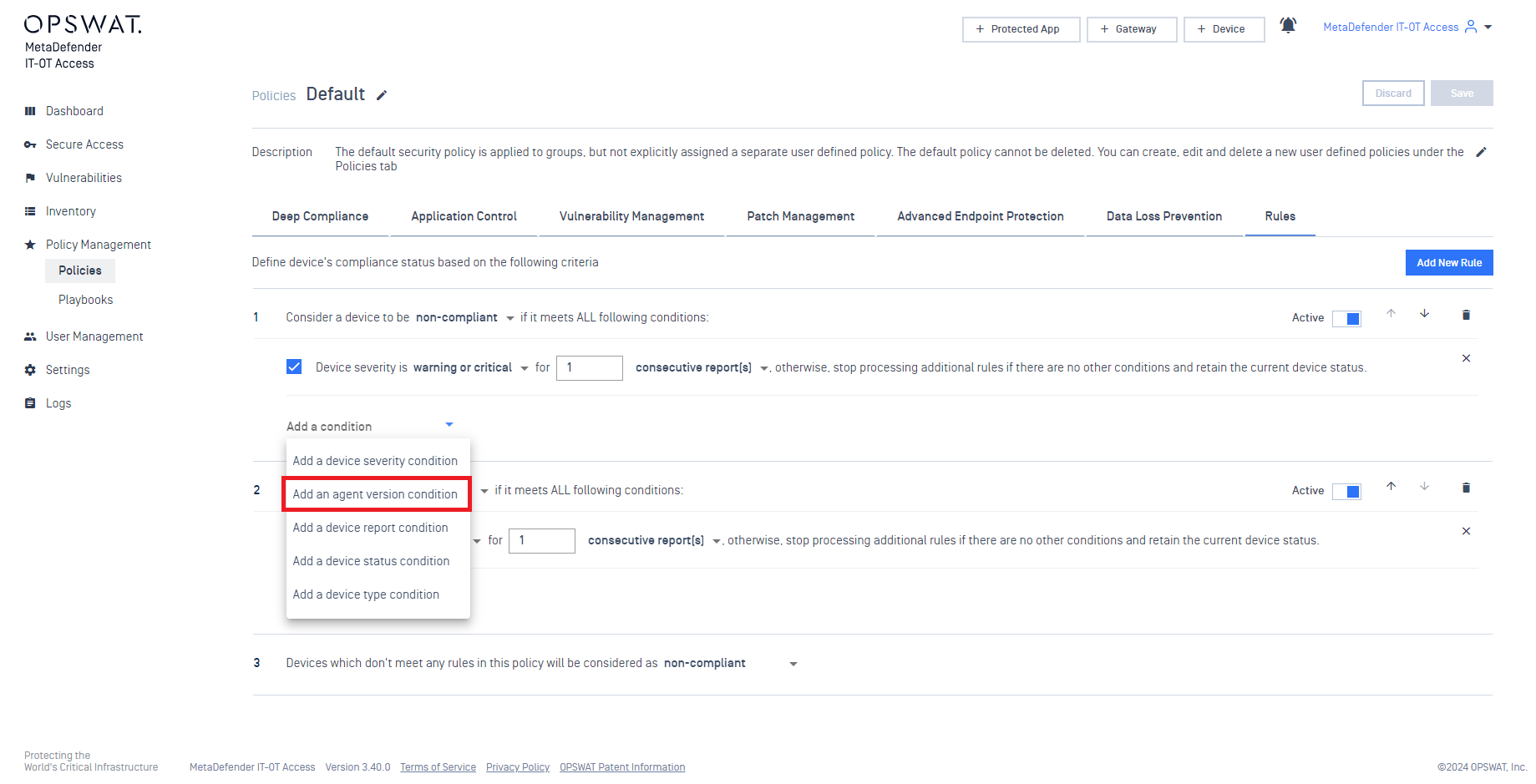
Under this new rule, Add an agent version condition by selecting this option from the Add a condition drop-down menu, as illustrated below, ensuring that the condition requires that Client for Windows is the latest.
Add similar conditions for each Client type and each device operating system, as needed, by selecting the required options from the drop-down menu that, by default, reads Client for Windows, as illustrated below.
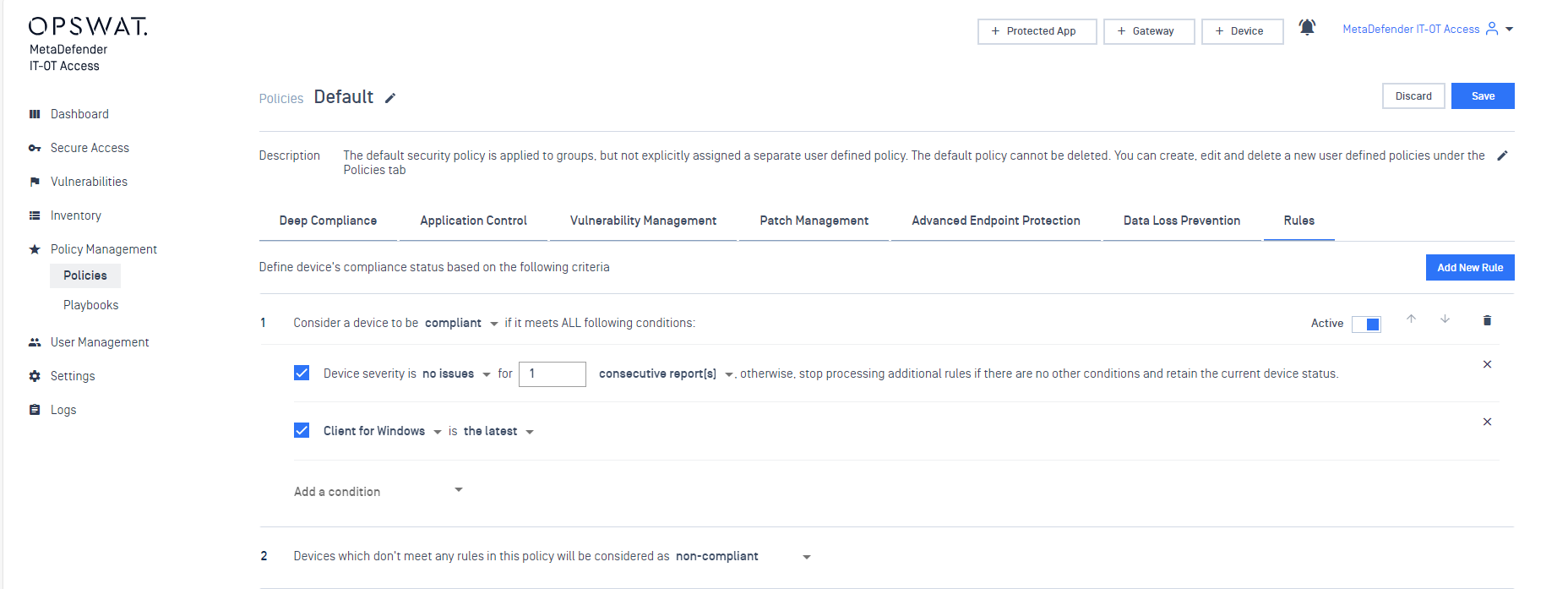
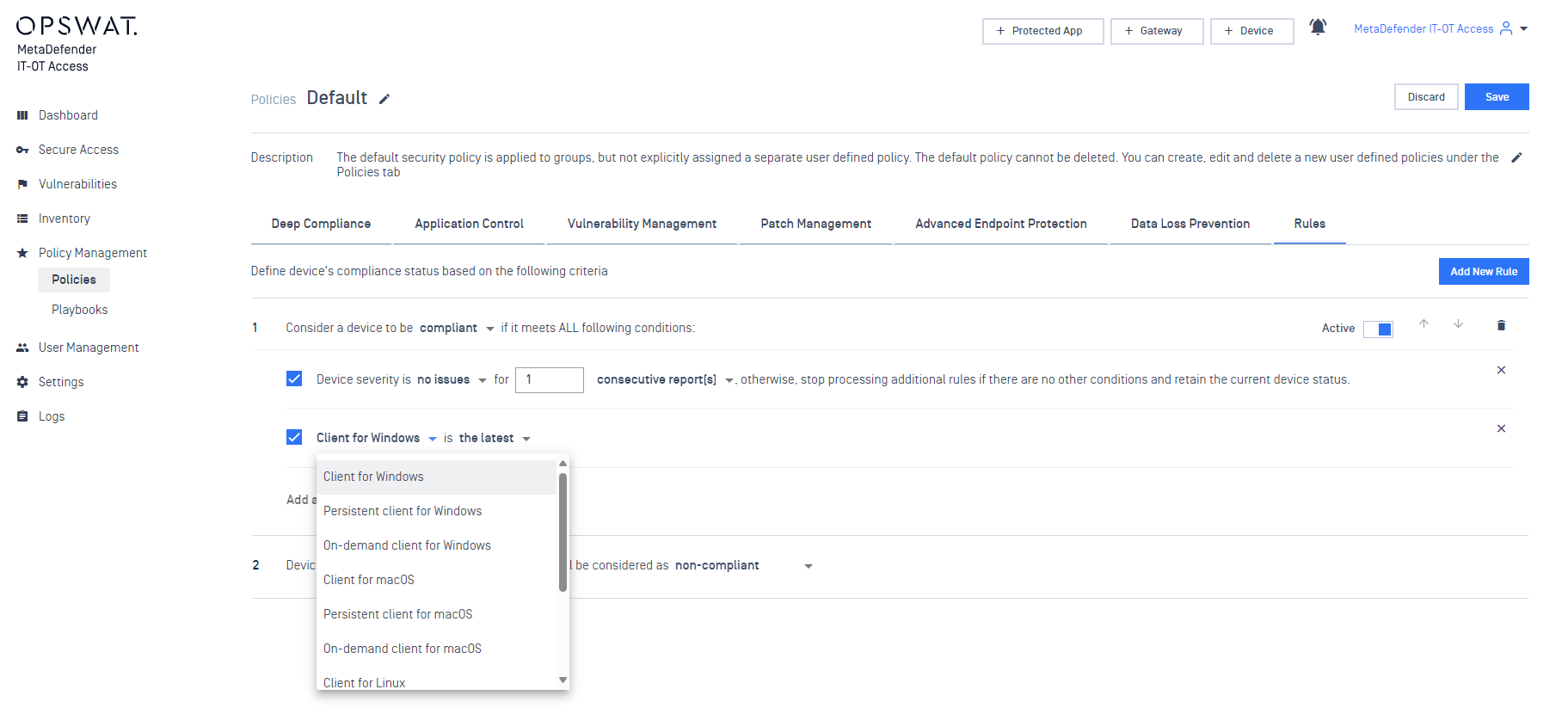
Once all variations are configured, click the Save button in the upper right-hand corner of the screen to implement your settings.
Starting with the next Compliance Check, devices assigned to this policy will be flagged for Non-Compliance in the event that their active Client version becomes outdated (any version prior to the latest).
If you have followed the instructions above and installed the latest OPSWAT Client on all of your managed devices, but find that you are unable to Configure Automatic MetaDefender Endpoint Updates Via The MetaDefender IT-OT Access Console, please open a Support Case with the OPSWAT team via phone, online chat or form, or feel free to ask the community on our OPSWAT Expert Forum.