
To configure and set policies for Peripheral Media Protection and Peripheral Device Control features on managed endpoints running MetaDefender Endpoint, please follow the detailed guideline as below
Navigation
Step 1: Login to the management console in My OPSWAT Central Management
Step 2:
For Peripheral Media Protection configuration: Peripheral Media Protection > Policies > Peripheral Media Protection
For Peripheral Device Control configuration: Peripheral Media Protection > Policies > Peripheral Device Control
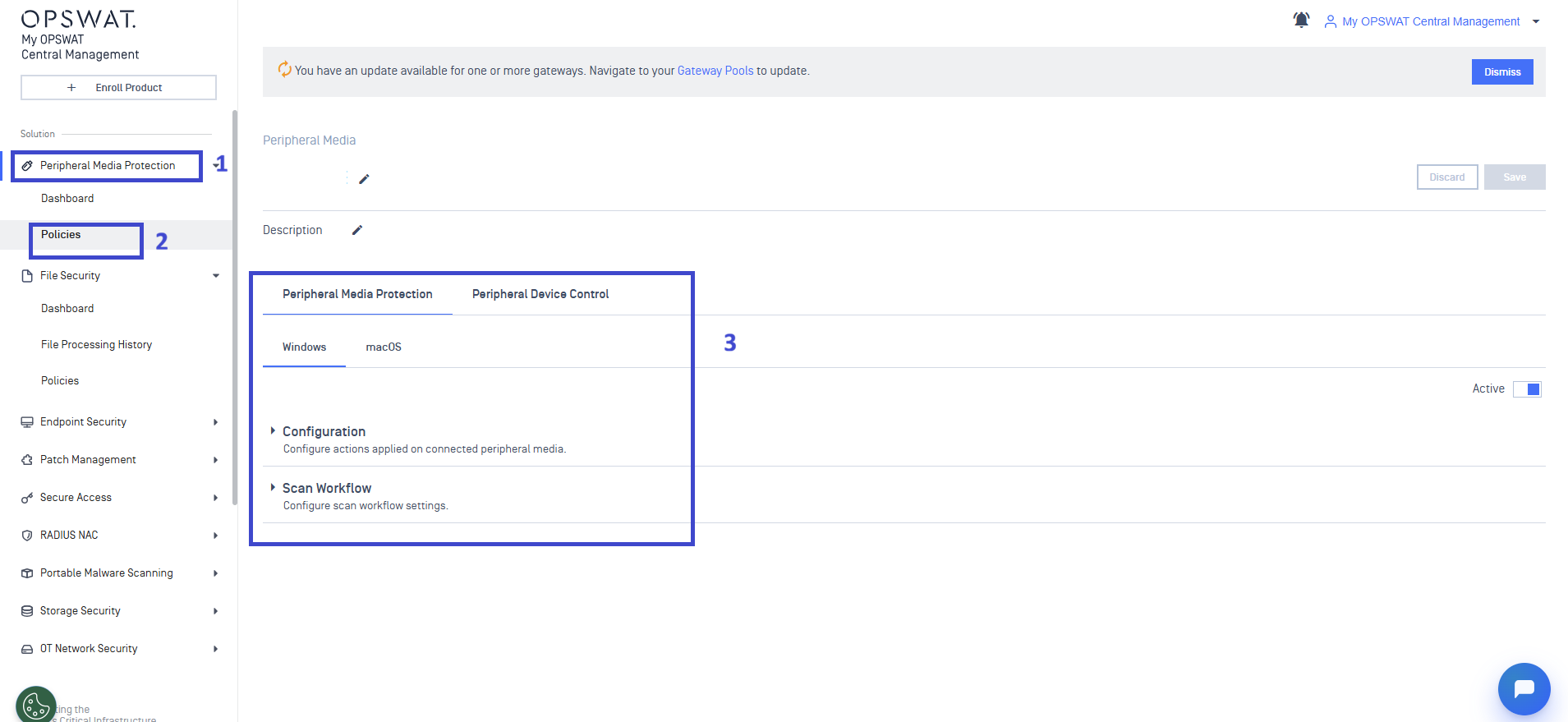
Starting with My OPSWAT Central Management version 10.7.26062 (released on June 30, 2026), the management console for Peripheral Media Protection and Advanced Endpoint Protection is revamped with a restructured left menu, simplifying navigation to key protection controls.
With this revamp, no configuration is lost due to this interface changes. Your existing policies and settings will be carried over automatically.
For customers using previous versions of My OPSWAT Central Management (before 10.7.26062), the management console will remain as is until upgrade.
For more details about Before vs. After and what has been changed, please refer to this Documentation
For details on configuring Peripheral Media Protection policies for managed endpoints using previous My OPSWAT Central Management versions, please refer to this User Guide
As a result, this documentation provides details on configuration, policy set up, and monitoring for peripheral media usage and data transfers using My OPSWAT Central Management version 10.7.26062 or later
Configuration
Peripheral Media Protection
Step 1: Navigate to Peripheral Media Protection > Policies > Peripheral Media Protection > Windows/macOS
Step 2: Click on Configuration tab. This is where you can configure actions applied on connected peripheral media.
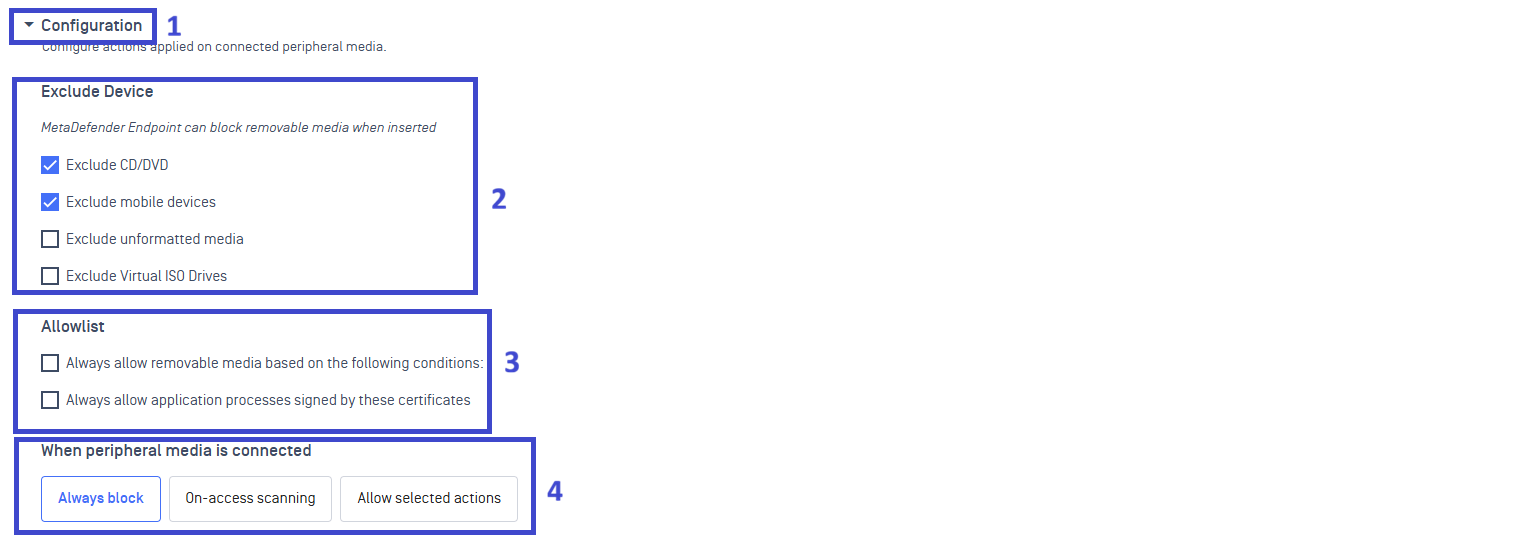
Exclude Device
Admins can configure to exclude specific type of removable media device from being blocked by MetaDefender Endpoint when inserted to the endpoint and exempt from scanning. Media type include:
CD/DVD
Mobile devices
Unformatted media
Virtual ISO Drives
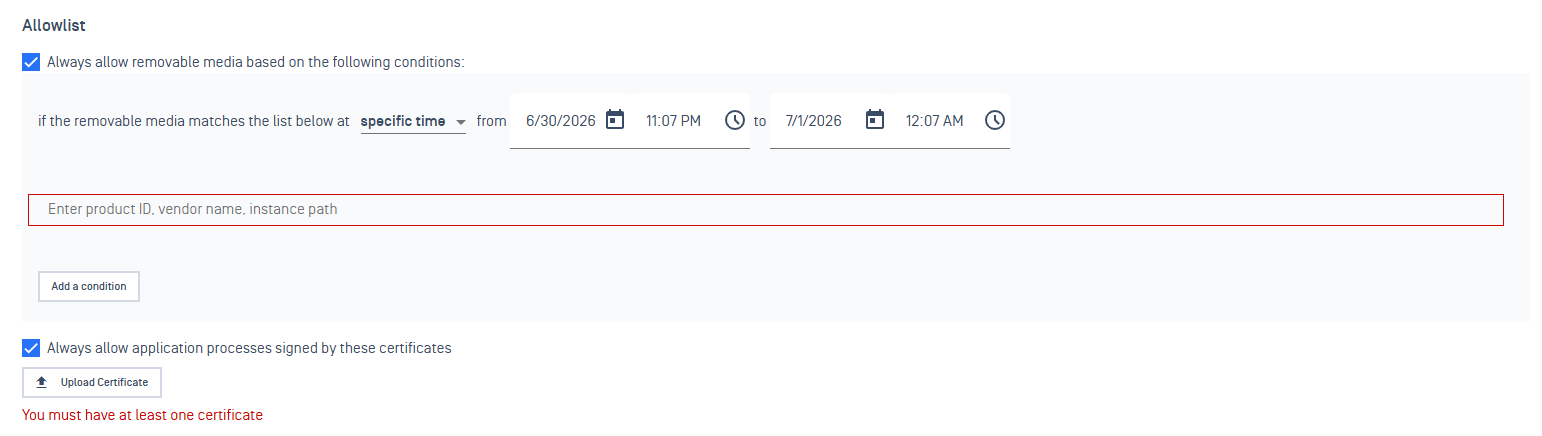
Allowlist
With this feature, administrators can allow removable media devices based on Device ID, Vendor ID or instance path
Administrators can also grant time-limited, exception-based access to specific peripheral devices for authorized individual/endpoint based on policies
Peripheral Media Protection Modes
This feature has three different modes that are controlled and set via the administrator management console.
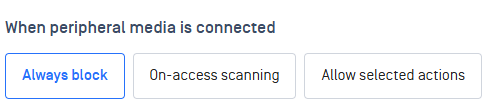
Always block: Full block mode. Peripheral media devices will be fully blocked with this mode, and users need to scan the device to unblock.
On-access scanning: To access files from peripheral devices, users can choose to scan selected files that they wish to work on or scan the entire USB. Users can select files directly from native apps like Windows Explorer to maintain a natural workflow
Allow selected actions: Block the peripheral media device and allow users to take specific actions.
Mode 1: Always block
Peripheral media devices will be fully blocked with this mode, and users need to scan the device to unblock.

Mode 2: On-access scanning
Configuration
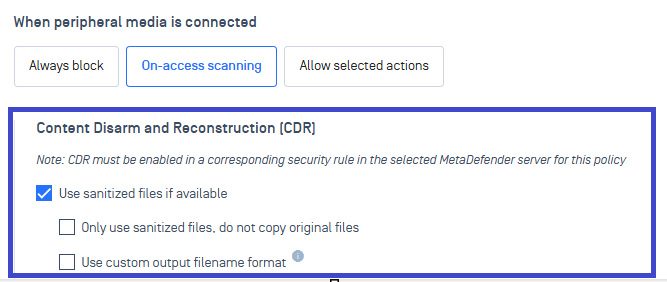
Admins can configure settings for sanitized files with Content Disarm and Reconstruction (CDR) in this section
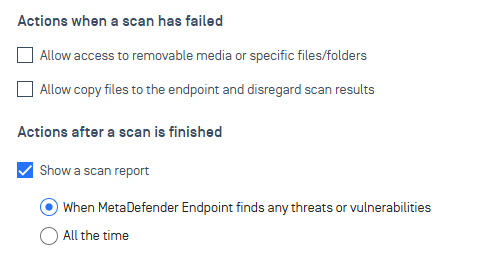
Admins can also configure corresponding behaviors when a scan is finished or failed
Configurable File Bypass
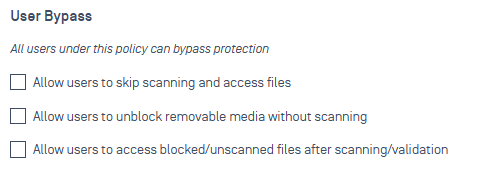
Admins can configure to allow users to skip individual file scans or device blocks for immediate access in Peripheral Media Protection
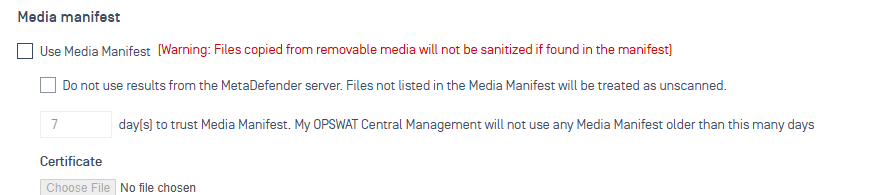
Configure media manifest usage
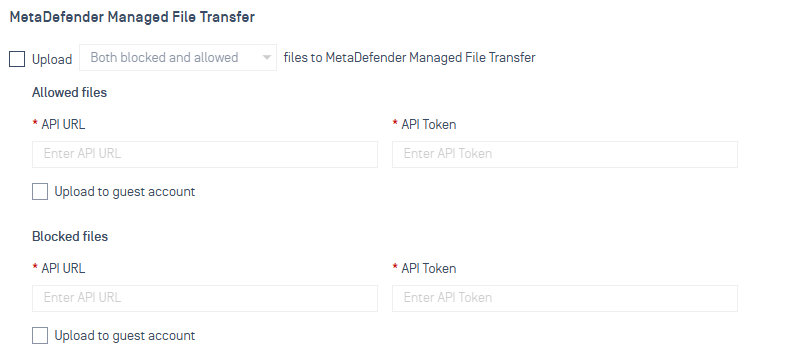
Setting for peripheral media data transfer using Managed File Transfer (MFT). Admins can configure for users to upload allowed/blocked files to Managed File Transfer from removable media devices
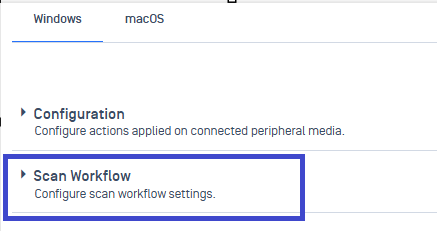
Scan Workflow
Administrators can configure the scanning workflow for removable media device in this section
Scan workflow tab is only enabled for On-access scanning mode and Allow selected actions mode
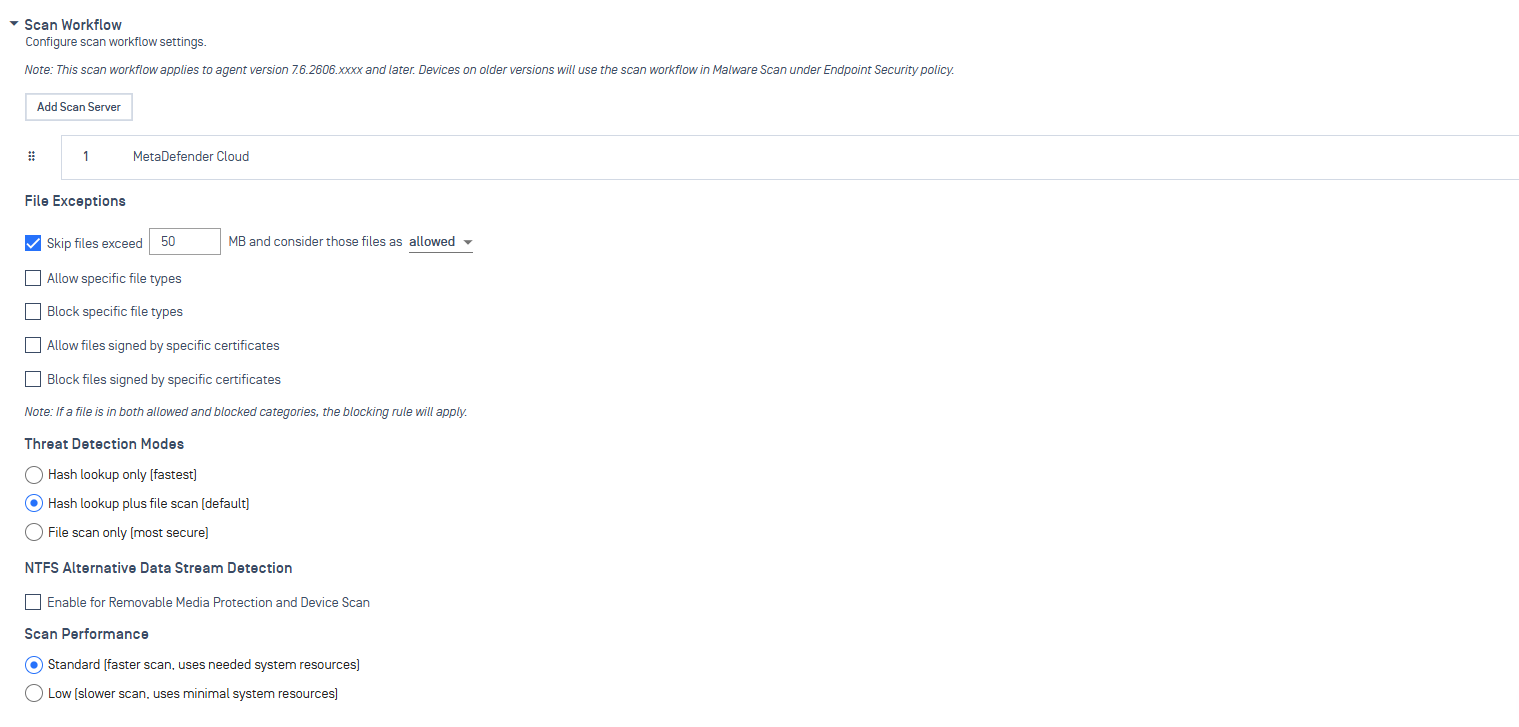
This scan workflow applies to MetaDefender Endpoint agent version 7.6.2606.xxxx and later. Devices running older versions will use the scan workflow in Malware Scan under Endpoint Security policy tab.
Settings that administrators can configure include:
Scanning server: Add scan server and set relevant rules

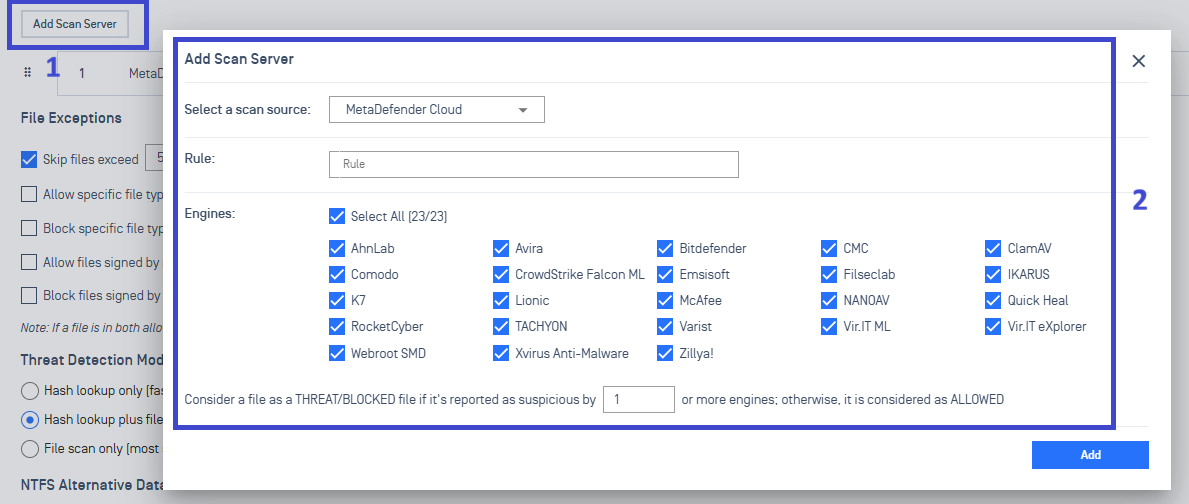
If multiple scanning servers are available, administrators can configure the server priority by specifying the order (for example, primary, secondary, and so on, simply by using the drag-and-drop icon on the left-hand side or the arrow buttons on the right-hand side

Automatic Scan Server Failover: When the primary scanning server becomes unreachable, Peripheral Media Protection automatically fails over to another available scan server
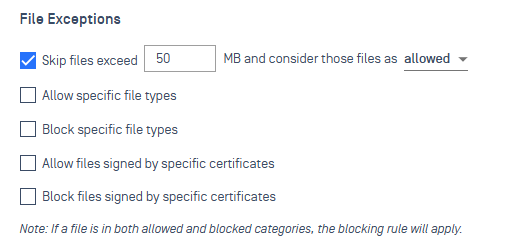
File exceptions
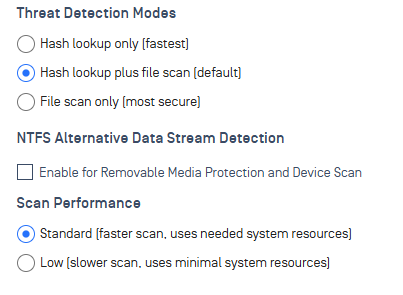
Threat detection modes, NTFS Alternative Data Stream Detection and Scanning performance
Mode 3: Allow selected actions
Configuration
Administrators can configure to allow users take specific actions on all or specific removable media (using ID Strings or Regular Expressions) when it is connected
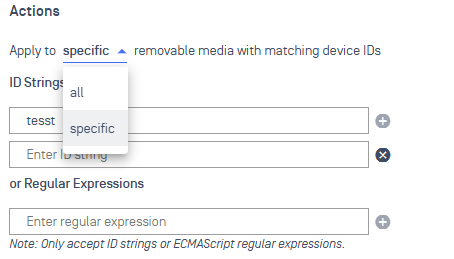
Actions that can be taken:
Unblock when no threat is found
Copy to/from removable media devices
Configurable option to only allow copy to/from approved folders
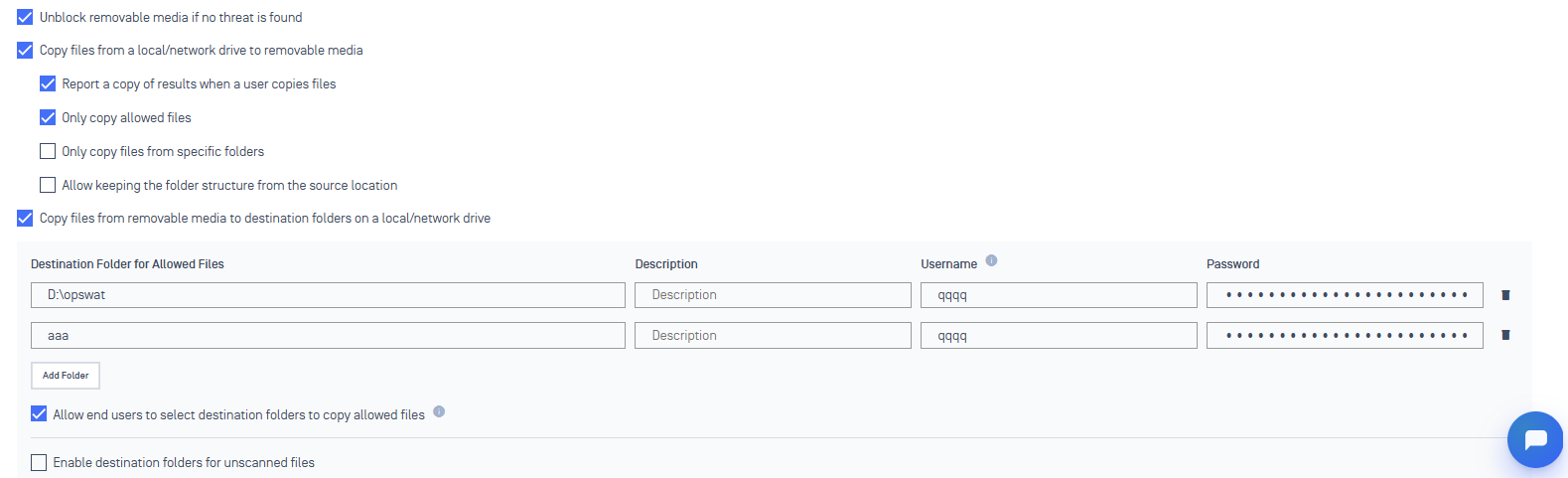
Admins can configure designated locations to copy allowed and unvalidated files from removable media

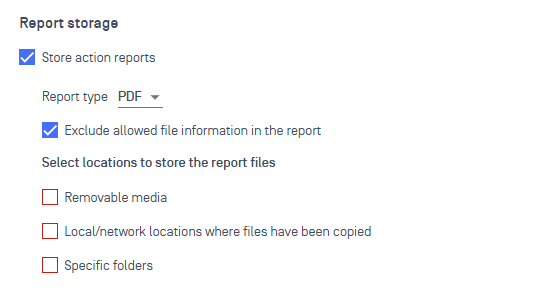
Scanning reports:
Reports can be extracted in PDF or CSV formats
Configure reports details
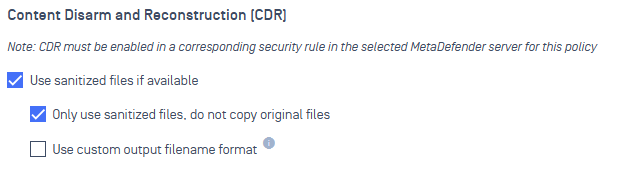
Admins can configure settings for sanitized files with Content Disarm and Reconstruction (CDR) in this section
Configurable auto-scan

Admins can also configure corresponding behaviors when a scan is finished or failed
Configurable File Bypass
Admins can configure to allow users to skip individual file scans or device blocks for immediate access in Peripheral Media Protection
Configure media manifest usage
Scan Workflow
Administrators can configure the scanning workflow for removable media device in this section
Scan workflow tab is only enabled for On-access scanning mode and Allow selected actions mode
This scan workflow applies to MetaDefender Endpoint agent version 7.6.2606.xxxx and later. Devices running older versions will use the scan workflow in Malware Scan under Endpoint Security policy tab.
Settings that administrators can configure include:
Scanning server: Add scan server and set relevant rules
If multiple scanning servers are available, administrators can configure the server priority by specifying the order (for example, primary, secondary, and so on, simply by using the drag-and-drop icon on the left-hand side or the arrow buttons on the right-hand side
Automatic Scan Server Failover: When the primary scanning server becomes unreachable, Peripheral Media Protection automatically fails over to another available scan server
File exceptions
Threat detection modes, NTFS Alternative Data Stream Detection and Scanning performance