
Address rewrite changes sender and recipient email addresses—both in email headers and in SMTP MAIL and RCPT commands—when Email Gateway Security delivers an email. For example, it can change john@mail.corp.example to john@example.com in outbound emails, and change it back in inbound emails.
Address rewrite replaces SMTP (Simple Mail Transfer Protocol) rewrite, the SMTP sender or recipient rewriting option of security rules, which is described in the Advanced section of the Policy page. SMTP rewrite is deprecated, and it is planned to remove it in an upcoming release.
If you use SMTP rewrite, move your settings to address rewrite entries. For details see Migrate from SMTP rewrite to address rewrite.
How it works
You create address rewrite entries on the Settings > Address Rewrite page
Each entry has two lists of rules:
Internal mapping rules are used for inbound emails
External mapping rules are used for outbound emails
Each rule has a matcher and a replacement. The matcher is a regular expression that finds the address. The replacement is the new address
You select which entry to use in a security rule, in an outbound server profile, or as the default entry
Create an address rewrite entry
Go to Settings > Address Rewrite and click Create.
Enter a Name.
Under Internal mapping rules or External mapping rules, click Add rule, and enter the Matcher and the Replacement. Add as many rules as you need. Drag the rules to change their order.
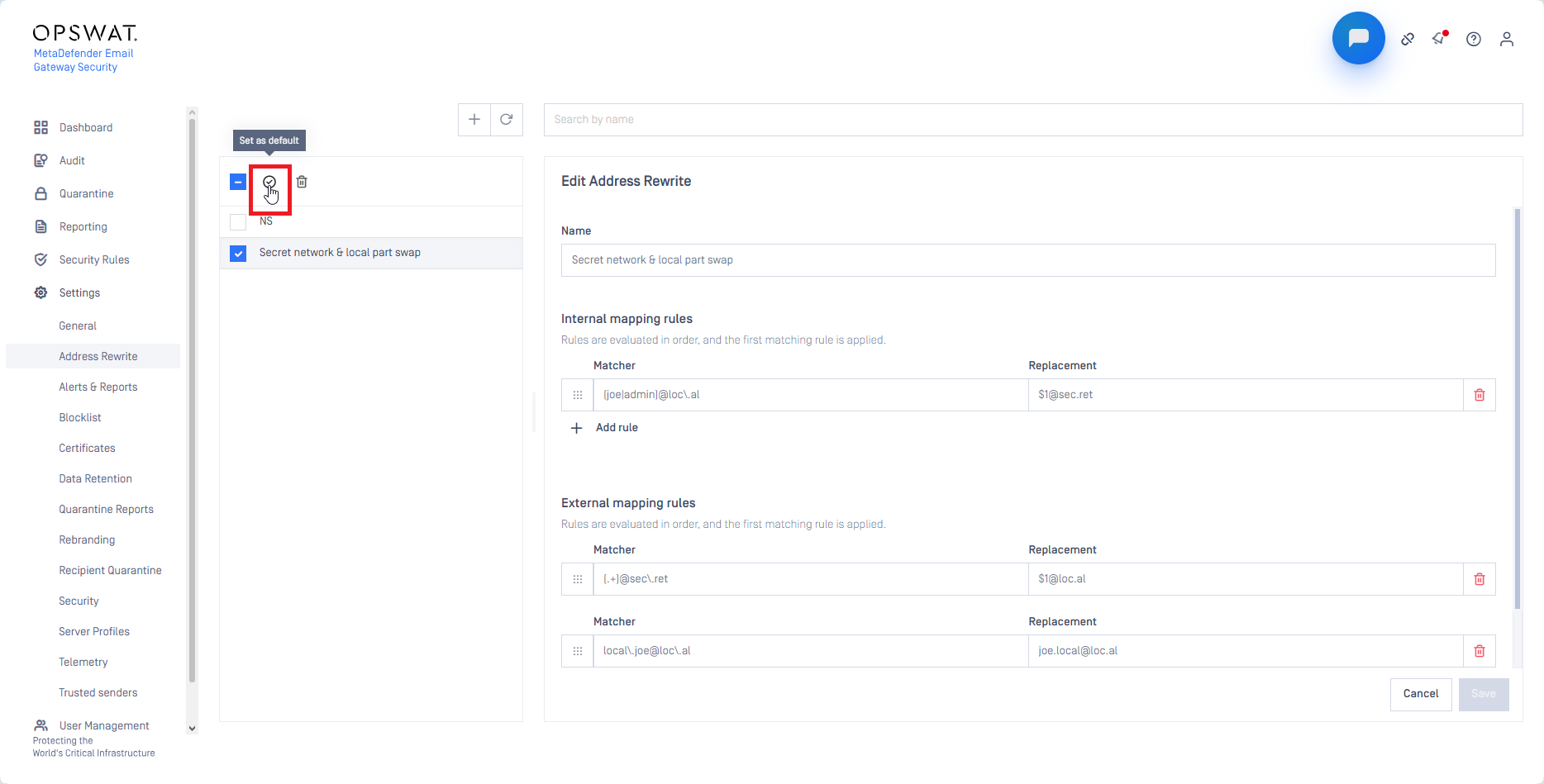
Optionally, turn on Default to use this entry as the default entry. Only one entry can be the default.
Click Save.
Email Gateway Security checks every rule when you save. If a matcher is not a valid regular expression, the entry is not saved. An entry needs at least one rule.
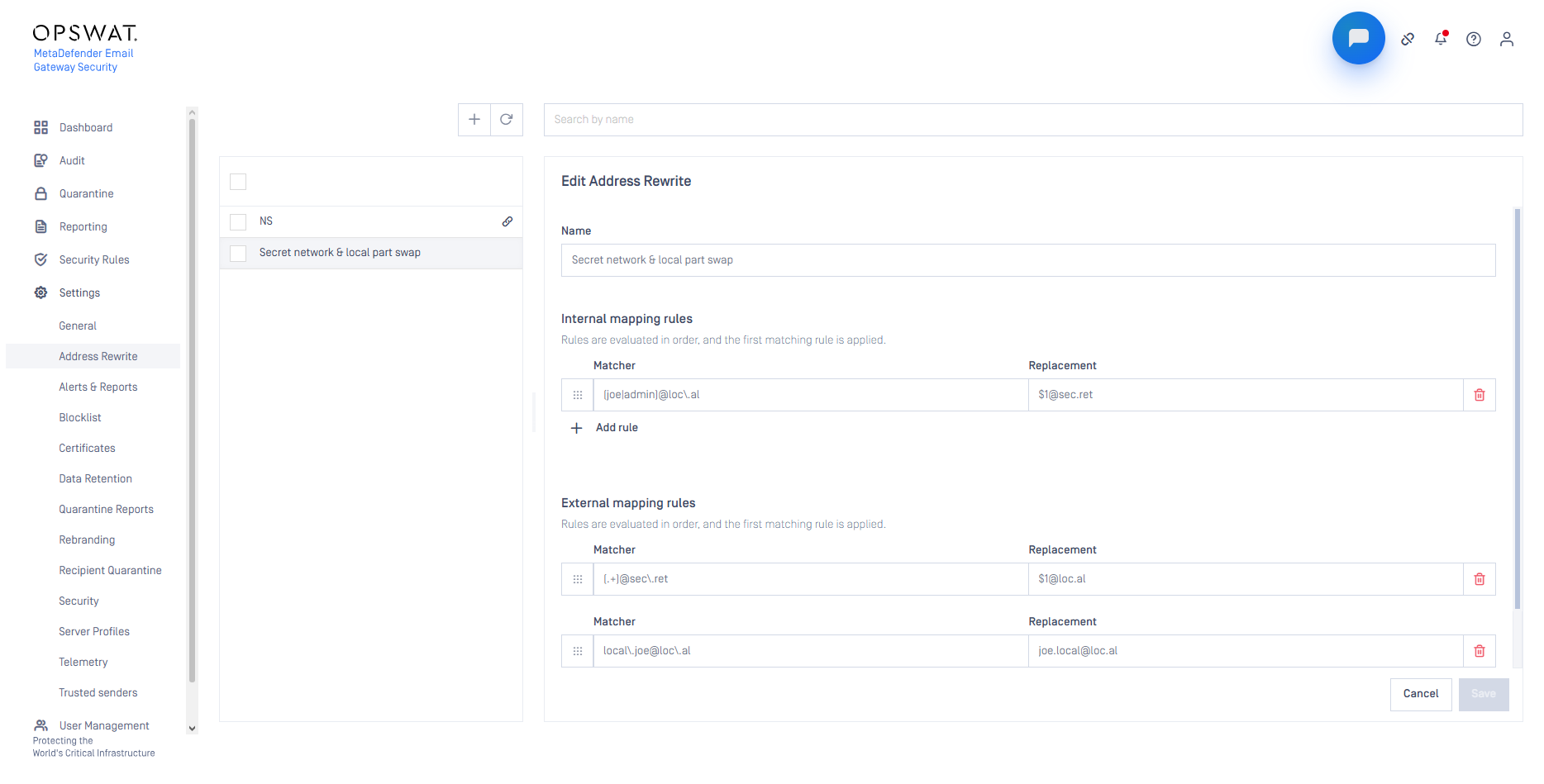
Write mapping rules
The matcher uses .NET regular expressions. For the syntax see Regular expression language - quick reference
The matcher must match the whole address, not only a part of it. Upper and lower case do not matter
Write a dot as
\., because a plain dot matches any characterUse round brackets to capture a part of the address. In the replacement,
$1puts back the first captured part,$2the second, and so onRules are checked from top to bottom. Only the first matching rule is applied, and the result is not checked again by the other rules. So put rules for single addresses above general rules
Example: the organization uses mail.corp.example inside and example.com outside.
List | Matcher | Replacement | Result |
|---|---|---|---|
Internal mapping rules |
|
|
|
External mapping rules, rule 1 |
|
|
|
External mapping rules, rule 2 |
|
|
|
Addresses that match no rule do not change. For example, partner@gmail.com stays partner@gmail.com.
A matcher must match a complete email address, with the local part and the @. A matcher that has only a domain, for example old\.example, is accepted when you save the entry, but it never matches any address. Email Gateway Security does not warn you about this.
To rewrite a whole domain, capture the local part: matcher (.+)@old\.example, replacement $1@new.example. The replacement must also give a complete address. If it does not, for example new.example or $1.new.example, the rule does not rewrite the address, and a warning is written only to the product log.
Select the entry
You can select an address rewrite entry in three places:
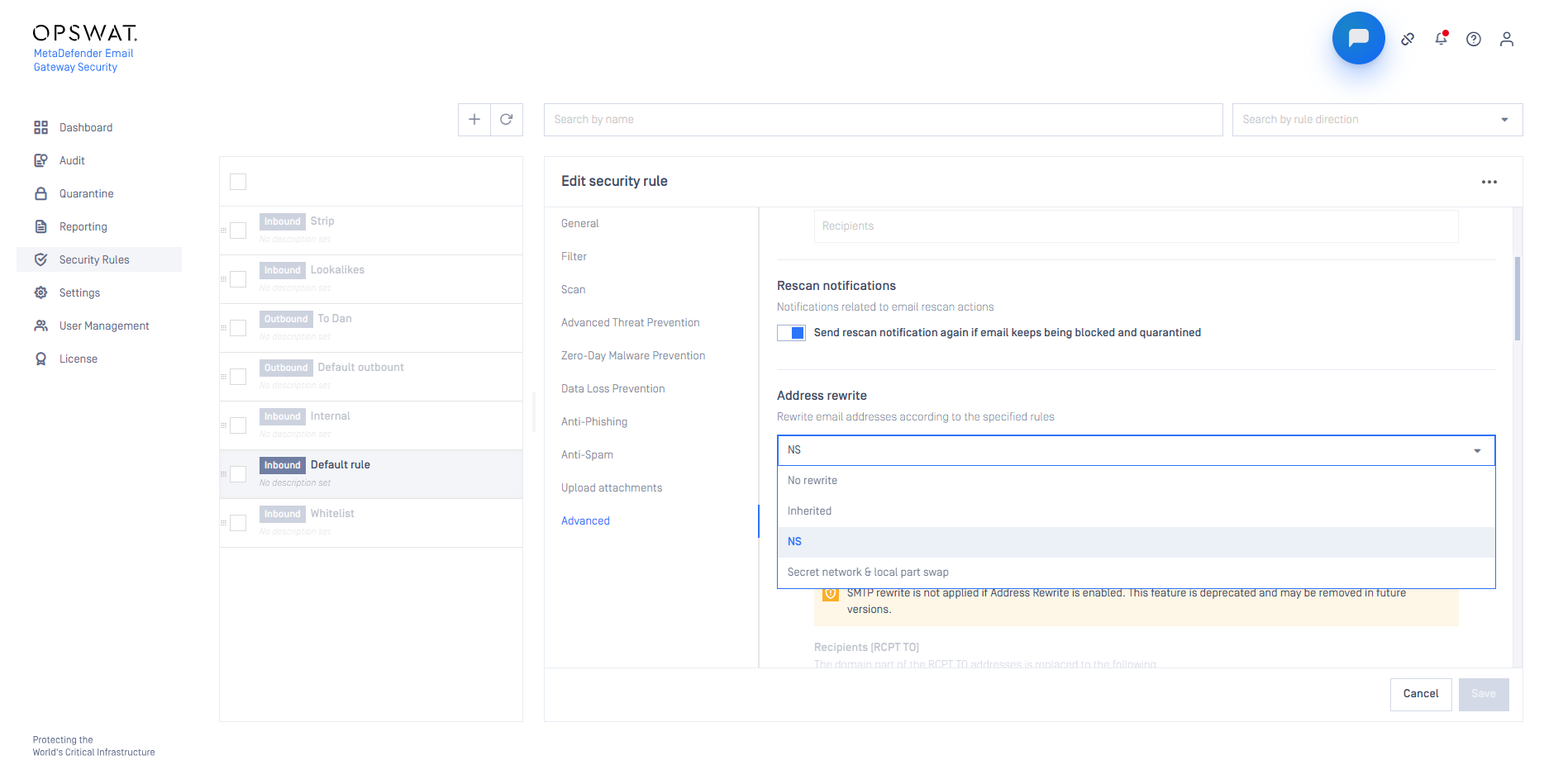
Security rule: on the Advanced tab of the security rule, in the Address rewrite section. See Policy
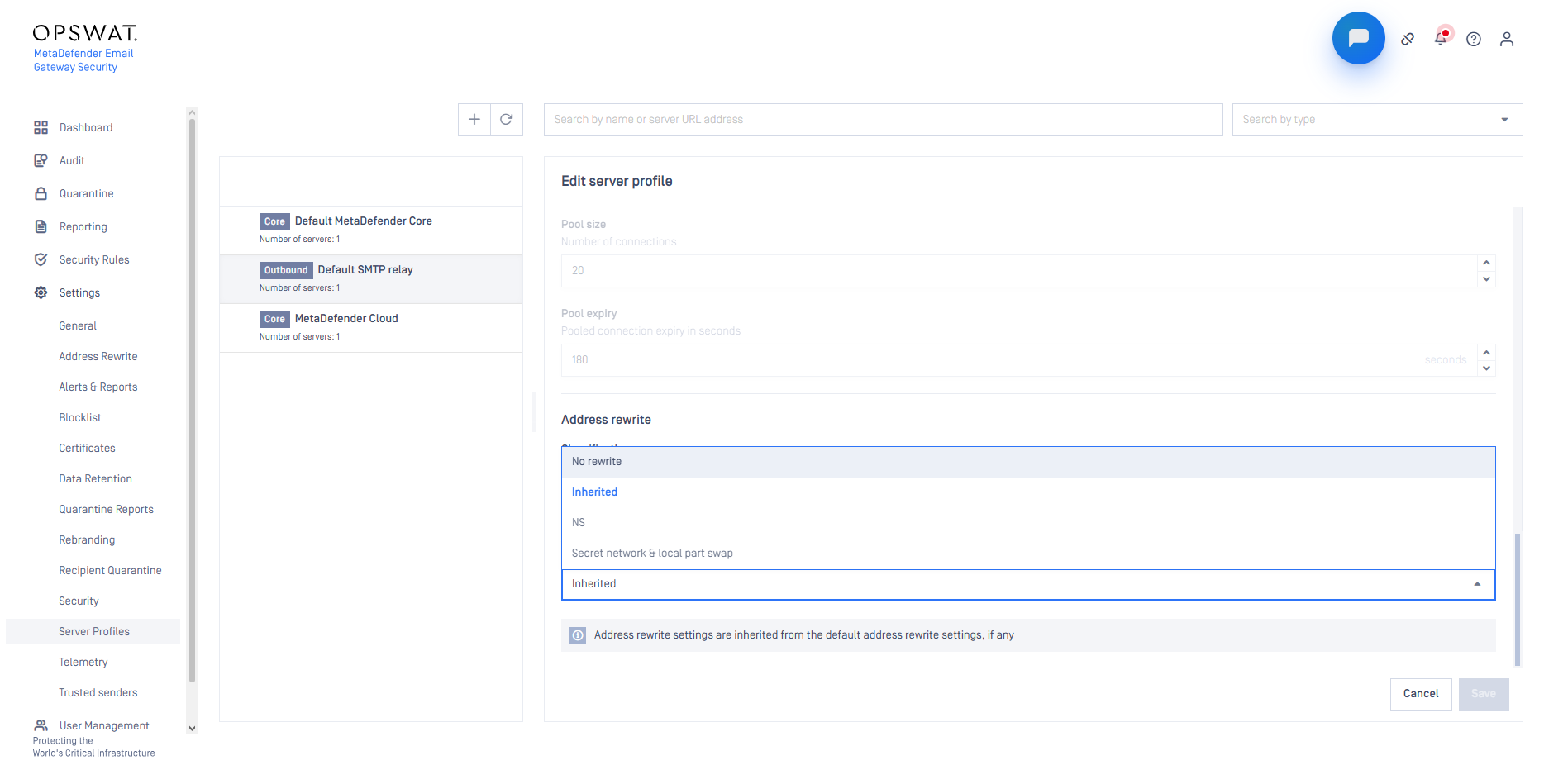
Outbound server profile: in a server profile of the Outbound server type, with the SMTP connection or Microsoft 365 integration integration type. See Server profiles
Default entry: the Address Rewrite entry that has Default turned on
In a security rule and in an outbound server profile, Address rewrite can be:
Inherited: the next place in the order below decides. This is the default value
No rewrite: addresses are not rewritten
An address rewrite entry
Email Gateway Security uses the first of these that selects an entry or No rewrite:
The security rule.
The outbound server profile that delivers the email.
The default entry.
When an entry is used, the SMTP rewrite settings of the security rule are ignored for that email. When no entry is used, SMTP rewrite still works as before.
Which mapping rules are used
What decides | Internal mapping rules | External mapping rules | |
|---|---|---|---|
The email matched a security rule | The direction of the security rule | Inbound rule | Outbound rule |
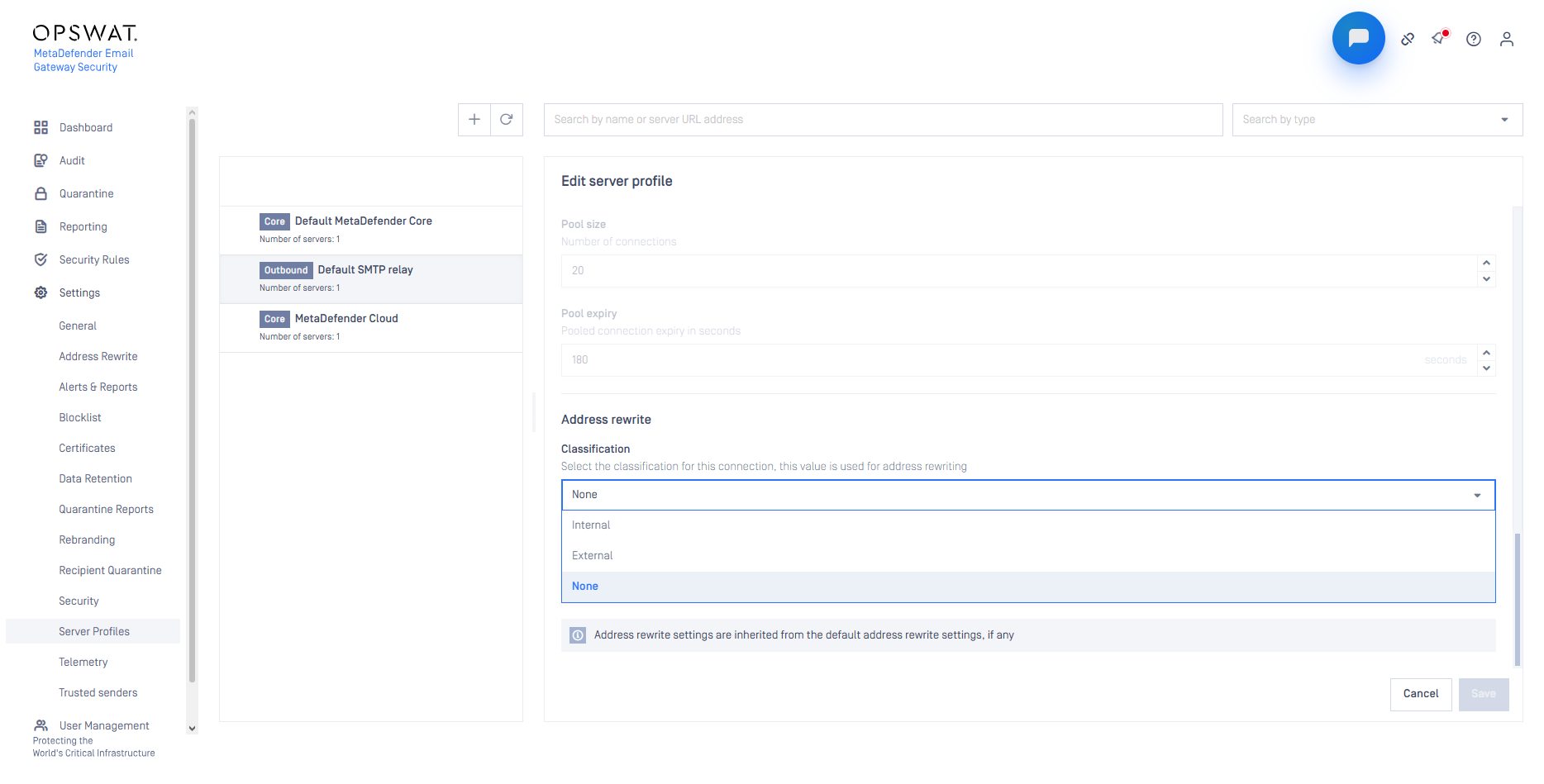
The email has no security rule: quarantine forwards, forwards of blocked emails and external quarantine copies | The Classification of the outbound server profile | Internal | External |
The classification is used only for emails without a security rule. For all other emails, the direction of the security rule decides, also when the entry comes from the server profile or the default entry.
So set the classification to match where the server profile delivers: Internal for your internal mail servers, External for the internet. Then emails with and without a security rule get the same rules. If the profile delivers in both directions, use None, which is the default value. Emails without a security rule are then not rewritten.
What is rewritten
The envelope sender and recipients (MAIL FROM and RCPT TO)
The addresses in these headers: From, Sender, Reply-To, Return-Path, To, Cc, Bcc, the Resent headers, Disposition-Notification-To and Errors-To
Display names do not change. With the Microsoft 365 integration integration type, only the sender, Reply-To, To, Cc and Bcc are rewritten.
These are not rewritten:
Emails that Email Gateway Security creates itself, for example alerts, notifications and quarantine reports
Emails in the Microsoft Exchange integration mode and in the Inline monitoring and Out-of-band monitoring deployment modes
The additional recipients of a security rule
Quarantine forwards, forwards of blocked emails and external quarantine copies, when the Classification of the outbound server profile is None (the default)
Recipient verification and Active Directory checks use the original address. Email History shows the original addresses. The processing history shows the envelope rewrite as an SMTP rewrite event.
Before you start
A wrong rule can send email to wrong or non-existent addresses. Failed deliveries are retried, so the queue can fill up fast.
Test a new entry with one security rule first, before you set it as the default
Send test emails in both directions, and check the headers of the received emails
Do not use matchers that match every address, for example
.*or(.+)@(.+)If many deliveries fail, set Address rewrite to No rewrite in the security rule or the server profile. Then correct the entry
DKIM (DomainKeys Identified Mail) and ARC (Authenticated Received Chain) signing happens after the rewrite. For each rewritten sender domain, publish the DKIM key and an SPF (Sender Policy Framework) record that includes Email Gateway Security.
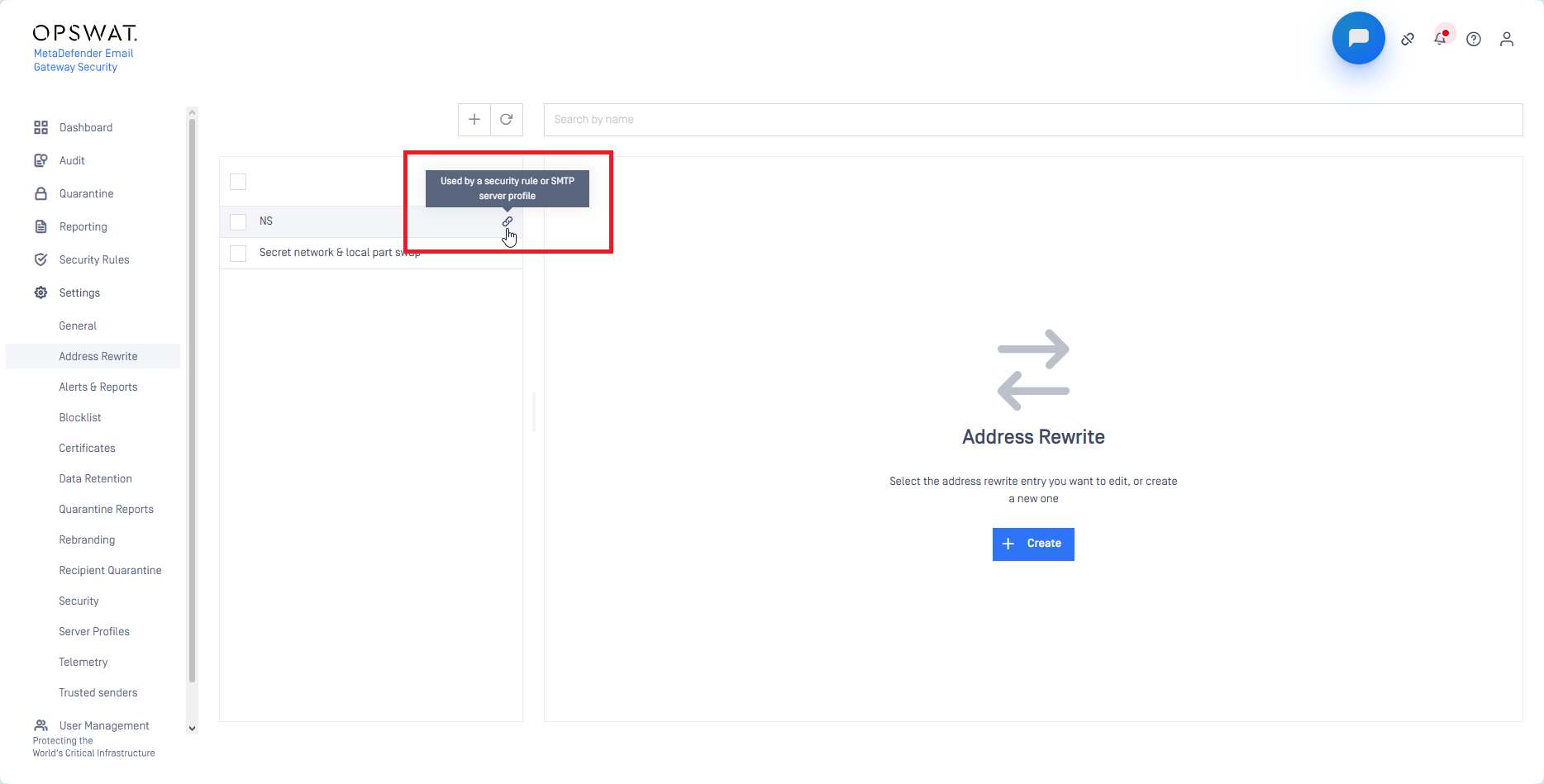
An entry that is used by a security rule or a server profile cannot be deleted. The list shows a link icon next to these entries.
To open the Settings > Address Rewrite page, a user needs the Address rewrite right in one of their roles. After an upgrade, only the default roles have this right: admin and security_admin with full access, and security_auditor with read-only access. If users with custom roles need the page, give the right to their roles.