
Overview
Quarantine is the safe storage for emails which were blocked or sanitized by MetaDefender Email Gateway Security.
For details about quarantine configuration, which emails are quarantined see Configuration/Quarantine configuration.
The machine hosting the quarantine is safe from infections as long as items in the quarantine are not opened or executed.
Care must be taken when granting access to the quarantine as releasing or forwarding the items from the quarantine might cause harm.
Search, Filtering and Email details
For details see Operating/Email History.
Saving filters
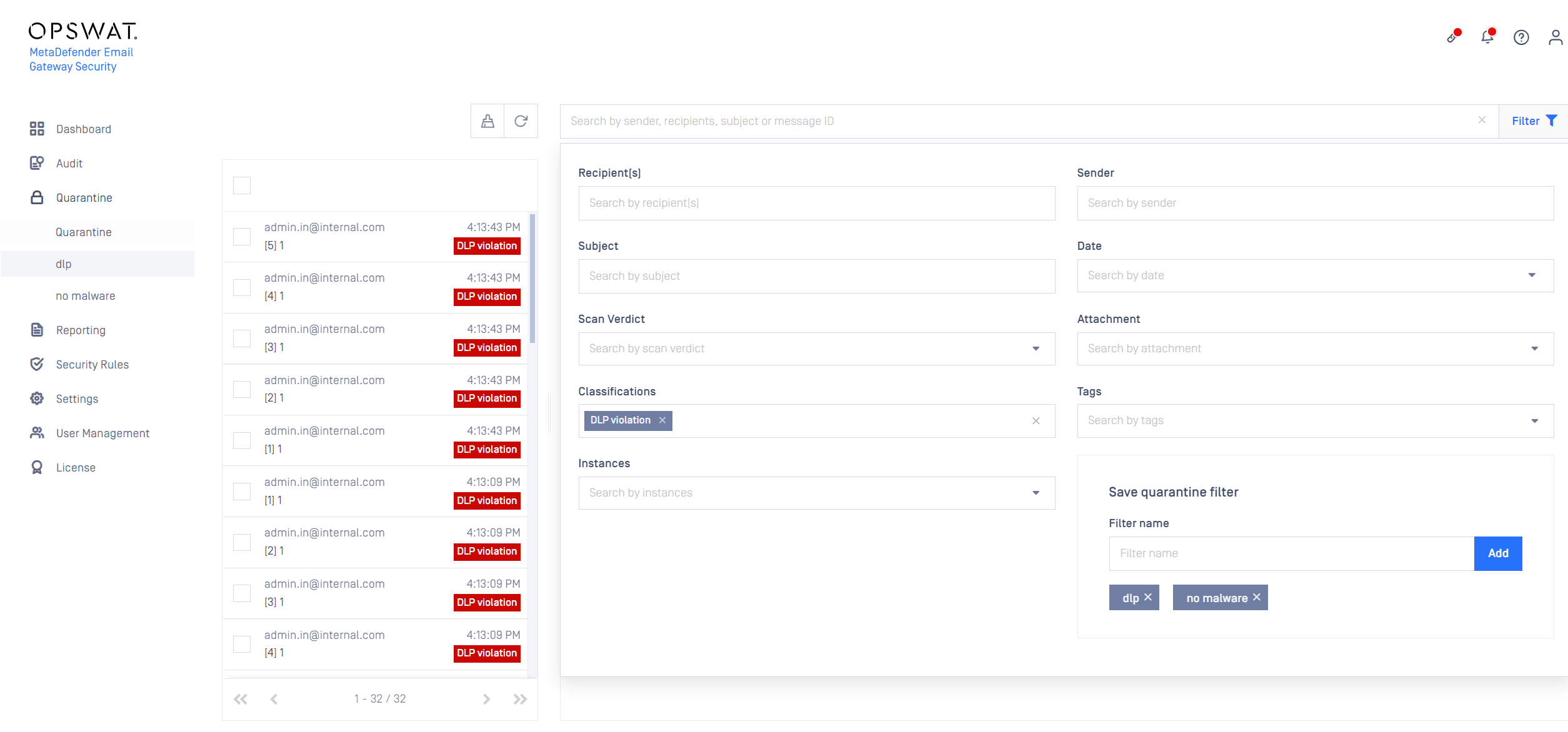
Under Quarantine > Quarantine in the filter section You have the possibility to save the already created filters to make it easier to manage your quarantine. Once the filter is set according to your needs you need to click on the Add button under next to the input. When you click on the freshly created filter, that will have an immediate effect on the email list, left side. Emails only according to the filter settings will be displayed.
Cleanup
Scheduled
For details see Configuration/Quarantine configuration.
On-demand
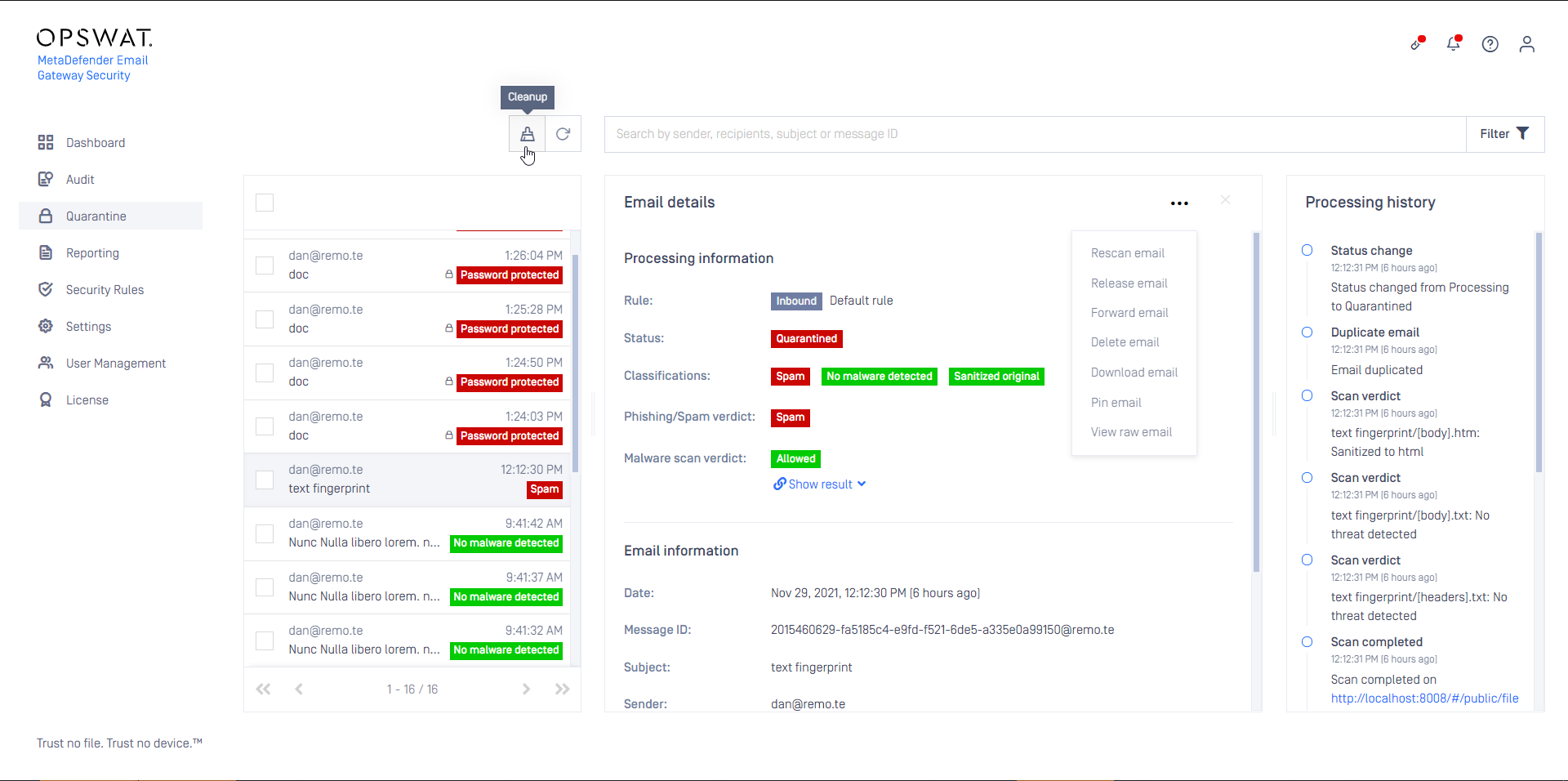
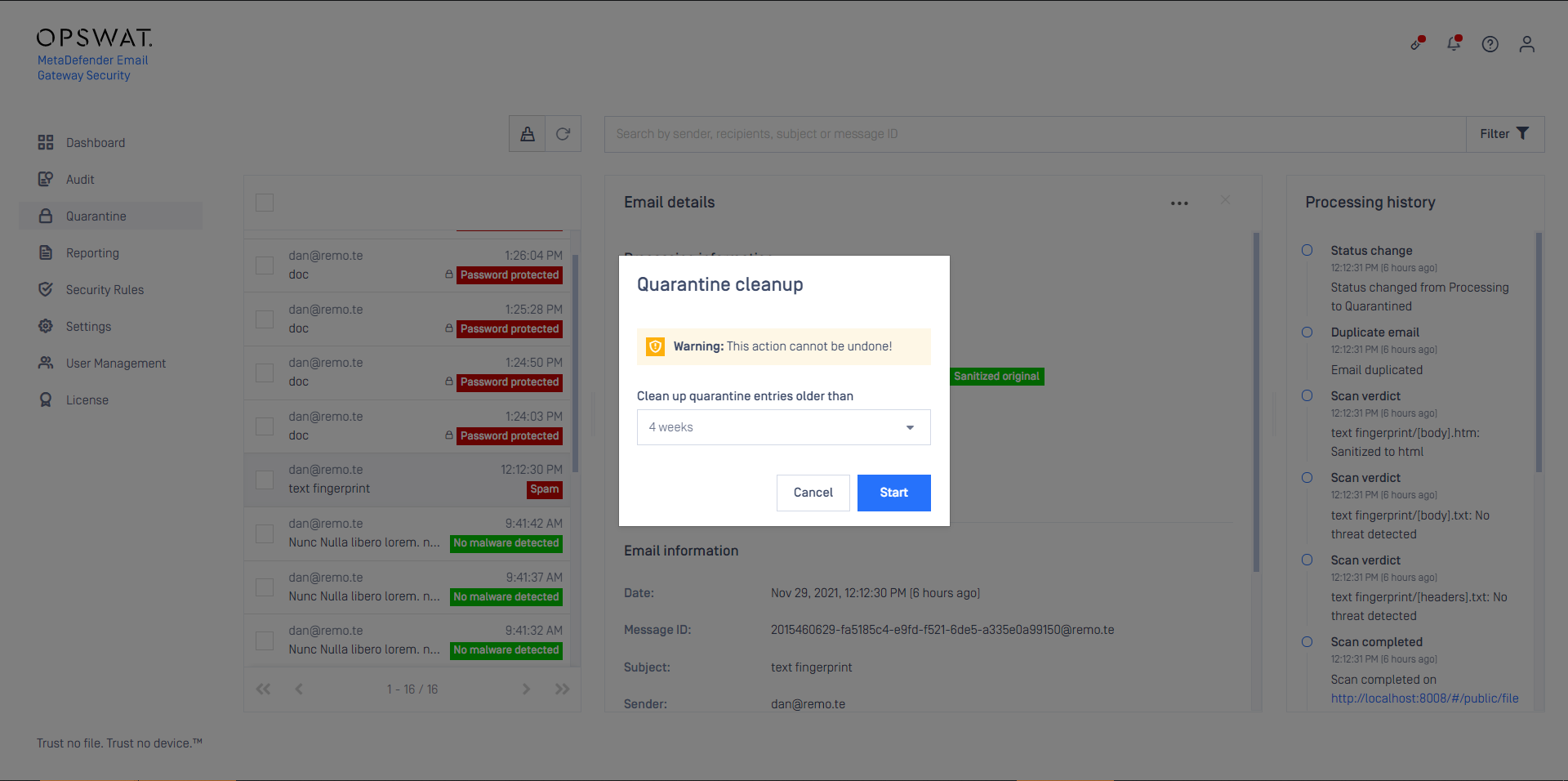
To clean-up quarantine on demand click the  icon and select the time window of the cleanup.
Pin emails
Email that are pinned won’t be removed from the quarantine by the scheduled or the on-demand cleanup.
Clicking the  button will pin the selected email(s).
Operations
The following operations are available as both bulk and single email operations:
Operation | Icon | Description |
|---|---|---|
Full rescan |
| Initiate a full (including anti-spam checks) rescan of the email(s). For details see Rescan email. |
Anti-Malware rescan |
| Initiate an anti-malware (not including anti-spam checks) rescan only of the email(s). For details see Rescan email. |
Release |
| Release the selected email(s). The original, potentially harmful email gets delivered. For details see Release email |
Forward |
| Forward the selected email(s) to the specified recipient(s) for further investigation, for example. The original, potentially harmful email gets delivered. |
Delete |
| Delete the selected email(s) from the quarantine. The operation can not be undone. |
Download |
| Download the selected email(s) az a zip archive file. The original, potentially harmful emails are downloaded. |


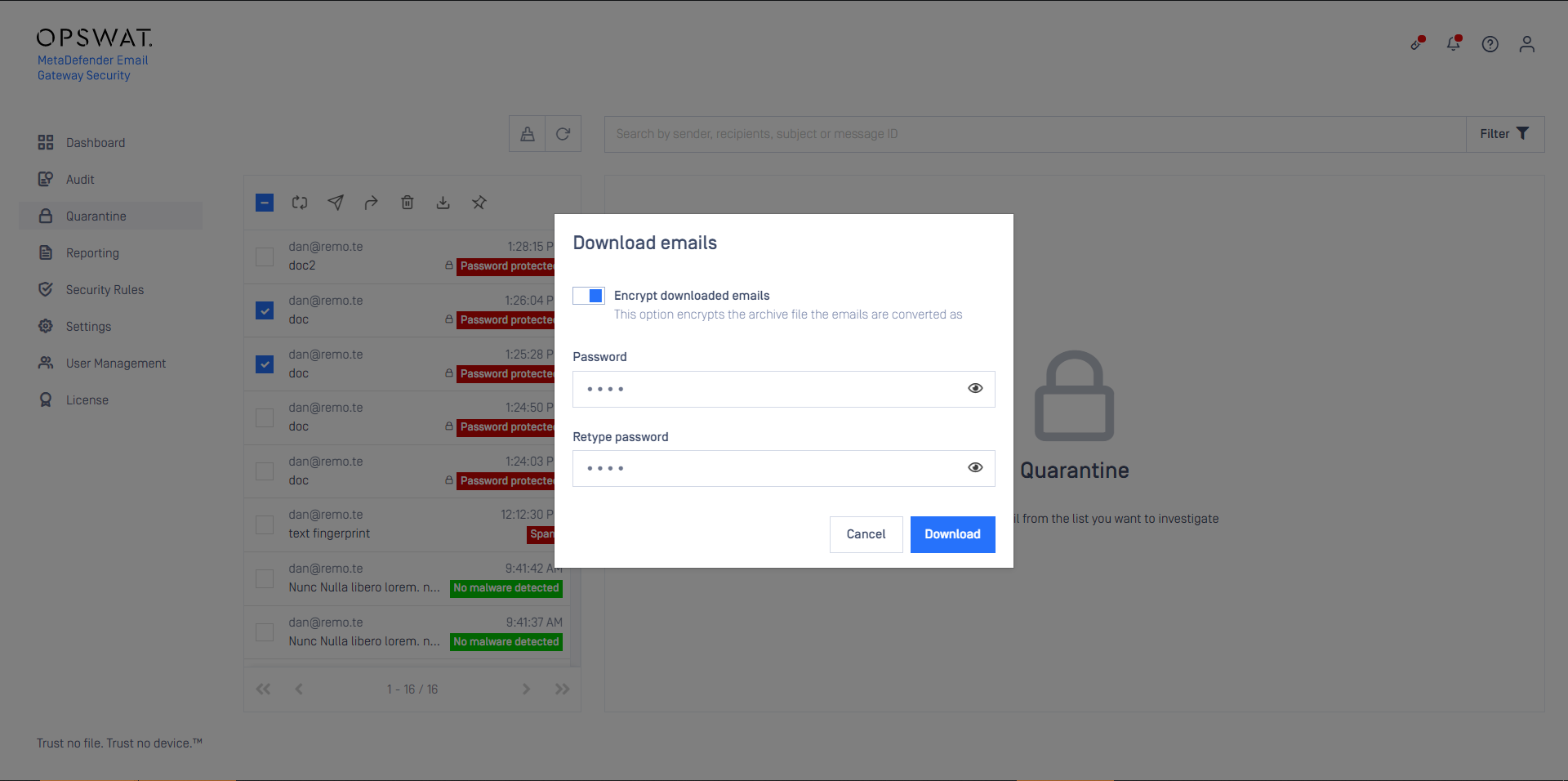
Upon download it is possible to encrypt the downloaded zip archive with a password.
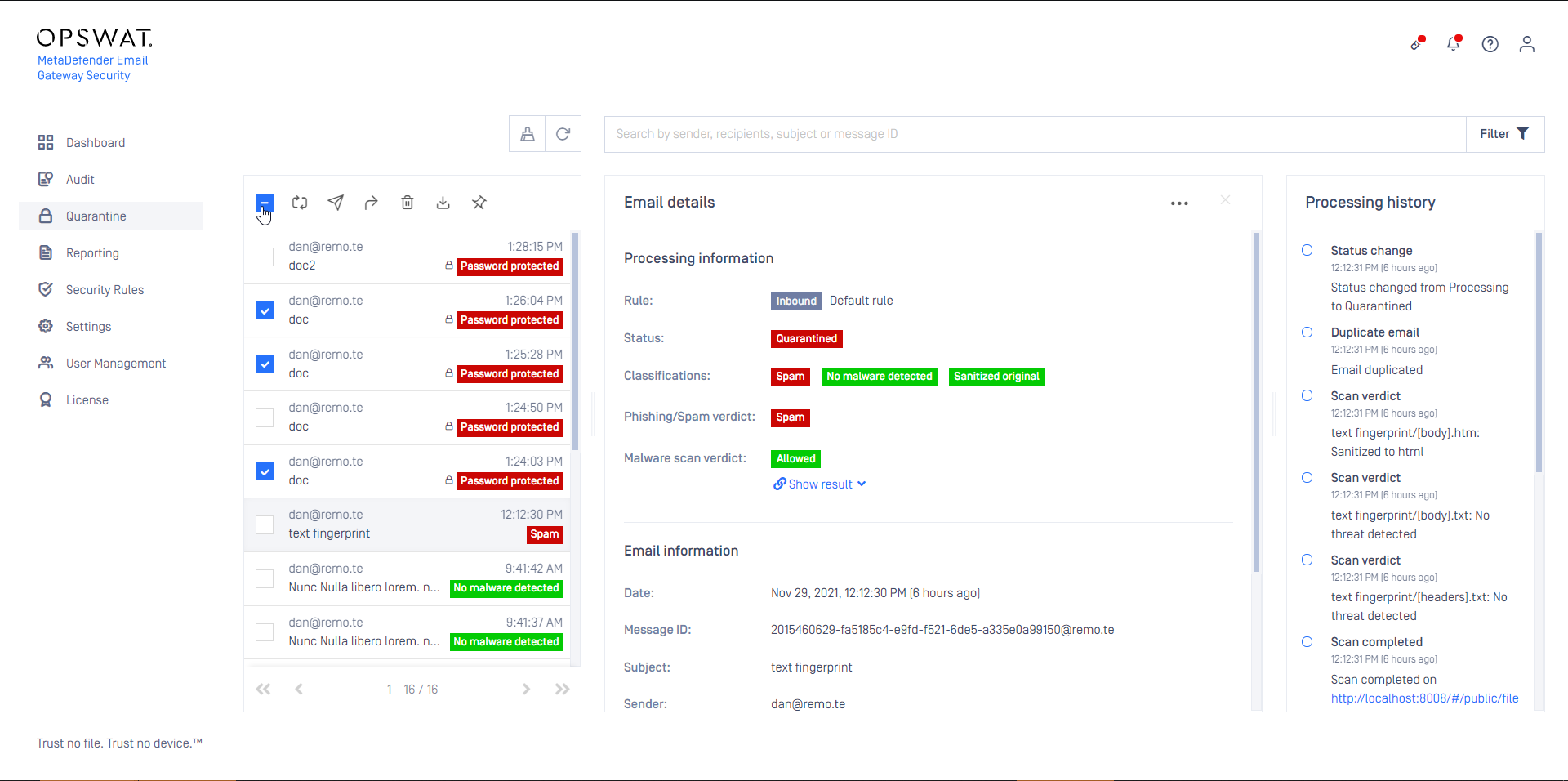
Bulk operations
Use the checkbox in front of each row to select entries (or use the checkbox in the header row to select all visible items).
Only visible elements are selected. Elements that are not visible (due to pagination, search or filtering) are not selected even by the select all checkbox.
Single email operations
Click the  in Email details to open the single email menu.
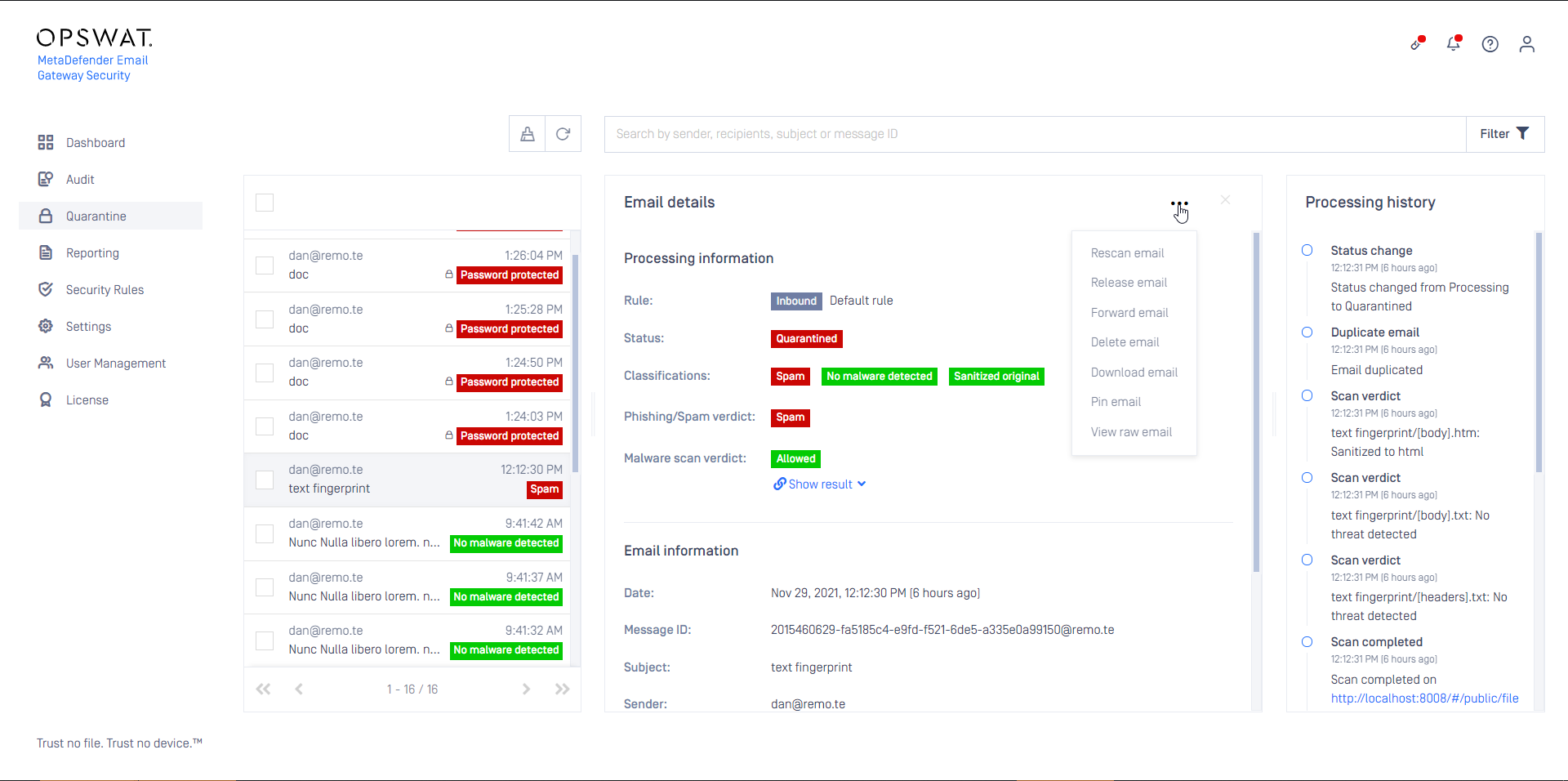
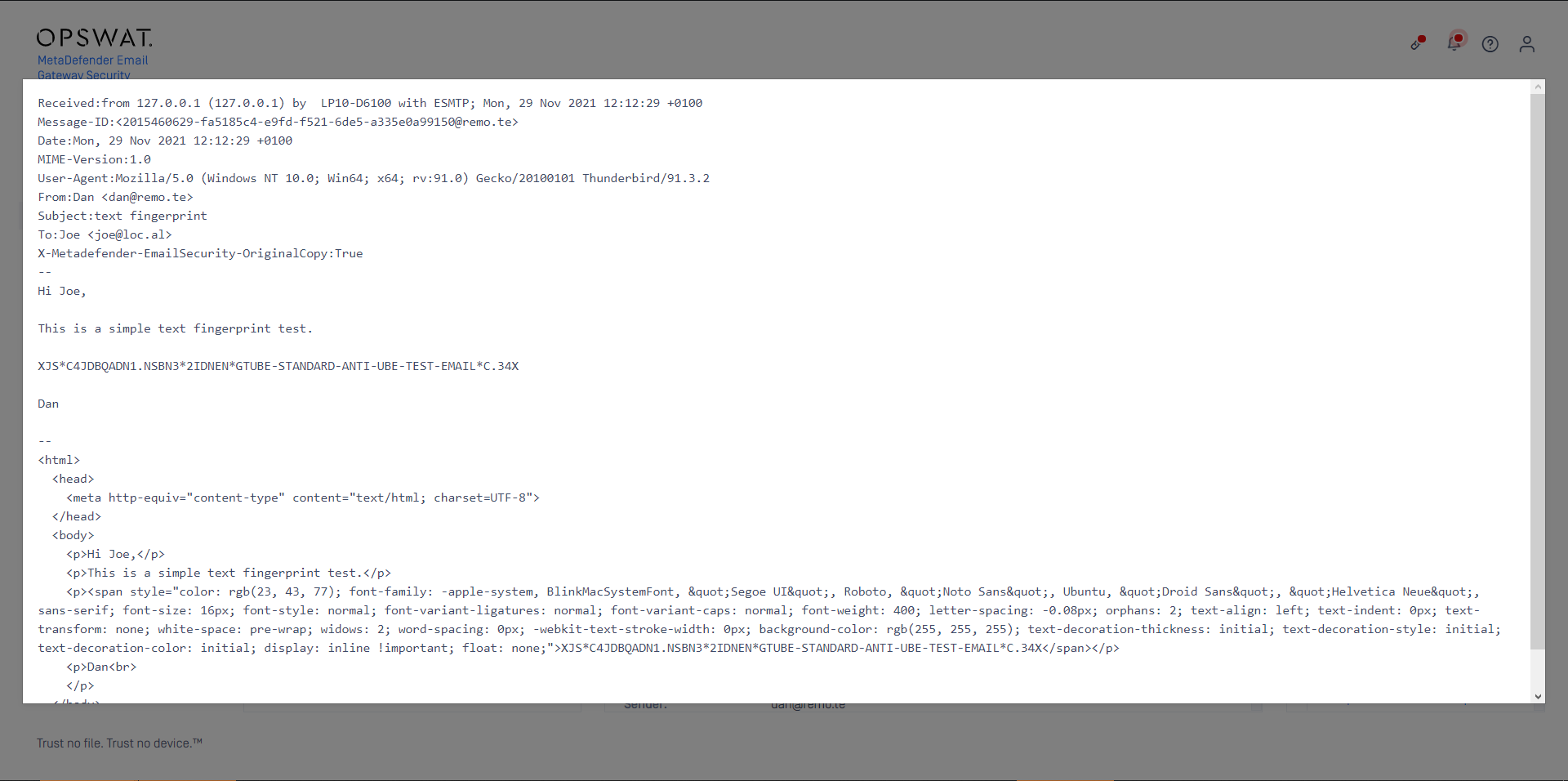
The only operation that is not available as a bulk operation is View raw email.
This function can help investigating why the email was quarantined as it shows the raw text format of the email.
Adding to Trusted Senders
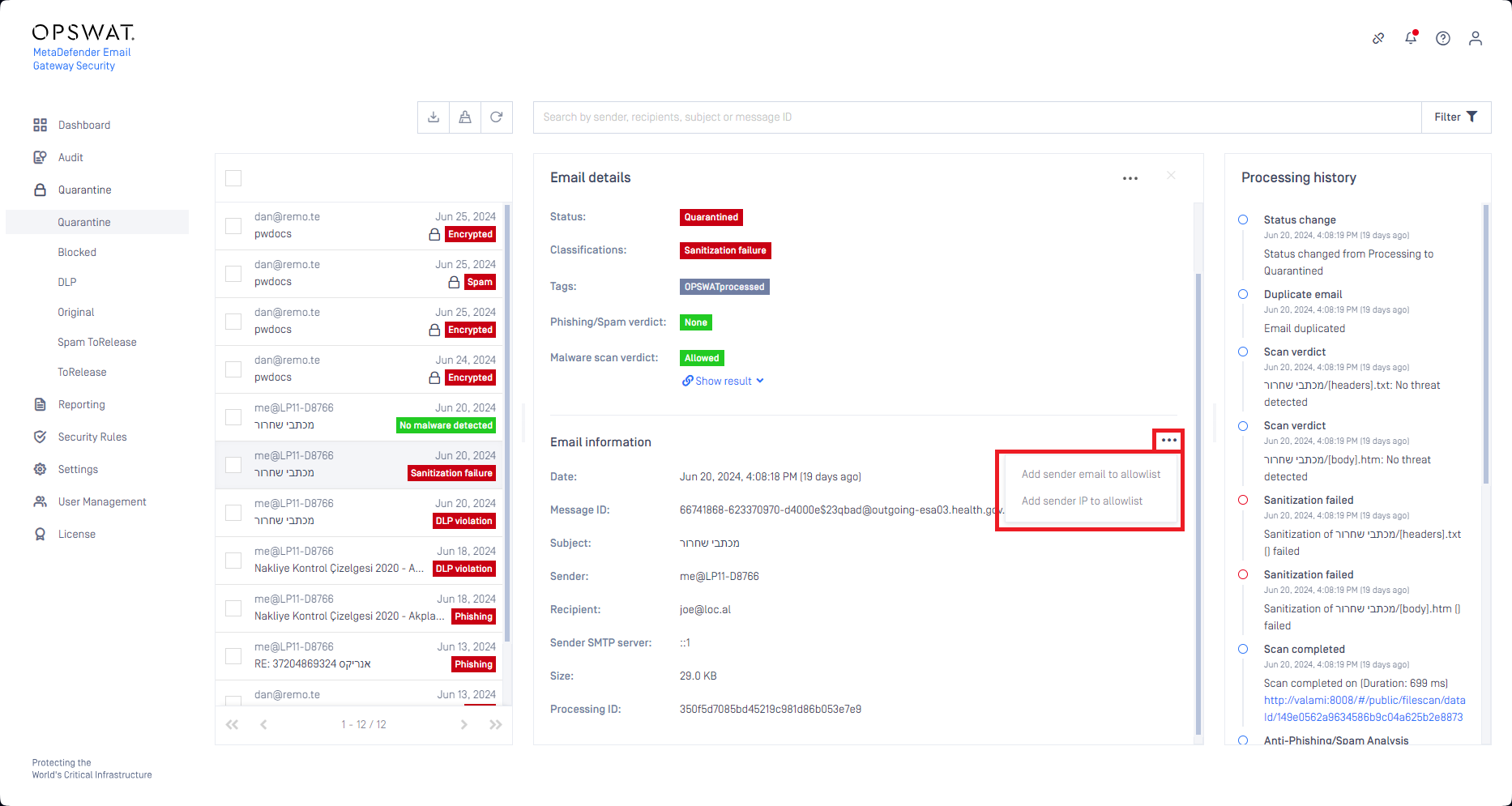
It is now possible to add sender (email or IP address) to the trusted senders list directly from the Quarantine view. Click the  in Email information to open the single email menu.
Full rescan email
MetaDefender Email Gateway Security provides the capability to rescan emails that were previously blocked and ended up in the quarantine. After a rescan the email may be allowed and delivered normally. Some of the reasons why emails may be rescanned:
To process the email with updated scan engines that may not block the contents,
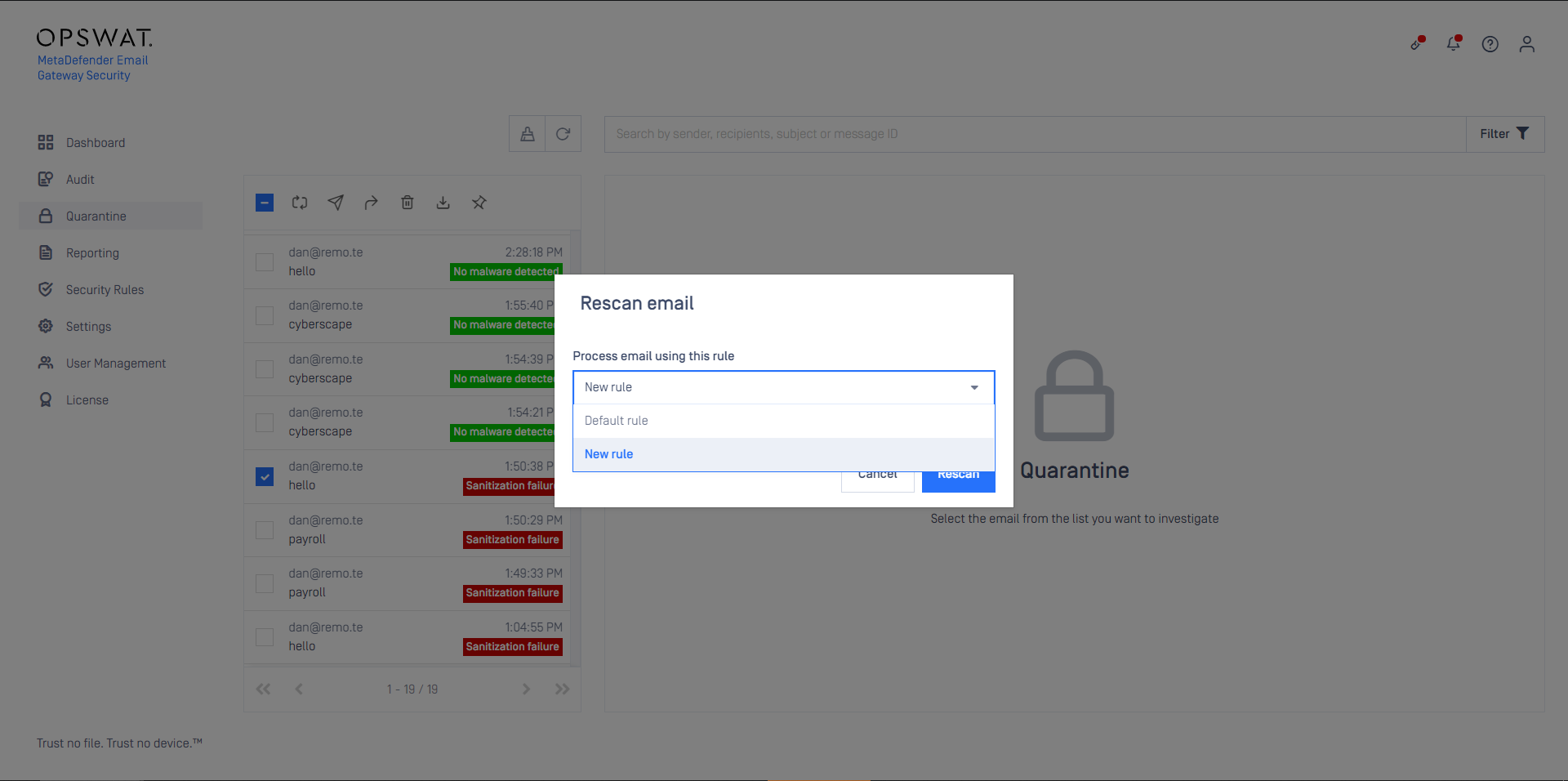
To process the email with an alternative rule that may give different results,
To sanitize a blocked email before releasing (see the section Disarm, reconstruct and release)
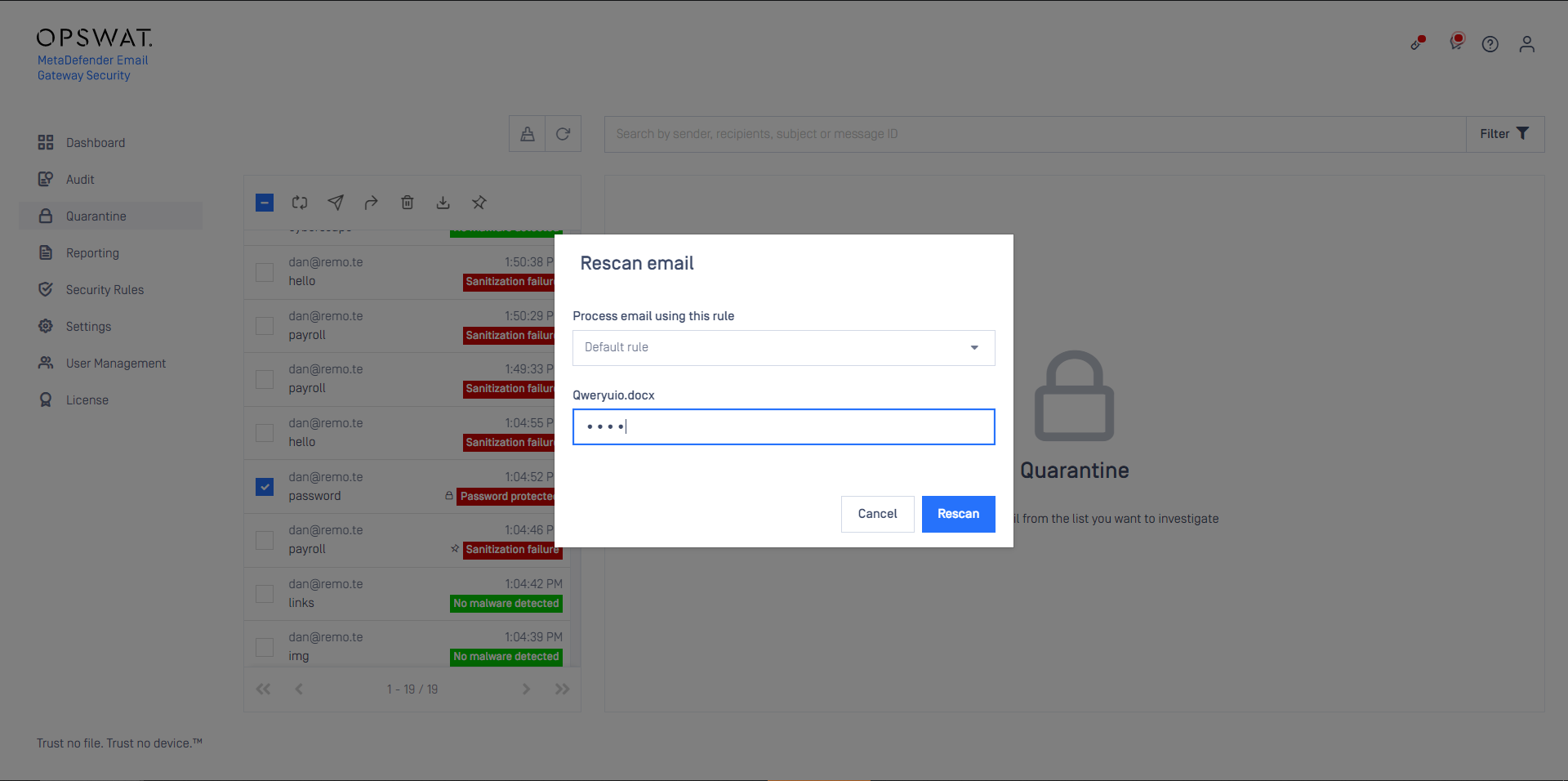
To provide password for encrypted attachments and process the decrypted contents.
Select alternative rule
Provide password
For details see Operating/Password protected attachments.
Anti-malware rescan email
It is also possible to rescan an email using only the anti-malware technologies available in MetaDefender Email Gateway Security, omitting anti-spam & anti-phishing checks. This simplifies tasks, such as releasing a spam false positive while still ensuring that the email is free from malware. For details see Handling spam false positives.
Release email
This function will release the selected original emails from the quarantine and send them to the original recipients. The original emails are removed from the quarantine.
The recipients will receive the (potentially) malicious contents.
For this function to work correctly Settings > Alerts & Reports / SMTP server profile. For details see Configuration/Alert, notification and quarantine report emails.
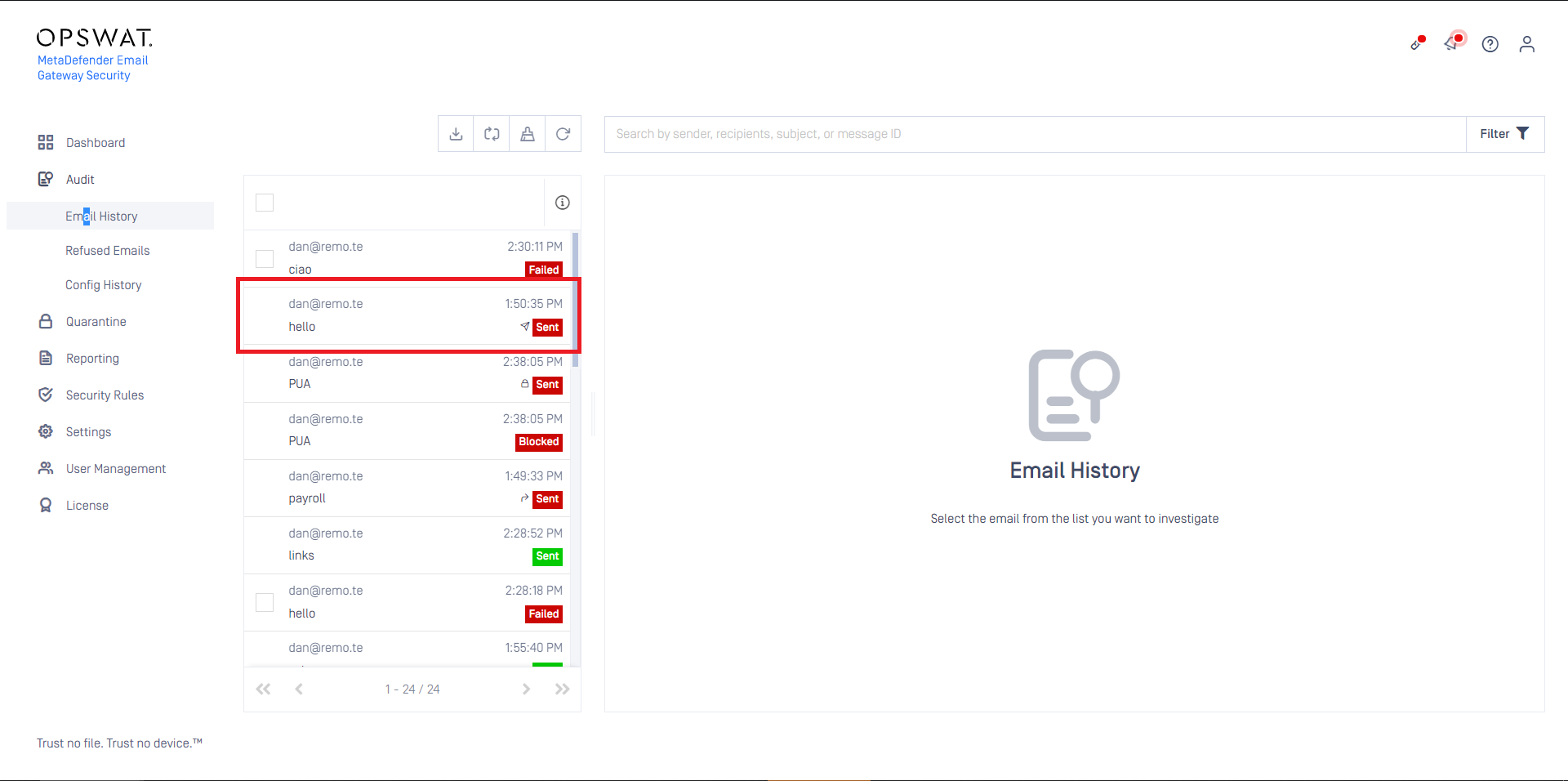
Quarantining puts the original email into the quarantine and sends a notification or a disinfected/sanitized copy to the original recipient. As a result, releasing from the quarantine virtually duplicates the history entry for the quarantined email.
These duplicates are marked with a paper plane icon in Audit > Email history. For details see Operating/Email History.
Disarm, reconstruct and release
It is a potential use case to sanitize emails before releasing them. This feature is not supported by the regular Release email function but can be achieved using Rescan email.
Preparations
On MetaDefender Core servers create a rule that does not scan, but applies the desired sanitization.
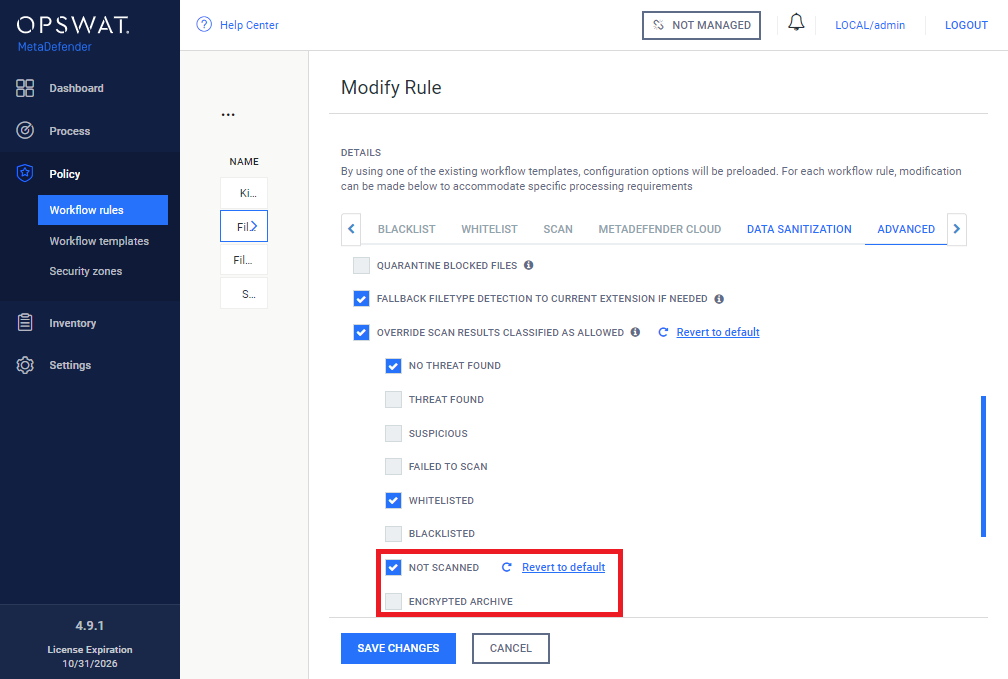
It is necessary to allow the not scanned results for the Core rule (in Core under Policy > Workflow rules / Add/Modify Rule / ADVANCED / OVERRIDE SCAN RESULTS CLASSIFIED AS ALLOWED / NOT SCANNED). To allow password protected archives to be processed, the encrypted archive results must be disabled (in Core under Policy > Workflow rules / Add/Modify Rule / ADVANCED / OVERRIDE SCAN RESULTS CLASSIFIED AS ALLOWED / ENCRYPTED ARCHIVE)
On Email Gateway Security create a MetaDefender Core type server profile having the Core servers and rules created in the previous step. For details see Configuration/Server profiles.
On Email Gateway Security, under Security Rules create a rule using the server profile created in the previous step.
Optionally set 0.0.0.0 as SENDER IP ADDRESS for this rule to not match any regular incoming emails or
Set the priority of this rule accordingly if it is expected to process regular incoming emails.
Release
Instead of using the Release function use the Rescan function.
In the confirmation dialog select the rule created in the previous section:
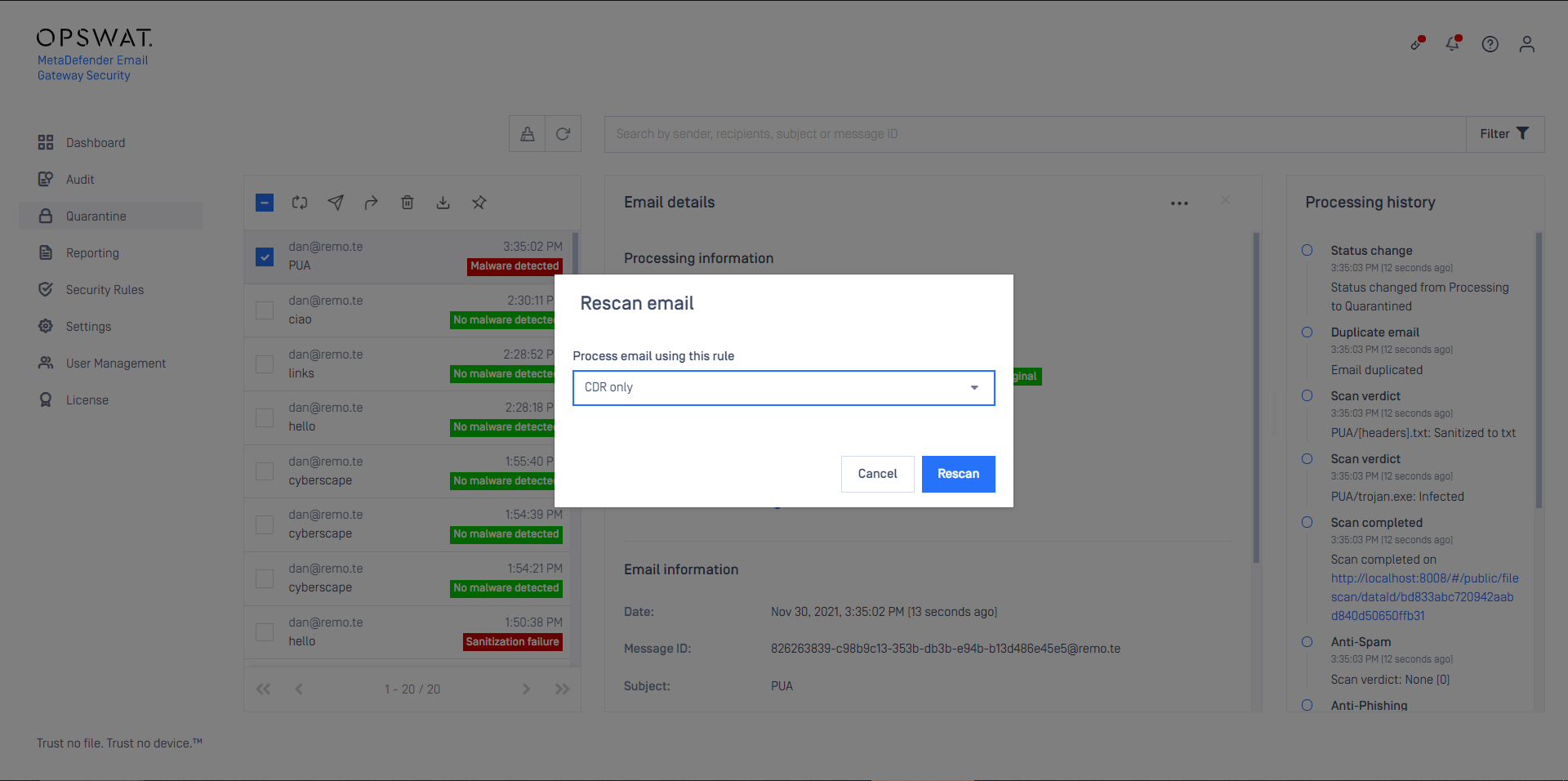
The email will be re-processed using the newly selected rule.
If the new rule allows the email, then it gets delivered normally.