
MetaDefender Drive supports secure HTTPS connections to an on-premises OPSWAT Central Management (OCM) server. To establish this connection, the OCM server must be configured with a valid TLS certificate before Drive attempts to connect.
The behavior on the Drive side depends on whether the certificate authority that issued the OCM server certificate is trusted by the operating system:
Certificate issued by a trusted public CA — whether standalone or with a complete chain: Drive connects automatically — no user action required
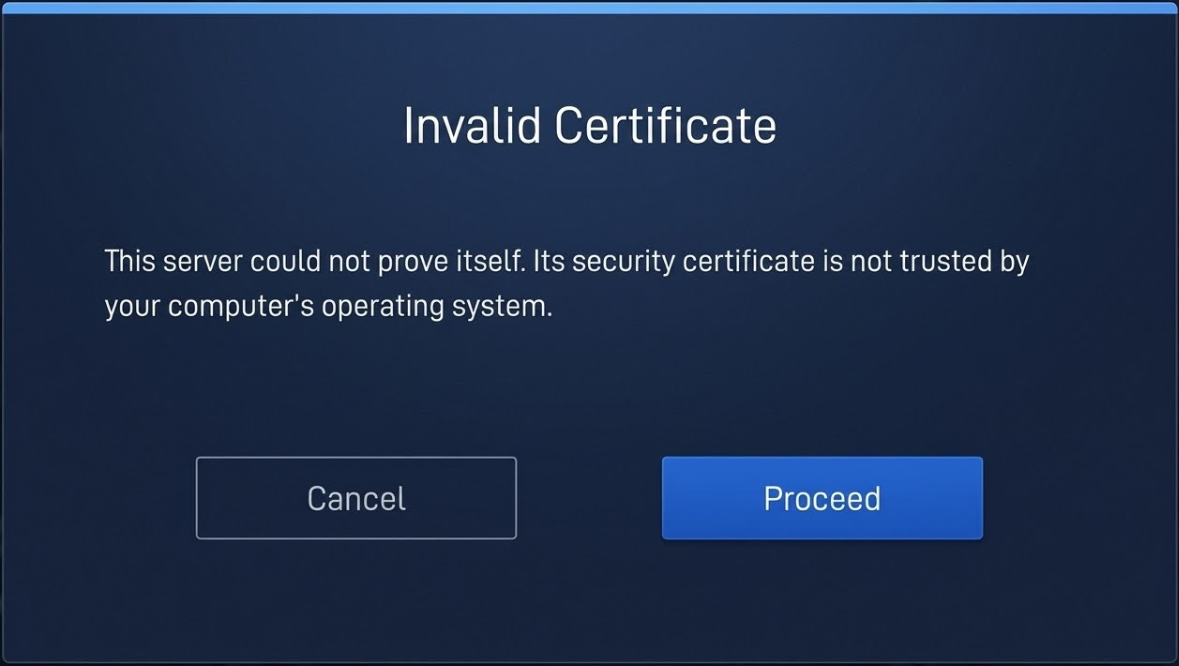
Self-signed certificate — whether standalone or with a private root CA chain: Drive displays an Invalid Certificate warning — user must accept to proceed
This page covers the two self-signed certificate configurations, which are the most common in isolated or air-gapped on-premises deployments.
Scenario 1: OCM Uses a Complete Certificate Chain with a Private Root CA
Scenario 2: OCM Uses a Standalone Self-Signed Server Certificate (No Chain)
After configuring OCM with a self-signed certificate (either scenario above), complete the following steps on the MetaDefender Drive side when connecting for the first time:
Enter the OCM server URL and registration code in MetaDefender Drive, then initiate the connection.
When the Invalid Certificate dialog appears with the message "This server could not prove itself. Its security certificate is not trusted by your computer's operating system.", review the server details.
Click Proceed to accept the risk and add the OCM server's certificate to MetaDefender Drive's trusted certificate store.
On subsequent connections — including automatic reconnection when Drive reboots — MetaDefender Drive will silently re-import and trust the certificate without displaying the dialog.
Note: The Invalid Certificate dialog only appears during a manual connection attempt. If you need to review or re-confirm the OCM certificate — for example, after a suspected certificate change — disconnect from OCM and reconnect manually. Drive will present the dialog again with the current certificate for your acceptance.