MetaDefender Drive v4.3.0
Released on Mar 14, 2025 | A major release introducing new features, and enhancements. | |
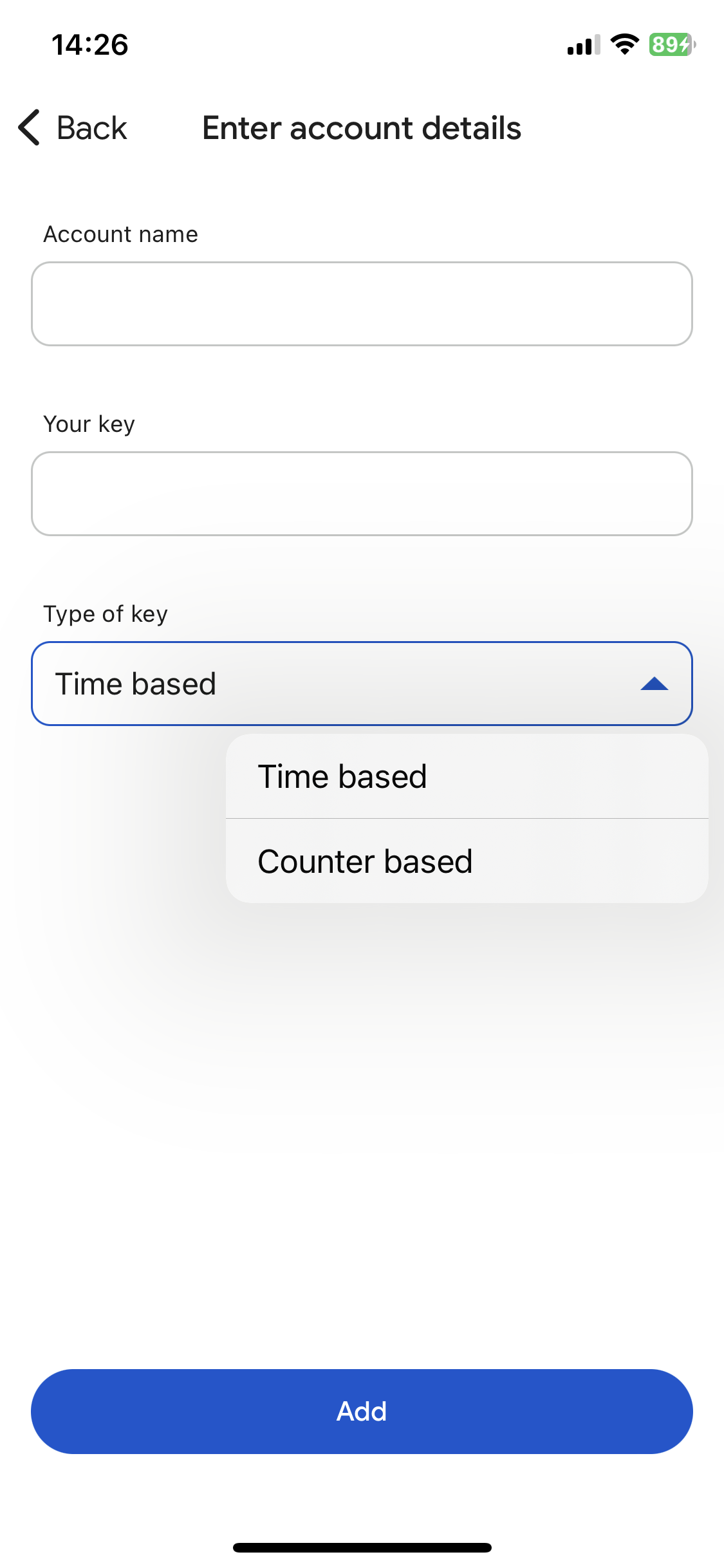
New Feature | MetaDefender Drive now supports Centralized Scanning Profile, ensuring policy consistency while allowing on-site scanning policy modifications with remote approval using a one-time password (OTP). To enable this feature, users must set the BIOS time to the current time in the UTC+0 time zone. Ad-hoc Configuration Changes: A Field Operator can locally modify scanning policies on an enrolled MetaDefender Drive, with remote approval from an Administrator or Approver via a one-time password (OTP) through Google Authenticator application.
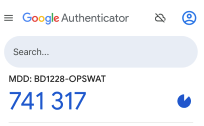
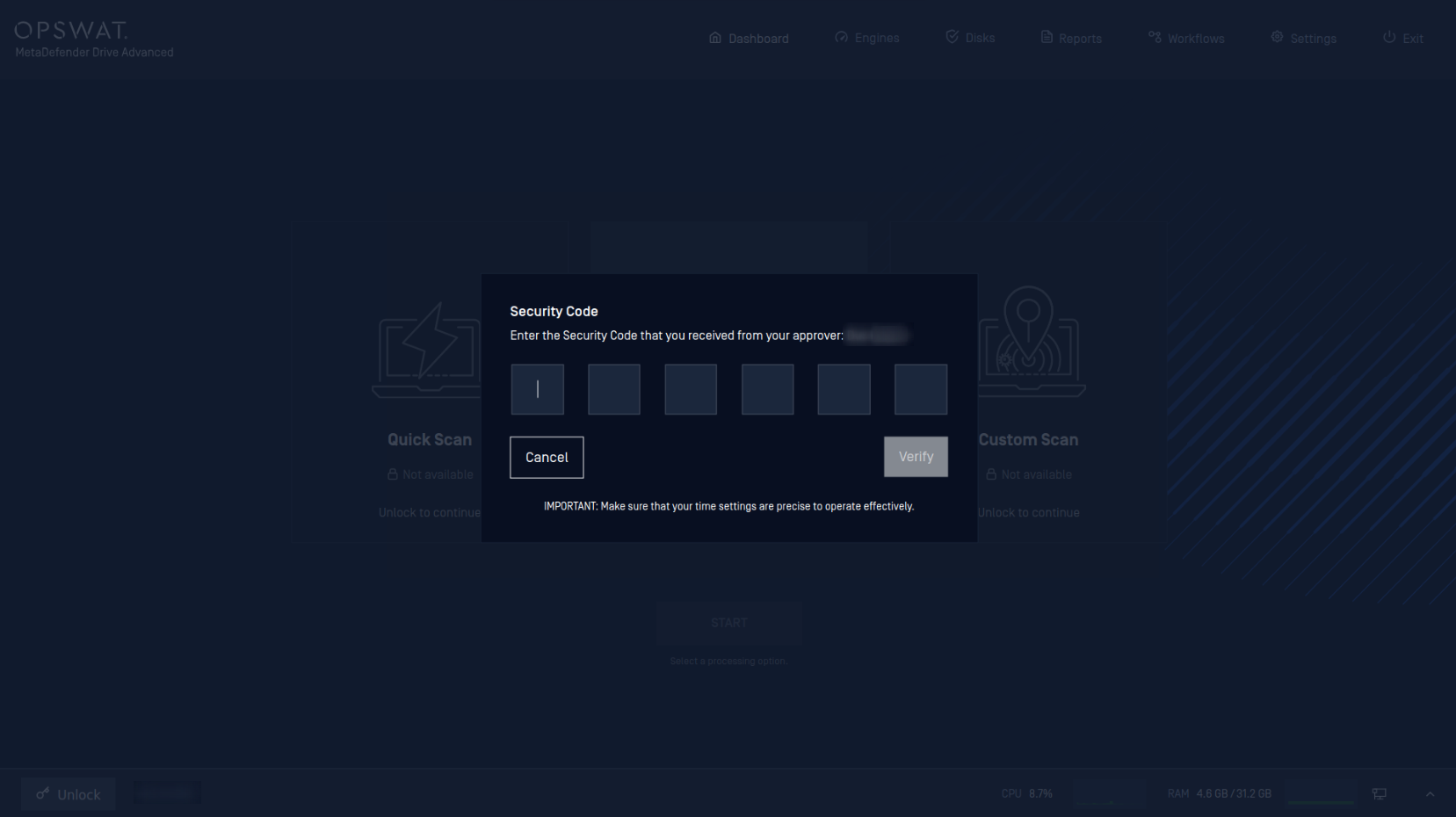
An approver receives a one-time password via Google Authenticator to use for authorizing scan configuration modifications.
Field Operator input one-time-password from Approver for any scan configuration change requests. Policy Enforcement: Enrolled MetaDefender Drive devices can only update engines and perform full scans, streamlining scanning operations. | |
Enhancements |
|
MetaDefender Drive v3.7.0
Released on Mar 14, 2025 | A major release introducing new features. | |
New Features | Starting from v3.7.0, MetaDefender Drive Toolkit now supports the setup, enrollment & unenrollment of MetaDefender Drive for Centralized Scanning Profile. | |
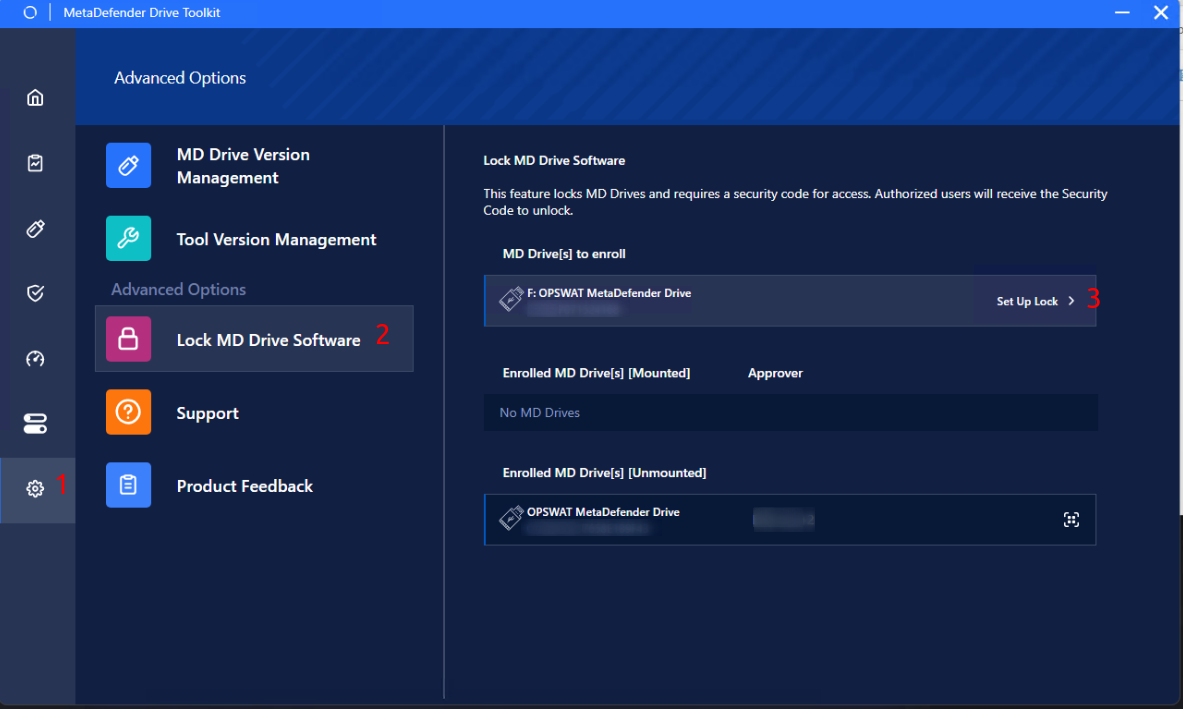
Enrollment for MetaDefender Drive | After booting MetaDefender Drive to be enrolled, the administrators open MetaDefender Drive Toolkit:
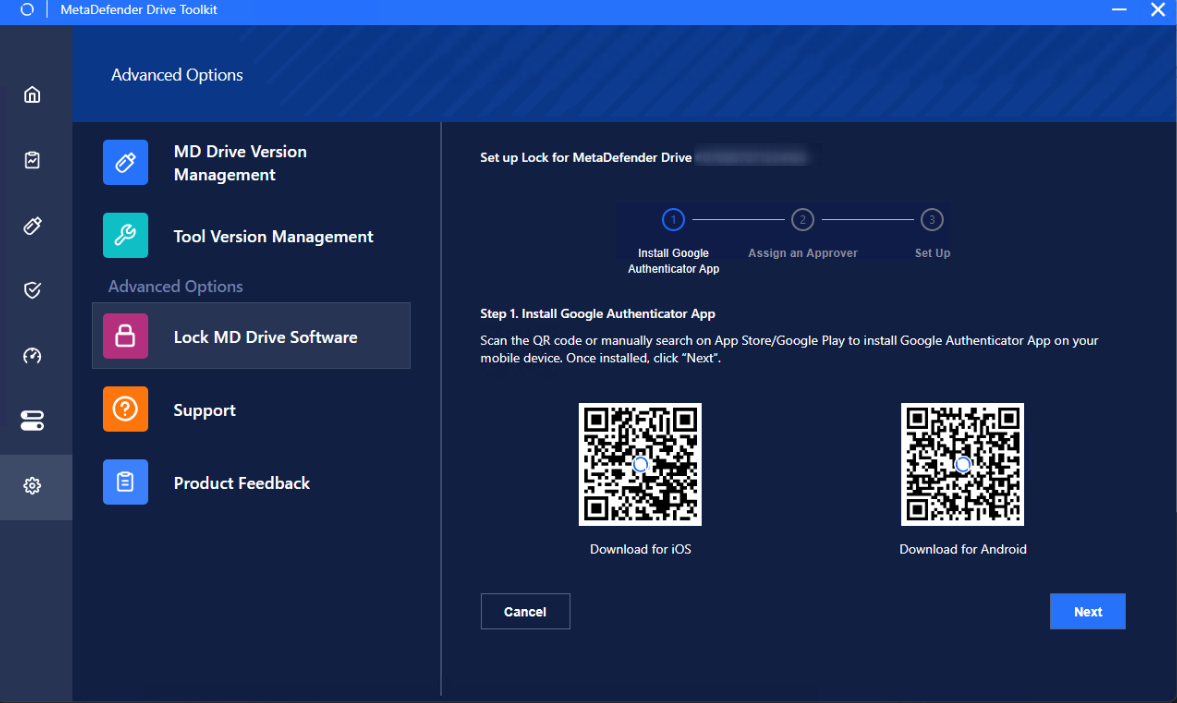
Administrator Setup:
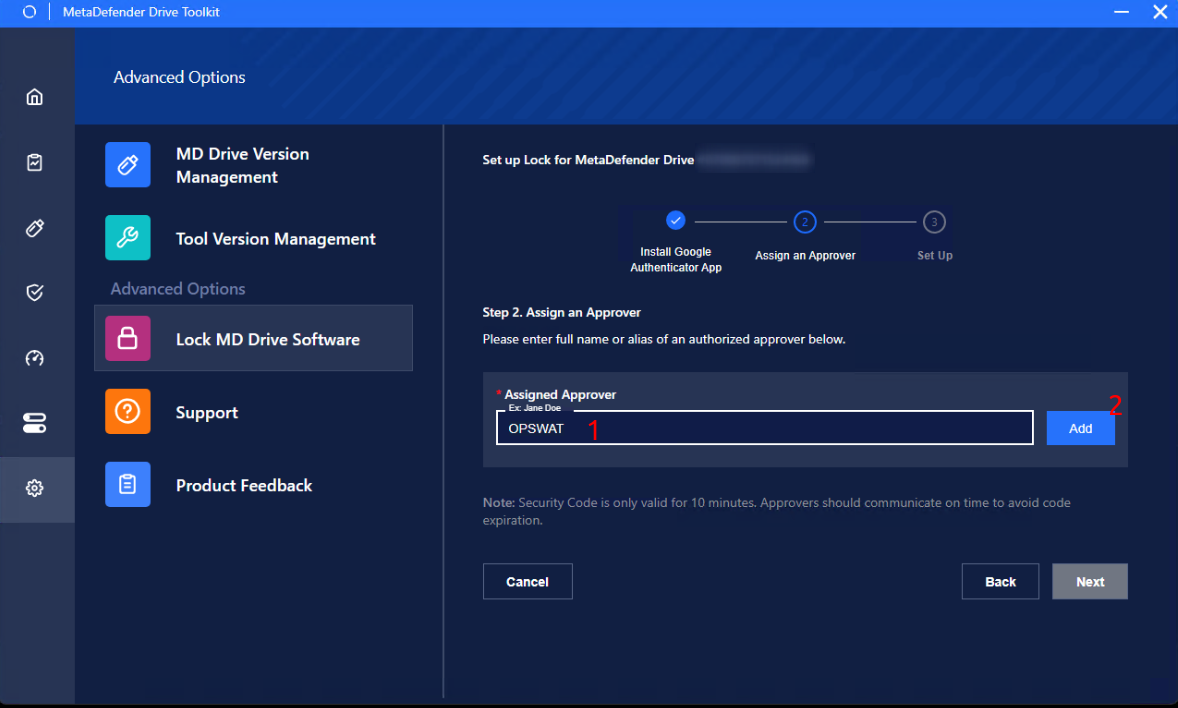
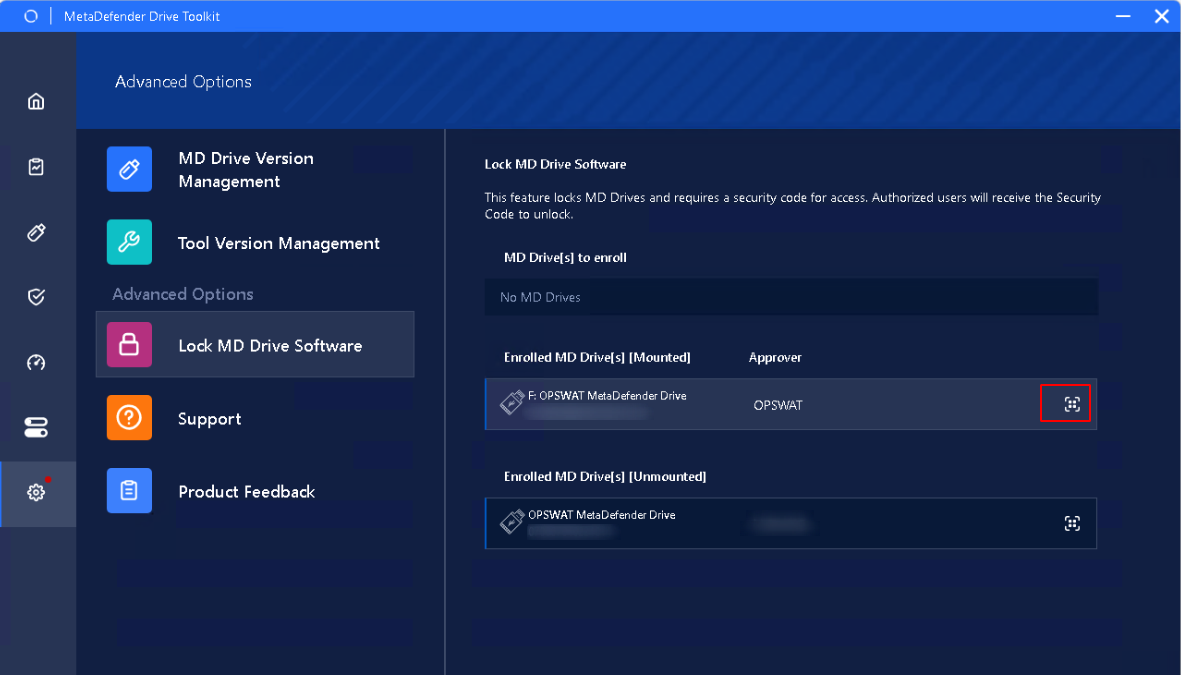
Assign an Approver:
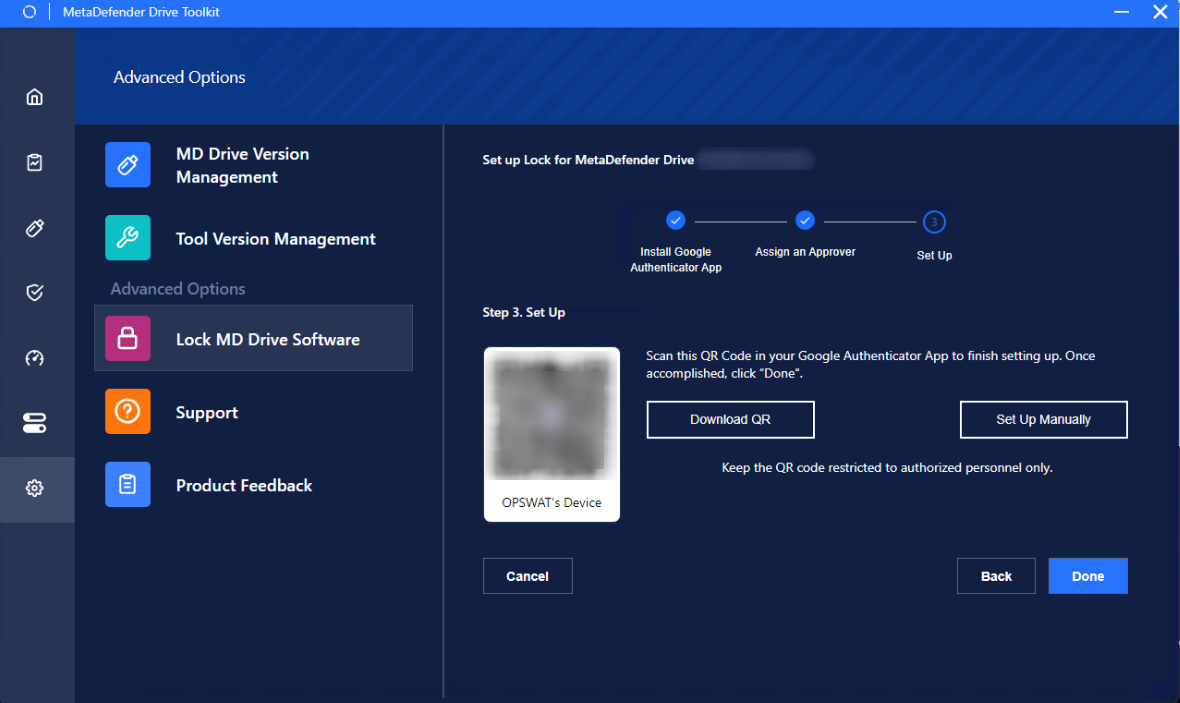
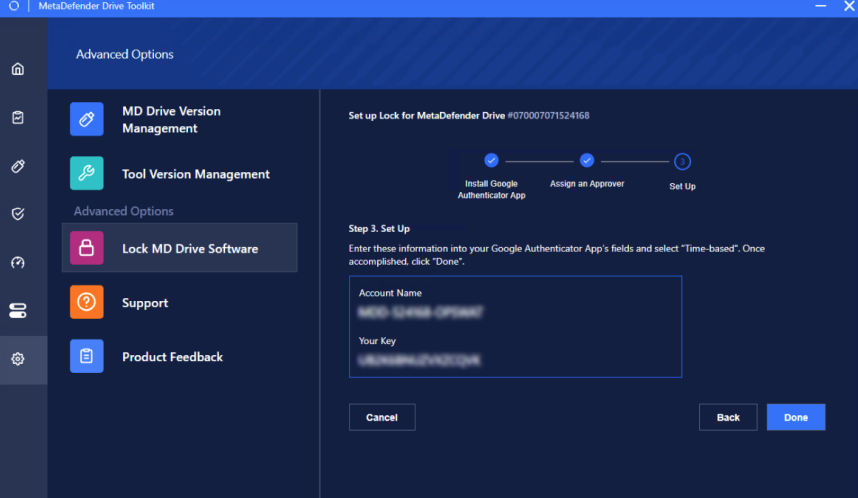
Complete MetaDefender Drive Enrollment, you have two options:
Once accomplished, click Done.
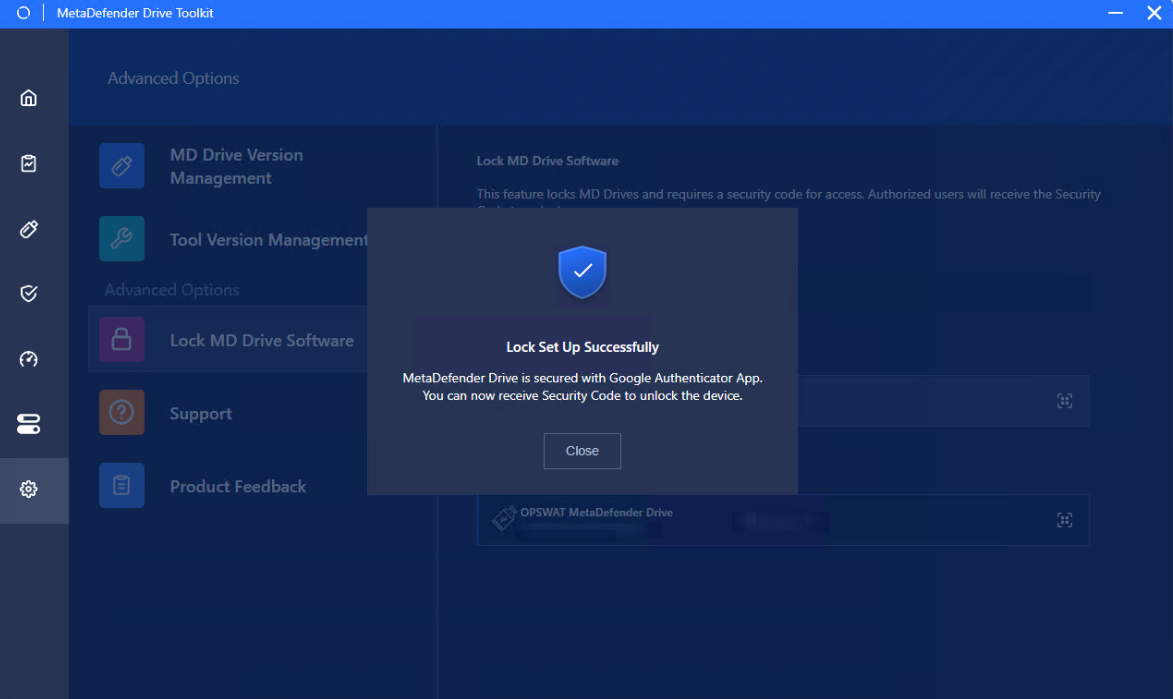
Successfully lock MetaDefender Drive Confirmation: A prompt will appear upon completion.
| |
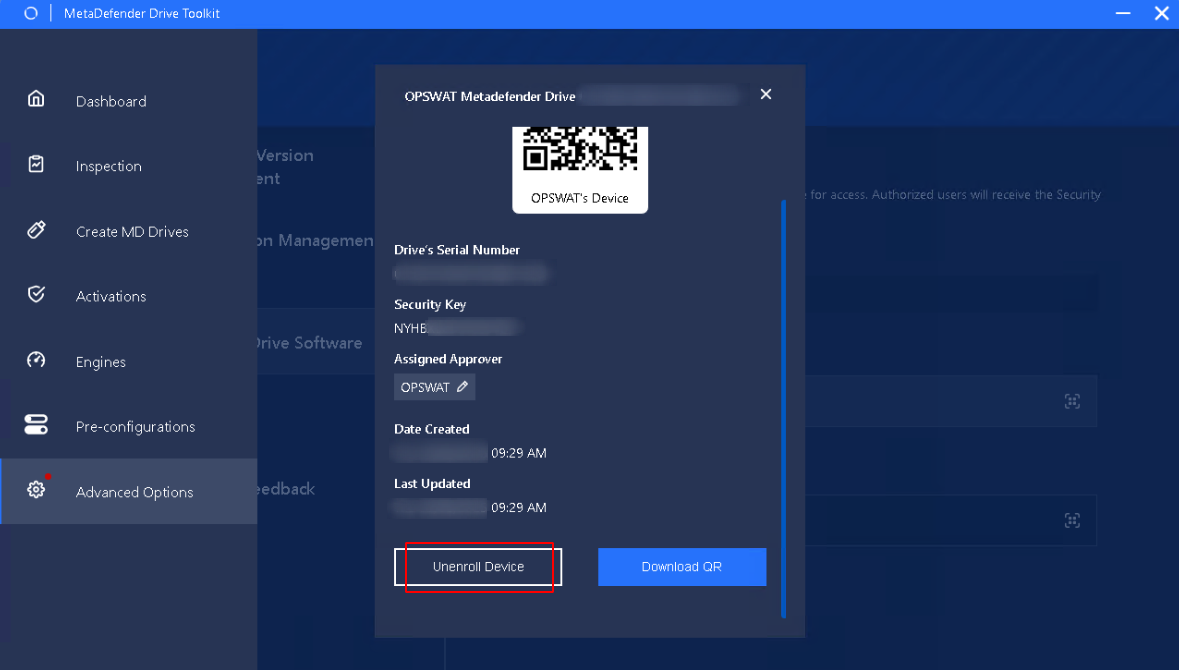
Unenrollment for MetaDefender Drive | After booting the MetaDefender Drive the administrators wish to unenroll:
Administrators can directly unenroll on Drive Toolkit by clicking Unenroll Device.
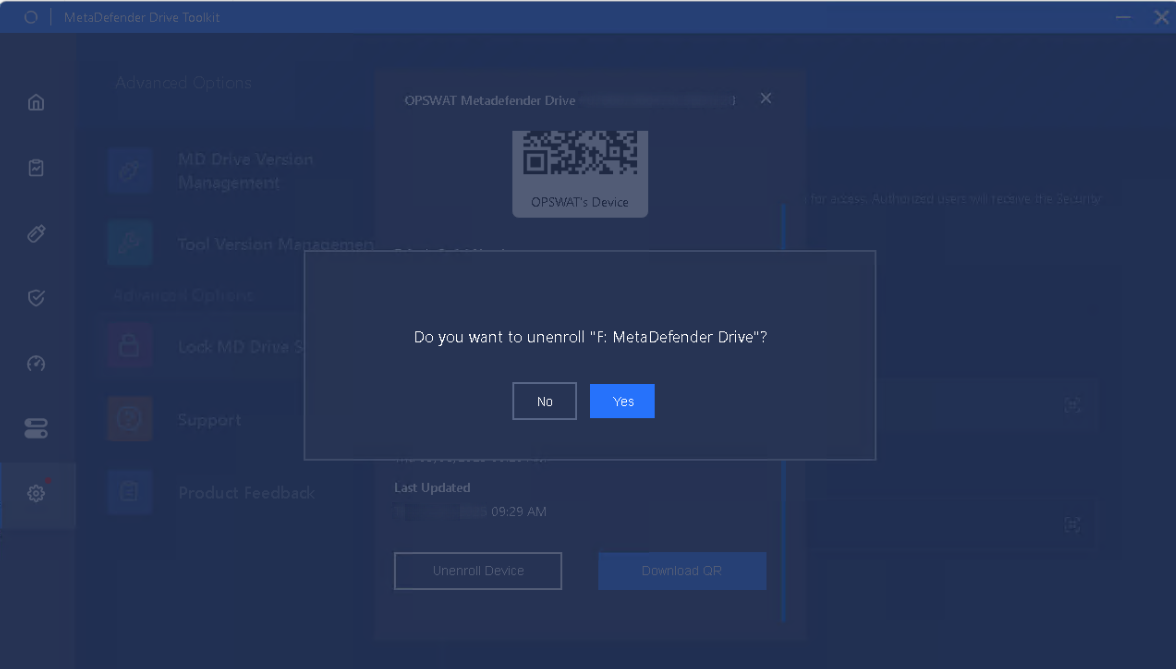
Click Yes.
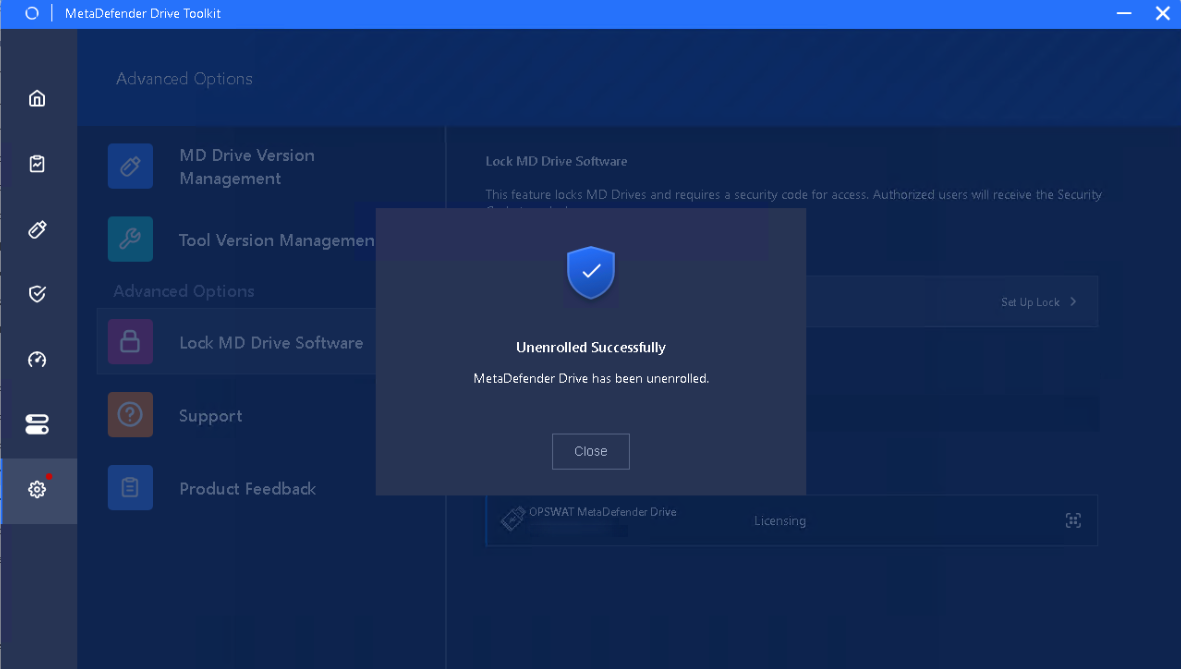
A prompt will appear upon completion.
|