
MetaDefender Drive supports booting from and scanning virtual machines. MetaDefender Drive has been tested on the following virtual machine software:
VMWare Workstation & ESXi (Windows and Linux)
QEMU Virtual Machine Manager (Linux)
Boot and Scan VMWare Workstation Virtual Machines
The following example is a demonstration of booting your device using VMWare Workstation.
Some of the screenshots in the following example might look different, depending on the version you use.
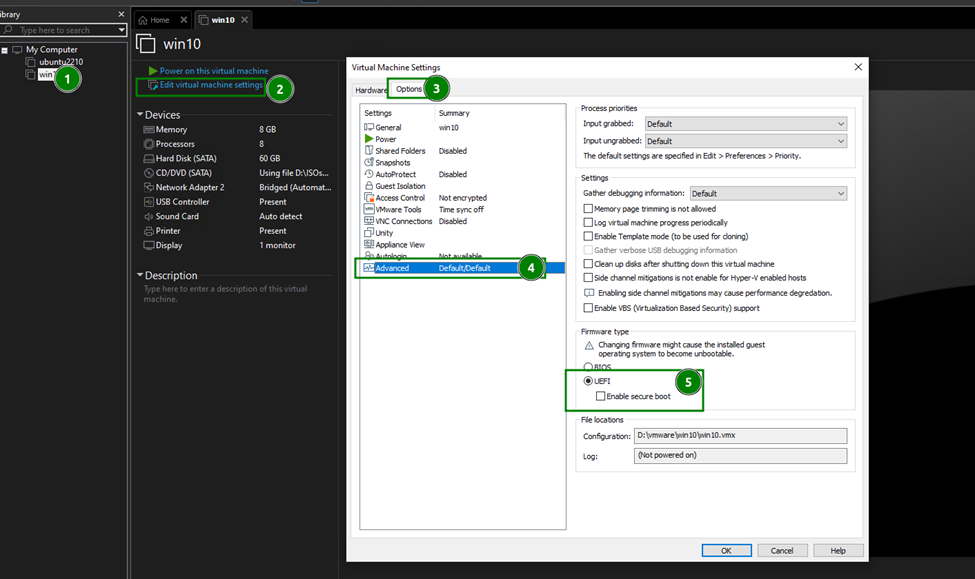
From VMWare Workstation, open the Settings of the virtual machine you intend to scan, and set the Firmware type to UEFI.
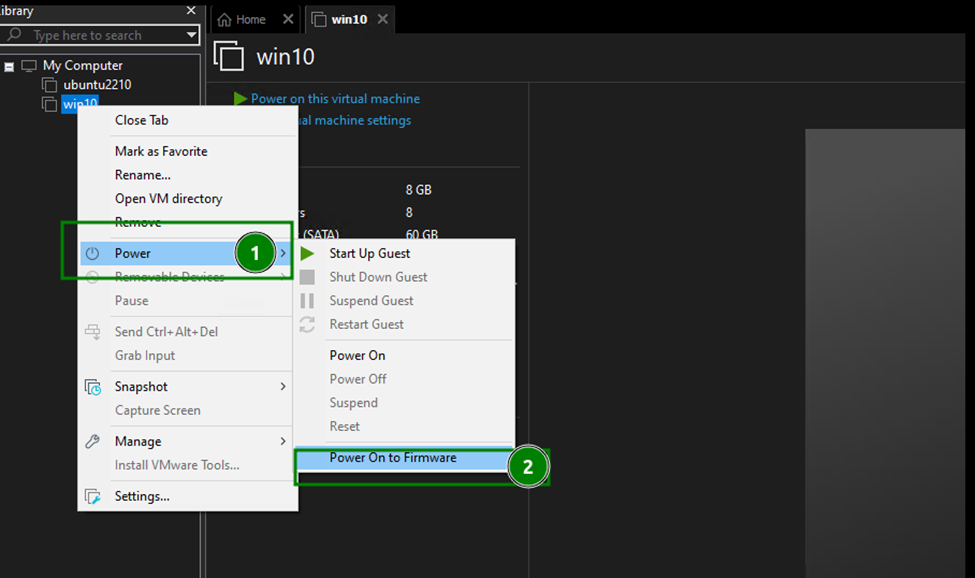
Power On your VM by right-clicking and selecting Power → Power On to Firmware.
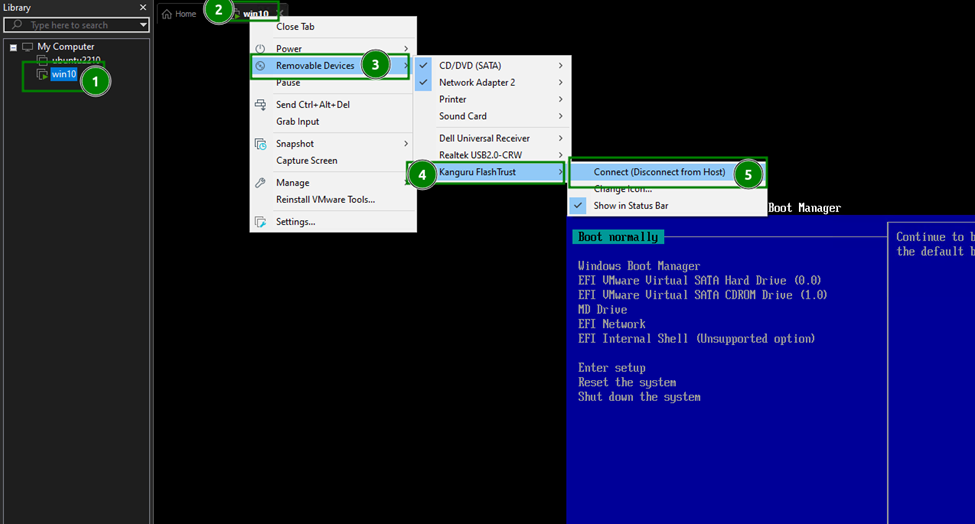
Connect the MetaDefender Drive to the virtual machine by right-clicking and selecting Removable Devices → <the plugged-in MetaDefender Drive> → Connect (Disconnect from Host).
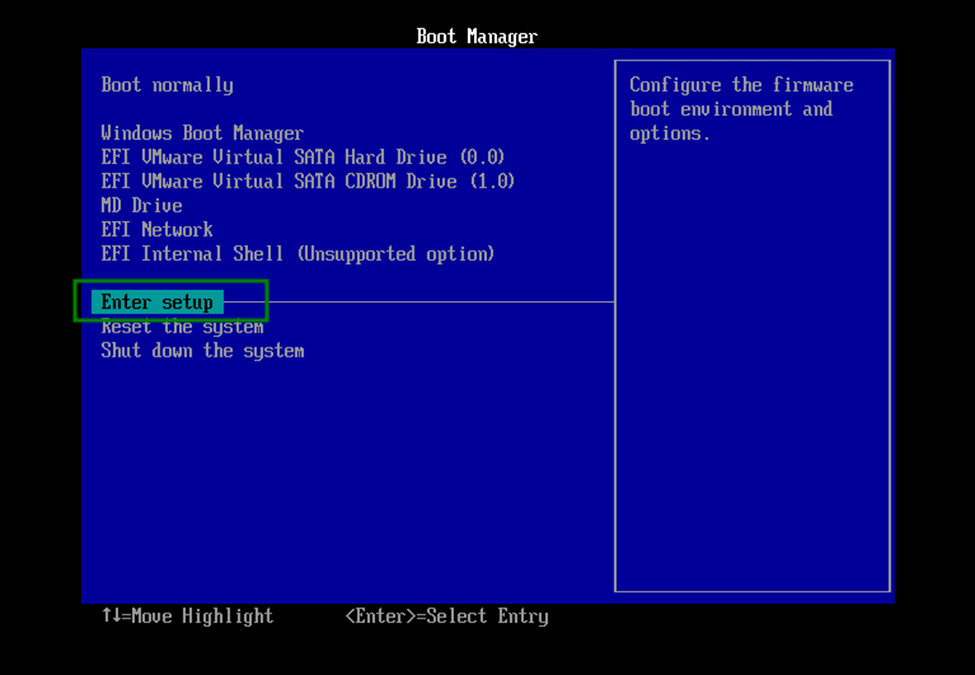
From the Boot Manager, select Enter Setup.
Select Boot from a file.
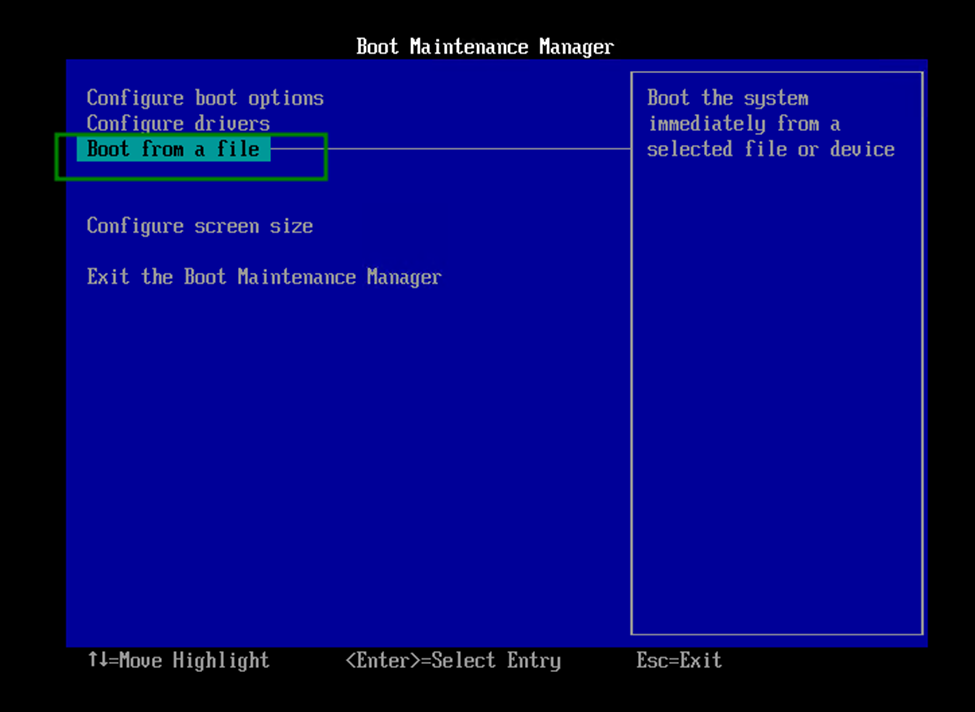
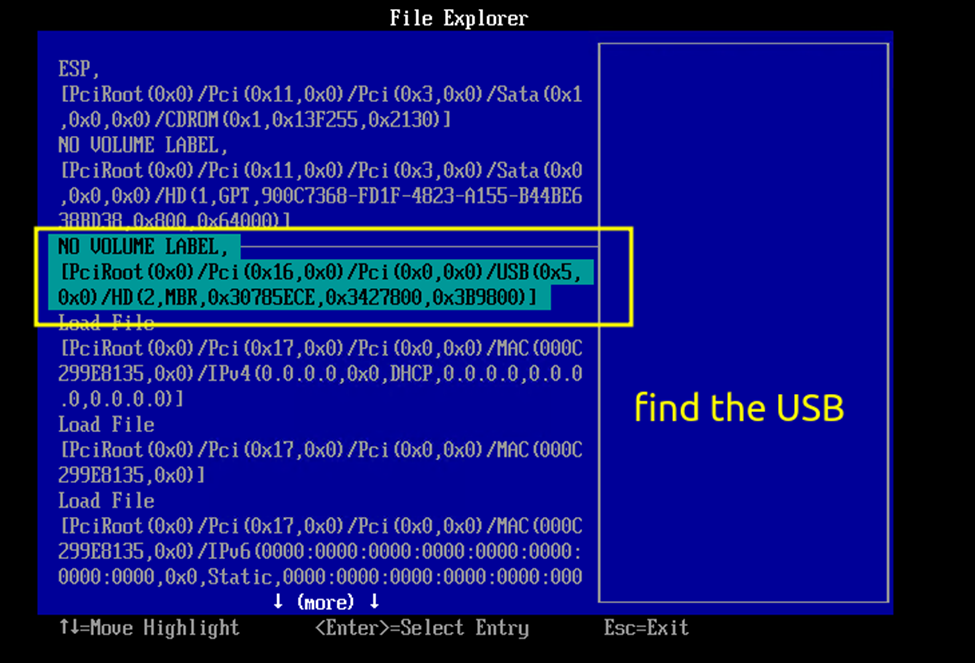
Locate your your MetaDefender Drive and select it.
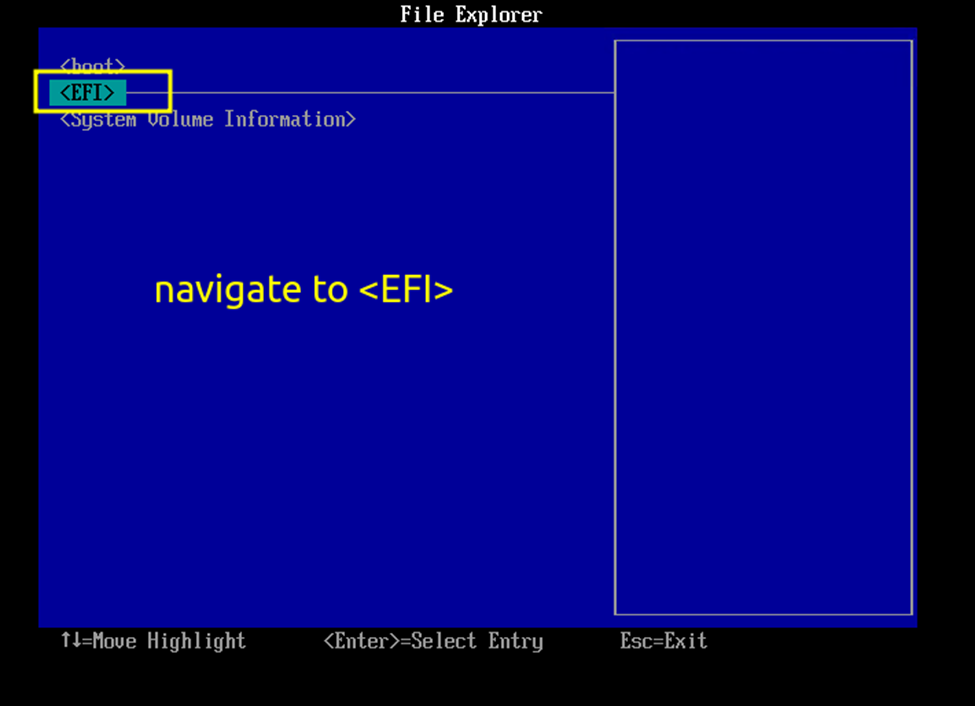
From the File Explorer, Select EFI.
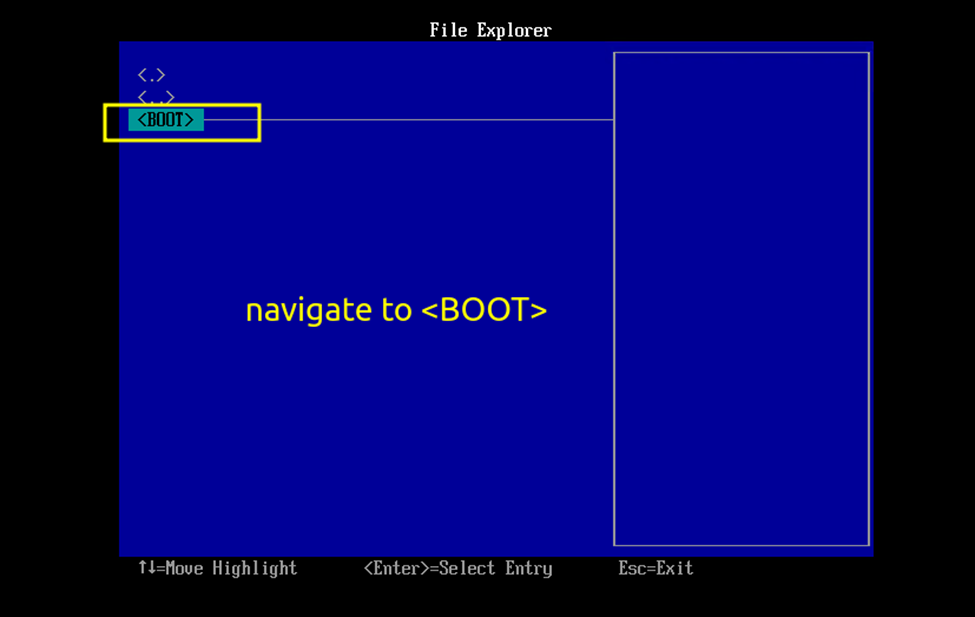
Select <BOOT>.
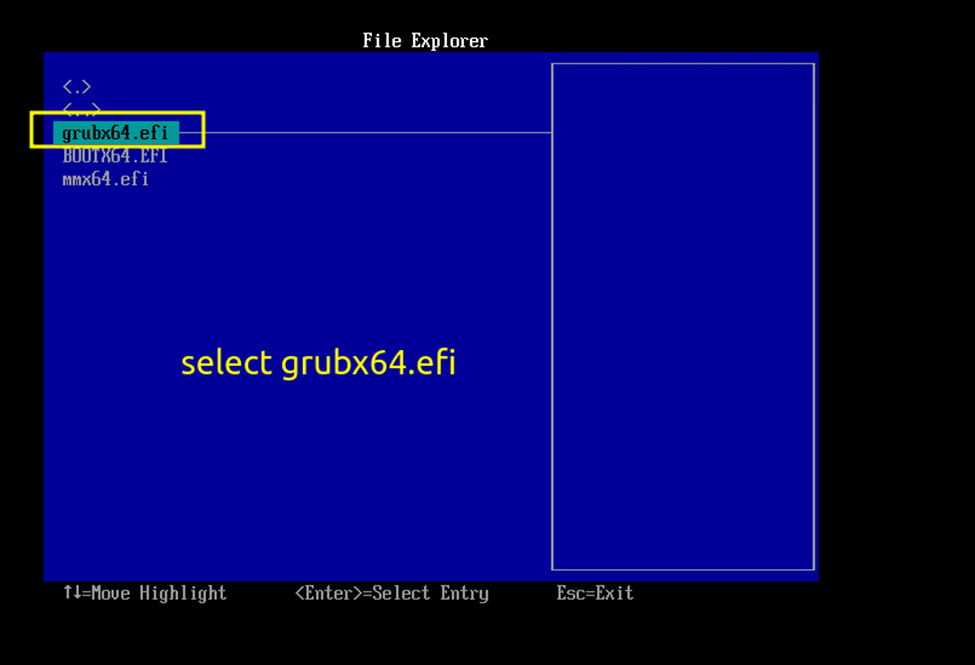
Select grubx64.efi and wait for your virtual machine to boot up.
.