
All commands in this guide use Windows PowerShell (5.1 or 7+).
Prerequisites
MetaDefender Drive v4.4.5 or later and OPSWAT Central Management v10 or later. Reliable HTTPS enrollment between MetaDefender Drive and Central Management v10 using a private root CA requires Drive v4.4.5+; earlier versions can fail the TLS handshake even with a correctly configured chain.
OpenSSL installed and on
PATH. Use Win32 OpenSSL (the full package, not Light) or Git for Windows, which includes OpenSSL atC:\Program Files\Git\usr\bin\openssl.exe.Windows PowerShell 5.1 or PowerShell 7+.
Run every command from the same working directory.
Create a working folder and move into it:
If an openssl req command reports that it cannot open openssl.cnf, set the config path for the current session and try again: $env:OPENSSL_CONF = "C:\Program Files\OpenSSL-Win64\bin\cnf\openssl.cnf" (adjust the path to match your installation).
1. Generate the Root CA
The root CA is the trust anchor for the whole chain. Keep root.key private — anything signed by this key will be trusted.
This creates:
root.key– private key for the root CAroot.crt– self-signed root CA certificate (valid 10 years)
Verify:
2. Generate the Intermediate CA
The intermediate CA is signed by the root and is used to sign the server certificate, so the root key can be kept offline.
Write the extension file with -Encoding ascii. A UTF-16/BOM file cannot be read by OpenSSL.
This creates:
intermediate.key– private key for the intermediate CAintermediate.crt– intermediate CA certificate signed by the root
Verify (expect CA:TRUE, pathlen:0):
3. Generate the Server Certificate
This is the certificate the OCM server presents to clients. It is an end-entity certificate (CA:FALSE), marked for TLS server authentication, and includes a Subject Alternative Name (SAN). Replace myserver.local with the FQDN of your OCM server.
A SAN is required. MetaDefender Drive rejects a certificate that has a Common Name only and no SAN (this appears as curl error 60). The server.ext file below adds the SAN together with the correct key-usage flags.
This creates:
server.key– private key used by the OCM serverserver.crt– server certificate signed by the intermediate CA
Verify that the SAN is present (it must not be empty):
Multiple host names or IP addresses: if the OCM server is reached by more than one name or by IP, list every value in subjectAltName, separated by commas, then re-run the signing command in this step. Use DNS: for host names and IP: for IP addresses, and make sure the certificate's CN is one of the listed names. For example:
4. Create the Server Certificate Chain File
Clients such as MetaDefender Drive do not fetch missing certificates automatically, so the OCM server must present the complete chain in a single file, in this order: server, intermediate, root.
Use server.chain.crt on the OCM server, not server.crt alone. Check the file begins correctly:
The first bytes must be 2D 2D 2D 2D 2D (ASCII -----). If they are FF FE, the file is UTF-16 — re-run the previous command with -Encoding ascii.
5. Verify the Chain
Verify the certificates before configuring OCM. These checks confirm the chain is valid, the private key matches the server certificate, and (after OCM is running) that the server presents the full chain.
Expected results:
Check 1 prints
server.crt: OK.Check 2 lists exactly 3 certificates (server → intermediate → root).
Check 3 prints two identical SHA-256 lines — this confirms the key matches the certificate.
Check 4 shows all three certificates and
Verify return code: 0 (ok). If only one certificate appears, the OCM server is sending the leaf only and must be reconfigured to useserver.chain.crt.
6. Configure OCM to Use the Chain
Install these two files on the OCM server:
server.key– the private key (from step 3)server.chain.crt– the full certificate chain (from step 4)
The OCM server must present server.chain.crt, not server.crt alone. If it sends only the leaf certificate, MetaDefender Drive cannot build the trust chain even when the root CA is already trusted. A web browser may still work because it can complete the chain from its own certificate store; MetaDefender Drive cannot.
7. Connect MetaDefender Drive to OCM
End users do not install the root CA on the MetaDefender Drive operating system. Drive does not expose a shell or trust store on the device, and the OS trust store is read-only. Instead, Drive uses trust-on-first-use at the UI: when it sees a server certificate signed by a non-public CA, it prompts the operator to review and accept it once, then adds that certificate to its own trusted store.
On the MetaDefender Drive device:
Boot MetaDefender Drive and go to Settings → Central Management.
Enter the OCM server URL (the FQDN you used in step 3) and the registration code, then click Connect.
When the Invalid Certificate dialog appears with *"This server could not prove itself. Its security certificate is not trusted by your computer's operating system.", review the server identity (subject, fingerprint), then click Proceed.
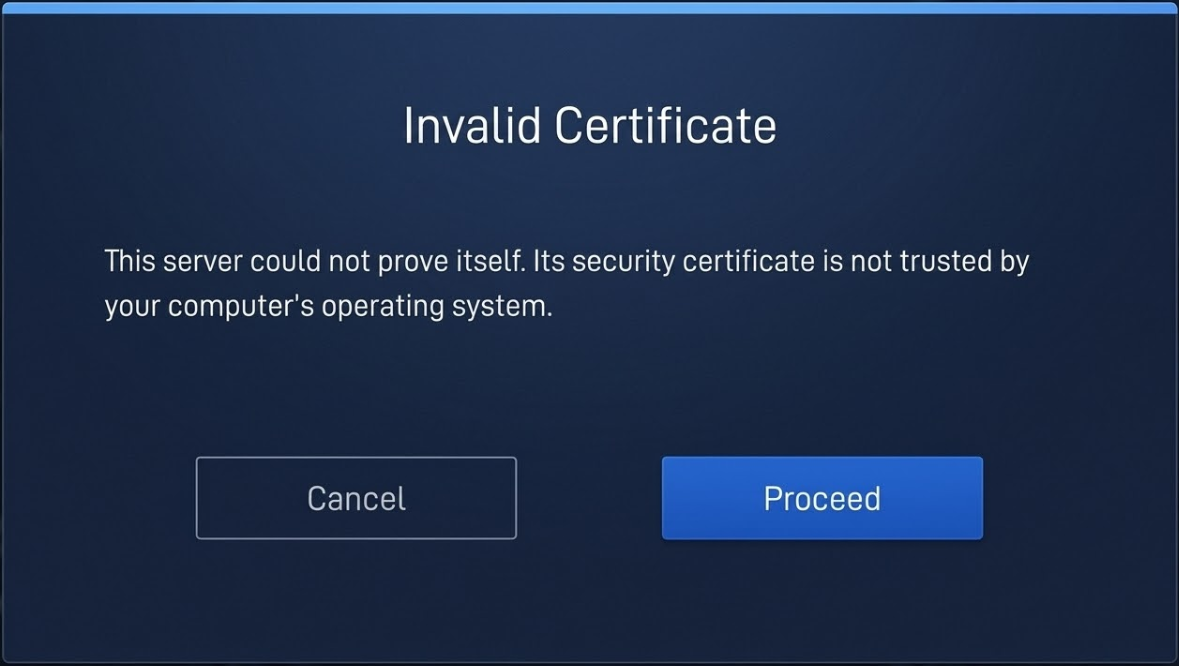
Drive adds the OCM server certificate to its internal trusted certificate store. Subsequent connections from the same Drive to the same OCM server are silent until the certificate rotates.
This page does not install the root CA itself on Drive — Drive trusts the server certificate directly. Validating that the certificate is correctly issued and that OCM presents the full chain is done externally from any machine with OpenSSL (see step 5, check 4); it is not done from the Drive command line.
Full Script (generate-ocm-certs.ps1)
The script below performs every step in one run. Edit the variables at the top before running it.
Troubleshooting
Symptom | Cause | Fix |
|---|---|---|
| OCM presents only the leaf certificate, or the root CA is not trusted on Drive |
|
Certificate rejected by Drive (curl error 60) | The server certificate has no SAN | Regenerate |
Key and certificate do not match |
| Run step 5 check 3 — the two SHA-256 lines must match. If not, regenerate the pair. |
A browser reports the certificate is valid, but Drive still fails | The browser completes the chain from its own store; Drive cannot | Configure OCM to send the full chain ( |
| OpenSSL is not on PATH | Install the full Win32 OpenSSL package, or add its |
| OpenSSL cannot find its configuration file | Set |
|
| Add |