
To unlock the BitLocker encrypted volumes for use with OPSWAT MetaDefender Drive, users must boot into Windows and then insert the OPSWAT MetaDefender Drive.
To unlock their drives, users must open “This PC” (or “My Computer”, depending on the version of Windows), right-click on the encrypted drive icons with the locked yellow padlock icon, click "Unlock Drive" and provide the Password.
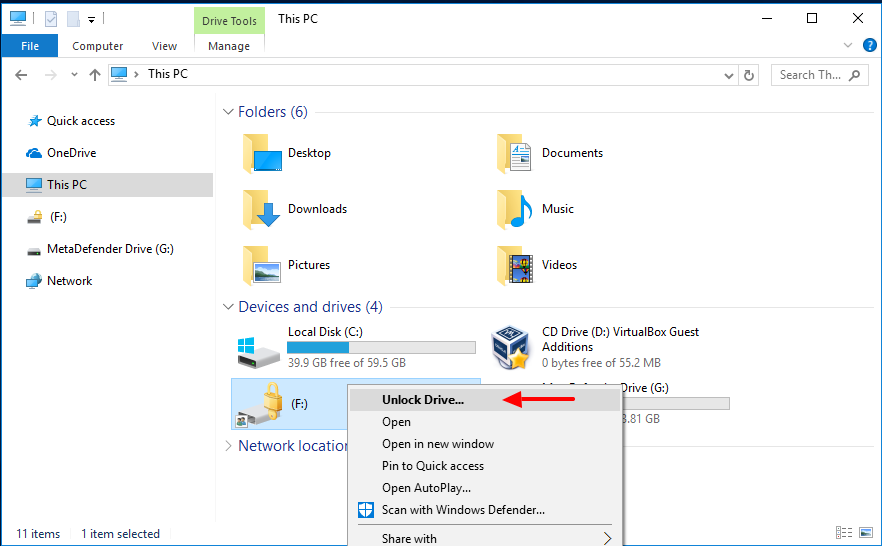
Once the encrypted drive has been unlocked, the user should navigate to the "MetaDefender Drive" volume
Next, navigate to the "tools" folder within the "MetaDefender Drive" volume
Users should then see three files: “unlock_bitlocker.bat" (used to unlock your BitLocker drives), “unlock_bitlocker.ps1” (a Windows PowerShell script utilized by bitlocker.bat), and "README.txt" (instructions on how to unlock BitLocker encryption for a diagnostic scan).
Right-click on “unlock_bitlocker.bat” and select the "Run as administrator" option, which should trigger an administrator rights elevation prompt to appear, to which the User should click “Yes” to allow the script to proceed.

Once the script has run, a file named “bitlocker.key” will appear in the "tools", indicating to users that they are ready to run a scan.
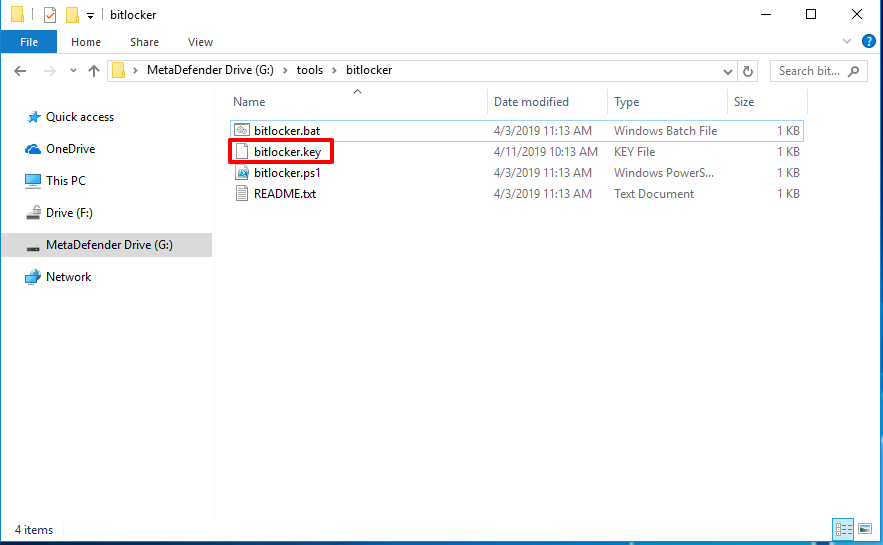
Now reboot and your encrypted Disks are unlock, readable and ready to scan with MetaDefender Drive