
Wizard Installation
The Install Wizard is only for the Windows installer (.msi file).
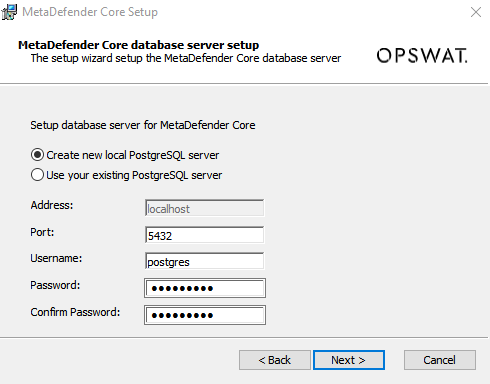
Since MetaDefender Core 4.19.0, we have switched to using PostgreSQL DBMS which needs a dedicated database server. MetaDefender Core supports two modes to setup PostgreSQL server:
Local (Bundle) PostgreSQL server
MetaDefender Core will install a new PostgreSQL server locally in the same box with the product.
Unicode characters are NOT supported for "Username" and "Password"
"Password" does not accept # (hash) as starting character (e.g. #ABC)
If the ignition file exist in the designated location, then MetaDefender Core will use the details defined in the ignition file, rather than what is passed via the installation wizard.
More info about the ignition file based installation: Command Line Installation
Remote (Existing) PostgreSQL server
MetaDefender Core will connect to remote pre-installed PostgreSQL running remotely.
"Test Connection" button is required, to make sure the PostgreSQL is connected and authenticated successfully. Make sure to check and perform steps at Open Connection On PostgreSQL Server if you are unable to test the connection with remote PostgreSQL server.
MetaDefender Core will need to create and use dedicated PostgreSQL users for database setup, upgrade and its own operations. Those users requires certain privileges configured on PostgreSQL server, otherwise expecting failures to occur while installing and operating MetaDefender Core.

Command Line Installation
Ignition File
For command line installation (on both Linux and Windows), it is mandatory to use MetaDefender Core ignition file to add PostgreSQL server information BEFORE installing MetaDefender Core 4.19.0 or newer.
Make sure to create the ignition file, if it doesn't exists before you go ahead and install MetaDefender Core via command line.
Windows:
C:\OPSWAT\ometascan.confLinux:
/etc/opswat/ometascan.conf
MetaDefender Core supports two modes to setup PostgreSQL server:
1) Local PostgreSQL server
MetaDefender Core will install a new PostgreSQL server locally, next to the product.
A sample iginition file for PostgreSQL server information (Only non-Unicode characters supported for "user" and "password"__ ____):
2) Remote PostgreSQL server
PostgreSQL version 12 (at least 12.3) or version 14 is required.
MetaDefender Core will connect to a pre-installed PostgreSQL server running remotely and will setup its database.
Make sure to follow steps at Open Connection On PostgreSQL Server first, so that your remote existing PostgreSQL server to accept upcoming connection from MetaDefender Core.
A sample ignition file for PostgreSQL server information:
After installing MetaDefender Core successfully, you may want to remove all credentials info created for [dbserver] section in ignition file for security reason.
If the MetaDefender Core package dependencies are not installed on your system you may need to have a working Internet connection or you may have to provide the Installation media during the installation. Consult your Operating System documentation on how to use Installation media as a package repository.
Debian package (.deb)
On Red Hat Enterprise 7.x Linux / CentOS package (.rpm)
For systems which enabled GPD check flag:
Red Hat Enterprise Linux 8.x package (.rpm)
Install the latest PostgreSQL repository RPM:
Due to the shorter support cycle on Red Hat Enterprise Linux, all supported versions of PostgreSQL are not available on this platform. The PostgreSQL Yum Repository will integrate with the normal systems and patch management, and provide automatic updates for all supported versions of PostgreSQL throughout the supported lifetime of PostgreSQL. Reference: https://www.postgresql.org/download/linux/redhat/
In case installing a remote PostgreSQL on either the same MetaDefender Core server or another server, you need to install the following additional package. PostgreSQL version 12.3 or newer is recommended.
Install MetaDefender Core:
Windows package (.msi)
On Windows systems it is possible to install the product by running the corresponding .msi file.
From command line interface it is also possible to install the product by executing
where the possible keys and their default values are the following:
Key | Default Value | Description |
|---|---|---|
INSTALLFOLDER | \Program Files\OPSWAT\MetaDefender Core | Customize installation folder for product Example: |
RESTADDRESS | REST interface binding IPv4 or IPv6 address ( '*' means that service listens on all IPv4 and IPv6 interfaces) | |
RESTPORT | 8008 | REST interface binding port |
REPORT_ENGINE_ISSUE | true | Enable reporting of engine issue count. (possible values: "true" or "false"). |
Reporting of engine issue count
If reporting of engine issue count is enabled, MetaDefender Core server will send only the number of initialization errors and number of unexpected stops for the specific db/engine version. This information is sent over a HTTPS channel when the product downloads the latest package descriptors. This information is used for early detection of any specific 3rd party engine quality issues.
For details on using msiexec please consult Windows installer documentation.