
This section will allow the user to add all necessary services for MetaDefender Cluster to fully function.
Data Lake and Data Warehouse
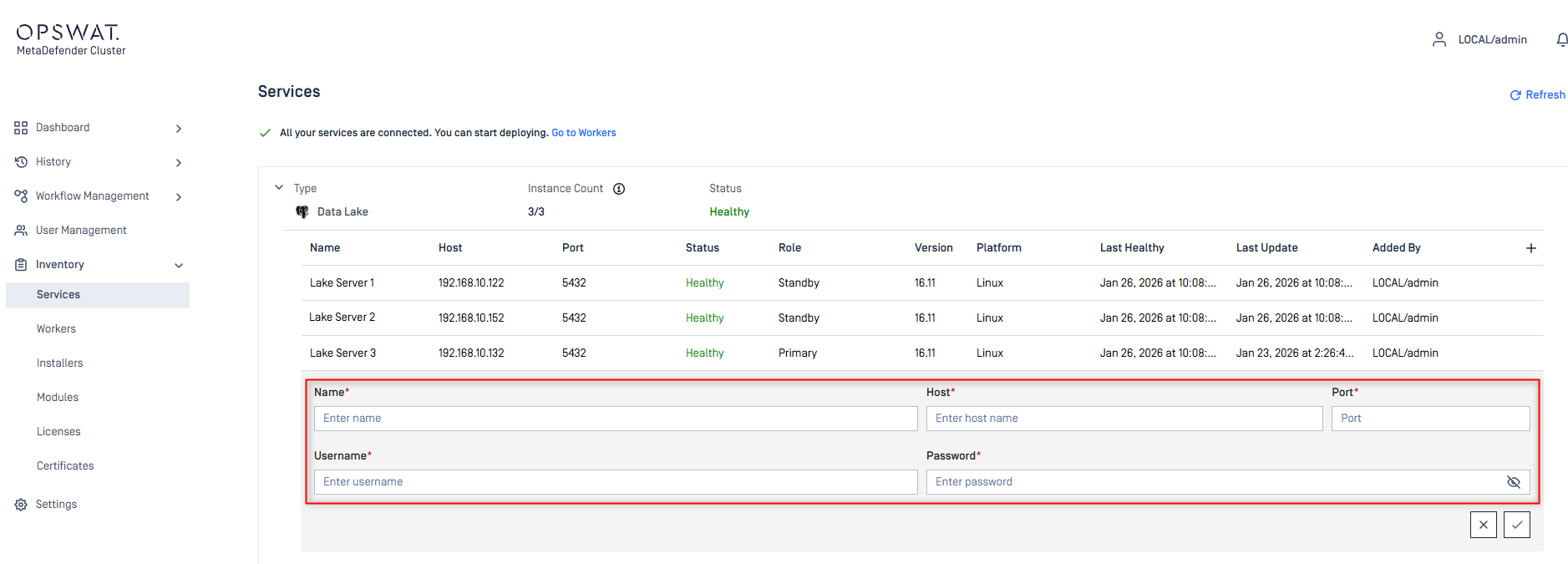
Add the Data Lake and Data Warehouse in this section. Fill out all required fields. If High Availability was configured for PostgreSQL, add them to this section as well.
High Availability support for Postgres is only available for Data Lake
Redis
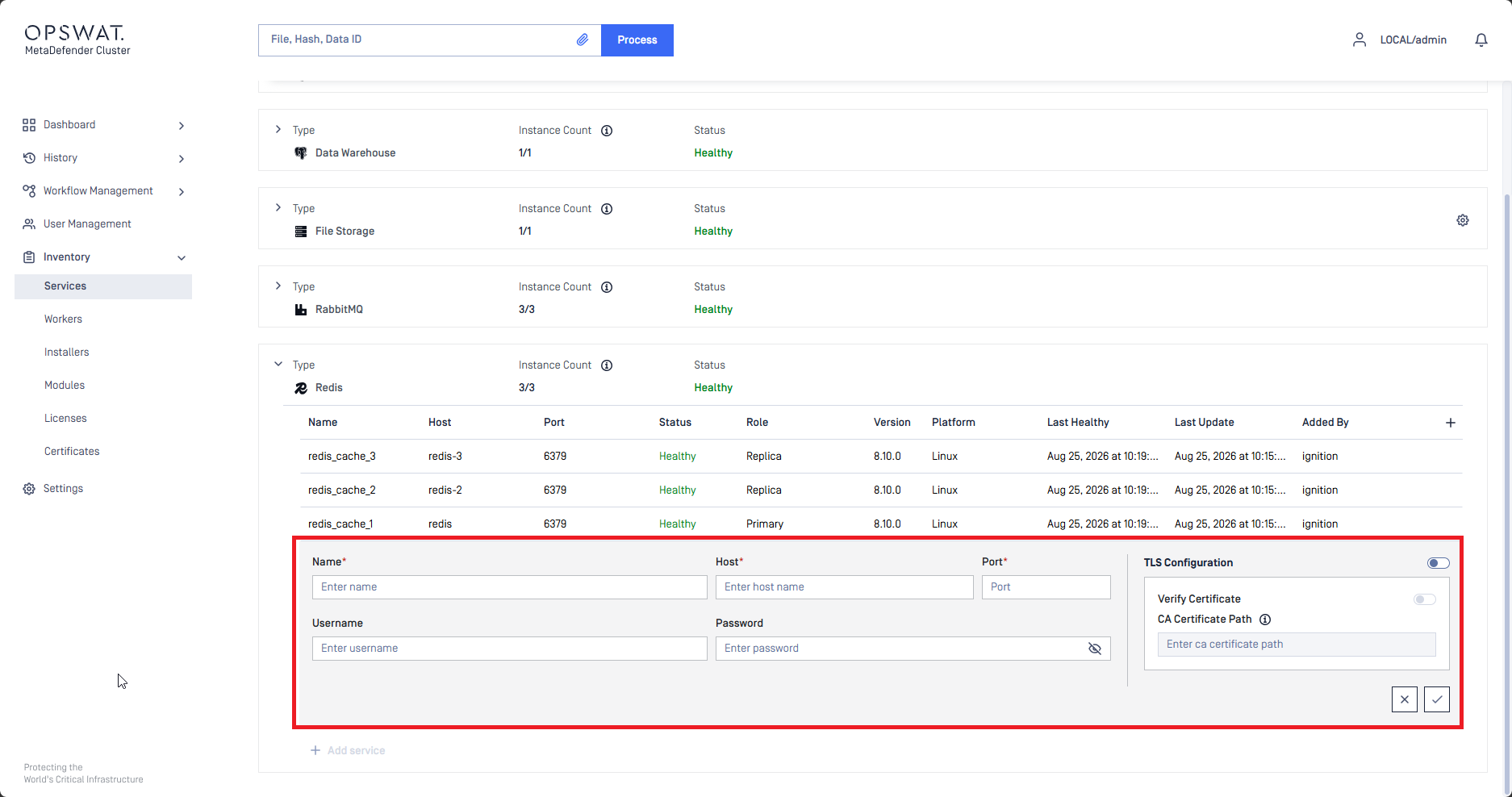
Add the Redis server in this section. Fill out all required fields.
To use an encrypted connection, enable TLS Configuration and set the port to the broker's TLS listener.
Verify Certificate: validates the broker's certificate. Turn it off to encrypt the traffic without verifying the peer.
CA Certificate Path: path to the CA certificate file. The file is read on the Control Center host, not on the Redis host. Leave it empty to use the operating system's trust store.
If High Availability was configured for Redis, add them to this section as well. TLS settings are per connection, so configure them on each node.
RabbitMQ
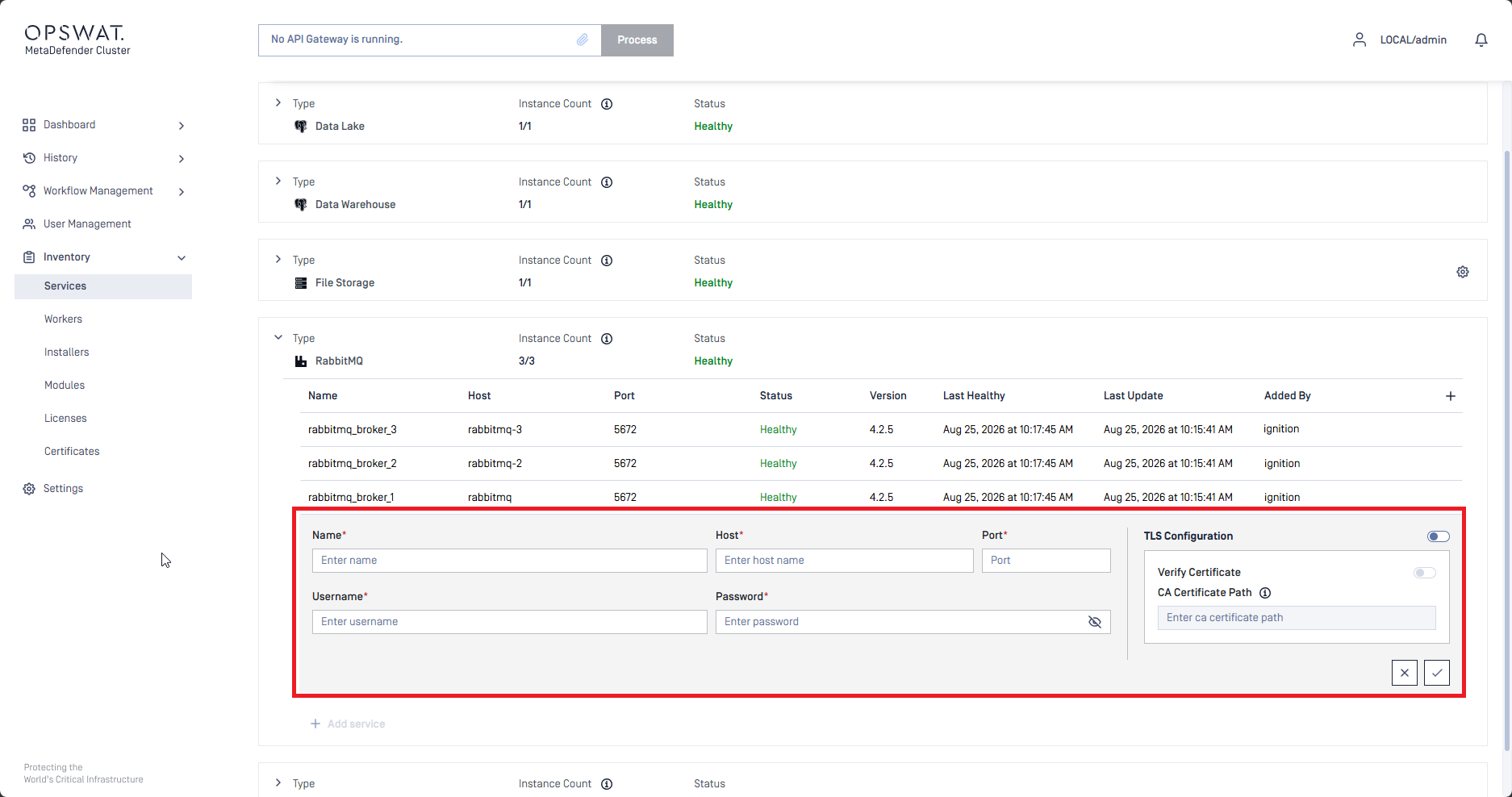
Add the RabbitMQ server in this section. Fill out all required fields.
To use an encrypted connection, enable TLS Configuration and set the port to the broker's TLS listener.
Verify Certificate: validates the broker's certificate. Turn it off to encrypt the traffic without verifying the peer.
CA Certificate Path: path to the CA certificate file. The file is read on the Control Center host, not on the RabbitMQ host. Leave it empty to use the operating system's trust store.
If High Availability was configured for RabbitMQ, add every node in this section as well. TLS settings are per connection, so configure them on each node.
File Storage
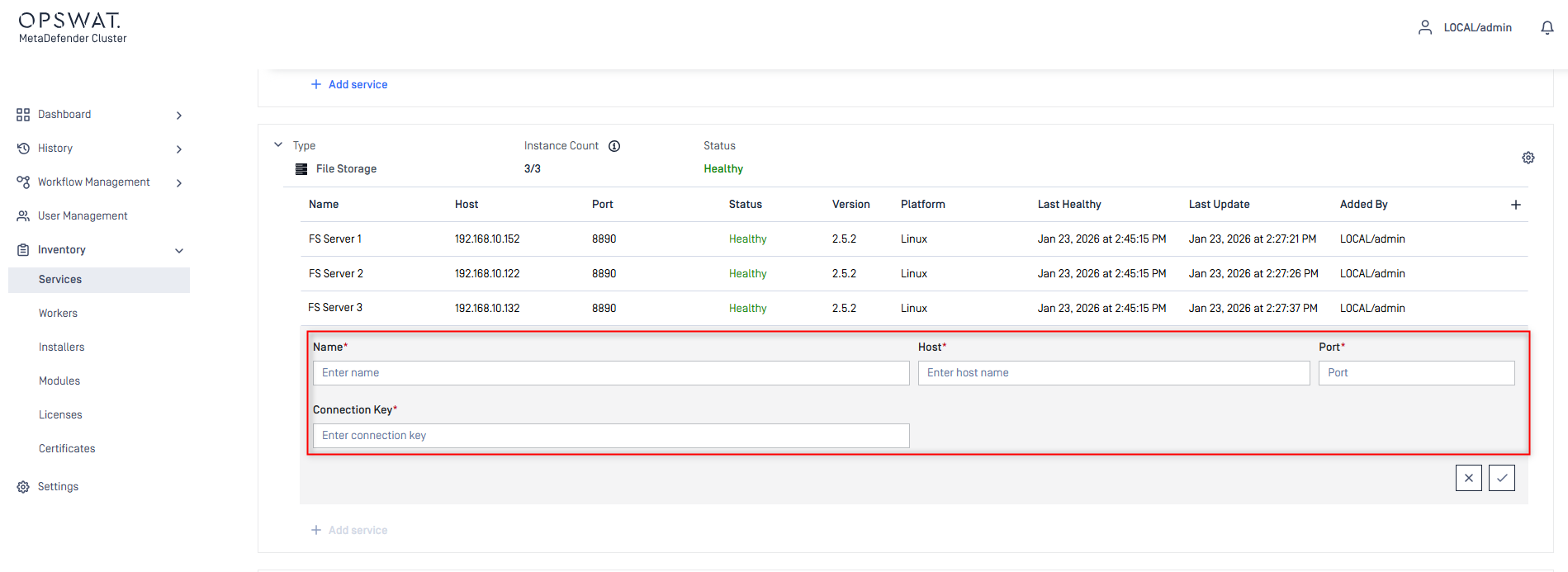
Add the File Storage server in this section. Fill out all required fields. If High Availability was configured for File Storage, add them to this section as well.
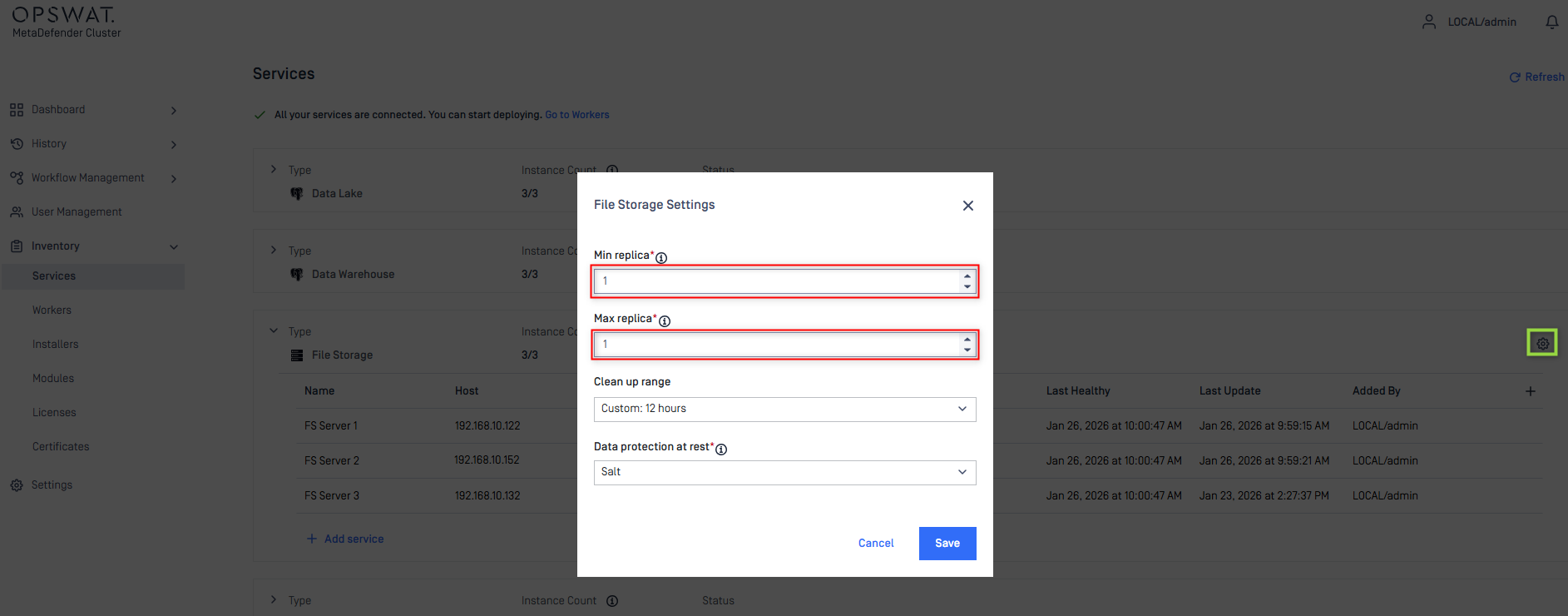
File Storage Settings
Values found in the File Storage Settings can be left in its default settings. However, when configuring High Availability for File Storage. Ensure that the Minimum replica and Maximum replica has been configured correctly. For more information on High Availability for File Storage, click here.
Min replica: The minimum number of data copies that must be written for the operation to succeed.
Max replica: The maximum of data copies stored across the system.
Clean up range: The number of days, weeks or months until clean up of files that are sanitized, watermarked files and files processed by Proactive DLP.
Data protection at rest: The protection mechanism is applied to the files stored in File Storage. By default, all files are salted before being they are saved to disk.
Import Services
The Import Services feature allows you to import connections for multiple service types—including Data Lake, Data Warehouse, Redis, RabbitMQ, and File Storage—from a single YAML file. This provides a faster alternative to creating each connection manually.
Importing services replaces all existing connections for each service type included in the YAML file. Connections for service types that are not included in the file remain unchanged
To import services:
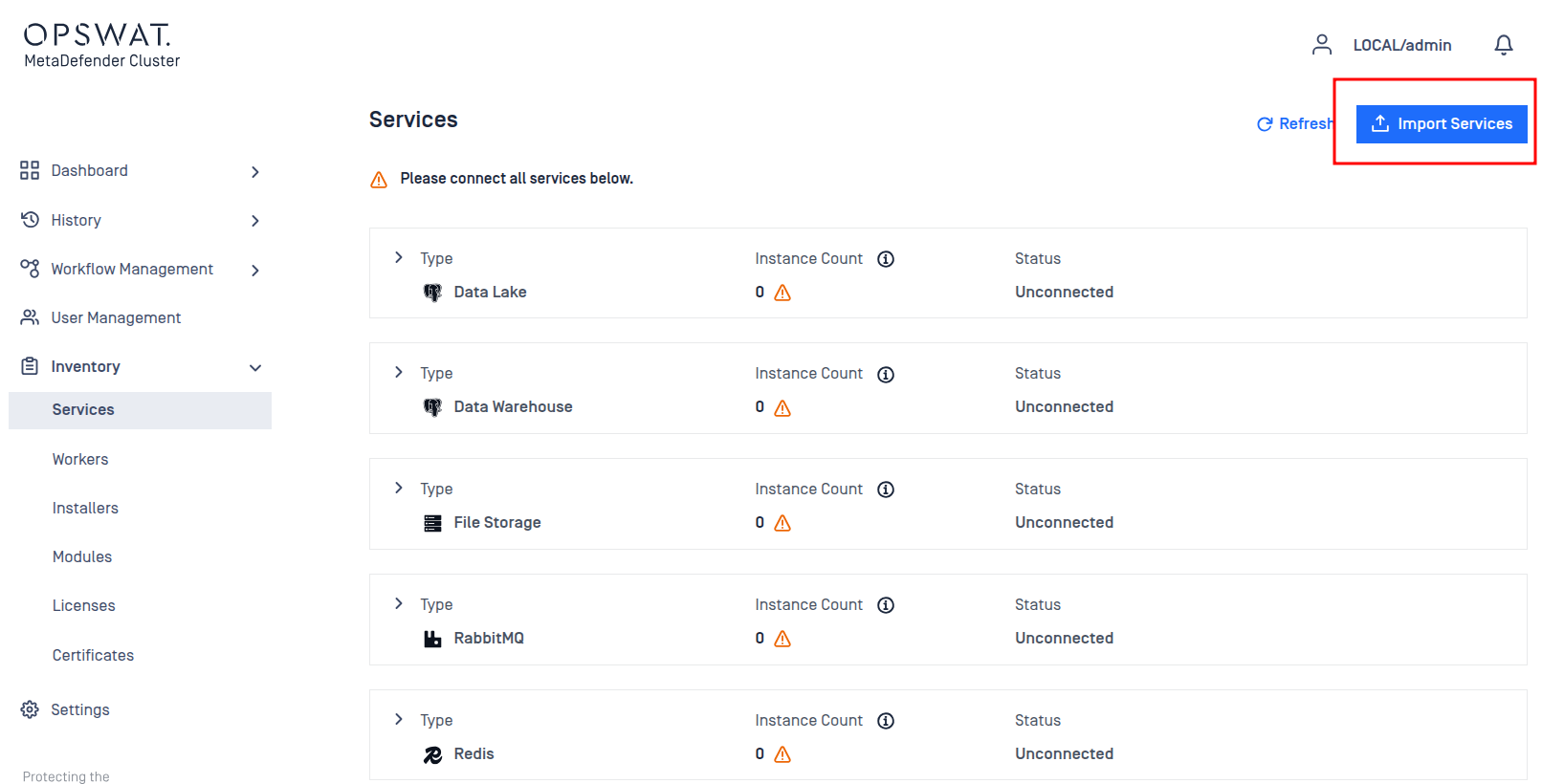
On the Services page, click Import Services in the upper-right corner.
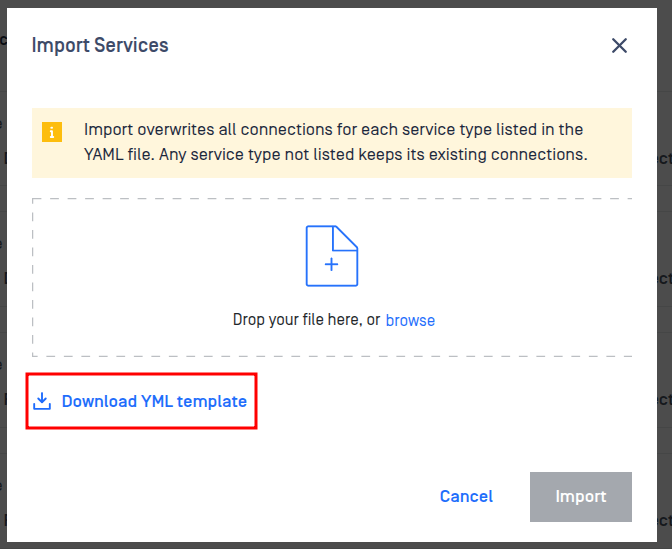
In the Import Services dialog, click Download YAML Template to download a sample file. Update the file with the connection details for the service types you want to import, and remove any service type sections that you do not want to import.
Drag the completed YAML file into the upload area, or click Browse to select the file from your computer.
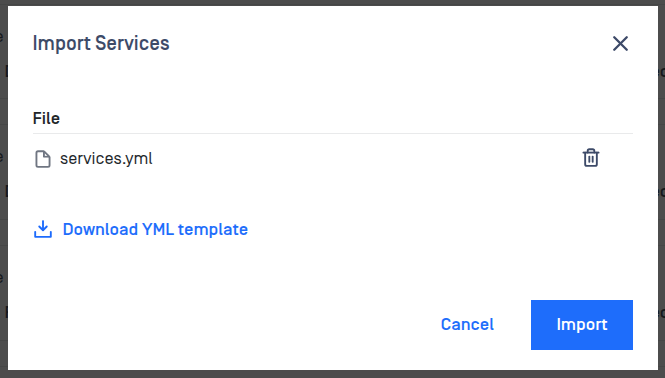
Click Import to apply the new service connections.