
Before executing the setup, please ensure System requirements are met and that any necessary dependencies are installed.
Installation order
MetaDefender Cluster consists of the following components along with their corresponding default ports.
| Step | Component | How to install (short name) | Default port |
|---|---|---|---|
| 1 | Redis Caching Server | Redis | 6379 |
| 2 | RabbitMQ Message Broker | RabbitMQ | 5672 |
| 3 | PostgreSQL Database Server | PostgreSQL | 5432 |
| 4 | MetaDefender Cluster File Storage | MD Cluster File Storage | 8890 |
| 5 | MetaDefender Cluster Identity Service | MD Cluster Identity Service | 8891 |
| 6 | MetaDefender Cluster Control Center | MD Cluster Control Center | 8892 |
| 7 | MetaDefender Cluster Worker | MD Cluster Worker | 8893 |
The system administrator should adhere to the following service installation sequence to prevent conflicts:
- Install Redis, RabbitMQ, Postgres, MD Cluster File Storage, MD Cluster Identity Service.
- Install MD Cluster Control Center.
- Install MD Cluster Worker on the targeted machines (for deploying MD Cluster API Gateway or MetaDefender Core).
An exception rule for the firewall needs to be created to permit both incoming (inbound) and outgoing (outbound) connections to every component.
While many components can be set up on a single machine, they should be installed individually on different machines according to their features. Kindly consult Best practices for further information.
Installation
Install Redis Caching Server
Redis version 7.0 or higher is required.
Only Redis on Linux is officially recommended.
- Follow steps to install Redis Caching server.
- Access Redis configuration file
/etc/redis/redis.conffor editing. - Comment out the
bindsetting and setprotected-modeoption to no.
...# The following line should be commented# bind 127.0.0.1...# The following line should be uncommented and set to noprotected-mode no...- Restart the service.
# Red Hat/Rocky $ sudo systemctl enable redis $ sudo systemctl restart redis# Debian/Ubuntu$ sudo systemctl enable redis-server$ sudo systemctl restart redis-serverInstall RabbitMQ Message Broker
RabbitMQ version 3.13.0 or higher is required.
RabbitMQ functions effectively only with specific supported versions of Erlang. Please refer to the link for the Erlang-RabbitMQ compatibility matrix.
Windows
- Download Erlang and follow the instructions to install Erlang.
- Download RabbitMQ for Windows.
- Run the executable file as administrator, follow instructions to complete the RabbitMQ installation.
- In Command Prompt, change working directory to
<RabbitMQ installation folder>/rabbitmq_server-<version>/sbinand run the following command:
> rabbitmqctl.bat add_user <username> <password>> rabbitmqctl.bat set_permissions -p / <username> "." "." "."> rabbitmqctl.bat set_user_tags <username> administratorLinux
- Download Erlang and follow the instructions to install Erlang and its dependencies.
- Download RabbitMQ for Red Hat/Rocky or Debian/Ubuntu .
- In Terminal, run the following command:
# Red Hat/Rocky$ sudo rpm -Uvh --nodeps rabbitmq-server-<rabbitmq version>.el8.noarch.rpm$ sudo systemctl enable rabbitmq-server$ sudo systemctl start rabbitmq-server # Debian/Ubuntu$ sudo dpkg -i rabbitmq-server_<rabbitmq version>_all.deb- In Terminal, run the following command:
$ sudo rabbitmqctl add_user <username> <password>$ sudo rabbitmqctl set_permissions -p / <username> "." "." "."$ sudo rabbitmqctl set_user_tags <username> administratorInstall PostgreSQL Database Server
PostgreSQL version 16.9 or higher is required.
pg_trgm extension is required for PostgreSQL running on Linux.
- Download PostgreSQL Database Server.
- Follow steps to setup Postgres Database Server to allow connections from external applications.
- Restart Postgres Database Server.
Install MD Cluster File Storage
- Build Ignition file for MD Cluster File Storage service.
- Start Command Prompt as Administrator on Windows or Terminal on Linux and run the following command:
# Windows> msiexec.exe /i <mddc_file_storage_package> /qn# Debian or Ubuntu$ sudo apt -y install uuid$ sudo dpkg -i <mddc_file_storage_package> || sudo apt install -f# Red Hat or Rocky$ sudo dnf -y install uuid$ sudo yum install <mddc_file_storage_package> -y- Check the service status.
Install MD Cluster Identity Service
- Build Ignition file for MD Cluster Identity Service.
- Start Command Prompt as Administrator on Windows or Terminal on Linux and run the following command:
# Windows> msiexec.exe /i <mddc_identity_service_package> /qn# Ubuntu or Debian$ sudo apt -y install uuid$ sudo dpkg -i <mddc_identity_service_package> || sudo apt install -f# Red Hat or Rocky$ sudo dnf -y install uuid$ sudo yum install <mddc_identity_service_package> -y- Check the service status.
Install MD Cluster Control Center
- Build Ignition file for MD Cluster Control Center service.
- Start Command Prompt as Administrator on Windows or Terminal on Linux and run the following command:
# Windows> msiexec.exe /i <mddc_control_center_package> /qn# Ubuntu or Debian$ sudo apt -y install uuid$ sudo dpkg -i <mddc_control_center_package> || sudo apt install -f# Red Hat or Rocky$ sudo dnf -y install uuid$ sudo yum install <mddc_control_center_package> -y- Check the service status.
Setup Data Lake and Data Warehouse
- Go to
C:\Program Files\OPSWAT\MetaDefender Distributed Cluster Control Centerdirectory in Windows Command Prompt or/usr/sbindirectory in Linux Terminal. - Run the following command:
# Windows> mddc-dbready.exe --host=<postgres-host> --port=<postgres-port> --user=<postgres-user> --password=<postgres-password> --target=lake,warehouse# Linux (Ubuntu, Debian, Red Hat or Rocky)$ mddc-dbready --host=<postgres-host> --port=<postgres-port> --user=<postgres-user> --password=<postgres-password> --target=lake,warehouseMake sure the postgres-user possesses superuser rights to successfully create the database.
Install MD Cluster Worker
You need to prepare at least two workers: one for MetaDefender Core and the other for MD Cluster API Gateway.
- Build Ignition file for MD Cluster Worker service.
- Start Command Prompt as Administrator on Windows or Terminal on Linux and run the following command:
# Windows> msiexec.exe /i <mddc_worker_package> /qn# Ubuntu or Debian$ sudo apt -y install uuid$ sudo dpkg -i <mddc_worker_package> || sudo apt install -f# Red Hat or Rocky$ sudo dnf -y install uuid$ sudo yum install <mddc_worker_package> -y- Check the service status.
- Repeat the above steps for other MD Cluster Workers.
Configurations
When all MD Cluster Worker instances are installed successfully, it marks a completed installation. Now, heading to essential configuration steps.
Connect essential services
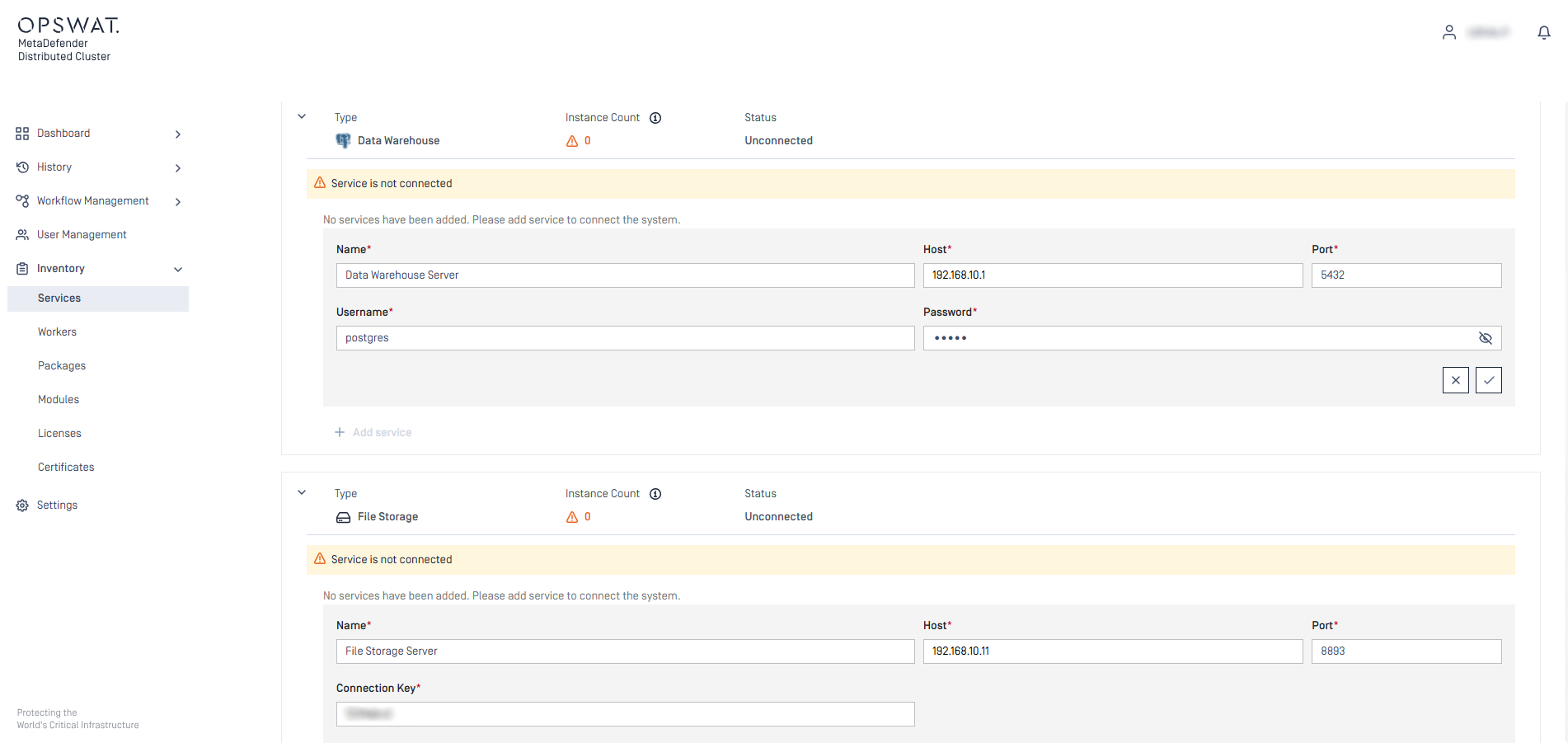
Essential services for the Cluster includes Redis, Postgres, RabbitMQ, and MD Cluster File Storage.
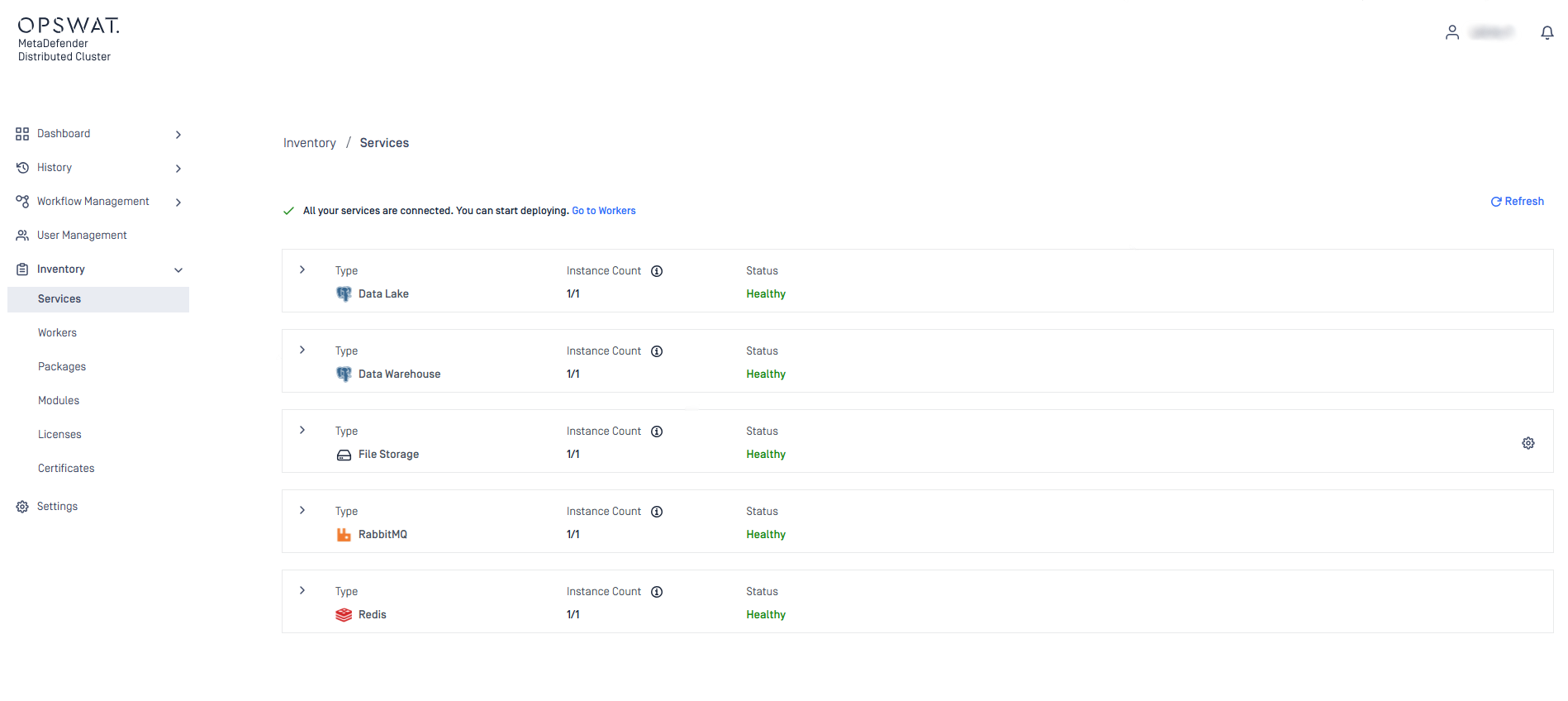
The system is operational only when MD Cluster Control Center can effectively connect to all essential services.
- Sign in to MD Cluster Control Center web console with the initial administrator user account that you created in Install MD Cluster Identity Service.
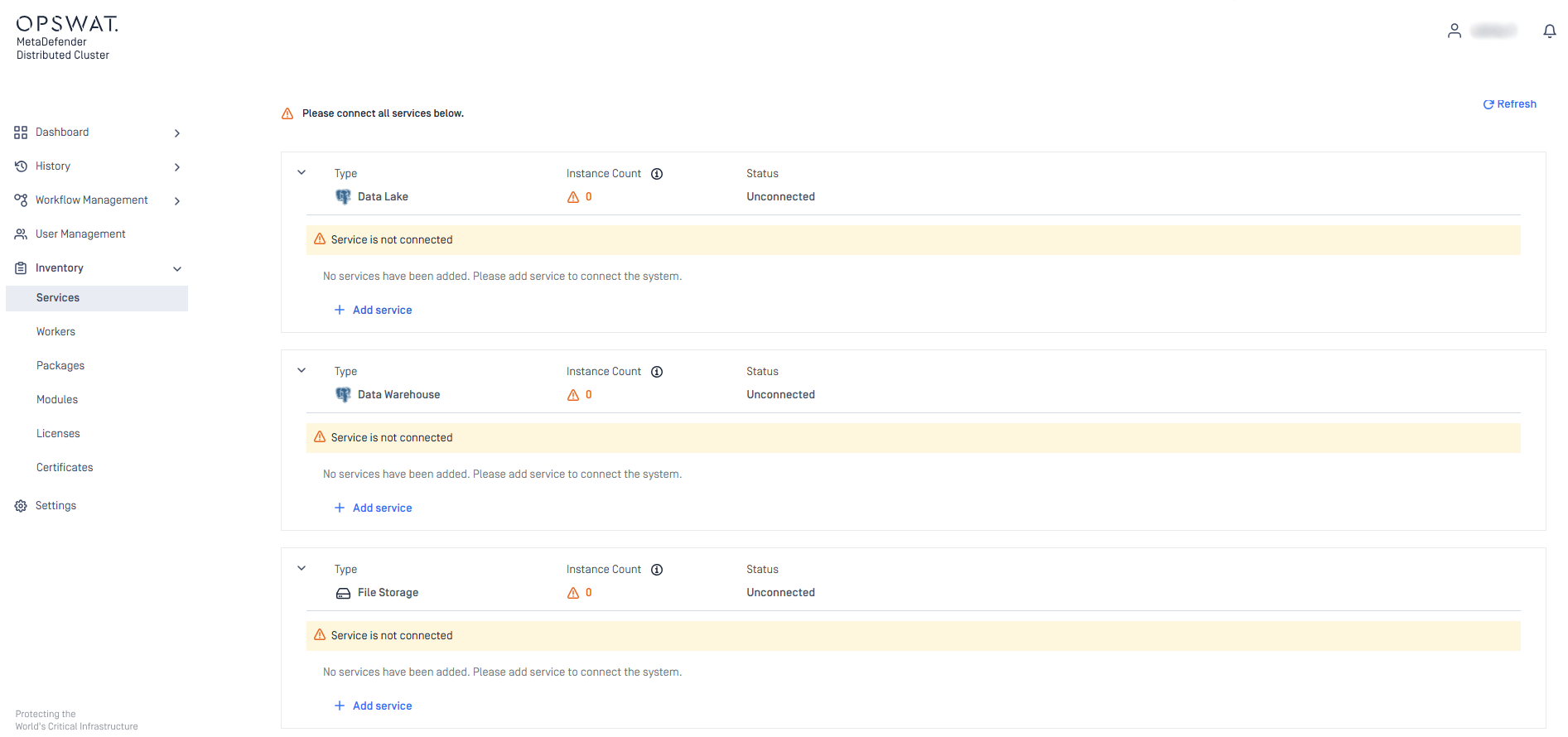
- Go to
Inventory>Services, open the relevant service category, and click onAdd service.
- Complete all necessary fields as specified by the selected services.
- Save result.
- Check status of the service connections.
Submit MetaDefender Core and MD Cluster API Gateway installers
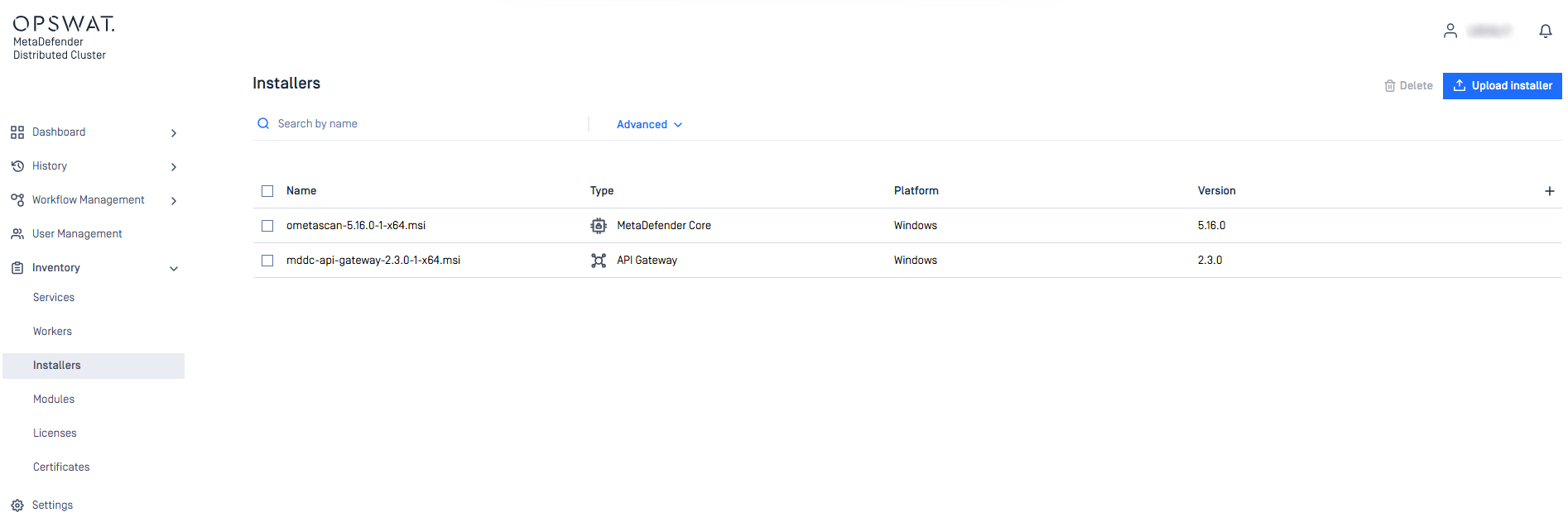
The installers of MetaDefender Core and MD Cluster API Gateway will be subsequently deployed on MD Cluster Worker remotely by MD Cluster Control Center.
Various versions of installation files may be submitted to MD Cluster Control Center. The correct version to install will be chosen during Deployment phase.
- Sign in to MD Cluster Control Center web console with the initial administrator user account that you created in Install MD Cluster Identity Service.
- Go to
Inventory> Installers and selectUpload installer. - Select MetaDefender Core or MD Cluster API Gateway installation files.
- Click
Upload.
Connect to MD Cluster Workers
- Sign in to the MD Cluster Control Center web console with the initial administrator account that you created during the installation of MD Cluster Identity Service.
- Go to
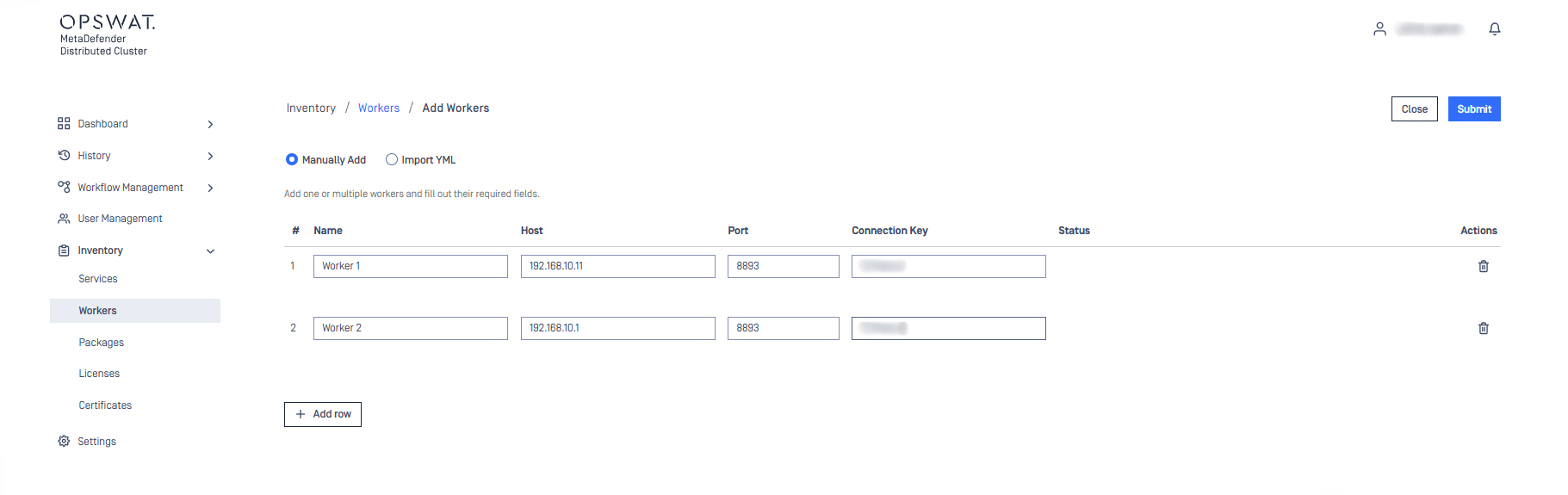
Inventory>Workersand selectAdd workers. - Complete the required fields to add new workers and click
Submit.
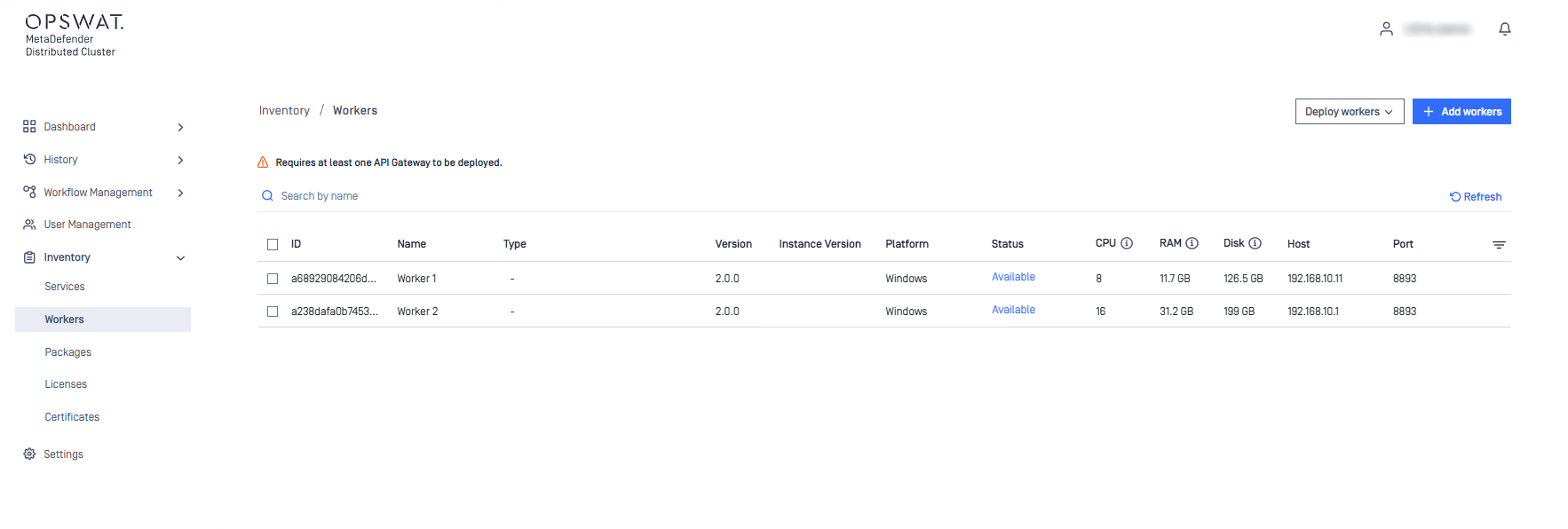
- Check the status of MD Cluster Worker connections.
Deploy MetaDefender Core and MD Cluster API Gateway instances
- Sign in to the MD Cluster Control Center web console with the initial administrator account that you created during the installation of MD Cluster Identity Service.
- Go to
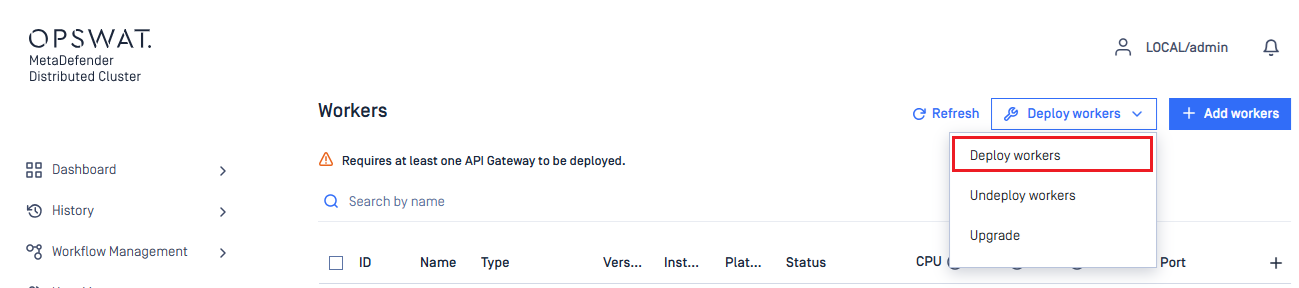
Inventory>Workersand selectDeploy workers.
- In API Gateway tab, select workers for MD Cluster API Gateway deployment and decide which installer version will be used to deploy on the selected workers.
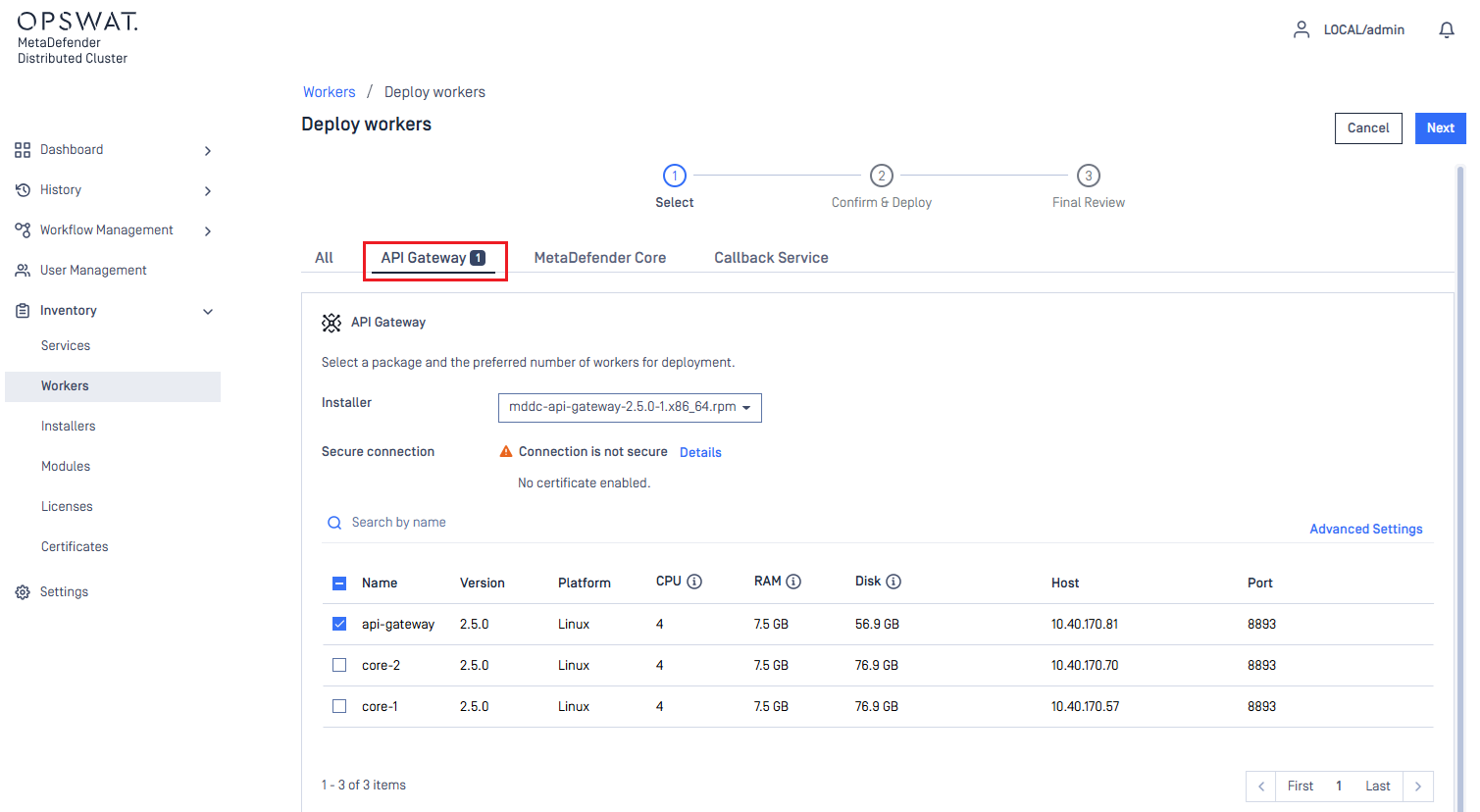
- Repeat the step for selection of workers for MetaDefender Core deployment.
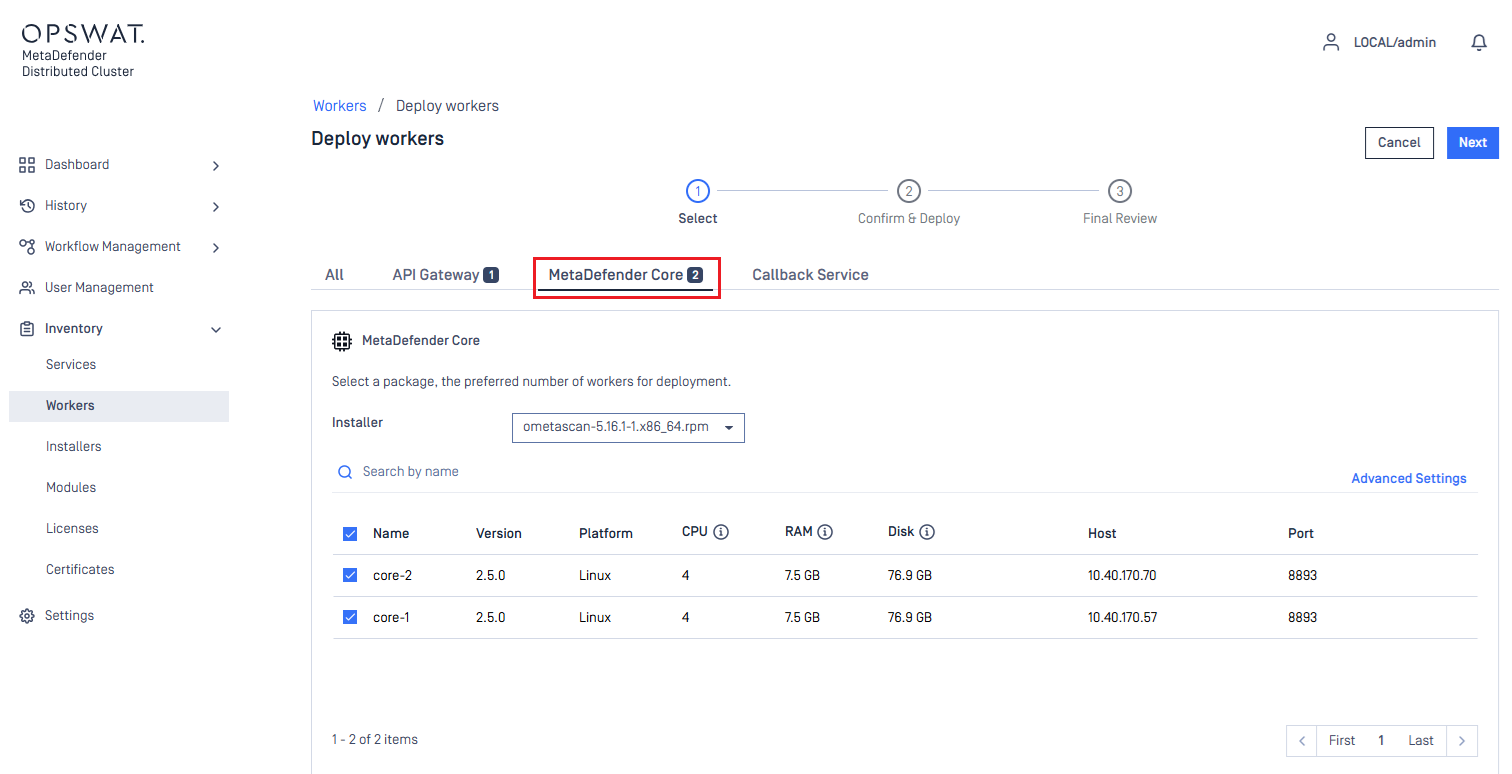
MetaDefender Cluster is only ready to use when both MD Cluster API Gateway and MetaDefender Core are deployed.
- Click
Next. - Confirm the deployment details, then click
DeployandFinish. - Hold off until the deployment is completed successfully.
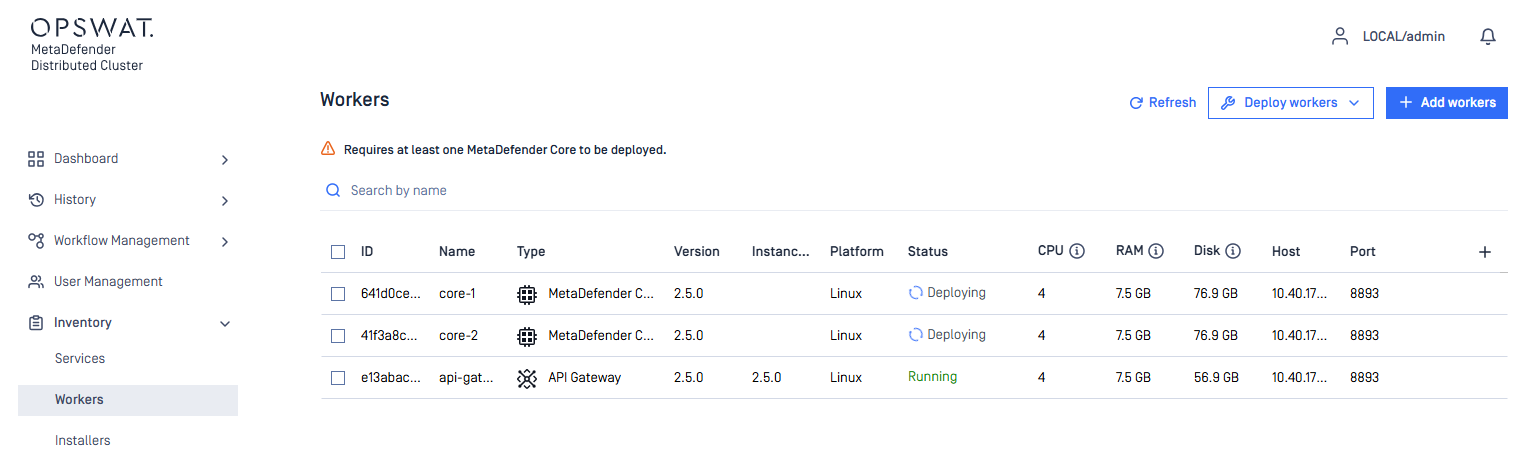
- Although MetaDefender Core instances are deployed successfully on workers, a valid license is required for them to function.
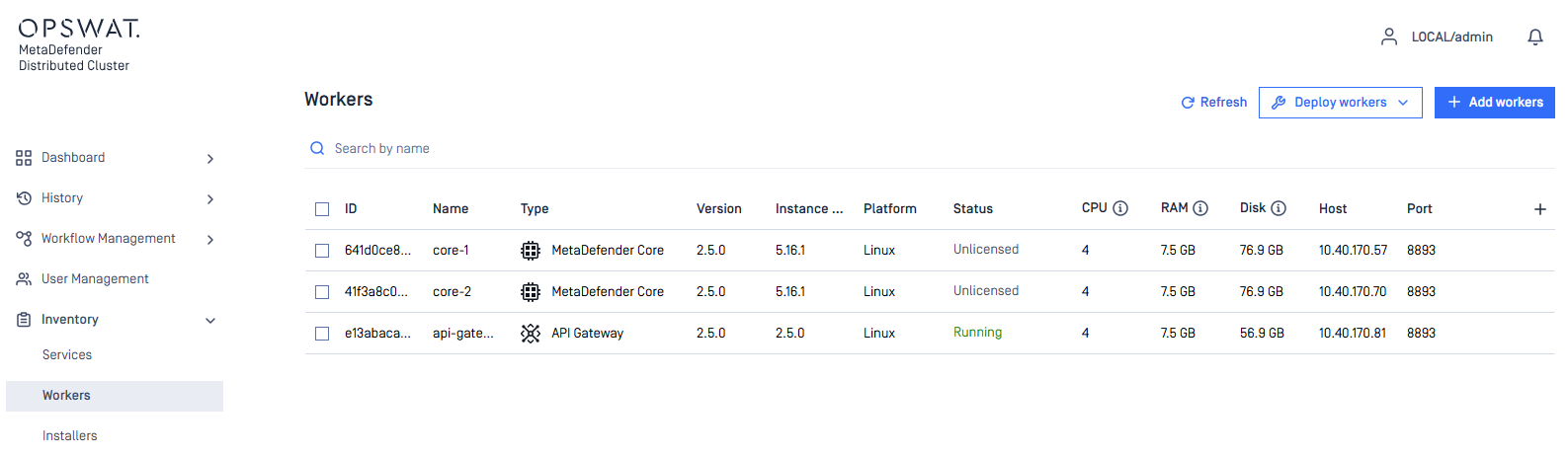
Activate online license
- Sign in to the MD Cluster Control Center web console with the initial administrator account that you created during the installation of MD Cluster Identity Service.
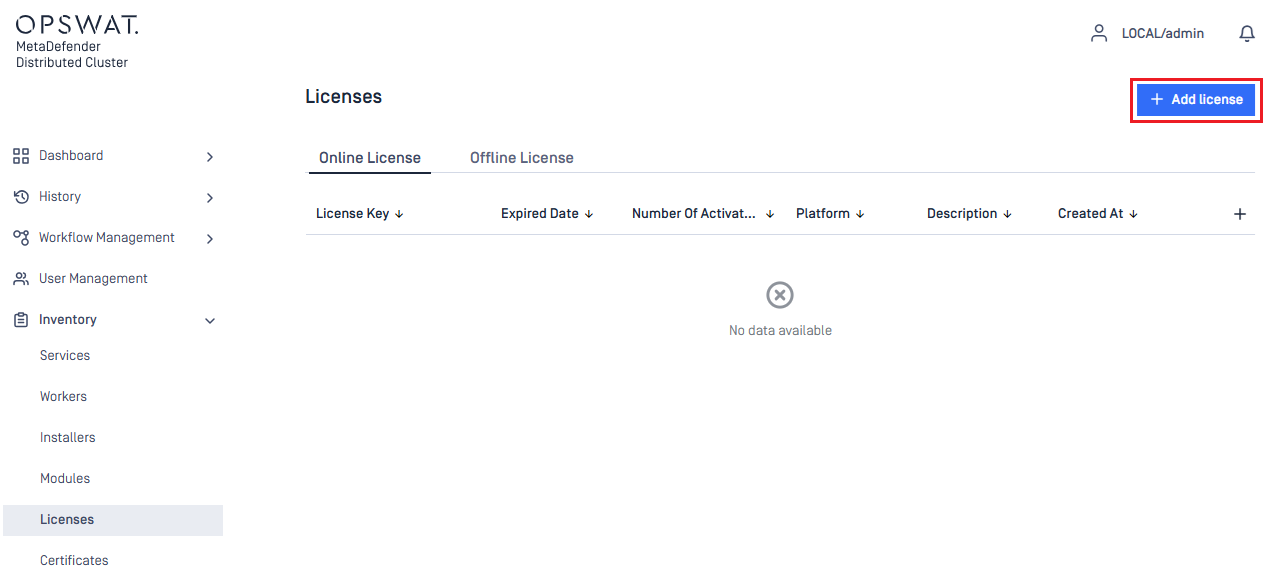
- Go to
Inventory>Licensesand selectOnline License. - Click
Add licenseand input your license key.
- Click the three-dot icon beside your selected license key and choose
Activate.
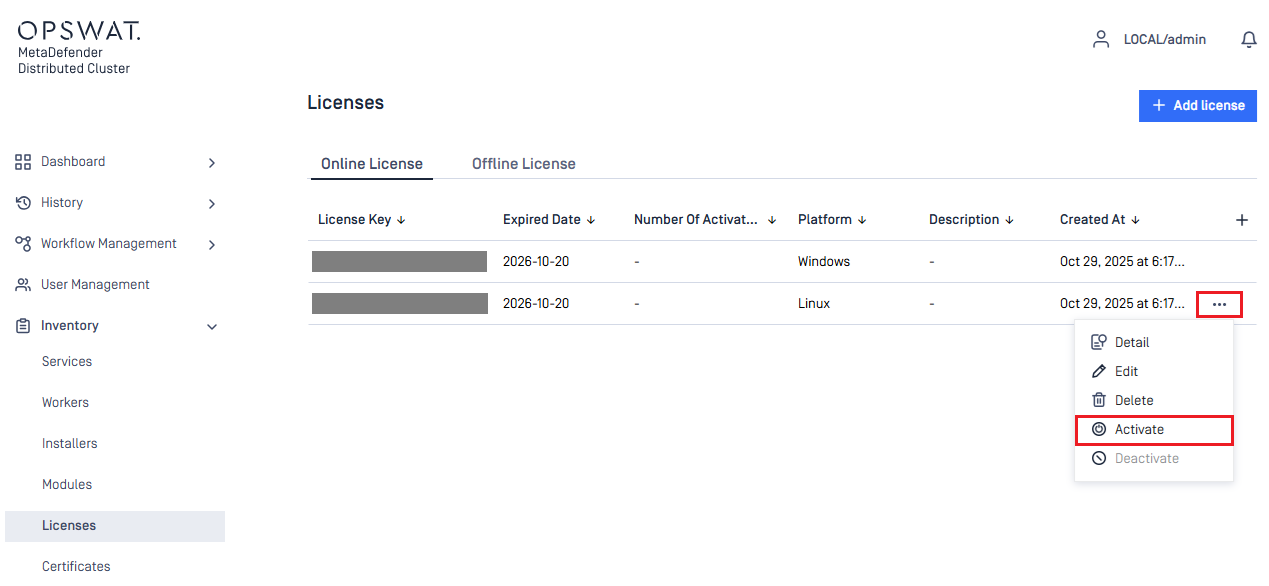
- Wait until the license activation finishes on the deployed MetaDefender Core instances.
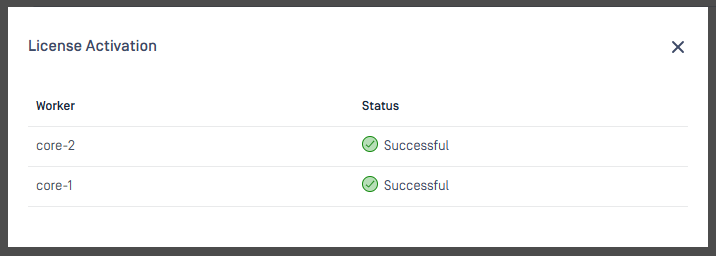
- Navigate to
Inventory>Workersto ensure the running status of the workers hosting MetaDefender Core.
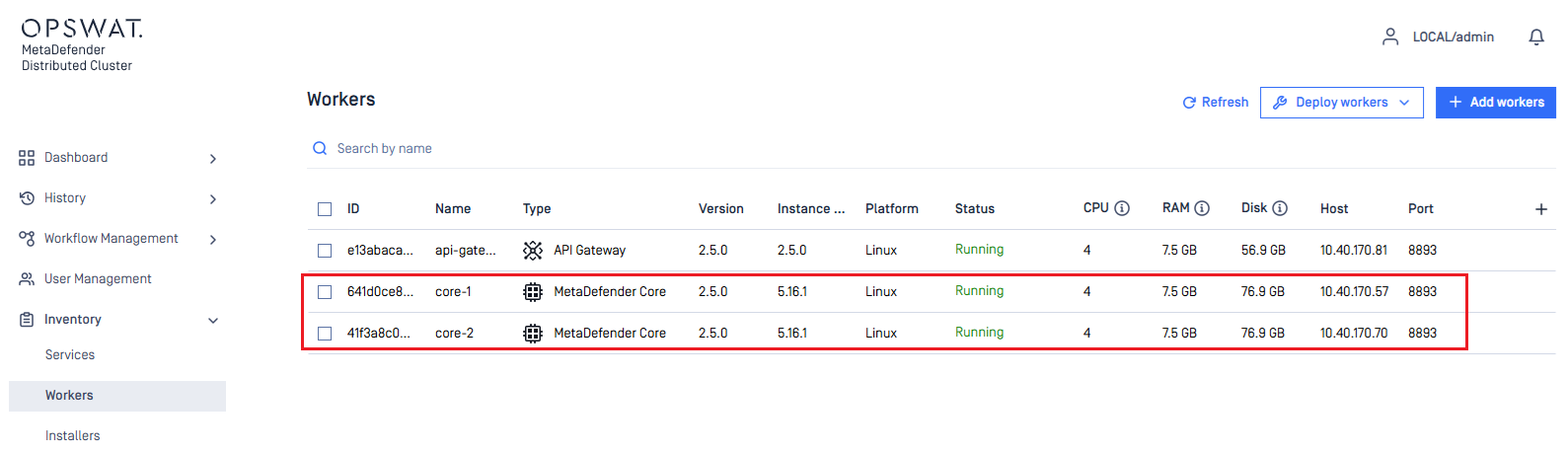
- MD Cluster API Gateway can now efficiently accept scan requests.

