Supported Operating Systems
OS | Version |
|---|---|
Windows | Windows 11 23H2+, Windows Server 2019+. |
Ubuntu | Ubuntu 22.04+, Ubuntu 24.04+, Debian 12+, Rocky 9+, or RHEL 9+. |
Overview
This section describes how to install a MD Cluster Worker on a target machine by retrieving and executing an installation script from MD Cluster Control Center. After installation, administrators can monitor the health status of the installed worker.
Prerequisites
Requirement | Description |
|---|---|
Privileges | Administrator privileges on Windows; Root or sudo access on Linux |
Network | MD Cluster Worker must be able to communicate with MD Cluster Control Center |
Port | Default port 8893 must be open for MD Cluster Control Center to reach |
Dependencies | Meet System requirements |
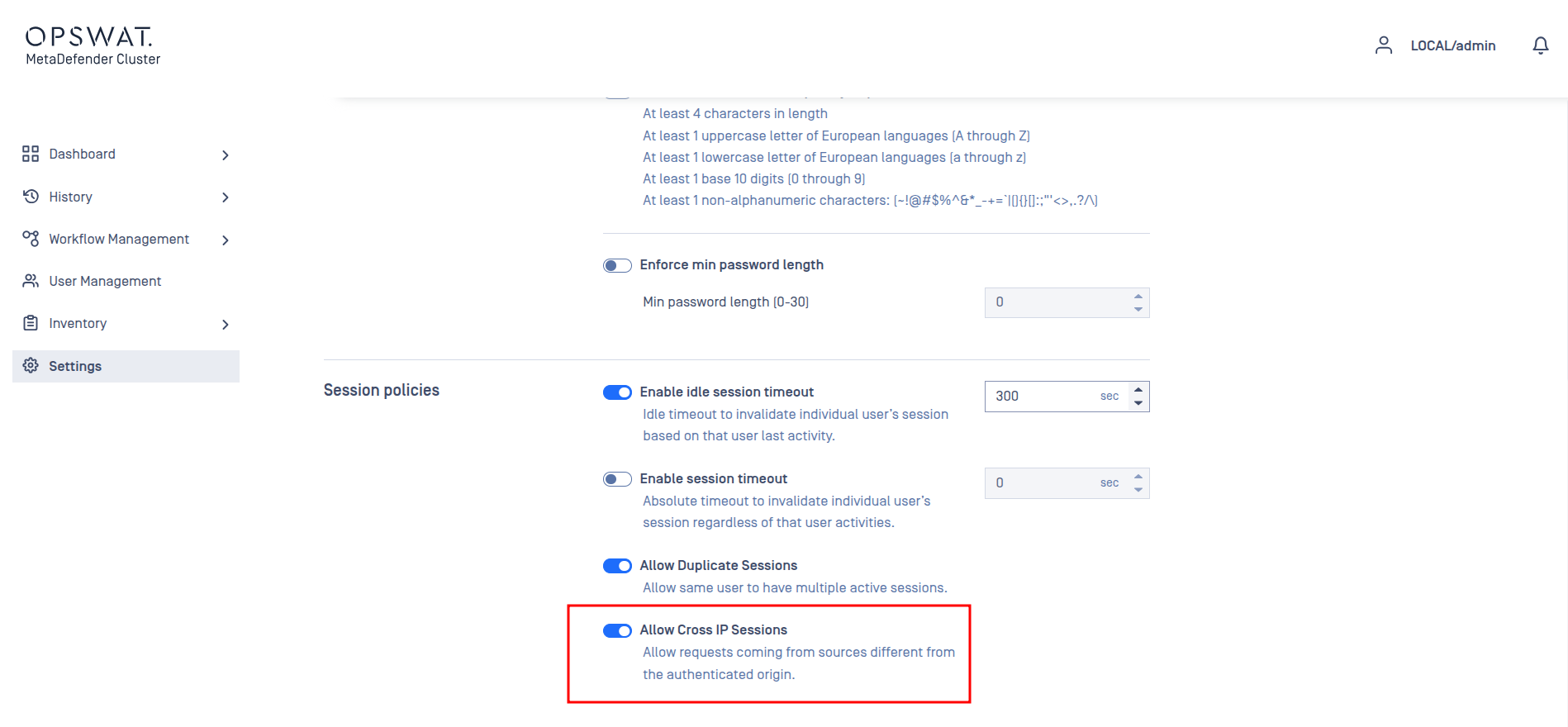
Allow Cross IP Sessions
Sign in to MD Cluster Control Center console using your administrator account.
From the sidebar, go to
Settings>Security.Toggle
Allow Cross IP Sessions.
Retrieve the installation script
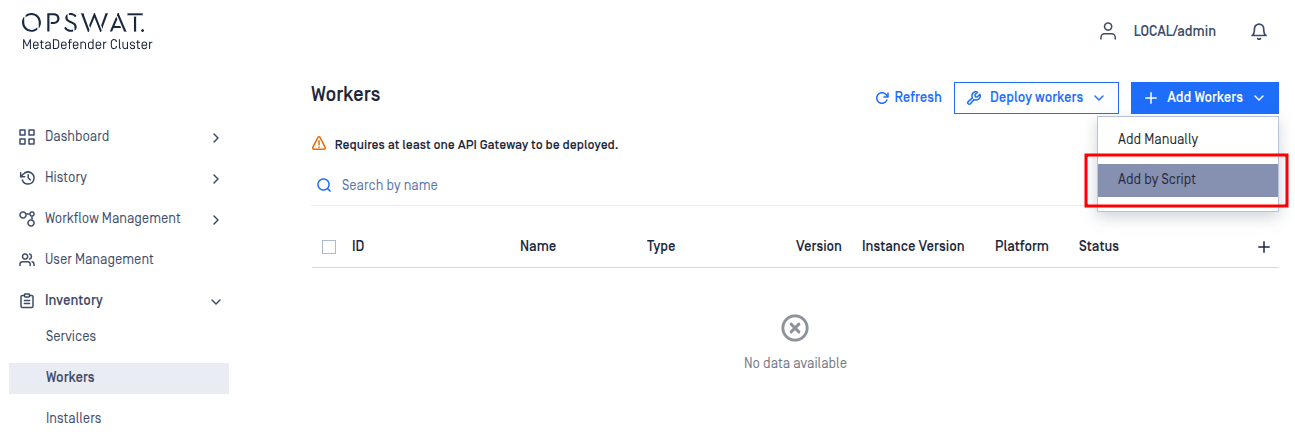
From the sidebar, go to to
Inventory>Workers.Expand
Add Workersand selectAdd by script.
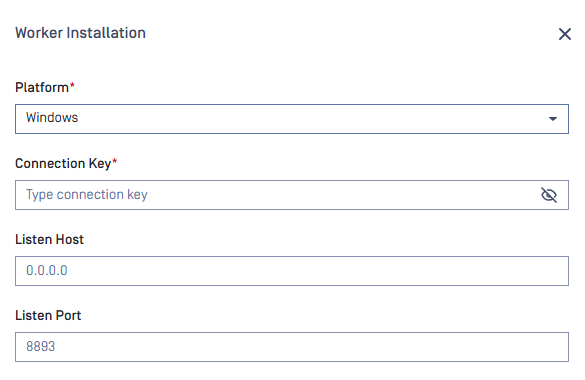
In Worker Installation, choose the appropriate platform (Windows or Linux).
Enter the connection key provided by your administrator and leave the other settings as default.
Avoid using loopback addresses (such as localhost, 127.0.0.1, or ::1) when generating the installation script.
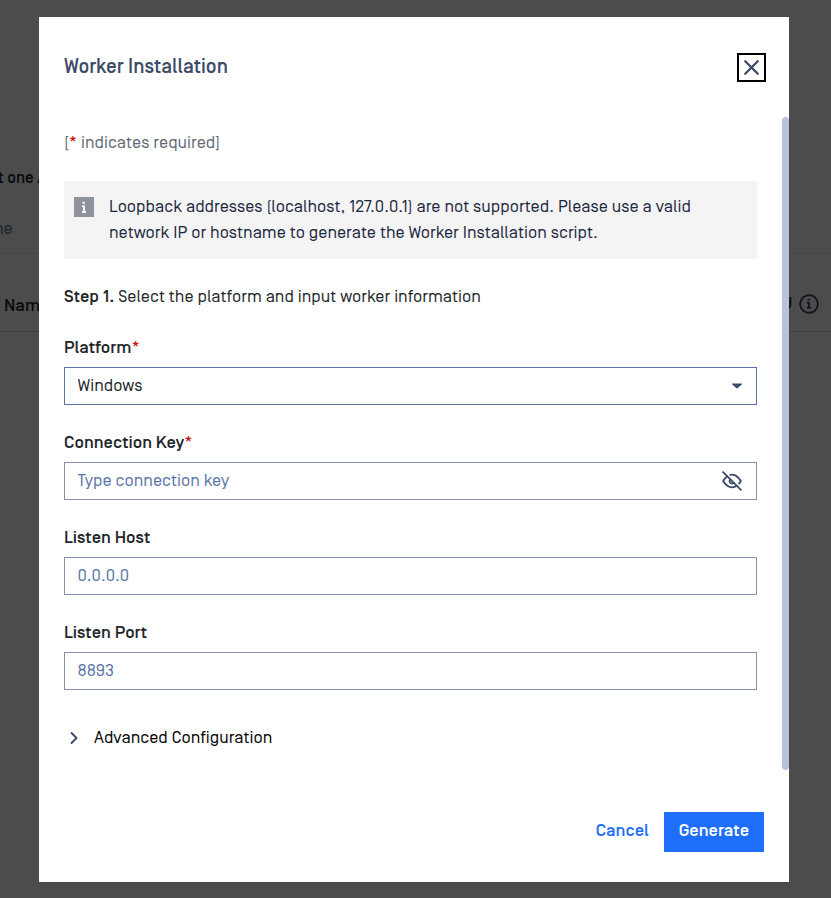
Click
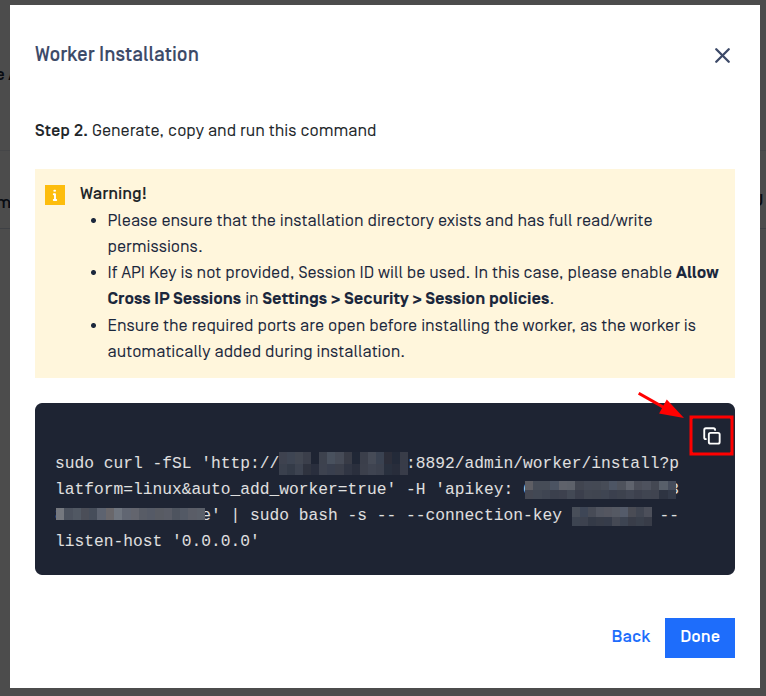
Generate.Copy the generated script.
Execute the installation script
Access the target machine.
Run the copied command:
On Windows: open PowerShell as Administrator, paste and run the script.
On Linux: open a root shell (e.g., sudo su), paste and run the script.
Once the installation completes, note the Worker ID displayed on the screen.
Verify the installation
Sign in to MD Cluster Control Center console.
From the sidebar, go to
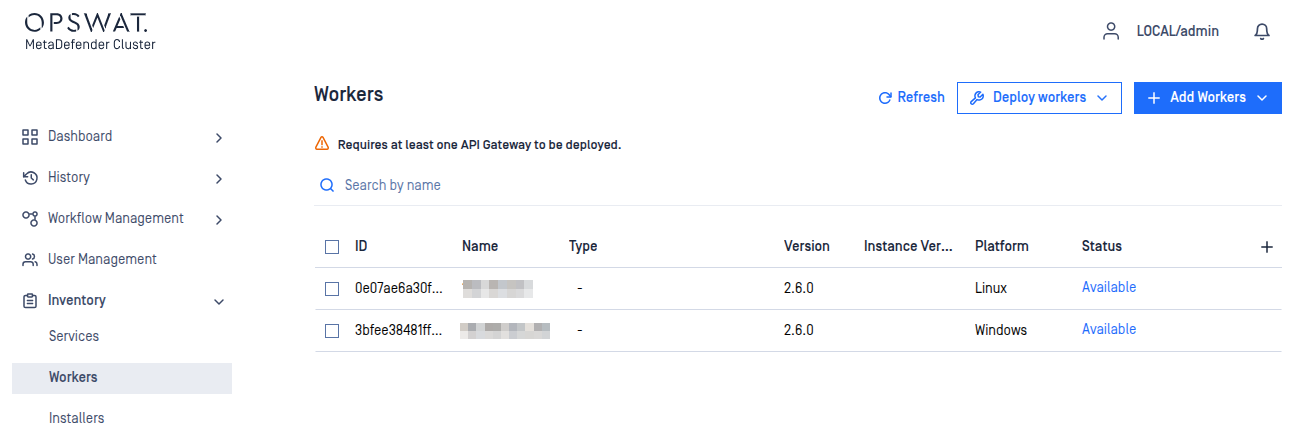
Inventory>Workers.Confirm that the worker with the previously collected Worker ID appears with the correct version and platform.
Service management
Stop the service:
Start the service:
Restart the service:
Customize the service configuration
During installation, MD Cluster Worker service generates a configuration file at
Windows:
<installation_dir>\MetaDefender Cluster Worker\md_cluster_worker.ymlLinux:
<installation_dir>/data/config/md_cluster_worker.yml
To customize the service behavior:
Open the configuration file in a text editor.
Modify the required settings according to your environment.
Save the changes.
Restart the service to apply the new settings.
Uninstall the service
Navigate to MD Cluster Worker installation directory.
Open PowerShell (Admin) on Windows or a sudo terminal on Linux.
Run command:
Troubleshooting
CURL error 403 during installation
Possible causes:
The session has expired.
The user does not have deployment permission.
Solutions:
Regenerate the installation script and run it again.
Use an account with the required permissions or provide an API key with deployment access.
Configuration reference
Common configurations
Platform(Required)Value: Windows or Linux
Description: The platform where the installation script will be run.
Connection Key(Required)Value: String
Description: A 4-64 character string that contains only digits (
0-9) and letters (a-z,A-Z) provided by system administrator.
Listen Host(Optional)Value: String
Description: The host/interface the MD Cluster Worker listens on. Default is 0.0.0.0 (all IPv4).
Listen Port(Optional)Value: Number
Description: The port number where MD Cluster Worker listens for requests. Default is 8893.
Advanced configurations
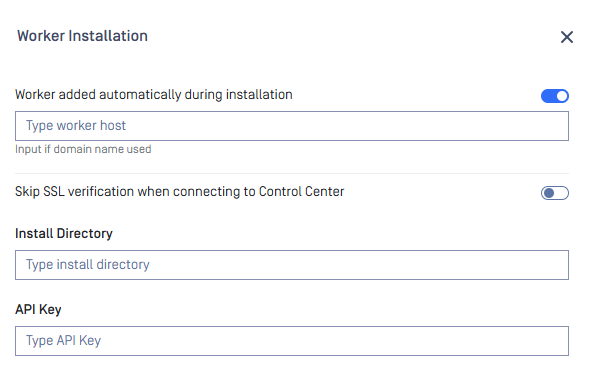
Worker added automatically during installation(Optional)Value: String
Description: The worker host is automatically detected from the IP address used to connect to MD Cluster Control Center. To register the worker with a DNS or domain name instead, specify the hostname here.
Skip SSL verification when connecting to Control Center(Optional)Value: Yes or No
Description: Use this option only for testing or when using self-signed certificates. For production, use a CA-signed certificate and keep SSL verification enabled.
Install Directory(Optional)Value: a valid directory path.
Description: Specifies the location where MD Cluster Worker will be installed. The default is
C:\Program Files\OPSWAT\MetaDefender Cluster Workeron Windows and/opt/md-cluster-worker/on Linux.
API Key(Optional)Value: String
Description: Use an API Key instead of
Allow Cross IP Sessionsfor authentication during installation. This is the recommended alternative when you don’t want to enable Allow Cross IP Sessions.
Skip dependency installation(Optional, Linux only] :Value: Yes or No
Description: Skip installing dependencies on Linux (e.g. when they are pre‑installed or managed by your OS image).