
The device allowlist is accessible under Policies → Device Policies → Allowlist.
The device allowlist contains a list of device policies that are allowed to connect to the system. These policies are learned during discovery phase or manual input by user. if the device violates any rules in this policy, an alert will be triggered.
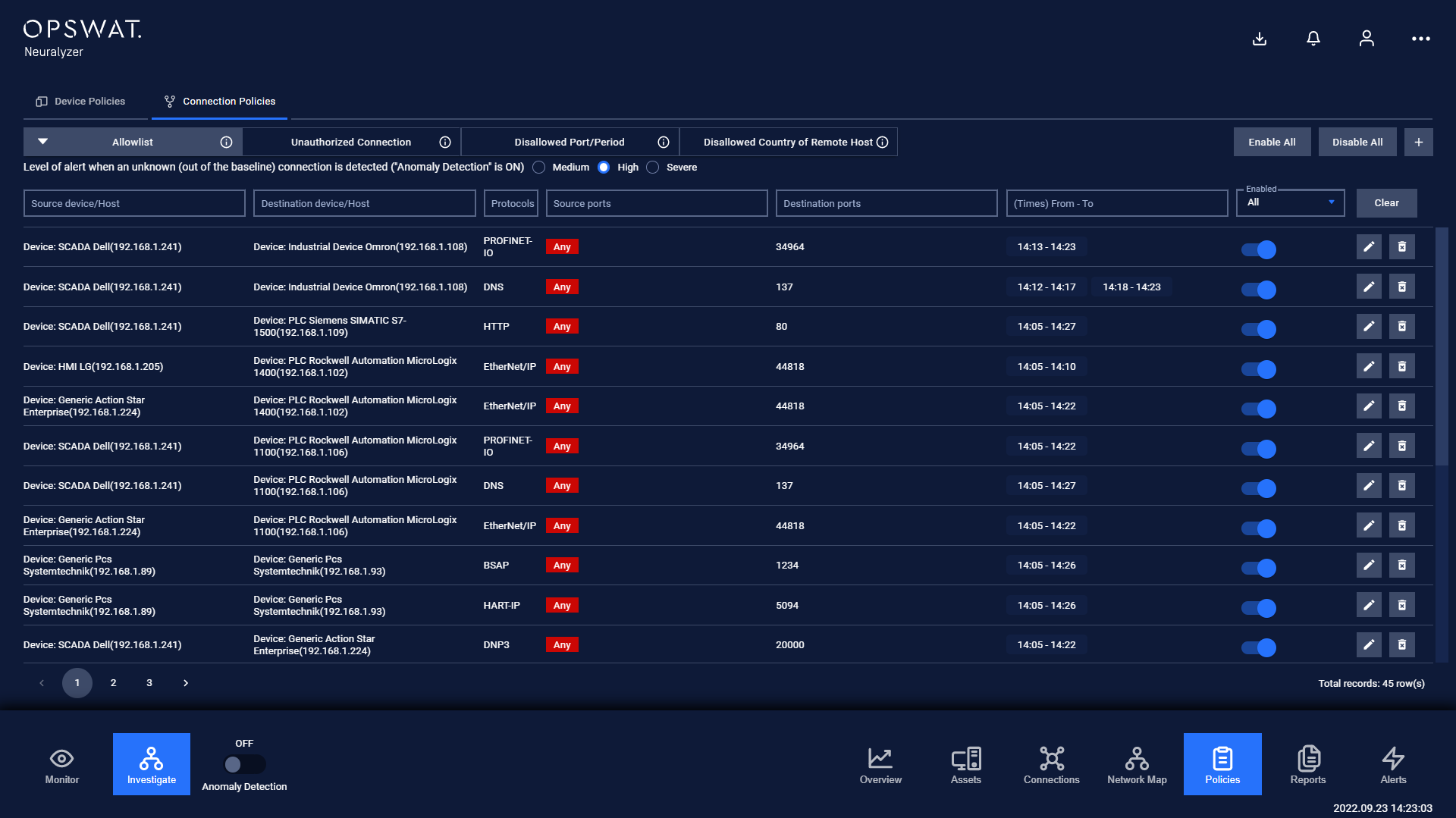
Any devices that are not listed in device policy will cause Neuralyzer consider as an “Unauthorized device”.
Each record in the device list also contains additional rules about:
The time threshold that allows the device to be inactive.
The open ports that device is allowed, and the corresponding protocol on that port.
Any violations of these additional rules will cause alerts to trigger as well.
Device policies will be created or added more details for additional rules through:
Learning when Neuralyzer is in Discovery mode.
Manually added by the user.
Automatically added when the user resolves a device alert with Anticipated status.
User can click on the tab “Allowlist” to expand the settings option for alert level of new device that have not been accepted to the system yet.
Device learning period
For a new device that connected to the system, after accepted that device, the device will be put in learning mode. (If user enable “inherit learning period for all devices” in wizard setup step 5)
During device learning phase, the device policies will be constantly updated even the Anomoly Detection is ON.
Neuralyzer will stop learning the device when learning phase is completed.
Actions on Device Allowlist policies page
1. View policy
Device allowlist page is paginated, each page contains 20 records, the total number of policy records is displayed at the bottom of the list
Policies are displayed in a list, each record contains the following information:
Device: Device name and IP address.
Maximum inactive time: Maximum time threshold that device can keep inactive.
Protocol: Contains a list of allowed open port and protocol on those ports, which is displayed in format protocol:port (e.g. http:80) where the protocol can be left blank
Enabled/Disabled: Turn on/off policy.
2. Edit policy
You can edit a policy by tapping on “Edit” button on the right of each policy record, a policy editing pop-up will appear.
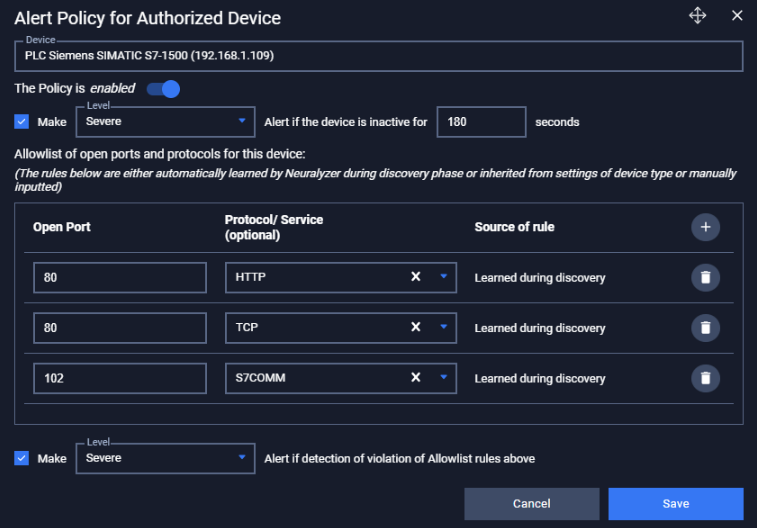
In the pop-up editing, you can see the detail policy. You can edit by clicking on the field to be edited and perform input operations like when creating a policy.
You can remove a pair of allowed open ports - protocol by click on icon Delete on the corresponding row
When finished editing, click “Save” to save the changes or “Cancel” to discard all
Field | Type of input | Note |
|---|---|---|
Device | Choose from drop-down list Input device name (support searching by device’s name and IP). | |
Enable/Disable policy option | Tap to turn on/off policy. | Once disabled, the policy will not be applied when switching to Protected mode. |
Alert option for inactive device | Check on check box to enable. Uncheck to disable. | Once unchecked, Neuralyzer will not alert if the device violates the inactive time threshold. |
Criticality for inactive device alert | Choose from drop-down list. | |
Time threshold for inactive device | Input value in number format. | The threshold is in seconds (s). |
Allowed open ports | Input value in number format. | Port numbers range from 0 to 65535. Field “Source of rule” will display value “Manual” for any pair of open ports and protocol added by user. Otherwise displayed “Learned during discover”. |
Allowed protocol on corresponding ports | Choose from drop-down list. | Allowed Protocol is an Optional field. Choose a specific protocol to allow only that protocol on that port (support searching by protocol name). Left blank to allow all protocols. |
Alert option for allowed open ports and protocol | Check on check box to enable. Uncheck to disable. | Once unchecked, Neuralyzer will not alert if the device violates the allowed open ports and protocol |
Criticality for allowed open ports and protocol | Check on check box to enable. Uncheck to disable. | Once unchecked, Neuralyzer will not alert if the device violates the allowed time period |
3. Search policy
Searching feature for policy list is located at the top of the policy page.
You can search on one or more fields of the policy, just input value onto one or more fields.
E.g. You want to search policy for a Mitsubishi device and allowed open port 44818, proceed to input
“Mitsubishi” into field device and “44818” into field protocol, the result list will display.
Click the “Clear” button to clear the values in the filters.
Note: You can input device name or IP into device field, we support searching device by both name and IP.
4. Remove policy
You can remove a policy from the list by clicking the "Delete" button on each the policy record.