
My OPSWAT Central Management provide capability to configure session timeout settings independently for each user role, enabling more flexible session management across different user types and use cases.
Configure Session Timeout for a Role
Log in to My OPSWAT Central Management as an administrator
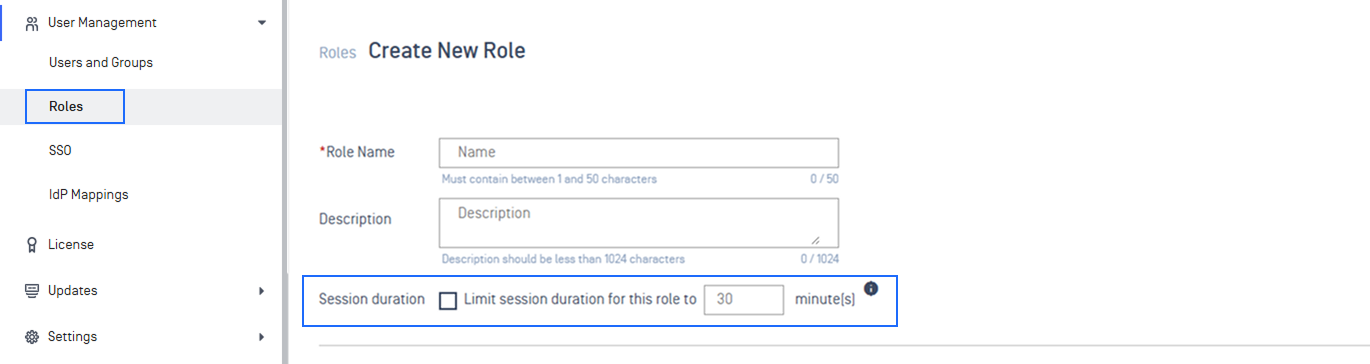
Navigate to User Management → Roles
Create a new role or edit an existing custom role
Enable Custom Session Timeout
Enter the desired session duration (in minutes)
Click Save
Assign the Role to a User
Navigate to User Management → Users and Groups
Edit the target user
Assign the role configured with the desired session timeout
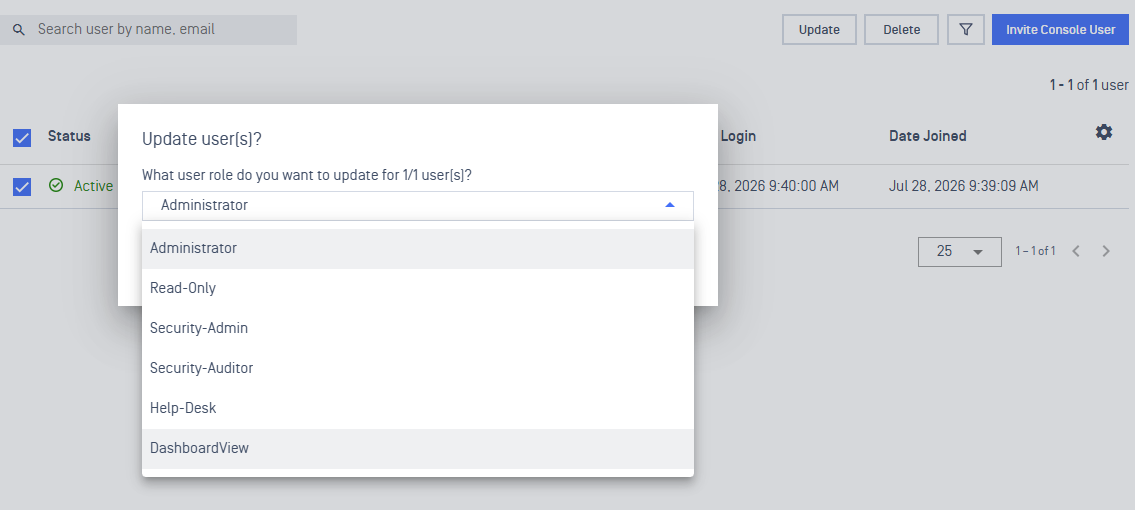
Save the change
The new session duration will apply the next time the user signs in.
Session Behavior for User Roles
Default Roles
Continue to use the standard session timeout behavior.
Sessions may be automatically refreshed while users remain active.
Inactive users may be prompted to extend their session before being signed out.
Roles with Custom Session Timeout
The configured session duration is applied to the user's login session.
Session extension is not available.
Users are automatically signed out when the configured session duration is reached, regardless of activity.