
This section guides you steps to configure an SMTP server to allow My OPSWAT Central Management to send email alerts and notifications.
Steps:
Go to Settings > Servers > Email Server.
Check the option "Enable SMTP Server".
Fill the required fields
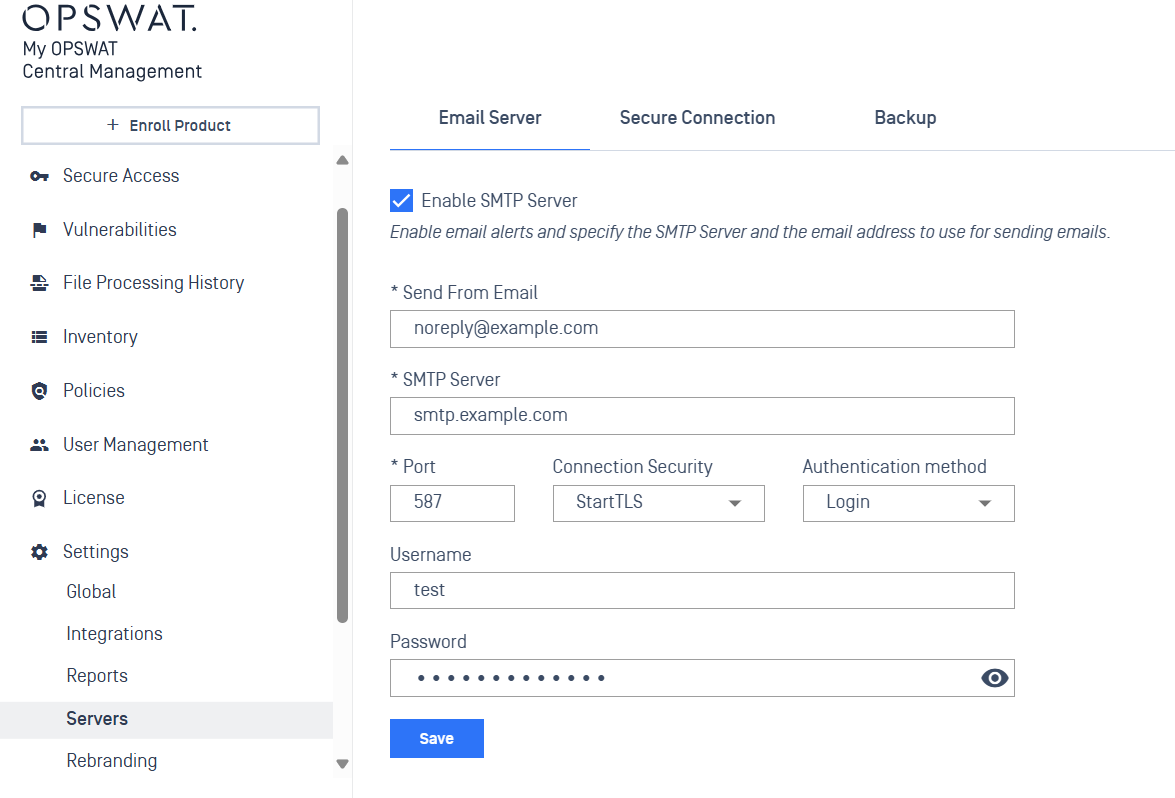
Field | Description |
|---|---|
Send From Email | The email address used to send emails. Example: |
SMTP Server | The address of the SMTP server. Example: |
Port | The port used for the SMTP connection. Common Gmail SMTP port: |
Connection Security | The security protocol used for email transmission. Select: None | StartTLS | |
Authentication Method | The method used to authenticate the SMTP server. Select: None | |
Username | The account name (usually the same as the sender email). |
Password | The application-specific password or account password (hidden for security). |
Click Save